Building a tool palette from your downloaded CAD blocks
How to turn a folder of downloaded DWG blocks into an AutoCAD tool palette so common furniture and fixtures insert in one click.
Sumana KumarUpdated 13 April 20265 min read

Why a folder full of blocks is not the same as a fast workflow
Having a well organised shared library solves the trust and consistency problem, but it does not by itself solve speed, if inserting even a common block still means opening DesignCenter, navigating three folders deep, and dragging it in every single time, that friction adds up across a busy day of drafting. A tool palette collapses that down to a single click on a labelled icon, and once your office has a curated core set of blocks, building one is genuinely one of the highest leverage things you can do for day to day drafting speed, I have seen it shave real time off floor plan layout work almost immediately.
This is also a natural next step once your shared library is stable, since a tool palette built off a messy, duplicate ridden library just inherits the same mess in a more clickable form, so get the library itself sorted first, covered in a separate post on building and auditing it, before investing in the palette.
Creating a new palette and adding your first blocks
Open the Tool Palettes window, right click in the empty grey area and choose New Palette, name it something specific to its contents rather than generic, Furniture or Office Fixtures rather than just Blocks, since most offices end up with several palettes split by category once the system is in use. Then open DesignCenter, navigate to your shared library folder, and simply drag blocks from the DesignCenter tree straight onto the palette, AutoCAD creates a tool for each one automatically, complete with a preview thumbnail pulled from the block's own geometry.
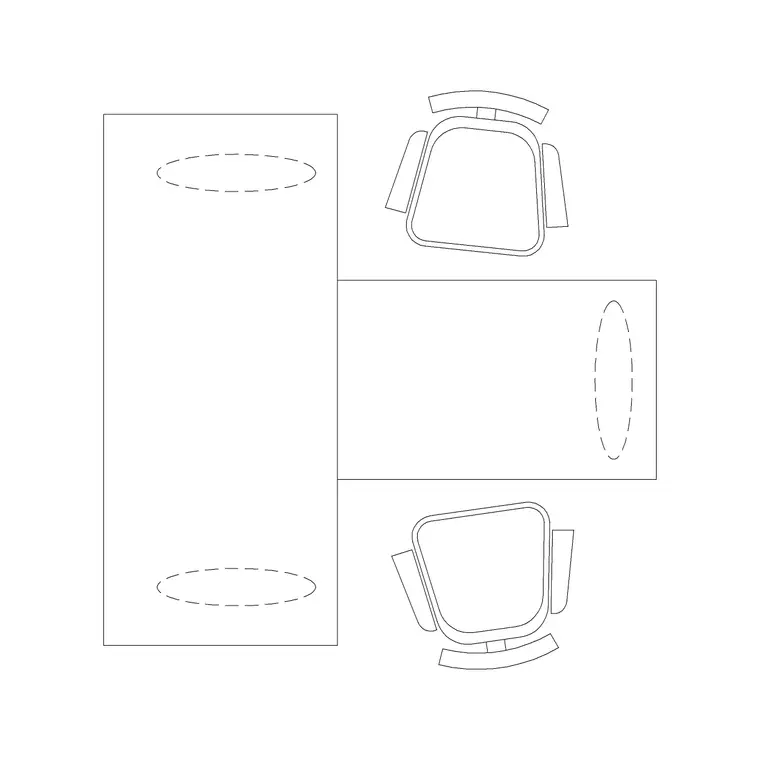
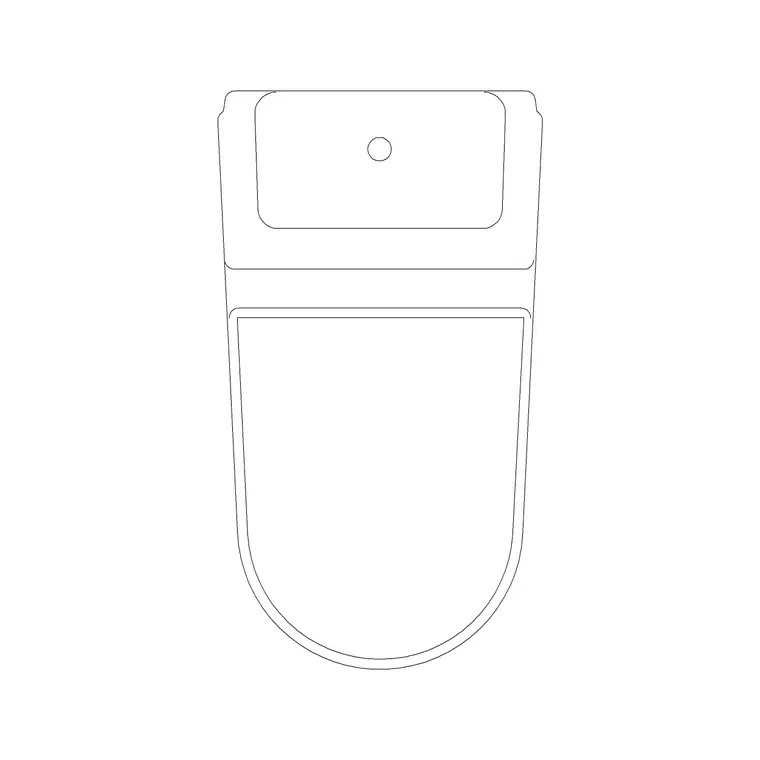
Start with the handful of blocks your office inserts constantly, an office chair, a two seater workstation, a sofa set plan block, a wall lamp, a toilet commode, rather than trying to load hundreds of blocks onto one palette on day one, a palette with thirty well chosen tools gets used, a palette with four hundred tools just becomes another place to scroll through.
Organise by category, not by however you happened to add them
Split palettes by the same category structure your shared library already uses, furniture, lighting, doors, office, so a drafter working on a furniture layout switches to the Furniture palette tab rather than hunting for a specific chair mixed in with lighting fixtures. Within a palette, group related items visually near each other, right click and use Sort to control ordering, and add separators between subcategories if a single palette is covering more than one distinct group.
This category alignment also means the palette structure and the naming convention from your library reinforce each other, someone who knows the FUR, LGT, DOR, OFF prefix system already has a rough mental map of which palette tab a given block lives on, which cuts down on searching even further.
Set default scale and layer behaviour on each tool
Right click any tool on the palette and open its Properties to set defaults, scale, rotation, and importantly the layer it inserts onto, since a properly configured tool can insert straight onto the correct layer automatically rather than requiring a manual layer change after every single placement. This is worth the extra couple of minutes per tool when you first build the palette, because it removes an entire class of small but constant manual corrections across a day of drafting, an office chair block set to always insert on FURN-INTERIOR at 1 to 1 scale means nobody has to think about it again.
Keep the palette lean as the library grows
Resist the temptation to mirror your entire shared library onto the palette as it grows past a few hundred blocks, a palette works because it surfaces the common cases fast, not because it replicates everything DesignCenter already does. Reserve the palette for genuinely frequent items and let DesignCenter or the Blocks palette handle the long tail of less common blocks, revisiting the palette's contents during your regular library audit is a good moment to add anything that has become a new frequent pick and retire anything nobody reaches for anymore.
Newer block insertion tools worth pairing with your palette
More recent AutoCAD releases have also added a Blocks palette with a Recent tab and the ability to favourite individual blocks, which works well alongside a curated tool palette rather than replacing it, favouriting covers the occasional block you are using heavily just for the current project, while the tool palette stays reserved for your office's genuinely permanent frequent set. I generally show both during new hire training, since different drafters end up preferring one or the other slightly depending on how they like to work, and there is no real cost to having both available side by side once the underlying library is clean.
If your office splits fairly cleanly between project types, residential interiors versus commercial office fit outs, for instance, it is often worth building a second, more targeted palette rather than trying to make one universal palette serve everyone equally well. A residential focused palette might lean heavily on the sofa set and lighting blocks, while a commercial fit out palette leans on workstations and office chairs, and a drafter simply switches to whichever palette matches the project in front of them that day, which keeps each individual palette shorter and faster to scan than one giant catchall version trying to cover every scenario at once.
Further reading
Questions
Frequently asked
How many blocks should go on one tool palette?+
Somewhere around twenty to forty well chosen, frequently used blocks per palette tab keeps it fast to scan, split into more palette tabs by category rather than piling everything onto one long list.
Can a tool palette insert a block onto the correct layer automatically?+
Yes, set the layer property in each tool's right click Properties dialog, once configured the block inserts straight onto the specified layer without a manual layer change afterward.
How do I share a tool palette with the rest of my office?+
Export the palette to an XTP file through the right click menu, store it alongside your shared block library, and have each team member import it, updating and redistributing it whenever the underlying library changes meaningfully.
Free downloads from this article


Free CAD block library
Download the blocks from this article — free, no signup
