Block landing · office chair cad block
Free office chair CAD blocks in DWG and DXF
By Saumyajit Maity · Published 18 Aug 2024 · Updated 27 Jan 2026
An office chair is one of the most-placed blocks in any commercial floor plan, so having a clean, correctly-scaled office chair CAD block on hand saves real time. This page collects free office chair CAD blocks in DWG and DXF — task chairs, swivel chairs, executive seats and visitor chairs — each drawn at true millimetre dimensions and ready to insert straight into AutoCAD 2004 or later. Every file is free for personal and commercial work, with no signup, no watermark and no credit required.
Use these blocks to populate workstation layouts, conference rooms, reception areas and breakout zones. Because they are drawn to scale, they let you check clearances around desks, circulation paths and door swings the moment they land on the page.
What's in a good office chair CAD block
A usable office chair CAD block is more than an outline. The plan view should show the seat, the backrest and the five-star base with castors, because the base footprint is what actually governs clearance under and around a desk. A typical task chair occupies roughly a 600–680 mm diameter when you account for the swivel base, so drawing it to that envelope keeps your spacing honest.
The elevation should carry the seat height (usually 420–520 mm adjustable), the backrest height and the armrest line. When you drop the block into a section, those heights let you verify that the chair tucks under a 720–750 mm desk surface. The blocks here are drawn on sensible layers so you can recolour or freeze the castors and gas-lift detail independently of the seat outline.
Plan view vs elevation: which to use
For space planning and furniture layouts you almost always work in plan view. The plan block shows the chair footprint from above and is what you array around a conference table or repeat down a bench desk. Keep the chairs on their own layer so you can toggle them off when you only want to show the desking grid.
Elevation and side-view blocks come into play for interior elevations, presentation drawings and sections through a room. A side-view office chair is handy when you are drawing a desk in elevation and want to show a seated working posture. Many of the downloads below ship both views in the same file, so you can insert whichever you need and explode the rest.
How to scale and insert the block
These office chair blocks are drawn in millimetres. If your drawing is set up in millimetres too, insert at scale 1 and the chair lands at real size. If you work in metres, insert at scale 0.001; if you work in a US imperial template, insert at 0.03937 to convert millimetres to inches, or simply set your INSUNITS so AutoCAD rescales on insertion.
Use the INSERT command (or drag the DWG from a tool palette), pick an insertion point at the centre of the seat, and rotate to suit the desk orientation. Because each chair is a single block reference, you can copy it around a layout, and a later edit to the block definition updates every instance at once.
Typical office chair dimensions to design around
Reach for these figures when you are checking a layout. Seat height: 420–520 mm (adjustable). Seat width: 460–510 mm. Overall width with armrests: 600–680 mm. Base diameter: 600–700 mm. Backrest top height: 900–1200 mm from the floor for a high-back executive chair, 800–950 mm for a mid-back task chair.
For circulation, allow at least 900 mm behind a seated chair so a person can push back and stand, and 1200 mm where the space behind also serves as a walkway. Dropping a correctly-sized office chair CAD block into the plan makes those checks a glance rather than a calculation.
Where office chair blocks are used
Office chair blocks appear in nearly every commercial and residential drawing set: open-plan office layouts, private offices, meeting and conference rooms, reception desks, home-office studies, co-working floors, classrooms and training rooms. Pair them with the desk, workstation and conference-table blocks in the office category to build a complete furniture layer quickly.
Because they are free and licence-clear, they are also ideal for student portfolios, competition boards and quick concept plans where you need believable furniture without licensing fuss. The same block can carry from an early concept sketch through to a coordinated furniture, fixtures and equipment (FF&E) drawing, so you are not redrawing the seating at every stage.
Keeping chairs on the right layer
A small habit pays off across a whole project: put the office chairs on a dedicated furniture layer rather than leaving them on layer 0. Giving the seating its own colour and lineweight lets you produce a clean structural plan by freezing the furniture, and a fully furnished plan by thawing it — from the same drawing, with no duplicate geometry.
If you tag each chair as a block with a simple attribute (a type code, say), you can extract a furniture schedule straight from the drawing. That turns the layout into a lightweight count of how many chairs each room needs, which is exactly the kind of data a procurement or FF&E spreadsheet wants. When the layout is finalised, you can WBLOCK a furnished workstation — desk plus chair — as a single reusable unit and array it down a floor in seconds.
Free download
Browse the full library — DWG & DXF, no signup.
Questions
Frequently asked
Are these office chair CAD blocks really free?+
Yes. Every office chair block on this page downloads free in DWG and, where available, DXF. There is no signup, no watermark and no attribution requirement, and they are cleared for commercial project use.
What scale are the office chair blocks drawn at?+
They are drawn full size in millimetres. Insert at scale 1 in a millimetre drawing, 0.001 in a metre drawing, or set INSUNITS to millimetres so AutoCAD rescales automatically when you insert.
Do the files include both plan and elevation views?+
Many do. Where a block ships multiple views they are in the same DWG so you can insert the one you need and explode or freeze the others. The views are listed on each block's download page.
Will the blocks open in older AutoCAD or in free DWG viewers?+
Yes. The DWG files target AutoCAD 2004 and later, which opens in current AutoCAD, AutoCAD LT, BricsCAD, DraftSight and free DWG viewers like Autodesk's online viewer.
Related downloads
Blocks for this guide
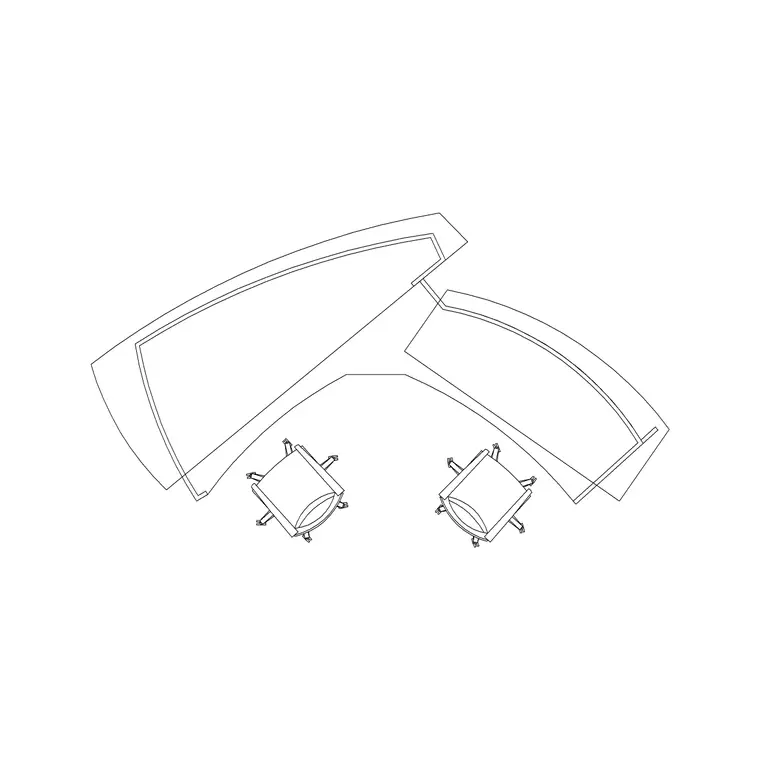
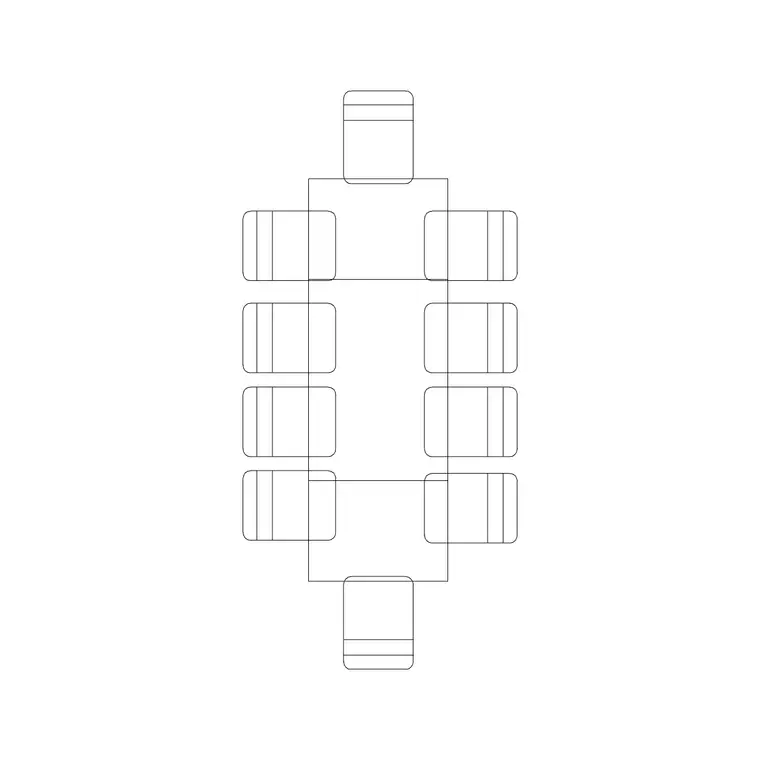
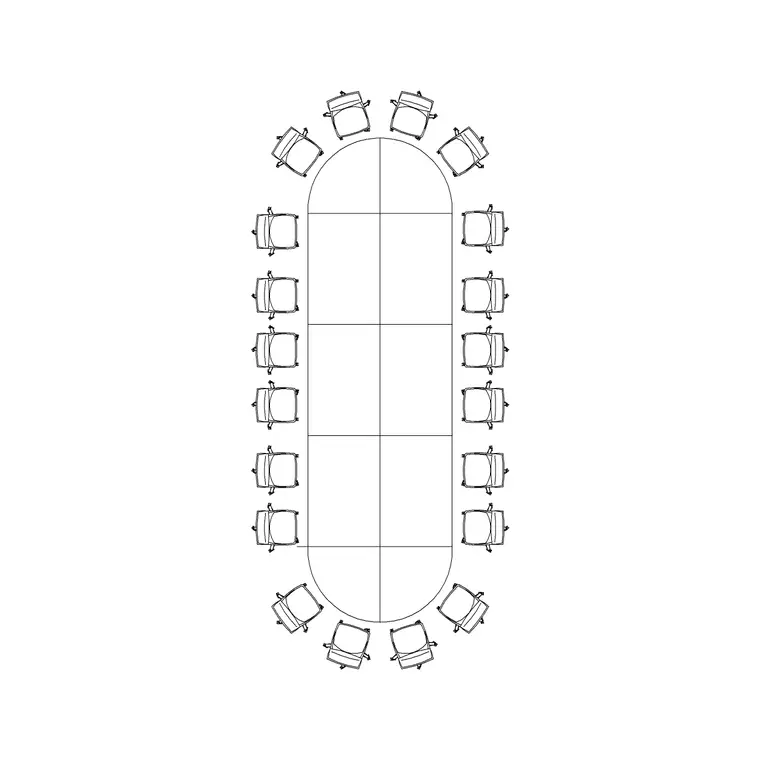
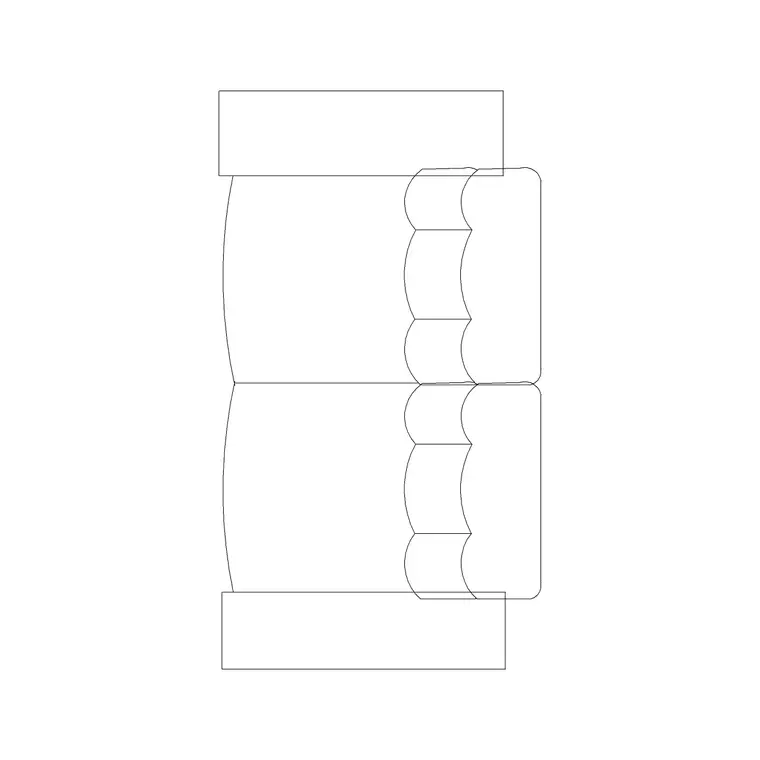
Related categories
Related guides
Curated pack
Free Office CAD Block Pack — DWG & DXF
Free office CAD block pack in DWG and DXF — desks, workstations, conference tables and reception furniture in plan view. No signup, commercial-use OK.
Curated pack
Free Reception Area CAD Block Pack — DWG
Free reception area CAD block pack in DWG and DXF — reception desks, waiting seating and scale figures for lobby layouts. No signup, commercial-use OK.
Curated pack
Free Restaurant CAD Block Pack — DWG & DXF
Free restaurant CAD block pack in DWG and DXF — dining tables, chairs, bar stools and high chairs for cafe and restaurant layouts. No signup, commercial OK.