Web symbol viewer vs a desktop block library: which to use
How browsing a web block library compares with a local desktop Tool Palette, and how to combine both well.
Saumyajit MaityUpdated 10 June 20266 min read

Two habits that solve the same problem differently
Every drafter eventually builds some system for finding and reusing blocks, and it usually lands in one of two forms, browsing a web library like this one whenever a specific need comes up, or maintaining a personal desktop block library, a folder structure plus AutoCAD Tool Palettes or DesignCenter, that you have curated over months or years of projects. Neither replaces the other completely, but understanding what each is actually good at stops you from relying on the wrong one at the wrong moment.
What a web-based library gets right
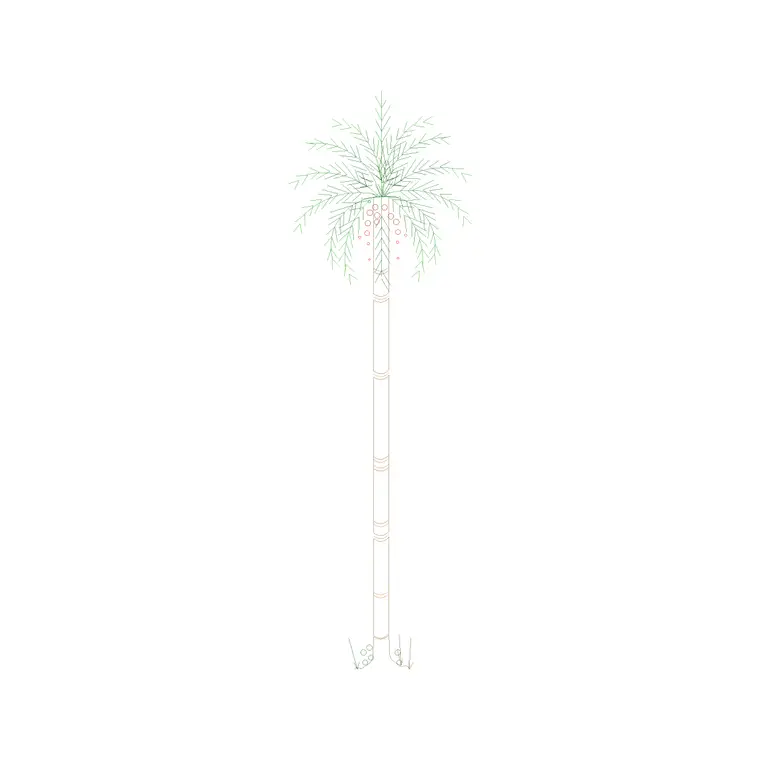
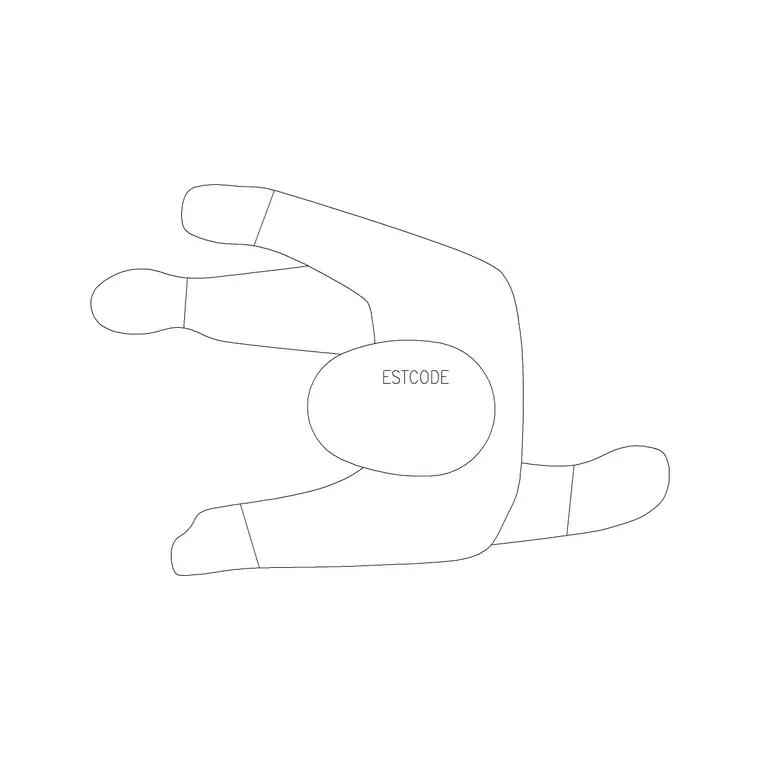
Browsing a site like this one when you have a specific, sometimes unusual need is genuinely fast, you search or filter by category, furniture, people, trees and plants, lighting, look at a preview thumbnail with the view already labeled, plan, elevation, section, and download exactly the block you need in under a minute, no signup required. This is where a web library beats a personal desktop collection every time, breadth, you have access to essentially the entire catalog rather than whatever you personally happened to save before, so the first time you need a Pine Elevation 1 or a Human Figure Sitting block, the web library already has it even if your own folder never did.
A web library also stays current in a way a personal folder rarely does, since new blocks get added to the catalog over time without you having to do anything to benefit from them, whereas a desktop library only grows when you personally take the time to add something new to it.
What a desktop library gets right
A personal Tool Palette or curated DesignCenter folder wins on speed for anything you use constantly, your go-to human figure for scale, your standard wall lamp, whatever furniture set you have used on the last several projects. Drag it off a Tool Palette directly onto the canvas and you skip searching entirely, which matters when you are placing the same handful of blocks dozens of times across a busy project. A desktop library also stays available offline and gives you full control over exactly which version of a block you are standardized on, so every project uses the identical Sofa Set Plan 1 rather than potentially a slightly revised version downloaded fresh each time.
This version control angle matters more on a multi person team than it might seem, since a shared Tool Palette or a shared network library folder ensures every drafter on the project is placing the literal same block, with the same layer structure and the same line weights, rather than each person having quietly downloaded a slightly different version from the web at different points in the project.
Setting up a Tool Palette that actually stays useful
Building a Tool Palette worth keeping is less about the initial setup and more about the habit of only adding things to it deliberately. Open the Tool Palettes window with CTRLplus3, create a new palette per category rather than one giant catch-all, furniture, people, lighting, mirroring roughly how a web library like this one already organizes its catalog, then drag a block straight from an open drawing onto the correct palette tab to save it there permanently. The trick that actually keeps a palette useful over time is resisting the urge to drag everything onto it the moment you download it, since a palette that grows by default rather than by decision ends up just as cluttered and just as hard to search as never having built one in the first place, so I only add a block once I have genuinely used it on a second project, which is a decent proxy for whether it is actually a keeper rather than a one-off.
The workflow that actually gets the best of both
What I do is treat the web library as the discovery layer and the desktop Tool Palette as the retention layer. The first time I need a block, I go find it on the site, download it, and use it on that project. If it turns out to be something I will genuinely reach for again, a common furniture piece, a standard human figure, a lighting fixture I like the style of, I drag it onto a personal Tool Palette right then so the next time I need it, it is one click away rather than a repeat trip to search and download. Blocks that were genuinely a one-off for that specific project just stay downloaded in that project's folder and never make it onto the palette at all.
Organizing the palette itself matters more than people expect, a single flat palette with fifty ungrouped blocks on it is barely faster to use than searching a website, so I keep separate tabs by category, furniture, people, lighting, roughly mirroring how the web library itself is organized, which makes finding the right saved block just as fast as browsing the site was in the first place.
On a genuinely new category I have not sourced from before, people entourage for a landscape heavy project say, I will often browse the web library for a good ten or fifteen minutes comparing a handful of options across different poses before settling on the one or two that earn a permanent spot on the palette, rather than saving the very first result that looked roughly right.
A word on keeping the desktop side from rotting
A Tool Palette you built a couple of years ago accumulates blocks you no longer use and misses better versions of things you have since found, so it is worth an occasional pass through it, remove anything you have not touched in months, and re-check the web library for whether a category you rely on heavily has grown since you last curated it. A stale personal library is honestly worse than no personal library at all, because it gives you false confidence that you have already checked and found the best option, when a fresh search might turn up something better.
I try to run this cleanup roughly once a quarter, nothing formal, just an honest look through the palette while starting a new project, and it consistently turns up at least a couple of blocks worth swapping for something better, along with a few I genuinely have not used in ages and can just delete.
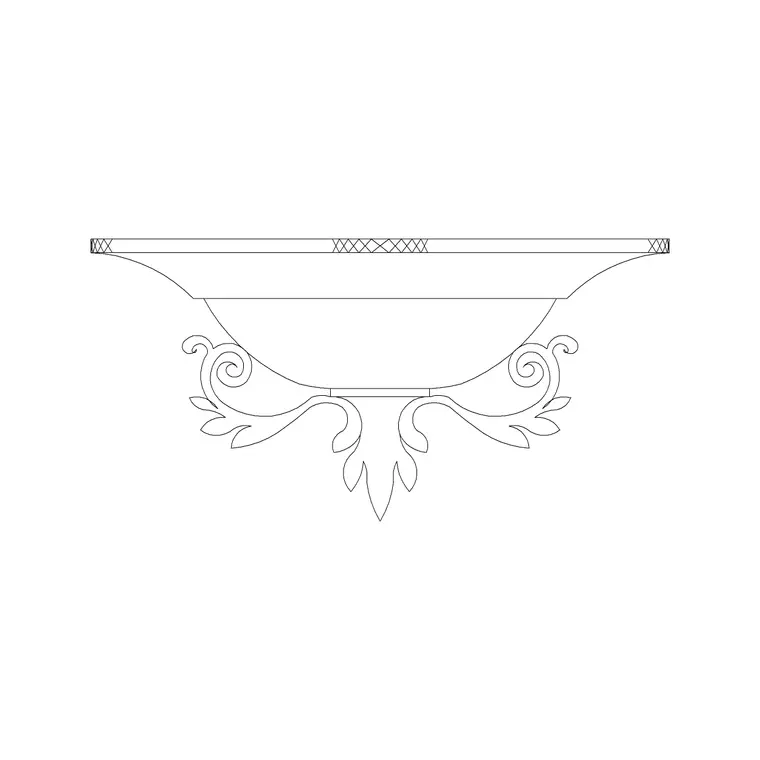
On my last cleanup pass, for instance, I found a Sofa Set Plan 1 sitting on the furniture tab that I had not actually placed in over a year, next to a wall lamp I genuinely used on nearly every single project, which is exactly the kind of imbalance a quarterly look catches and a system left entirely alone never would, since nothing about AutoCAD itself ever prompts you to notice that one saved block earns its spot on the palette every week while another has been quietly dead weight since last spring.
Further reading
Questions
Frequently asked
Is it worth building a personal Tool Palette if a web library already has everything?+
Yes, for anything you use repeatedly across projects. The web library gives you breadth and discovery, but a Tool Palette gives you one-click speed for the handful of blocks you actually reach for constantly, and that speed adds up meaningfully across a busy project.
How do I add a downloaded DWG block to an AutoCAD Tool Palette?+
Open the block in AutoCAD, select the geometry, then drag it directly from the drawing window onto an open Tool Palette. It saves as a reusable tool you can drag back into any future drawing, and you can right click it afterward to rename or organize it into a category tab.
Does a web-based block library work if I'm offline?+
No, you need an internet connection to browse and download from a web library, which is exactly why blocks you use constantly are worth saving to a local desktop library or Tool Palette for offline access, especially if you regularly work on site or somewhere without a reliable connection.
Free downloads from this article

Free CAD block library
Download the blocks from this article — free, no signup