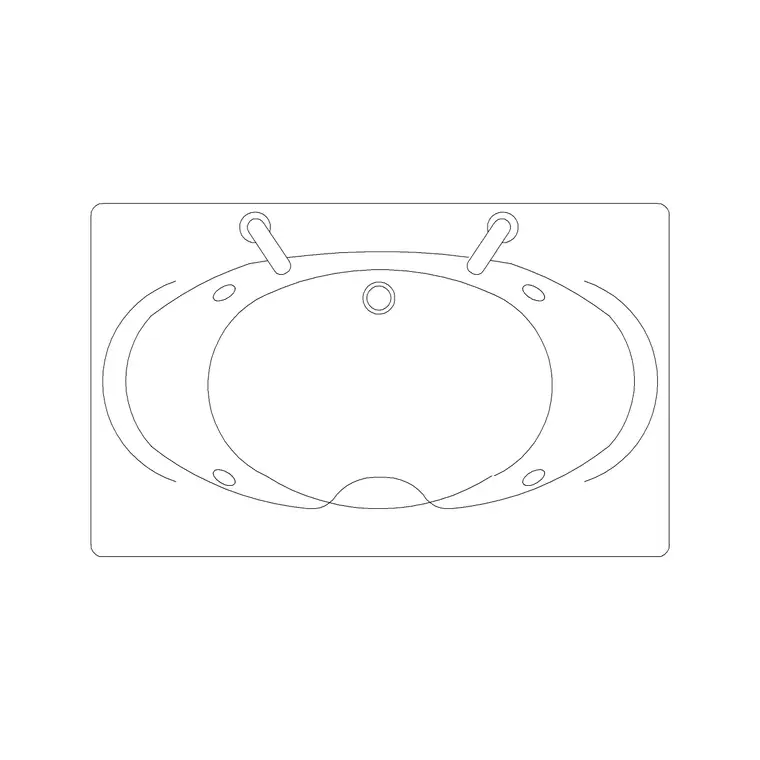
Top paving & hardscape CAD blocks for site designers
Paving patterns, setts and hardscape textures — the blocks and hatches to download free, the laying patterns to know, and how to fill an area without bloat.
Sumana KumarUpdated 23 April 20264 min read
Hardscape is where a site plan gets its texture
A site designer's drawings are mostly ground: paths, terraces, driveways, plazas and the joints between them. Hardscape — the paved, hard-surface part of a landscape — is what gives a site plan its texture and tells everyone the material, the laying pattern and the setting-out of every surface. Done well it reads as a designed, buildable ground plane; done carelessly it is a flat grey blob that says nothing about how the surface is actually laid.
This post is the paving and hardscape kit a site designer should keep downloaded: unit paving blocks and setts, paving patterns and textures, edgings and the tile modules that make up a surface. Everything is in the Paving category on cadblockdwg.com, free in DWG with no signup and free for commercial use.
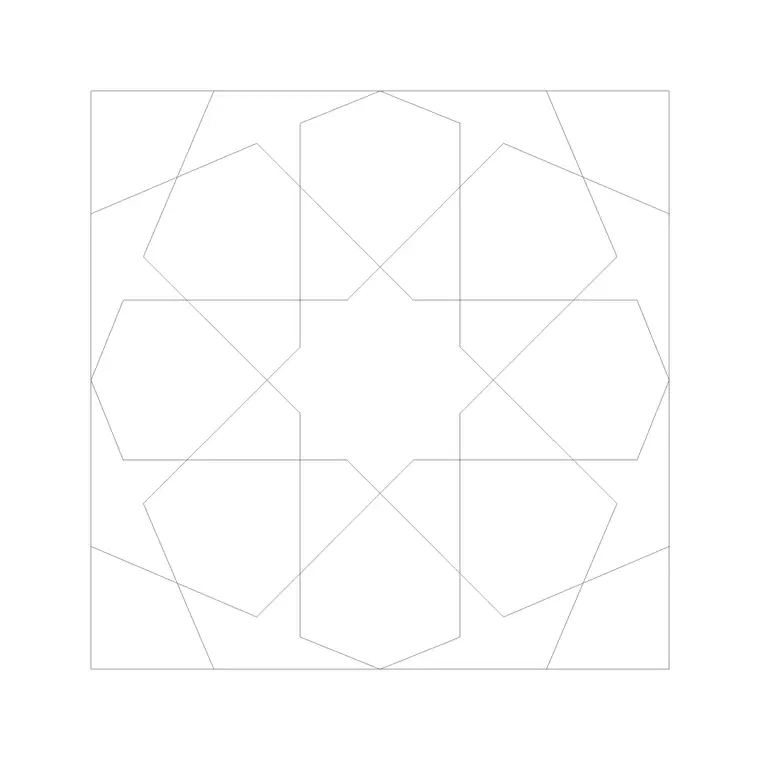
The Paving Block 1 unit is a clean single paver you can repeat or use to define a pattern; pair it with pattern and texture blocks from the same category to fill larger areas. Having a few trusted units and patterns on hand means you describe a surface by choosing a known pattern and setting it out, rather than drawing joint lines by hand across a terrace — which is slow, inconsistent and heavy on the file.
Unit sizes and the patterns that matter
Paving is modular, so know the unit sizes. A common concrete block paver is around 200 by 100mm; standard paving slabs come in modules like 450 by 450mm and 600 by 600mm; setts and cobbles are smaller, often 100 by 100mm or thereabouts. Getting the unit size right matters downstream because it drives the joint count and the materials estimate — a paver drawn at the wrong size gives a wrong quantity, and quantities are what the surface is priced and ordered from.
The laying pattern is a real design and engineering decision, not just a look — stretcher bond, herringbone, basketweave and stack bond each behave differently under load and read differently on the plan. Herringbone, for instance, interlocks well and is favoured for trafficked areas like driveways, while stack bond is simpler but weaker and better suited to light-use terraces.
When you use a paving block or pattern, set it out from a sensible datum — usually a building edge or a kerb line — so the joints align with the architecture rather than running off at a random angle. Showing the actual pattern, set out correctly, is what turns a paved area from a filled polygon into a setting-out drawing a contractor can lay from, with the cut units falling where you intended rather than wherever the pattern happens to land.
Fill areas without bloating the file
The big technical trap with hardscape is file size. Fill a large terrace by copying a single paver block hundreds of times and the drawing balloons and slows to a crawl, opening sluggishly and frustrating everyone who has to work in it. There are two cleaner approaches.
The first is to use a hatch pattern that represents the paving — most paving textures can be shown as a hatch, which is a single lightweight object that fills any boundary instantly and stays editable. The second is to use a pattern block sized to tile cleanly, placed as an array rather than hundreds of individual copies, so the whole field is a handful of objects instead of hundreds.
Where you do place unit blocks, lean on AutoCAD's array tools so the units stay associative and the whole field can be re-spaced or re-bounded in one operation when the layout changes. Reserve individual paver placement for edges, transitions and special setting-out where the position of each unit genuinely matters. A texture hatch for the body of an area plus real unit blocks at the critical joints gives you a drawing that reads richly but opens quickly — exactly the balance a site plan needs when it covers a lot of ground.
Layer it, set it out, and keep it editable
Keep paving and hardscape on their own layer, or a few — paving, edgings, setting-out — so you can issue a clean hardscape plan and coordinate it with planting, drainage and levels without the textures cluttering every other sheet. A busy paving hatch on a services plan is noise; on its own layer it can be frozen the moment it is not needed, and brought back when it is.
Blocks and hatches built on layer 0 inherit whichever layer you insert them onto, so set the right layer current first. Bring unit blocks in with the INSERT command at scale 1, set hatches with the HATCH command bounded to the paved area, and always set the pattern out from a real datum so the joints make sense.
Confirm the unit measures its real size — a paver that scales wrong throws off the whole pattern count and the materials estimate that follows. Where hardscape meets planting, a tree such as the Pine Plan 1 block on its own planting layer keeps the soft and hard landscape readable side by side, and a figure dropped on a path gives the surface a sense of scale. A vetted hardscape kit, the habit of using hatches for large fills, and disciplined layering let a site designer texture a whole ground plane that is rich to look at, light to open and honest about how every surface is laid.
Questions
Frequently asked
What size is a standard paving block to check on a CAD block?+
A common concrete block paver is about 200 by 100mm; slabs come in 450x450mm and 600x600mm modules. Measure the block to confirm before relying on the pattern count or materials estimate.
How do I fill a large paved area without bloating the drawing?+
Use a hatch pattern to represent the paving for the body of the area — it is one lightweight object — and reserve individual paver blocks for edges, transitions and critical setting-out joints.
Where can site designers download free paving blocks?+
The Paving category on cadblockdwg.com has unit pavers, setts, patterns and hardscape textures as free DWG downloads, no signup, free for commercial use.
Free downloads from this article


Free CAD block library
Download the blocks from this article — free, no signup