Building a landscape plan in AutoCAD from free tree blocks
Build a landscape plan in AutoCAD from free DWG tree blocks: plan vs elevation trees, realistic canopy spread, varied planting, and a planting layer.
Sumana KumarUpdated 27 June 20264 min read

Lay the ground before the planting
A landscape plan starts from the survey and the hard landscape, not the trees. Bring in the site boundary, the building footprint, levels, paths, paving, walls and any existing features first, on their own layers, so the planting has a real context to sit in. Planting placed over a vague or missing base is just decoration; planting placed over an accurate base genuinely tests shade, screening and spacing.
With the base in place, identify what the planting needs to do on this scheme: screen an ugly boundary, shade a terrace, frame a view, soften a car park, define a route. Those intentions drive where trees and beds go far more than aesthetics do. Decide them up front and the tree blocks fall into place purposefully, rather than being scattered until the drawing looks busy enough.
Get the right tree and plant blocks (free DWG)
The Trees & Plants category on CADBlockDWG is large and split by view, all free in DWG with no signup and free for commercial use. The critical thing on a landscape plan is to use plan-view trees — the top-down canopy, typically a textured or radial circle — rather than elevation silhouettes. A block like Pine Plan 1 is exactly this: a plan canopy that drops straight into a masterplan or planting layout and reads correctly from above.
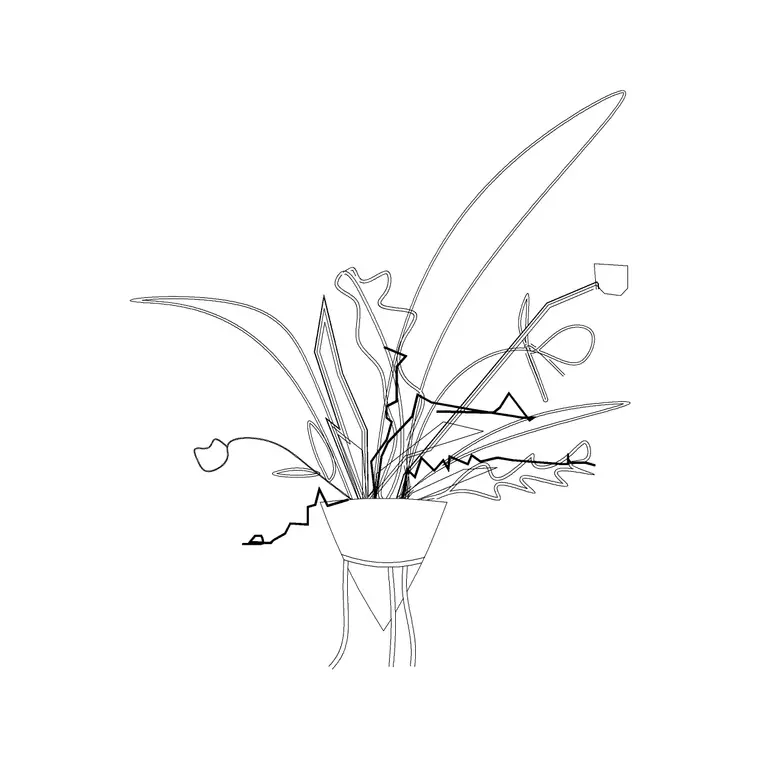
Gather a handful of different plan trees so the planting can vary — a couple of canopy sizes and a couple of patterns at minimum. For shrub beds and groundcover, grab smaller shrub blocks or plan to use a hatch. If the project also needs a street elevation or a section, the same category carries elevation trees (and indoor pieces like a large indoor plant with MS legs for courtyards and atria), so you can build the vertical views from matching content later. Pull only what the scheme needs; each is a single small DWG.
Place trees at real canopy spread
Set your planting layer current and insert the plan trees, but get the size right, because scale carries real meaning for planting. Draw each canopy at its mature — or design-year — spread: a small ornamental might span three to four metres, a medium street tree six to eight, a large tree ten to fifteen or more. If a block inserts at the wrong size, fix INSUNITS or scale it so the canopy reads true; a row of trees drawn far too small will badly understate the shade and screening they will actually provide.
Place specimen trees first at their design positions — the ones doing a specific job, screening or framing — then fill in supporting planting around them. Snap them to setting-out points if the scheme has them. Because the canopies are at honest spread, you can immediately read whether a screen will close up, whether a tree overshadows a window, or whether two crowns will collide as they mature.
Vary and rotate so it reads natural
Nothing betrays a landscape plan faster than the copy-paste grid: one identical tree stamped at regular centres. Trained eyes read regularity as artificial instantly, and a planning authority will too. So vary it deliberately — use two or three different tree blocks within a planting area, rotate and mirror individual instances so no two are identical, and vary sizes within a sensible range for each species. Even small amounts of randomness read as considered planting rather than clip art.
For mass planting — hedges, shrub beds, groundcover — a hatch pattern or a dense cluster of small shrub blocks communicates intent far better than individual trees would, and keeps the file lighter. The aim throughout is a plan that looks like it was designed by someone who understood the site and the way it will grow in, not assembled by dropping a single block across a polygon until it filled up.
Finally, add a few plan-view human figures from the People category along paths and in seating areas. On a landscape plan a figure does the same job a tree cannot: it fixes human scale instantly, so anyone reading the drawing can gauge the width of a path, the size of a lawn or the spacing of a row of trees against something they know. Cluster figures naturally near entrances and gathering spaces and keep them sparse — a handful is enough to make the whole plan legible without cluttering the planting.
Layer planting so you can issue it cleanly
Put planting on dedicated layers — typically split into trees, shrubs and groundcover — separate from the architecture and engineering. That separation is what lets you issue a clean planting-only drawing for the landscape package, dim the planting on an architectural sheet, or freeze the busy canopy geometry off a services plan that does not need it. Because well-built blocks sit on layer 0, they inherit whichever planting layer you insert them onto, giving you that control for free.
Finish with a quick AUDIT and PURGE after importing several tree families to strip orphaned data. Put the workflow together — accurate base, plan-view trees, honest canopy spread, deliberate variation, and disciplined planting layers — and a landscape plan that reads as a real, designed environment comes together quickly from free DWG content, ready to convince a client or a planning officer that the green space has genuinely been thought through.
Questions
Frequently asked
Where can I download free tree blocks for a landscape plan?+
The Trees & Plants category on CADBlockDWG has plan and elevation trees — including plan-view canopies like Pine Plan 1 — free in DWG with no signup and free for commercial use.
Should I use plan or elevation trees on a landscape plan?+
Plan trees — the top-down canopy view. Elevation silhouettes are for street elevations and sections. Mixing them is an instant tell that the drawing was assembled carelessly.
How big should I draw a tree canopy in CAD?+
At its mature or design-year spread — roughly 3–4m for small ornamentals, 6–8m for medium street trees, 10–15m+ for large trees — so the plan honestly shows shade and spacing.
Free downloads from this article

Free CAD block library
Download the blocks from this article — free, no signup