How-to guide · how to insert a tree cad block in autocad
How to insert a tree CAD block in AutoCAD
By Saumyajit Maity · Published 6 Jul 2023 · Updated 10 Jan 2026
Adding a tree to a site plan or landscape drawing in AutoCAD is quick once you know the workflow: download a tree CAD block, get the units right, insert it, scale it to the canopy size you need, and then array it along a planting line. This guide walks through the whole process step by step, then shows how to keep a tidy planting layer so a designer can read your drawing at a glance.
The same steps work for any DWG block — a chair, a car, a person — so once you have inserted one tree you can insert anything. We will use a plan-view tree block as the example because trees are the block people most often need to scale on insertion.
Step 1 — Download a tree CAD block
Start by downloading a free tree CAD block in DWG. Pick a plan-view block if you are working on a site or landscape plan, or an elevation block if you are drawing a street section or a building elevation with planting. Save the DWG somewhere you can find it — a project library folder is ideal so the block is reusable across drawings.
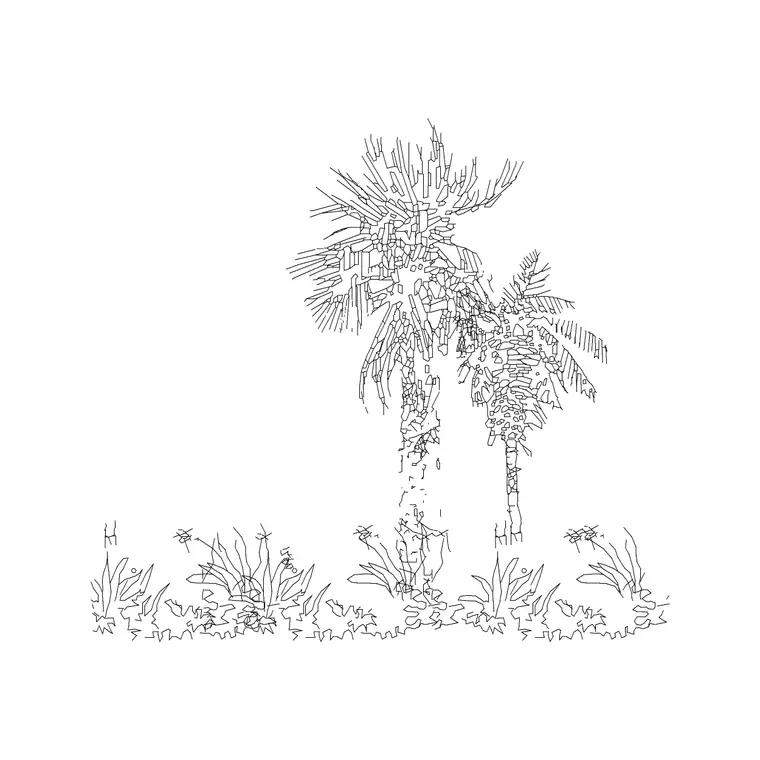
The trees-and-plants category has palms, broadleaf trees, shrubs and potted plants, all drawn to scale and free for commercial use. Note the block's drawing units; the blocks here are in millimetres.
Step 2 — Set your drawing units to match
Before inserting, make sure your drawing's insertion units agree with the block. Type UNITS to open the dialog and confirm 'Insertion scale' is set to Millimeters if you are working in a millimetre template. Setting INSUNITS correctly means AutoCAD automatically rescales the block if its units differ from the drawing's, which prevents the classic 'tree the size of a building' mistake.
If your drawing has no defined units (INSUNITS = Unitless), AutoCAD will insert the block at its raw size and you will have to scale manually in Step 4.
Step 3 — Run the INSERT command
Type INSERT (or I) and press Enter, or use Insert > Block from the ribbon to open the Blocks palette. Click 'Browse', navigate to the tree DWG you saved, and select it. In the insertion dialog leave 'Specify On-screen' ticked for the insertion point so you can place it by clicking, and tick 'Specify On-screen' for scale and rotation if you want to set those as you place.
Click OK (or pick the block from the palette), then click in the drawing where the tree trunk should sit. The tree appears as a single block reference you can move, copy and rotate as one object.
Step 4 — Scale the tree to the right canopy size
Real trees vary enormously, so scaling is where you make the block believable. A small ornamental tree might have a 2–3 m canopy; a mature shade tree can spread 8–12 m. If the block was drawn at, say, a 4 m canopy and you need 8 m, insert it then run SCALE, pick the trunk as the base point, and enter a scale factor of 2.
A faster route is to set the X and Y scale in the INSERT dialog before placing. Keep the trunk centred on your planting point so that when you scale, the canopy grows evenly around the intended location.
Step 5 — Put it on a planting layer and array it
Create or set a current layer such as L-PLANT before or after inserting, then move the tree onto it (select the block, change its layer in the Properties palette). A dedicated planting layer lets you freeze trees when you want a clean structural plan and gives the landscape information its own colour and lineweight.
To populate a row of street trees, use the ARRAY command (path array along a road centreline, or rectangular array for a grid like an orchard). For natural-looking planting, copy the block and vary the scale and rotation slightly between instances so the trees don't look stamped. Save the finished planting as part of your drawing, or write the arranged trees out as a new block (WBLOCK) for reuse.
Common mistakes to avoid
Three problems catch people out when inserting tree blocks. First, the units mismatch we covered in Step 2 — if a tree arrives microscopic or enormous, the fix is almost always INSUNITS, not manual scaling. Second, forgetting to set a planting layer, which leaves trees mixed in with the architecture so you can't toggle them off for a technical issue. Third, leaving every tree at identical scale and rotation, which reads as obviously copied and flattens a planting plan.
A fourth, subtler issue is canopy overlap: when you scale trees to their mature spread, neighbours may visually collide. That is often realistic for a woodland edge but wrong for formal street planting, so check the spacing against the design intent. If you need to edit the tree symbol itself — say, to simplify a busy canopy for a small-scale plan — use BEDIT to change the block definition once and every inserted instance updates together.
Free download
Browse the full library — DWG & DXF, no signup.
Questions
Frequently asked
Why does my tree block come in tiny or huge when I insert it?+
That is a units mismatch. The block and your drawing are using different insertion units. Type UNITS, set Insertion scale to Millimeters (matching the block), then re-insert. Setting INSUNITS correctly makes AutoCAD rescale automatically.
Can I insert a DWG file directly without making it a block first?+
Yes. The INSERT command treats an external DWG as a block on insertion, creating a single block reference. You can also drag the DWG from a tool palette or File Explorer straight onto the drawing.
How do I make a row of trees follow a curved path?+
Use a path array (ARRAYPATH). Select the tree block, then the road centreline or planting curve as the path, and set the spacing. AutoCAD distributes copies of the tree evenly along the curve.
Which view should I use — plan or elevation?+
Use a plan-view tree block for site, landscape and floor plans (the canopy seen from above). Use an elevation block for street sections, building elevations and presentation views where the tree is seen from the side.
Related downloads
Blocks for this guide



Related categories
Related guides
Curated pack
Free Landscape & Tree DWG Pack — Plan & Elevation
A free landscape and tree DWG pack — trees, palms, shrubs and potted plants in plan and elevation for AutoCAD site plans. DWG and DXF, no signup, commercial-use OK.
Curated pack
Free Landscape CAD Block Pack — DWG & DXF
A free landscape CAD block pack in DWG and DXF — trees, shrubs, fences, paving, lighting and figures for AutoCAD landscape plans. No signup, commercial-use OK.
Curated pack
Free Garden CAD Block Pack — DWG Download
A free garden CAD block pack in DWG and DXF — trees, shrubs, fences, a swing, a BBQ and paving for residential garden plans. No signup, commercial OK.