How to scale a downloaded kitchen block correctly in AutoCAD
Kitchen blocks must sit on a standard cabinet grid to read right. Here is how to scale a free DWG kitchen cabinet or unit to true size in AutoCAD.
Saumyajit MaityUpdated 24 February 20264 min read
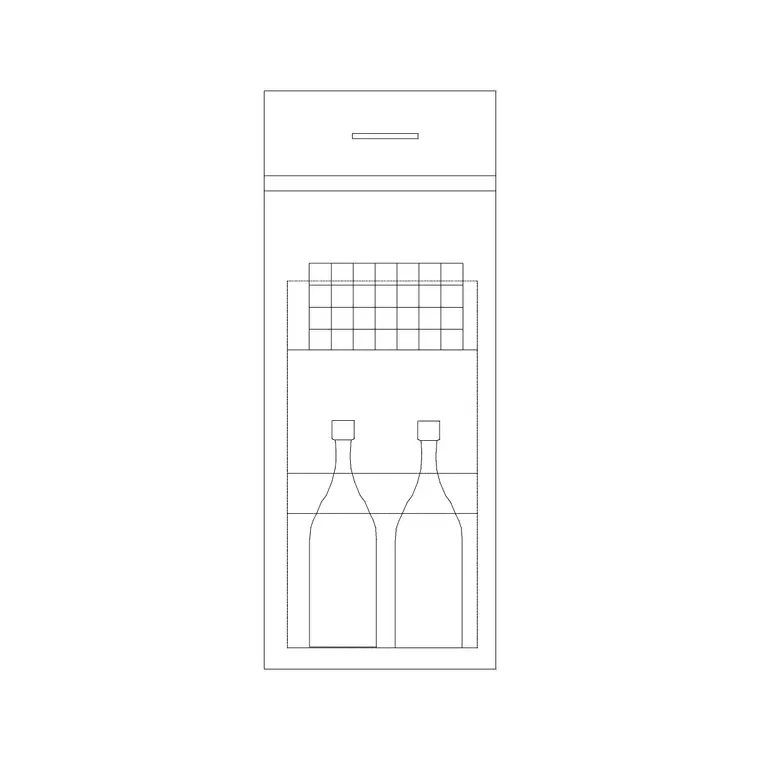
Kitchens live on a standard grid
Kitchen joinery is one of the most standardised things you will ever draw, which makes scaling kitchen blocks both important and easy to verify. Base cabinets are almost universally 600mm deep and come in widths that step in tidy modules — 300, 400, 500, 600, 800, 1000mm. Worktops sit at about 900mm high over a roughly 600mm-deep run, and wall units are commonly 300 to 350mm deep. When a kitchen block matches that grid, a run of units lines up cleanly against the wall; when it is mis-scaled, nothing aligns and the whole kitchen looks subtly broken.
The free Cabinet block in the Kitchen category gives you a base cabinet to build a run from. Download it as DWG — no signup, free for commercial use — and your job when scaling is to make sure it lands on that 600mm-deep, modular-width grid so it tiles correctly with the rest of the kitchen. Because the module is so consistent, a kitchen is one of the most satisfying things to draw once the first cabinet is scaled right: everything else snaps into place from there.
Check the depth first, then the width
Insert the cabinet (type I, Enter, browse, place) and measure two things with DIST: the depth and the width. Depth is the more diagnostic of the two for a kitchen unit, because almost every base cabinet is 600mm deep — so if your block reports about 600 deep, it is in millimetres and correctly scaled. If it reports 0.6 deep, it is in metres. A depth of 600 in a metre drawing means the cabinet is 600 metres front to back, the usual 1000x units mismatch.
Once depth confirms the units, glance at the width and confirm it is a sensible module (a multiple of 100mm, typically). A cabinet that measures 600 deep and 600 wide is a standard 600mm base unit and is ready to use. This depth-then-width check takes seconds and tells you immediately whether the block will behave on the grid, and it is more reliable than checking width alone, because widths legitimately vary while the 600mm depth is almost a constant you can lean on.
Correct units or set an exact module
If depth and width are both off by 1000x, fix the units: set INSUNITS to 4 (millimetres) in your template so kitchen blocks auto-scale on insertion, or apply a SCALE factor of 0.001 (millimetres into a metre drawing) or 1000 (the reverse). This snaps the whole cabinet onto the right grid in one move.
If the units are fine but you need a different module — turning a 600mm unit into an 800mm one, say — be careful. Uniform SCALE would also stretch the 600mm depth, pushing the cabinet off the standard run. For kitchens it is usually cleaner to download the block already drawn at the width you need than to free-scale, precisely because depth must stay at 600mm. Reserve scaling for fixing units, and pick the right module by choosing the right block. If you must adjust a width and keep depth fixed, that is really a stretch (the STRETCH command on the cabinet body), not a uniform scale — a different operation worth reaching for deliberately.
Build the run and keep it aligned
With the cabinet correctly scaled, lay out the kitchen by snapping units end to end along the wall, all sharing the 600mm depth so the worktop line runs straight and unbroken. Use object snaps (F3) to butt each cabinet against the next with no gaps or overlaps. Because every base unit shares the same depth, the back line sits tight to the wall and the front line gives you the worktop edge automatically — that consistency is the entire payoff of getting the scale right.
Wall units, then, are set back to their shallower 300 to 350mm depth and typically shown with a dashed outline above the base run. Confirming each block's depth as you place it keeps the two depths honest and the kitchen reading correctly in plan. Appliances such as a dishwasher or an under-counter fridge are designed to the same 600mm depth, so they slot into the run too — another reason the depth check is the one that keeps the whole kitchen coherent.
Layer the joinery sensibly
Put kitchen units on a 'Joinery' or 'Kitchen' layer so the cabinetry can be dimmed for a services plan or isolated for a kitchen-specific sheet. Blocks built to inherit their host layer adopt that layer's colour and lineweight when inserted, so setting the layer current beforehand saves any cleanup.
Kitchens reward a little discipline because they are so modular: get one cabinet scaled to the 600mm-deep grid, verify its depth, and the rest of the run follows almost mechanically. Confirm the depth on every block you bring in, keep widths to standard modules, and your kitchen plans will line up cleanly every time instead of drifting a few millimetres off and looking wrong for reasons that are hard to spot. The same modular thinking applies to a fitted bathroom or a run of wardrobes, so the habit you build on kitchens pays off across every piece of fitted joinery you draw.
Questions
Frequently asked
How deep is a standard kitchen base cabinet block?+
About 600mm deep, with the worktop around 900mm high. In a millimetre drawing the depth reads as roughly 600; if it reads 0.6 it is in metres, and if it reads 600 in a metre drawing it is a 1000x units error.
Should I scale a kitchen cabinet to a new width?+
Prefer downloading the block already drawn at that width, because uniform scaling would also distort the standard 600mm depth and throw the unit off the run. Use scaling mainly to fix units.
How do I keep kitchen units aligned in a run?+
Scale every unit to the same 600mm depth, then snap them end to end with object snaps. Shared depth keeps the worktop line straight and the cabinets tight to the wall.
Free downloads from this article
Free CAD block library
Download the blocks from this article — free, no signup


