How to explode and edit a downloaded CAD block in AutoCAD
When and how to explode a downloaded block to edit its geometry — plus the cleaner in-place alternative that edits the block without exploding it.
Sumana KumarUpdated 21 June 20264 min read

Explode is not always the answer
When you download a block and want to change it, the instinct is to type EXPLODE and start editing the loose lines. Sometimes that is right, but often it is not. Exploding a block breaks the single named object back into its raw geometry — lines, arcs, hatches, text — which you can then edit freely. The cost is that you lose the block: the instance is no longer a managed, countable, redefinable object, and any other copies in the drawing are untouched.
So the first question is what you are actually trying to do. If you need to tweak one throwaway copy and never reuse it, exploding is fine. If you want every instance of the block to change, or you want to keep the block as a reusable object, do not explode — edit the definition instead, which this guide covers in a moment. Choosing the right route up front saves you from rebuilding a block you did not need to destroy.
How to explode a block cleanly
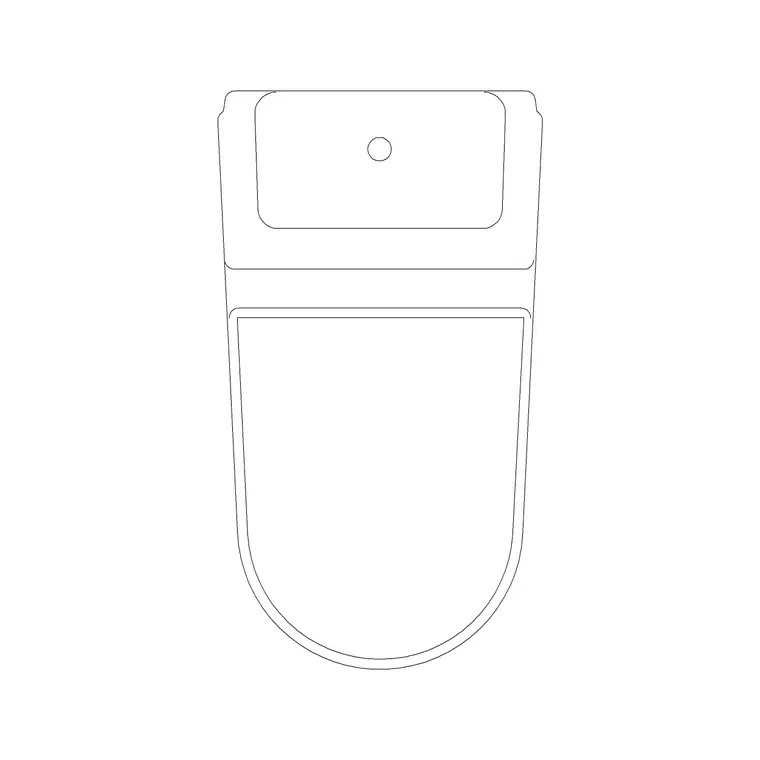
Download and open the block — perhaps a 2-seater table from the Office furniture, or a toilet/commode block — and place it in your drawing. To explode it, type EXPLODE (or X), select the block, and press Enter. The block becomes its component geometry. If the block was nested (a block made of other blocks), one EXPLODE only breaks the top level; run it again to break the next level down.
A few cautions. If a block was inserted at a non-uniform scale (different X and Y factors), older AutoCAD versions may refuse to explode it or may distort it — uniform-scaled blocks explode cleanly. After exploding, geometry that was on layer 0 inside the block will land on layer 0 in your drawing, while geometry on named layers keeps those layers, so you may need to tidy layers afterwards. And once exploded, the link to the block definition is gone — to get a block back you must reselect the geometry and run BLOCK again.
Edit the geometry the way you need
With the block exploded, the geometry behaves like any other lines and arcs. Stretch a sofa wider with STRETCH, trim an overlapping line with TRIM, move a handle with MOVE, change a hatch with the Hatch Editor. This is the moment to make whatever change prompted the explode — widening a table, removing a detail you do not want, adjusting a door leaf angle.
Keep an eye on layers and properties as you go. If the original block carried explicit colours, the exploded geometry keeps them, which can clash with your drawing standard. A good habit while you have it exploded is to select everything, move it to layer 0, and set properties to ByLayer, so that when you rebuild the block it will behave correctly on insertion. That turns a quick edit into a proper normalisation at the same time.
The cleaner route: edit without exploding
Most of the time the better path is to skip EXPLODE entirely and use the Block Editor. Double-click the block, or type BEDIT and pick it. AutoCAD opens an isolated editing environment showing only that block's geometry. Make your edits there — exactly the same TRIM, STRETCH, MOVE operations — then close and save. Because you never exploded anything, the object stays a block throughout, and every instance in the drawing updates to your edited version at once.
There is also REFEDIT (Edit Reference In-Place) for editing a block while still seeing it in the context of the surrounding drawing, which is handy when your change depends on neighbouring geometry. Both methods keep the block intact. The rule of thumb: reach for EXPLODE only when you genuinely want to dissolve the block into loose geometry; reach for the Block Editor whenever you want to change what the block looks like but keep it as a block.
Rebuild and tidy if you did explode
If you went the explode route and now want the edited geometry back as a reusable block, select all of it, run BLOCK, give it a clear name, and pick a sensible base point — a corner or centre you will snap to when inserting. If you are updating an existing block, reuse its exact name so AutoCAD redefines it and refreshes every instance instead of making a duplicate.
In the Block Definition dialog, decide what happens to the source geometry: 'Convert to block' (the usual choice) replaces your selection with an instance of the new block, 'Retain' leaves it as loose geometry, and 'Delete' removes it. Pick 'Convert to block' so you immediately get the clean named object back in place. Tick 'Allow exploding' if you might need to break it apart again later, and consider setting the block units to match your drawing so it scales predictably on future insertions.
Finally, clean up after yourself: run PURGE to remove any now-unused layers or styles the explode-and-rebuild left behind, and confirm the new block measures at the right real-world size. A door leaf should read about 900mm, a single bed roughly 1900mm long. Get the geometry right, normalise it to layer 0, rebuild under a clean name, and purge the leftovers, and your edited block is production-ready rather than a loose pile of lines that has quietly drifted off your standard.
Questions
Frequently asked
Should I explode a downloaded block to edit it?+
Only if you want one throwaway copy of loose geometry. To change the block everywhere or keep it reusable, use the Block Editor (BEDIT) instead — it edits the geometry without dissolving the block, and updates every instance at once.
Why won't my block explode?+
It may have been inserted at a non-uniform scale (different X and Y factors), which older AutoCAD refuses to explode or distorts. It could also be on a locked layer. Uniform-scaled blocks on unlocked layers explode cleanly with EXPLODE or X.
How do I turn exploded geometry back into a block?+
Select all the geometry, run BLOCK, name it, and pick a base point. To update an existing block, reuse its exact name so AutoCAD redefines it and refreshes every instance rather than creating a duplicate.
Free downloads from this article

Free CAD block library
Download the blocks from this article — free, no signup
