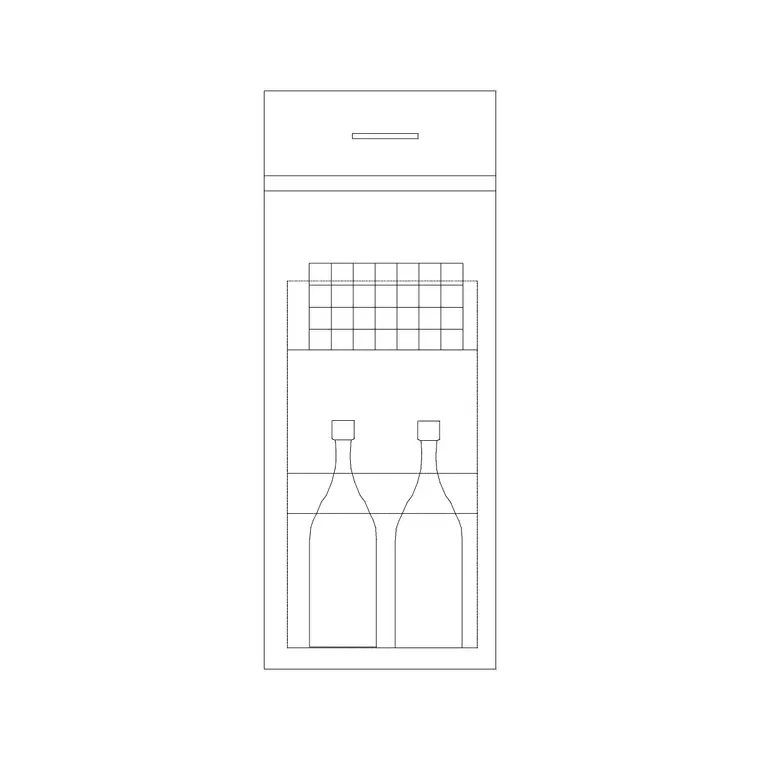
Fix a downloaded block that inserts too big or too small
A block the size of a building, or invisible until Zoom Extents? It is units. Here is how to diagnose and fix a free DWG block that inserts wrong in AutoCAD.
Sumana KumarUpdated 28 June 20264 min read

The symptom and the real cause
You insert a downloaded block and one of two things happens. Either it arrives enormous — a chair the size of a building, a door taller than the title block — or it seems not to appear at all until you Zoom Extents and find a microscopic dot in the corner. Both are the same underlying problem wearing different masks: a units mismatch between the block file and your drawing.
This matters to say plainly because it is reassuring. The block is almost never broken or corrupt. The geometry is fine; AutoCAD has simply interpreted '900' as 900 of your units when the block author meant 900 millimetres. Once you accept that this is a units conversation rather than a defect, the fix becomes a short, repeatable routine instead of a frustrating mystery. The rest of this post is that routine, and it applies to any block family — furniture, doors, fixtures, vehicles, trees — because they all fail in exactly the same way for exactly the same reason.
Diagnose: measure a known feature
Do not guess at the scale — measure. Run DIST or drop a dimension across a feature of the block whose real size you know. A door leaf should be about 900mm, a single bed about 1900mm long, a brick about 215mm, a standard cabinet 600mm deep, a WC pan about 700mm deep. Read what AutoCAD reports and compare it to reality.
The ratio tells you exactly what went wrong. If a door reports 900 but your drawing is in metres, the block is 1000x too big and you need to divide by 1000. If it reports 0.9 in a millimetre drawing, it is 1000x too small and you multiply by 1000. If it reports something odd like 35.4 where you expected 900, you may be looking at an inch-to-millimetre situation (factor 25.4). Measuring turns 'it's the wrong size' into a precise number you can act on, which is the whole reason this approach beats nudging a scale factor until it looks about right.
Fix it now: SCALE the placed block
For the block already sitting in your drawing, the immediate fix is the SCALE command. Select the offending block, type SCALE, click a base point (its insertion point is convenient), and type the factor your measurement implied:
- Too big by 1000 (mm block in a metre drawing): 0.001 - Too small by 1000 (m block in a millimetre drawing): 1000 - Inch block into millimetres: 25.4 - Millimetre block into inches: 0.03937
If you would rather not work out the factor at all, use SCALE's Reference option: pick two points across a feature, state its real size, and AutoCAD computes the factor for you. Reference is the safest route when the units are a genuine mystery, because you are calibrating against a real dimension you can see rather than trusting a label. It is also the method that scales a block to fit a specific space — an opening, a bay, a room — rather than just to a known unit.
Fix it for good: set INSUNITS
Scaling the placed block solves today's problem; setting INSUNITS stops it recurring. INSUNITS tells AutoCAD what one drawing unit means. Set it to 4 for millimetres (type INSUNITS, enter 4) in your drawing, and because the blocks here carry their own units, future insertions auto-scale to match with no manual factor. A millimetre block then lands correct in a millimetre drawing at 1:1, and correct in a metre drawing via automatic 0.001 scaling.
The durable version of this is to set INSUNITS (and the UNITS display format) once in a drawing and save it as your default template. Every new drawing inherits the setting, and the too-big / too-small problem largely disappears from your working life. You fix the symptom with SCALE and the cause with INSUNITS — and the second of those is the one that actually buys back your time, because it means you stop re-fixing the same problem on every new file.
Edge cases worth knowing
A few situations look like a scale bug but have their own twist. A block saved as 'unitless' (INSUNITS 0) will not auto-scale no matter how your drawing is set, so it always needs a manual SCALE factor — these are the legacy blocks that most often trip people up. A block that comes in at a strange, non-round ratio is usually an imperial-versus-metric mix, so reach for 25.4 or 0.03937 rather than 1000. And if only part of a block is wrong, it may have been built from sub-blocks at different scales, in which case exploding once and scaling the offending part fixes it.
None of these is hard once you recognise it. Measure first, identify the ratio, apply the matching factor or Reference, then set INSUNITS so it never recurs. That sequence handles essentially every too-big and too-small block you will ever download, whether it is a sofa, a tree, a window or a paving unit — the diagnosis and the cure are the same across the entire catalogue.
Questions
Frequently asked
Why does my downloaded block insert way too big?+
It is a units mismatch: a millimetre block dropped into a metre drawing comes in 1000x oversized. Scale it by 0.001, or set INSUNITS to millimetres so it auto-scales on insertion.
My block is invisible after inserting — where is it?+
Run Zoom Extents; it is likely a tiny dot because a metre-unit block landed in a millimetre drawing 1000x too small. Select it and scale by 1000, then set INSUNITS to prevent it recurring.
What if I don't know the block's units?+
Use SCALE with the Reference option: pick two points across a feature whose real size you know, type that size, and AutoCAD computes the exact factor. It works even when the units are unlabelled.
Free downloads from this article

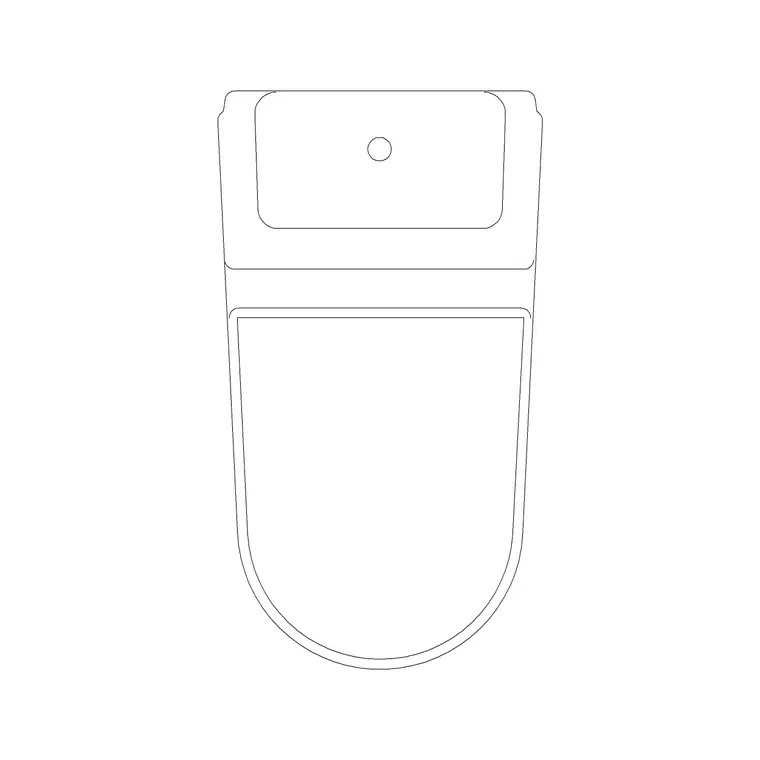
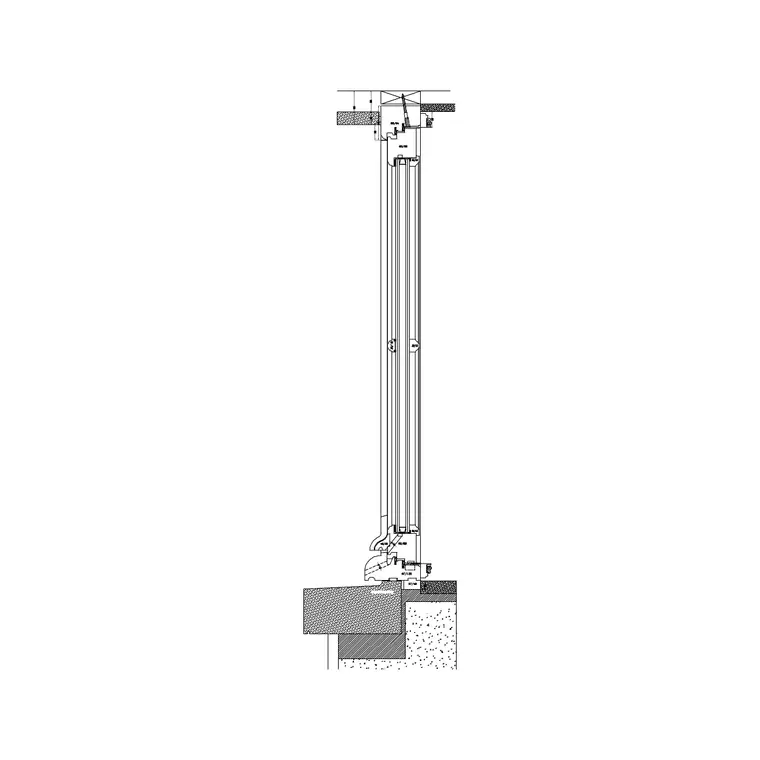
Free CAD block library
Download the blocks from this article — free, no signup