Migrating a CAD block library between AutoCAD versions
How to move a shared block library forward across AutoCAD versions without corrupting blocks or losing dynamic block behaviour.
Sumana KumarUpdated 10 May 20266 min read

Why this comes up more often than people expect
Offices upgrade AutoCAD on their own schedule, some every year when the new release lands, some every third or fourth version when a maintenance plan forces the issue, and a shared block library built up over years of drafting inevitably ends up with files saved under a mix of DWG versions, 2013, 2018, 2021, whatever was current when each block was added. AutoCAD reads older DWG versions forward without complaint, that direction has always worked fine going back a long way, the friction shows up when you need blocks to open cleanly in older software still running on some machines in a mixed fleet, or when a client insists on receiving a specific older DWG version for compatibility with their own systems.
The good news is that migrating a block library forward is mostly mechanical once you understand which parts of a block are version sensitive and which are not.
What actually breaks across a version jump
Plain geometry, lines, arcs, polylines, hatches, text, almost never breaks moving between versions, AutoCAD has kept that core stable for a long time. What does occasionally cause trouble is dynamic block behaviour built with newer parameter and action types than an older release supports, certain annotation scale settings, and any custom object created by a third party plugin that the receiving version does not have installed, which shows up as a proxy graphic warning rather than the actual geometry.
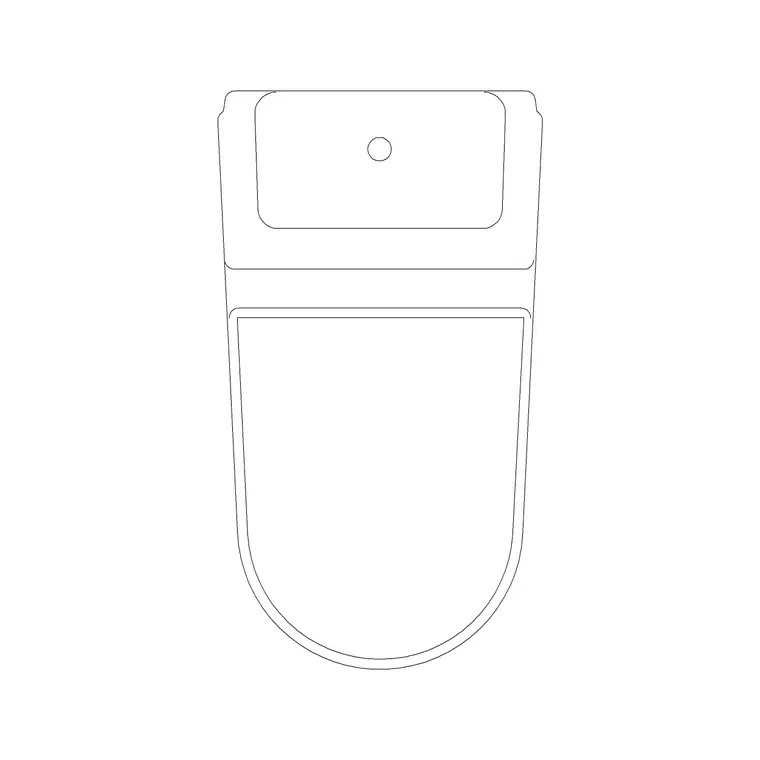
A batch of blocks that are all simple static furniture, doors, and fixtures, the kind you would pull from a source like cadblockdwg.com, is about as low risk a migration as exists, since those are typically plain geometry on layer 0 with no dynamic behaviour or custom objects attached, so an office chair or a paving block migrates cleanly in either direction with essentially no rework.
Use SAVEAS with a target version, not a blind batch convert
For a controlled migration, open each block file, or better, script it, and use SAVEAS choosing the specific target DWG version from the file type dropdown rather than assuming the default save version matches what you need. AutoCAD supports saving down to several versions back from current, so moving a 2024 format file down to something a 2018 install can open is usually just a SAVEAS choice, not a full rebuild.
For a whole folder at once, the Batch Standards Checker or a script written against the ObjectARX or .NET API can loop through every file and resave at a target version automatically, which is worth the setup time once your library is past a couple hundred files, doing it one file at a time by hand at that scale eats a full day easily.
Test dynamic blocks specifically, do not assume
If your library includes dynamic blocks, ones with visibility states, stretch parameters, or lookup tables built in, test each one after migration rather than assuming static geometry rules apply the same way. Open the block editor on the migrated version and step through each parameter, a stretch action that worked perfectly in the source version has occasionally shown grip behaviour that is slightly off after a downgrade in my experience, particularly with lookup table driven blocks built across several major version jumps.
The catch here is that this kind of issue does not always throw an error, the block just behaves subtly wrong, so a spot check on the two or three most complex dynamic blocks in your library after any version migration is worth the fifteen minutes it takes.
Keep a version note in the library, not just in your head
Once you migrate, update whatever changelog or readme sits at the root of your shared library to note the target DWG version and the date, so six months later when someone asks why a block will not open on an older machine, there is a documented answer rather than a guessing game. If your office genuinely needs to support multiple DWG versions simultaneously, for instance an older CNC or CAM pipeline that only reads a specific format for computer aided manufacturing workflows, keep a clearly labelled legacy version subfolder rather than mixing versions loosely within the same main folder.
This is also a natural moment to run PURGE and AUDIT across the whole library while you are touching every file anyway, since you are already opening and resaving each one, catching accumulated cruft costs almost nothing extra at that point.
Rolling the migrated library out to the team
Do the migration on a copy of the library first, never on the live shared path directly, verify a sample of blocks across every category in the new target version, and only then swap the shared path over, ideally over a weekend or a quiet stretch rather than mid week. Communicate the change explicitly, since a drafter still running an older AutoCAD release will not be able to open blocks saved forward past what their version supports, so know your office's minimum supported version before you pick a migration target, and if even one seat is running something several versions behind, consider saving the shared library down to that floor rather than leaving anyone locked out.
Planning the migration window itself
Beyond the technical steps, it is worth actually planning the migration as a small project with a defined window rather than something squeezed into spare moments between real drafting work, because a half finished migration, where some blocks in the shared folder are on the new version and others are still on the old, is genuinely worse than not migrating at all, since nobody can tell which state any given file is in without opening it first.
Block out a specific day or half day, ideally when project deadlines are light, communicate the exact start and end time to the team so everyone knows not to pull from or add to the shared library during that window, and treat the migration as complete only once every file in the tree has been verified at the target version, not just the high traffic ones. For a library in the low hundreds of files this is realistically a single focused day's work including the spot checks on dynamic blocks, and trying to stretch it across several partial sessions over a couple of weeks is where migrations tend to stall halfway and leave a library in that confusing mixed state for far longer than intended.
Migrating from a competing platform, not just an AutoCAD version
Sometimes the migration is not between AutoCAD versions at all, it is an office moving into AutoCAD from another platform, or exporting part of the library out to a tool like SketchUp for a design presentation while keeping the working set in AutoCAD. In those cases DXF, the plain text and binary exchange format built for exactly this kind of interoperability, is usually the safer intermediate step rather than a direct proprietary format conversion, since it strips down to well documented entity types that most CAD and modelling software can read reliably.
Expect some loss on that kind of cross platform move regardless, dynamic block behaviour and certain parametric features generally do not survive a round trip through DXF since those are AutoCAD specific constructs, so budget time to rebuild the small number of complex blocks by hand rather than assuming an automated export will carry everything across cleanly.
Further reading
Questions
Frequently asked
Will an old DWG block open in a newer version of AutoCAD?+
Yes, newer AutoCAD versions open older DWG files without issue, the friction only goes the other direction, when an older install needs to open a file saved in a newer format.
How far back can AutoCAD save a DWG file?+
AutoCAD's SAVEAS dialog typically supports saving down to several versions behind current, check the file type dropdown for the exact list available in your installed version before picking a migration target.
Do dynamic blocks survive a version migration?+
Usually, but not guaranteed, test visibility states, stretch parameters, and lookup tables specifically after migrating, since complex dynamic behaviour across a wide version gap has occasionally shown subtly different grip behaviour in practice.
Free downloads from this article


Free CAD block library
Download the blocks from this article — free, no signup
