How to move a downloaded block onto layer 0 the right way
Move a downloaded block's geometry onto layer 0 with ByLayer properties so it inherits your layers on insertion. The full method, including redefining it.
Sumana KumarUpdated 16 March 20264 min read
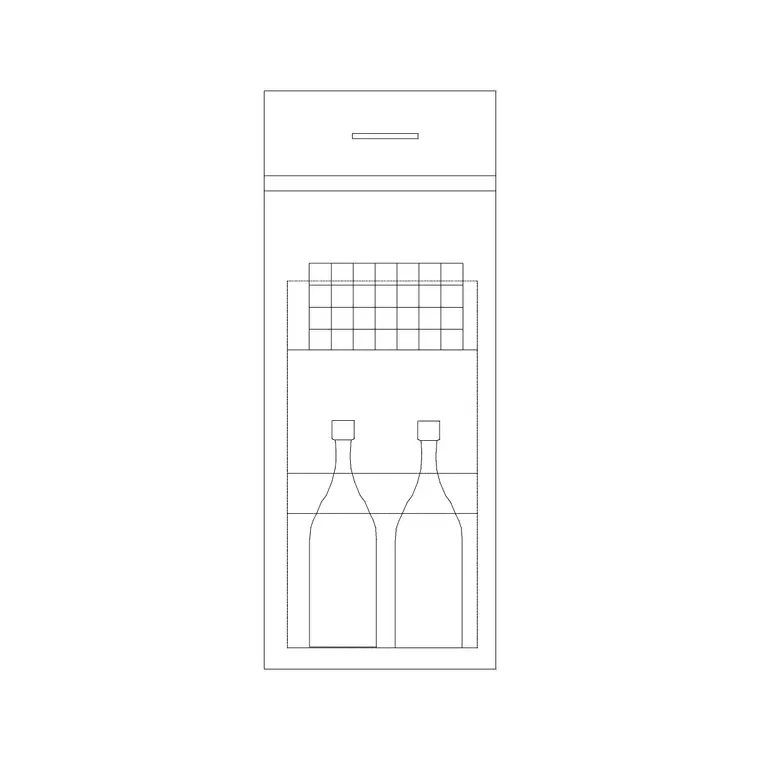
Why layer 0 is the layer you want block geometry on
Layer 0 is the one layer in AutoCAD that behaves differently inside a block. Geometry drawn on layer 0 adopts the properties of whatever layer you insert the block onto — so a chair built on layer 0 turns furniture-coloured the instant you drop it on your Furniture layer. Geometry on any other named layer keeps that layer's identity no matter where you place it, which means you cannot control it from the host drawing.
Many downloaded blocks are already built correctly on layer 0. But plenty arrive with their geometry sitting on a layer the original author named — 'Chairs', '0-FURN', or something cryptic — and those blocks will not obey your layer scheme. Moving them onto layer 0 with ByLayer properties is the single most useful normalisation you can do to an imported block, and it is what makes the block a good citizen of your drawing rather than an outsider imposing its own look.
First, see what layers the block actually uses
Download and open the block — for example a Cabinet from the Kitchen category, or a Window Plan block. Select it and look at the layer shown in the Properties palette (Ctrl+1) or the layer dropdown. If it reads '0', the author already did this right and you may have nothing to do. If it reads anything else, the geometry needs moving.
Note that a block reference itself sits on one layer (the layer it was inserted on) while the geometry inside the block definition can sit on entirely different layers. The insertion layer is easy to change — just pick the block and change its layer. The internal layers are the ones that determine how the block actually plots, and those are what the rest of this guide fixes.
A quick way to reveal the internal layers is to open the Layer Manager (LA) after inserting the block: any layers you did not create yourself almost certainly came from the block. Make a mental note of which ones belong to it. If the block's geometry is spread across several of those foreign layers, you will be consolidating them onto layer 0 in the next step, so it helps to know upfront how many there are and whether any carry a meaning you want to preserve, such as a separate hatch or hidden-line layer.
Edit the block in place and move geometry to layer 0
Double-click the block to open the Block Editor (or type BEDIT and choose the block). Inside the editor, select all the geometry with a window or Ctrl+A. Open the layer dropdown and set the selection to layer 0. Then, with the geometry still selected, open Properties and set Color, Linetype and Lineweight all to ByLayer. That combination — layer 0 plus ByLayer everything — is what lets the block inherit your host layer cleanly.
The reason both halves matter: moving geometry to layer 0 but leaving an explicit colour (say a hard-coded red) means the colour still overrides the layer, defeating the point. Setting everything to ByLayer hands all appearance control back to whichever layer the block lands on. Close the Block Editor and choose to save the changes back to the block definition.
Redefine so every instance updates
Saving from the Block Editor redefines the block in the current drawing, which means every existing instance of that block updates at once to the new layer-0 behaviour. This is the quiet superpower of blocks: fix the definition once and the whole drawing follows. If you used a different cleanup route — exploding the block, fixing the loose geometry, then rebuilding it — make sure you redefine it under the exact same name so AutoCAD recognises it as the same block and updates the instances rather than creating a confusing duplicate.
After redefining, test it. Set a named layer current — your Furniture layer, say — insert the block fresh, and confirm it takes on that layer's colour and lineweight. If it does, the normalisation worked. If part of it stubbornly keeps a colour, that part still has an explicit property set; go back into the Block Editor and finish setting it to ByLayer.
Bank the fix in your library
Once a downloaded block is on layer 0 with ByLayer properties, save the cleaned DWG into your library so the obedient version is the one you reuse from now on. You only have to normalise each block once; after that it behaves perfectly on every future insertion in every drawing.
This pays off most when you need to restyle a sheet. Want all the furniture greyed back for a structural plan, or planting in green for a landscape drawing? With layer-0 blocks you dim or recolour the layer and every block follows automatically, no instance-by-instance editing. A drawing full of blocks that obey the Layer Manager is one you can restyle in seconds; a drawing full of blocks with hard-coded colours is one you fight forever. Spending two minutes per download to get this right is one of the highest-leverage habits in CAD.
Questions
Frequently asked
How do I move a block's geometry to layer 0?+
Open the block in the Block Editor (double-click it or run BEDIT), select all the geometry, set it to layer 0, then set Color, Linetype and Lineweight to ByLayer. Close and save to redefine the block.
Why isn't my block taking on the insertion layer's colour?+
Part of its geometry probably has an explicit colour or a non-zero layer instead of ByLayer on layer 0. An explicit value overrides the layer. Re-open the Block Editor and set every object to ByLayer on layer 0.
Will fixing one block update the others in my drawing?+
Yes. When you redefine a block under the same name, every existing instance in that drawing updates to the new definition at once. That is why you should keep the name identical when you rebuild a block.
Free downloads from this article


Free CAD block library
Download the blocks from this article — free, no signup
