How to insert a downloaded paving-pattern block in AutoCAD
Insert a free paving DWG and fill an area — placing a single paver, arraying it to tile a surface, and using a clip boundary so the pattern stops at the edges.
Saumyajit MaityUpdated 21 March 20265 min read
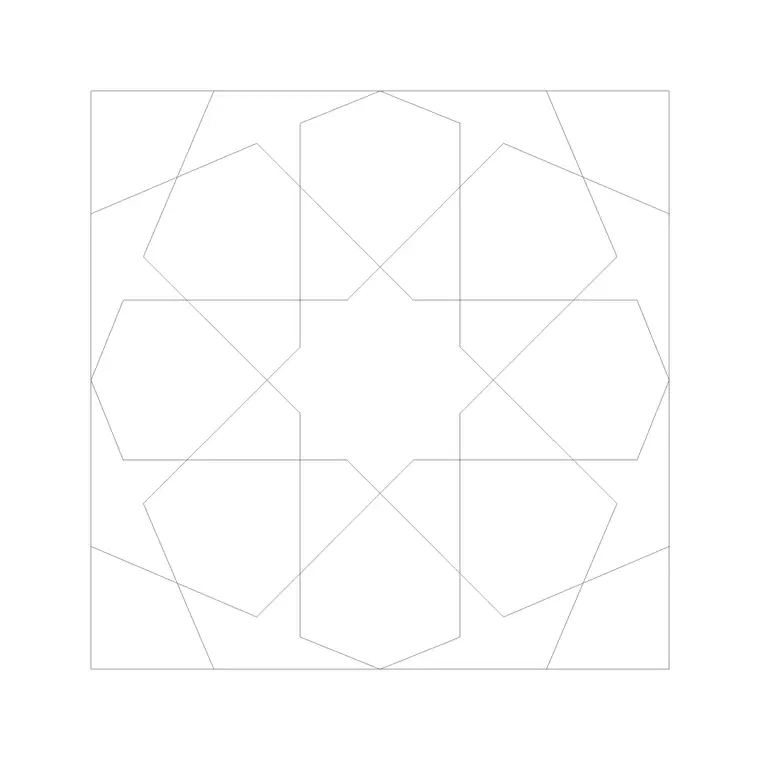
Download a paving block or pattern tile
Paving is laid as a repeating unit, so the block you download is usually a single paver or one repeat of a pattern — herringbone, basketweave, running bond, cobblestone — drawn in plan at real size. The Paving category has these, free, no signup, commercial-cleared. Open the pattern that suits your hardscape and download the DWG.
A paving block is a small tile of geometry designed to repeat seamlessly: the edges align so that when you copy it side by side, the joints line up and the pattern flows unbroken. That seamless-repeat property is the whole trick to paving in CAD — you draw or download one unit, then tile it across the area, rather than drawing every paver. Knowing the size of the repeat (the width and height of one tile) is what lets you array it accurately, so note those dimensions from the block.
Two ways to fill an area: hatch or block array
There are two approaches to filling a paved area, and it is worth knowing both. The first is a true hatch: if the pattern exists as an AutoCAD hatch pattern, you can BHATCH/HATCH a closed boundary and it fills instantly with the paving, scalable and editable as a single object. This is the lightest, cleanest method for simple repeating patterns.
The second, which suits a downloaded block, is to array the paver. Insert one paving block, then use rectangular ARRAY to repeat it across the area at the tile's exact width and height spacing, so the units tile seamlessly. This gives you real, individual paver geometry — useful when you need to count units, show a feature pattern, or detail the actual blocks rather than a generic fill. For most presentation and layout work, the block array reads richer than a flat hatch.
Array the paver across the surface
Open your drawing, type I, Enter, Browse to the paving DWG and select it. Turn on snaps (F3) and place one paver at a corner of the area you are paving, snapped to the boundary so the pattern starts cleanly at an edge. Leave scale at 1; the paver is drawn at its real size (a common block paver is around 200 by 100mm).
Now ARRAY it. Choose rectangular array, set the column spacing to the tile's width and the row spacing to its height, and set enough rows and columns to cover the whole area with a margin to spare. The pavers tile across the surface with aligned joints. For a herringbone or other offset pattern, the single block already contains the offset repeat, so a straight rectangular array still produces the correct interlocking look — you do not need to stagger the array yourself.
Clip the pattern to the boundary
Arraying past the edges leaves pavers sticking out beyond the paved area, so you trim the pattern to its real boundary. The cleanest way is to draw a closed polyline around the actual paved area, then either TRIM the stray pavers back to it or, better, use a clip: group the arrayed pavers into a block and apply XCLIP (or a wipeout/boundary) so the pattern shows only inside the boundary and is hidden outside it.
A clip is preferable to trimming because it is non-destructive — the full pattern still exists underneath, so if the paved area changes shape you adjust the clip boundary rather than re-laying the pavers. The result is a paved area with a crisp edge where the pattern meets the kerb, the grass or the building line, exactly as it would be cut on site. This edge treatment is what separates a convincing hardscape drawing from a rectangle of pattern floating loosely on the plan.
Layer it, set out, and keep it light
Put paving on a hardscape or paving layer so it can be controlled separately and, importantly, turned off when it would clutter other drawings — a dense paving pattern over a whole courtyard can slow down and crowd a plan that does not need it. Blocks built on layer 0 inherit the current layer, so set your paving layer current before inserting.
Think about set-out: real paving starts from a chosen datum line or a feature, so begin your array from a sensible edge (a building line or a central axis) rather than an arbitrary corner, and the cut pavers will fall at the least conspicuous edges. If performance suffers with thousands of individual pavers, consider switching that area to a hatch for the working drawings and reserving the full block array for the presentation sheet. Either way, a correctly set-out, properly clipped paving pattern on its own layer makes a landscape or external-works drawing read as genuinely resolved.
Estimate quantities from the pattern
One real advantage of laying paving as individual block units rather than a flat hatch is that you can count them, which turns your drawing into the start of a materials estimate. If you arrayed the pavers, AutoCAD knows how many it placed, so you can read off the number of units directly; alternatively, divide the paved area (use the AREA command on the boundary polyline) by the area of a single paver to get an approximate unit count.
Add a sensible wastage allowance on top — commonly around 5 to 10 percent for a straight bond and more for diagonal patterns like herringbone, where cuts at the edges generate offcuts — and you have a quantity to price or order against. This is genuinely useful at the schedule stage: a landscape plan that can tell you it needs roughly so many thousand blocks, plus wastage, is doing more than looking good. Because the pattern is real geometry tied to a measured boundary, the estimate updates when the area changes, so the quantities stay honest as the design develops.
Questions
Frequently asked
What is the best way to fill an area with paving in AutoCAD?+
Either HATCH a closed boundary if the pattern exists as a hatch (lightest method), or insert one paver and rectangular ARRAY it at the tile's width and height to lay individual blocks. The block array reads richer for presentation.
How do I stop the paving pattern overhanging the edges?+
Draw a closed polyline around the real paved area and either TRIM the stray pavers to it or, better, clip the pattern with XCLIP so it shows only inside the boundary. Clipping is non-destructive if the area later changes shape.
What size is a standard paving block?+
A common block paver is around 200 by 100mm, but it varies by product. Note the repeat size from the block so you can set the ARRAY column and row spacing to match and keep the joints aligned.
Free downloads from this article

Free CAD block library
Download the blocks from this article — free, no signup


