How to insert a downloaded kitchen cabinet block in AutoCAD
Insert a free kitchen cabinet DWG and build a run of units — snapping cabinets edge to edge, keeping a consistent 600mm depth, and arraying base units.
Sumana KumarUpdated 21 June 20265 min read
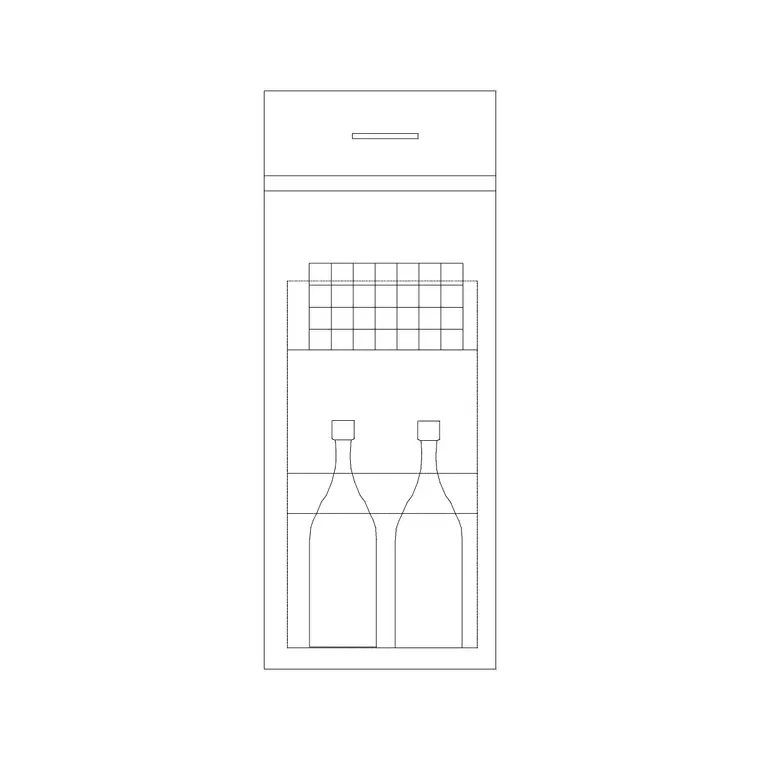
Grab a cabinet block to start the run
Kitchens are built from repeated modules, so a single cabinet block goes a long way. In the Kitchen category, open a cabinet block — a base unit drawn in plan as a rectangle the depth of a worktop — and download the DWG. It is free, no login, commercial-cleared, and ready to be repeated along a wall to form a full run of units.
A plan kitchen cabinet is essentially a rectangle at the standard cabinet depth, often with a line indicating the door front or a diagonal marking a corner unit. Because kitchens are modular, you will insert one cabinet and then copy or array it to build the worktop run, so getting the first one placed accurately against the wall sets up everything that follows. Note where the DWG saved, usually your Downloads folder.
Insert the first cabinet against the wall
Open your kitchen plan, type I, Enter, Browse to the cabinet DWG and select it. Base units sit against the wall, so turn on snaps (F3) and place the back edge of the cabinet flush to the wall line, with one end snapped to a corner or the start of the run. The base point of a cabinet block is usually a back corner, which makes this alignment clean.
Leave scale at 1 — a standard base cabinet is 600mm deep, and widths come in modules like 300, 450, 500 and 600mm, so the block should already be at real size. Click to place the first unit in the corner. This corner cabinet is your datum: every other unit in the run will butt up against it, so make sure it is exactly in the corner with the back flush to the wall before you start adding more.
Build the run with copy or array
Now repeat the cabinet along the wall. The fastest method is ARRAY (rectangular) with a row spacing equal to the cabinet width — for 600mm units, set the column spacing to 600 and the number of columns to fill the wall. Each unit snaps neatly edge to edge with no gaps. Alternatively, COPY the cabinet and use object snaps to butt each new unit's corner to the previous one's corner.
For a kitchen with different unit widths, place each size in turn, snapping end to end as you go, so the run reads as a sequence of real cabinets. Leave the standard gaps where appliances go — a 600mm slot for a dishwasher or oven, 900mm for a range — and drop in appliance blocks there later. Building the run from snapped, correctly-sized modules means the worktop length comes out right automatically.
Handle corners, islands and depth
Corners need a corner unit, which is deeper or L-shaped to turn the run; place a dedicated corner cabinet block where two runs meet rather than overlapping two straight units, which would read as a clash. For an island, the same base cabinets are placed back-to-back or in a block away from the wall, so insert and array them in the island position with the worktop overhang drawn around them.
Keep the depth consistent. Every base unit should be the same 600mm depth so the worktop front line is straight; if a downloaded block is a different depth, set a non-uniform Y scale on insertion to bring it to 600, or stretch it. A run where one cabinet is shallower than the rest produces a kinked worktop edge that looks like an error, so it is worth checking the depth line runs straight along the whole run.
Layer it and add the worktop
Put cabinets on a joinery or kitchen-units layer so the cabinetry can be controlled separately from the architecture and appliances. Blocks built on layer 0 inherit the current layer, so set that layer current before inserting and the cabinets take it on. Appliances and the sink can go on their own layer so the electrical and plumbing packages can isolate them.
Finish by drawing the worktop as a continuous line along the front and ends of the run, overhanging the cabinets slightly (around 20 to 40mm at the front). Add the sink, hob and appliance blocks into their gaps, and the kitchen reads as a real, buildable layout. Because everything is modular blocks on tidy layers, you can rearrange the run, swap unit widths, or restyle the drawing later without redrawing a single cabinet by hand.
Check the kitchen work triangle
A kitchen layout is judged not just on whether the cabinets fit but on whether it is pleasant to cook in, and the classic test for that is the work triangle — the path between the sink, the hob and the fridge. Once your base run is built and the sink and appliance positions are set, draw three lines between those three points and look at the triangle they form. Each leg should be a comfortable distance, not so tight that the spaces crowd each other and not so long that you trek across the room between tasks (a common guide is each leg between roughly 1.2m and 2.7m).
Because the cabinets and appliances are all blocks, this is easy to test and adjust: if the triangle is awkward, slide the sink unit or swap the position of the hob and you can immediately see the new triangle. Watch too that the triangle's legs do not cut across the main walking route through the kitchen, which would put the cook in the path of traffic. Getting the triangle right is what separates a kitchen that merely has the right cabinets from one that genuinely works to cook in.
Questions
Frequently asked
What depth should kitchen base cabinets be in plan?+
A standard base cabinet is 600mm deep. Keep every unit the same depth so the worktop front line stays straight; if a downloaded block differs, set a non-uniform Y scale to bring it to 600mm.
What is the fastest way to build a run of cabinets?+
Use rectangular ARRAY with the column spacing set to the cabinet width (for example 600mm) so units snap edge to edge with no gaps. For mixed widths, COPY and butt each unit's corner to the previous one.
How do I handle a corner in the cabinet run?+
Use a dedicated corner cabinet block where two runs meet, rather than overlapping two straight units. Place it so both runs butt cleanly into it and the worktop turns the corner without a clash.
Free downloads from this article

Free CAD block library
Download the blocks from this article — free, no signup

