Building an elevation in AutoCAD using free downloaded blocks
Build an architectural elevation in AutoCAD from free DWG blocks: using elevation-view trees, people and cars for scale, and matching the plan.
Saumyajit MaityUpdated 8 June 20264 min read
Project the elevation, then dress it
An elevation is the straight-on view of a vertical face — a façade or an interior wall — drawn with no perspective and no foreshortening. Build the elevation geometry first: project the outline up from the plan so widths line up exactly, set the floor and ceiling datums and the storey heights, and draw the openings, materials and parapet on their own layers. Only once that accurate face exists does it make sense to start adding blocks, because the blocks are there to give the elevation scale and life, not to define it.
The golden rule on an elevation is the view. Everything you add must be an elevation-view block — the front profile of an object — not a plan symbol. A standing person, a tree in silhouette, a car in side profile: these belong here. Their plan-view cousins (a footprint, a canopy circle, a top-down car) belong on the floor or site plan and look instantly wrong dropped onto a façade. Get the elevation built, confirm you are reaching for elevation blocks, and the dressing goes quickly.
Pick elevation-view blocks (free DWG)
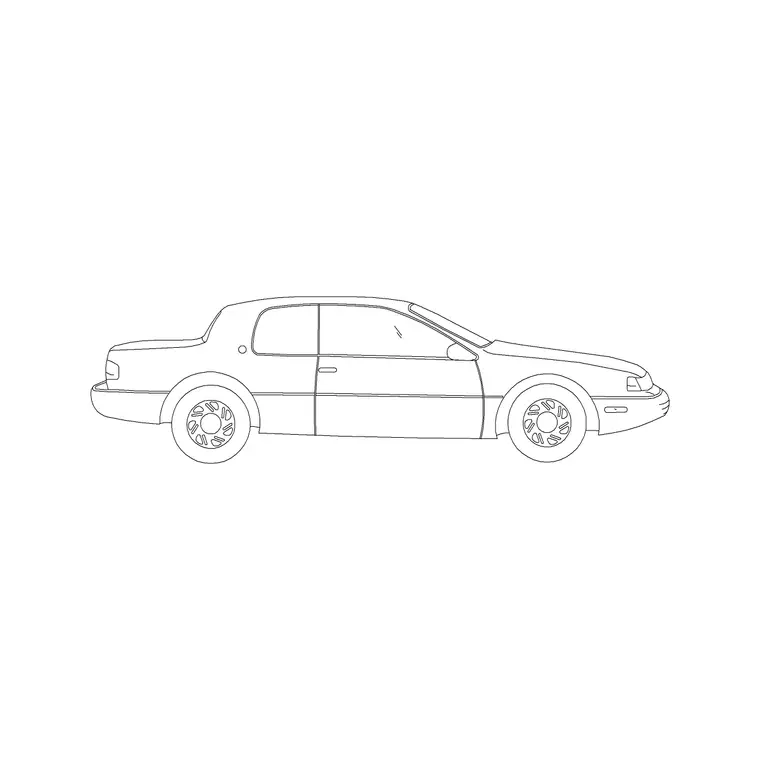
Several categories on CADBlockDWG carry elevation-view content, all free in DWG with no signup and free for commercial use. For a street scene, grab elevation trees from Trees & Plants — the side silhouette of trunk and canopy — and an elevation car from Vehicles, such as the 2 Door Sedan Car drawn in side profile, to park at the kerb. For interior elevations, indoor pieces like a large indoor plant with MS legs read well against a wall, and you can pull elevation versions of furniture and fittings to dress a room face.
The catalogue labels blocks by view, so filter for elevation versions specifically. People are the most valuable elevation entourage of all because they fix the scale instantly — a figure standing against the façade tells the eye exactly how tall everything is. Pull a few standing figures, a couple of tree silhouettes and a car as single small DWG files. Everything is free for commercial use, so the dressed elevation goes straight into a planning or presentation set.
Place entourage along the ground line
Set an entourage layer current and place your elevation blocks along the ground line of the drawing, sitting their bases on the established ground datum with object snaps so they do not float or sink. Leave scale at 1; if a block arrives oversized fix INSUNITS rather than guessing a factor. Stand figures on the pavement in front of the building, park the car at the kerb, and set trees where the planting actually is in plan — ideally projecting their positions across so the elevation and plan agree.
Mind the depth reading. Entourage in front of the building partly overlaps the façade and should sit cleanly over it; trees or figures meant to be behind can be drawn lighter or partly hidden to suggest depth. Vary and mirror the blocks so you do not get two identical figures or a row of clone trees — even small variation reads as a real street rather than a stamped one. A few well-placed pieces do far more than a crowd.
Make the elevation agree with the plan
An elevation that contradicts its plan undermines the whole set, so cross-check them. The widths of openings, the positions of trees and the placement of features should project directly from the plan, so a window centred in plan is centred in elevation and a tree shown at the corner in plan appears at the corner in elevation. Lining the two up is not just tidy — it is how a reviewer trusts the drawings and how a builder reconciles them on site.
The heights, of course, come from the elevation itself: storey heights, sill and head levels, parapet and ridge. Confirm the entourage respects them too — a standing figure should read at a believable height against the storey, and a tree silhouette at a believable height against the building. Because you are using accurate elevation blocks rather than sketched shapes, these proportions come out right, and the elevation reads as a credible, coordinated face rather than a loose impression.
Layer the entourage and finish clean
Keep all entourage — trees, people, vehicles — on dedicated layers separate from the building fabric, with everything ByLayer. As with plans, this lets you issue a clean technical elevation with the entourage frozen for approval, and a dressed presentation elevation with it showing, both from one file. It also keeps the busy silhouette geometry from interfering with the lines that actually describe the building when you are dimensioning or detailing.
Run a quick AUDIT and PURGE after importing several block families to strip orphaned data and keep the drawing light. Put the workflow together — accurate projected elevation first, strictly elevation-view blocks, entourage seated on the ground line, proportions cross-checked against the plan, and disciplined layers — and a convincing architectural elevation comes together quickly from free DWG content, scaled and brought to life by people, trees and vehicles drawn for exactly this view.
Questions
Frequently asked
Which blocks do I use on an elevation drawing?+
Elevation-view blocks — the front profile of an object: a standing person, a tree silhouette, a car in side profile. Plan symbols like footprints and canopy circles belong on the floor or site plan.
Where can I download free elevation blocks for AutoCAD?+
Trees & Plants, People and Vehicles on CADBlockDWG all carry elevation-view blocks — including the 2 Door Sedan Car in side profile — free in DWG with no signup and free for commercial use.
How do I make an elevation match its floor plan?+
Project widths and feature positions up from the plan so openings and trees line up, and take heights from the elevation's storey datums. Accurate blocks keep the proportions believable.
Free downloads from this article

Free CAD block library
Download the blocks from this article — free, no signup