Building a parking layout in AutoCAD from free vehicle blocks
Lay out a car park in AutoCAD using free DWG vehicle blocks — bay sizing, aisle widths, arraying bays, and using a real car block to prove the design works.
Sumana KumarUpdated 24 June 20265 min read
Parking is a geometry problem first
A parking layout is, at heart, a packing problem: fit the most usable bays into the available area while keeping the aisles wide enough to actually use them. So it starts with the site geometry — the boundary, the access point, levels, and any fixed obstructions like columns, ramps or landscape islands — drawn accurately on their own layers. Everything else is fitted into that envelope, and a layout designed without an honest envelope tends to claim bays that do not really exist once a real car has to reach them.
Decide the bay arrangement against the geometry: 90-degree (perpendicular) bays pack the most cars and suit two-way aisles; angled bays (typically 45 or 60 degrees) are easier to enter and exit but use more area and usually pair with one-way flow. The choice follows from the site shape and the circulation you want. Settle the arrangement first, and the bays and aisles then array out predictably.
Get the vehicle blocks (free DWG)
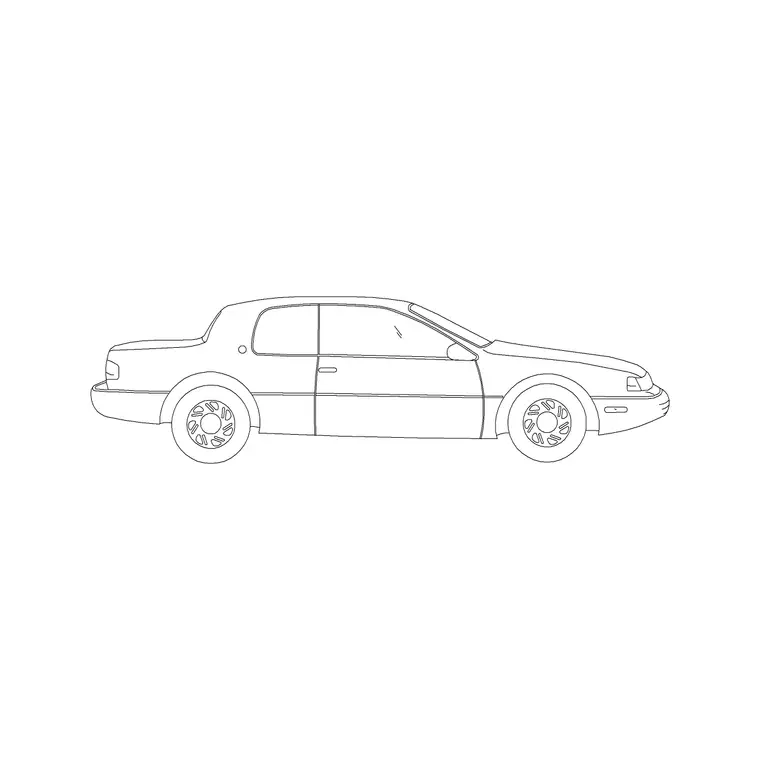
The Vehicles category on CADBlockDWG carries cars and other vehicles in plan view, all free in DWG with no signup and free for commercial use. The essential block for a parking layout is a representative car footprint — something like the 2 Door Sedan Car in plan — because you use it to test that a real vehicle fits the bay and can manoeuvre out of it. It is the difference between a layout that works on paper and one that works on tarmac.
A single good car block goes a long way, but grabbing two or three different models helps when you populate the finished layout so it does not look like a field of identical clones. If the scheme includes larger vehicles — vans, or a service vehicle that must reach a loading area — pull a larger plan vehicle too, since the swept path of a big vehicle is what often dictates aisle widths and corner radii. Each block is a single small DWG; pull what the scheme needs.
Set out the bays and array them
Draw one standard bay to your chosen dimensions on a parking layer — a perpendicular bay is commonly in the region of 2.4–2.5m wide by about 4.8–5m deep, though you should follow the dimensions your local standard or client requires. Then array it: use ARRAY (rectangular) to repeat the bay along the row, and mirror a second row back-to-back across the aisle so two ranks of bays share a circulation lane. This turns a whole parking field into a couple of operations rather than dozens of placements.
Mark accessible (disabled) bays at the appropriate ratio and size — these are wider, with a hatched transfer zone alongside, and must sit close to the building entrance — on their own clearly-distinguished layer. Add bay numbering if the project needs it. Snap everything to the setting-out so the rows stay true to the geometry. Insert your car block into a sample bay as you go, fixing INSUNITS if it arrives oversized, to confirm the bay you have drawn genuinely holds a car.
Check aisle widths and turning
The aisles are where parking layouts most often fail, so size them deliberately. A two-way aisle serving perpendicular bays needs to be wide enough for cars to pass and to turn into a bay in one or two movements — commonly around 6m, but follow your governing standard. One-way aisles serving angled bays can be narrower. The test is not just passing width but the turning circle: can a car actually swing from the aisle into the bay without a three-point shuffle?
This is exactly what the car block proves. Drop it into the aisle and rotate it through the manoeuvre into a bay, or sweep it along the route to a dead end and back, and you can see whether the geometry works. Check the swept path at corners and ramp transitions too, where a long vehicle can clip a kerb or a column. Catching a tight aisle or an impossible turn now, with a real block, is far cheaper than rebuilding a car park that was striped wrong.
Populate, layer and issue
Once the geometry is proven, dress the layout for presentation by placing car blocks into a realistic share of the bays — not every bay, since a real car park is rarely full, and with a mix of models, rotations and mirrored instances so it does not read as identical stamps. Leaving some bays empty and varying the cars tells the honest story of how the parking is used and reads far more naturally than a perfect grid of clones.
Most real car parks are broken up by landscape, so add it: drop plan-view trees such as Pine Plan 1 into the planting islands between bay runs and along the perimeter. Trees do double duty here — they soften the expanse of tarmac on a presentation drawing, and on a working drawing they let you confirm an island is big enough for a tree pit and that a mature canopy will not foul a manoeuvring vehicle. A couple of plan-view human figures at the entrance and on the pedestrian route fix the scale and remind everyone the car park has to work for people on foot, not just vehicles.
Keep bays, accessible bays, aisles, markings, numbering, planting and the vehicle entourage on distinct layers, all ByLayer, so you can issue a clean setting-out drawing with the cars frozen and a dressed presentation plan with them showing, both from one file. Run a quick AUDIT and PURGE after importing the vehicles and trees. Put it together — honest site envelope, a standard bay arrayed into rows, accessible bays placed correctly, aisles and turning proven with a real car block, landscape islands shown, and clean layers — and a parking layout that genuinely works comes together fast from free DWG blocks.
Questions
Frequently asked
Where can I download free car blocks for a parking layout?+
The Vehicles category on CADBlockDWG has plan-view cars — including the 2 Door Sedan Car — free in DWG with no signup and free for commercial use, ideal for testing whether a bay fits a real vehicle.
What is the fastest way to lay out parking bays in AutoCAD?+
Draw one standard bay, then use the ARRAY command to repeat it along the row and mirror a second row across the aisle, so two ranks share one circulation lane. Snap everything to your setting-out.
How do I check a car park aisle is wide enough?+
Insert a real car block, then rotate it through the manoeuvre from the aisle into a bay and sweep it along the route. If it cannot turn in without a three-point shuffle, the aisle is too tight.
Free downloads from this article


Free CAD block library
Download the blocks from this article — free, no signup