Auditing a shared CAD block library for duplicate blocks
A repeatable process for finding duplicate, outdated, and broken blocks in a shared CAD library before they cost a project time.
Saumyajit MaityUpdated 16 May 20266 min read

Why a library needs a recurring audit, not a one time cleanup
I get asked to clean up a messy shared block library a few times a year, and the fix always holds for a while and then quietly degrades again, because a library is a living thing, people add to it constantly and almost nobody removes from it, so duplicates and outdated versions accumulate by default unless something actively counters that. Rather than treating cleanup as a one time project, the offices that stay organised long term run a short audit on a fixed schedule, quarterly works well for most teams, and treat it as routine maintenance rather than an emergency response to a specific problem.
The good news is the audit itself is fast once you have a process, usually an hour or two for a library in the low thousands of blocks, which is a small price for avoiding the alternative, someone drawing a chair from scratch because they could not tell which of four sofa blocks was the right one.
Finding duplicates by eye and by name
Start with DesignCenter or the Blocks palette set to thumbnail view and scan category by category, duplicates jump out visually faster than you would expect, two sofas that look nearly identical, three office chairs that differ only slightly in the arm detail. Cross reference against the naming convention your office uses, if you followed a consistent prefix system as covered in a separate post on naming, duplicates often reveal themselves just by sorting the folder alphabetically since near duplicate names cluster together.
The trickier case is a functional duplicate with a completely different name, someone downloaded the same style of wall lamp from two different sources months apart and named them differently, those only get caught by an actual visual scan, which is exactly why the thumbnail view pass matters more than a text search alone.
Checking for outdated blocks against current standards
Outdated is a different problem from duplicate, an outdated block might be the only version of that item in the library, but it no longer matches how your office actually works, wrong layer convention, missing a view your current standard requires, drawn at a scale that does not match your current template, or referencing a discontinued product line if you draft for a specific manufacturer's catalogue. Flag anything that predates your last major standards update as a candidate for review rather than assuming age alone means it is wrong, plenty of older blocks are still perfectly usable geometry.
A practical marker here is your naming convention's version suffix if you use one, anything sitting at v1 while the rest of its category has moved to v2 or v3 is worth a specific look, since that gap usually means it was never updated when the rest of the library moved forward.
Use PURGE and AUDIT to catch what you cannot see
Beyond visual duplicates, run the AUDIT command on each block file to catch structural problems, corrupted entities, invalid geometry, that do not show up just by looking at the block in a viewport. Follow with PURGE, repeated a couple of times since a single pass does not always catch everything nested inside layers, to strip unused layers, linetypes, and text styles that accumulate inside block definitions over time and quietly bloat file size without adding anything useful.
For a whole library at once, this is a good candidate to script rather than do file by file, a short routine using AutoCAD's scripting or the .NET API can batch audit and purge every DWG in a folder in one run, which turns an hour of tedious manual work into something you kick off and check on later.
A mistake I see more than I'd expect is running PURGE once, seeing the file size barely move, and assuming there was nothing to clean up, when the real issue is that PURGE only removes an unused item on the pass where it becomes provably unused, so a layer that was only referenced by another layer or a linetype that only appeared inside a block definition you just deleted often needs a second or third pass before it actually disappears. Typing PURGE followed by ALL and confirming yes to purge nested items gets you there in one shot on newer AutoCAD versions, but on older releases or scripted routines it is worth just running the command two or three times in a row as a habit rather than trusting the first pass caught everything.
Deciding what to remove versus what to keep and flag
Not every duplicate needs deleting immediately, sometimes a project specific variant genuinely needs to stay because an active job depends on it matching a client's existing drawing set exactly. My rule of thumb is delete confirmed exact duplicates outright, merge near duplicates into whichever version is objectively better and redirect the naming, and flag anything you are unsure about into a review subfolder rather than deleting on the spot, since deleting a block that turns out to be referenced somewhere you did not check is a much bigger headache than leaving it flagged for another week.
Keep a short log of what got removed and why, the same changelog habit from setting up the library in the first place, so if a drafter later goes looking for a block that is gone, there is a record explaining the removal instead of a mystery.
A concrete example that comes up constantly is furniture, three sofa blocks that all trace back to the same base geometry but were drawn at slightly different scales, one at roughly 2100mm wide and two closer to 2000mm because someone eyeballed a resize instead of checking the source dimension. In that situation I keep whichever one matches your office's current furniture schedule dimensions, redirect the naming on the other two, and note in the flagged log which drawings referenced the wrong scale so a follow up pass can check whether any live project actually needs correcting.
Turning the audit into a habit that sticks
Put a recurring calendar reminder on whoever owns the library, block off a fixed hour or two rather than leaving it as whenever there is time, because whenever there is time in a busy studio usually means never. Rotate the task between two people if your office has more than one senior drafter, a second set of eyes catches things the regular owner has gone blind to simply from familiarity. Over a year of consistent quarterly audits, a library that started with hundreds of duplicate and stale entries typically settles into something genuinely lean, and the time each audit takes actually shrinks once the backlog is cleared, because you are only catching what accumulated in the last three months rather than years of drift.
A short checklist for the audit itself
In practice I run through the same short list every quarter, thumbnail scan each category folder for visual duplicates, sort by name to catch near duplicate naming, run AUDIT then PURGE across the whole folder, check any version suffix gaps against the current standard, review the flagged from last quarter subfolder and finally decide on anything left sitting there, and update the changelog with what changed. Written down like that it looks like a lot, but once it is a routine rather than a rediscovery each time, most offices get through it well within the two hour window, and the library stays consistently usable in between rather than slowly rotting until the next big cleanup project becomes necessary.
Further reading
Questions
Frequently asked
How often should a shared block library be audited?+
Quarterly is a good default for most offices, it is frequent enough to catch drift before it compounds, and infrequent enough that the audit itself stays a quick routine rather than a major undertaking.
What is the difference between PURGE and AUDIT in AutoCAD?+
PURGE removes unused named objects like layers, linetypes, and block definitions that are not referenced anywhere in the drawing, while AUDIT checks the drawing for structural errors in the geometry and database itself and can attempt to fix them.
Should I delete a duplicate block immediately when I find one?+
Only if you are certain it is an exact duplicate with no active project depending on it, otherwise flag it into a review subfolder first, deleting something still in use is far more disruptive than leaving it flagged.
Free downloads from this article


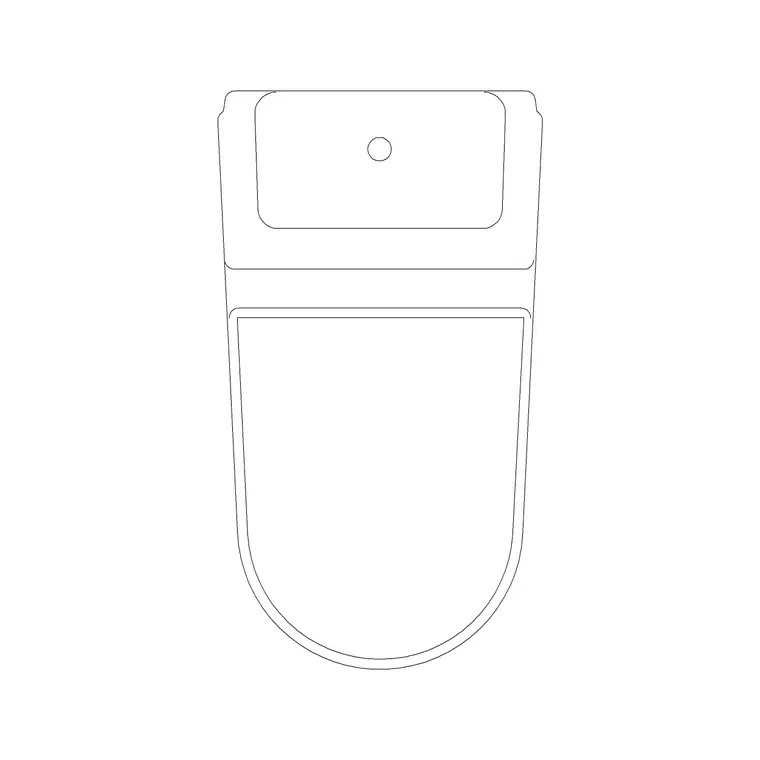
Free CAD block library
Download the blocks from this article — free, no signup
