Where to find free staircase plan DWG files
Where to source free staircase plan-view DWG files, how to read the up-arrow and break line, and how to place a stair plan correctly between two floors.
Saumyajit MaityUpdated 25 April 20264 min read

What a staircase plan shows
A staircase plan is the top-down view of a stair, and it follows clear conventions every drafter should recognise. You see the treads as a series of parallel lines, an up-arrow running along the centre showing the direction of ascent, a break line where the plan cuts through the flight (so you can see what is below), and the outline of the well or the wall around it. It is the view that places the stair in the building — where it starts, where it lands, and how it relates to the rooms around it.
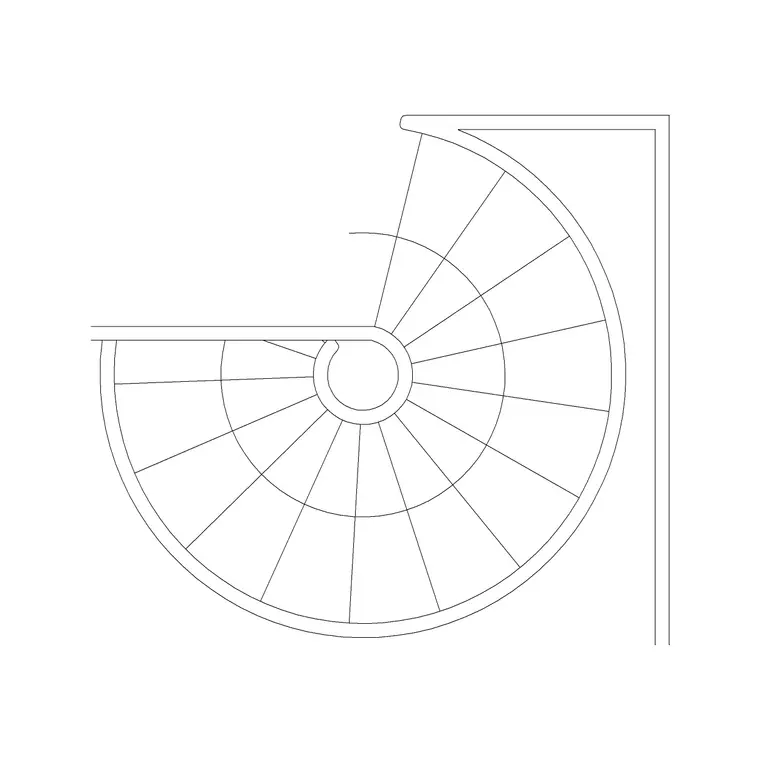
On CADBlockDWG, stair plans live in the Stairs category. You will find plan-view blocks for straight flights, dog-leg and L-shape stairs, and circular and spiral stairs — including the Circular Stairs and Circular Metal Staircase blocks, which are supplied with plan geometry. Every file is a free DWG download with no account, free for commercial use. Searching 'staircase plan', 'stairs plan' or a specific type surfaces the right block.
Where they live on the site
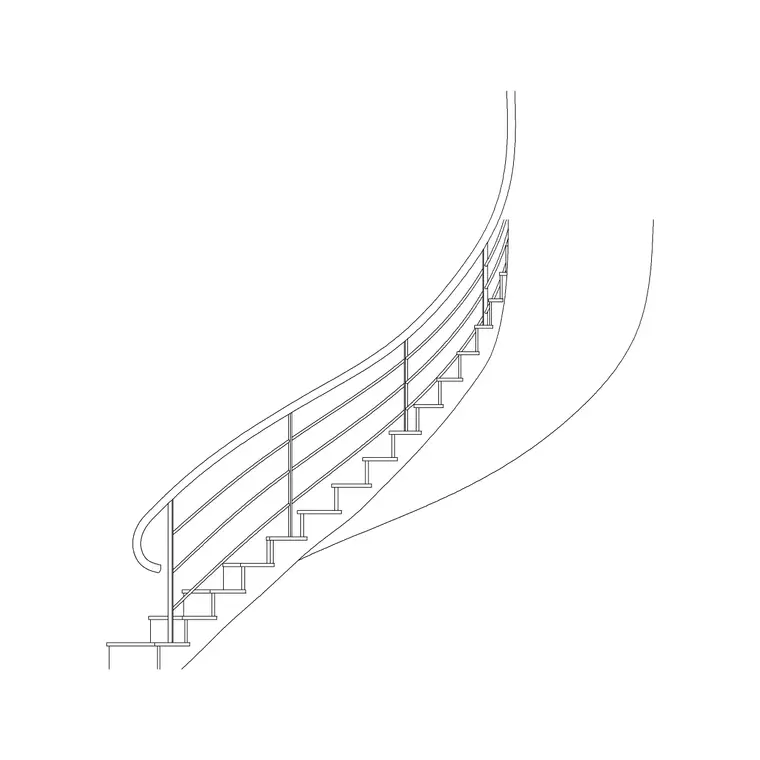
Open the Stairs category from the navigation, or search the type you need. The category covers the full range of stair plans: straight flights, quarter- and half-turn (L-shape and dog-leg) stairs, and circular and spiral types. For circular stairs, Circular Stairs Type 1, 2 and 3 give you plan footprints at different diameters, and the Circular Metal Staircase blocks carry both plan and elevation so one download serves both views.
Every block is a free DWG with no signup and a licence that permits commercial use, so a stair plan you place in a client drawing carries no strings. The previews let you match the plan footprint to your space before downloading — a straight flight, an L-shape and a spiral occupy very different plan areas, and the thumbnail tells you which fits the opening you have. Because the files cost nothing, pulling a couple of candidates and testing them in the actual plan is a sensible way to choose.
Reading the plan conventions
Before you place a stair plan, it helps to know what every line means so you can check the block is correct and add to it confidently. The up-arrow always points from the lower level to the upper level, with the tail at the bottom step and the head at the top — it tells anyone reading the drawing which way the stair climbs. The break line (a zig-zag or a pair of parallel lines with a gap) marks where the plan is cut, showing the flight below the cut and hiding the part above so the floor reads clearly.
The treads are evenly spaced lines, and a good plan block has them at the correct going so the stair length is honest. On the floor above, the same stair shows as the well opening — a void — rather than the full flight. Knowing these conventions lets you confirm a downloaded block is drawn correctly, and lets you add tread numbers, the floor level, or a handrail line in the right places.
Placing the stair between floors
Insert the plan block with INSERT, snapping the bottom of the flight to where the stair starts on the lower floor — the foot of the stair against the wall or the edge of the opening — using object snaps so it lands exactly. Leave scale at 1 and confirm the size with DIST; fix any units mismatch with INSUNITS or a SCALE of 0.001 / 1000. Rotate the block so the up-arrow points the way the stair actually climbs in your plan.
For a dog-leg or L-shape stair, check the landing lands where your plan needs it; for a circular stair, snap the centre to the centre of the well so it sits concentric. Mirror the block if you need the opposite hand rather than sourcing a different file. On the floor-above plan, show the same stair as the well opening (a void) and, where convention requires, the top few treads with a break line. Keep the stair on a dedicated layer so you can manage it from the Layer Manager.
Coordinating plan with section
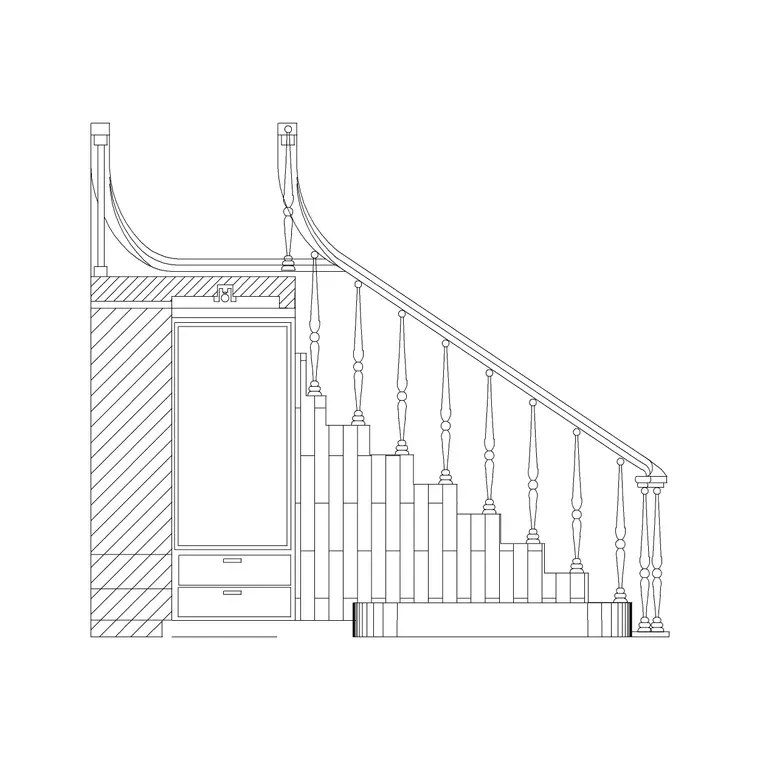
A stair plan rarely lives alone — it needs a matching section or elevation to prove the stair works vertically, and the catalogue's plan and elevation blocks let you keep them consistent. Use the plan block on every floor the stair passes through, and an elevation or section block to show the rise, the going, the headroom and the landing. The plan answers 'where', the section answers 'does it fit vertically', and together they describe a buildable stair.
After importing any block, run AUDIT and PURGE to strip orphaned data and keep the drawing clean, and treat the downloaded file as untrusted until you have measured it and checked its layers. Because the stair is a block, you can reuse the same plan across repeated floors or mirror it for a handed unit in a single move. Sourced from the Stairs category, read against the standard plan conventions, and placed with the up-arrow and well opening correct, a free staircase plan DWG gives you an accurate, conventional stair plan that coordinates cleanly with your sections and carries a drawing set toward construction.
Questions
Frequently asked
Where can I find free staircase plan DWG files?+
In the Stairs category on CADBlockDWG — plan-view blocks for straight, L-shape, dog-leg and circular stairs, all free DWG downloads with no signup, free for commercial use.
What does the up-arrow on a staircase plan mean?+
It shows the direction of ascent — the tail sits at the bottom step and the head points to the top, telling the reader which way the stair climbs from the lower floor to the upper.
How do I place a staircase plan between two floors?+
Snap the foot of the flight to where the stair starts on the lower floor, rotate so the up-arrow climbs correctly, and show the same stair as a well opening on the floor-above plan.
Free downloads from this article
Free CAD block library
Download the blocks from this article — free, no signup


