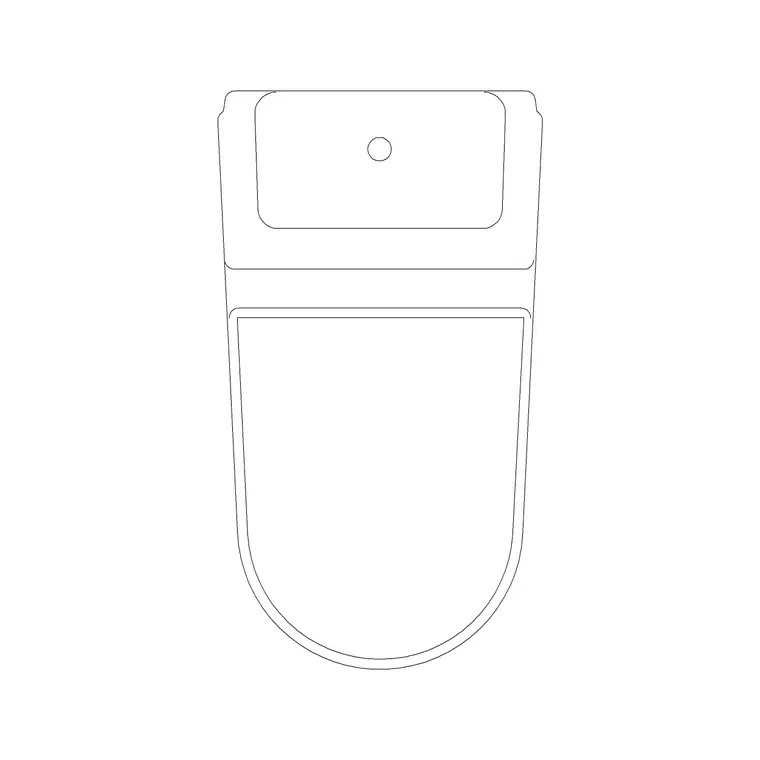
How to download free building signage symbol blocks for AutoCAD
Free building signage and wayfinding symbol DWG blocks — how to download them, what the set covers, and how to place signage symbols cleanly on plans.
Sumana KumarUpdated 28 June 20264 min read

Where the signage symbols live
Building signage and wayfinding symbols sit in the Building Symbols category on CADBlockDWG, which is one of the larger collections on the site. It gathers the small graphic symbols a drawing leans on — directional arrows, facility markers, and the toilet, first-aid, fire and exit signs covered in companion guides. Reach it from the top navigation or search for the specific symbol you need. Downloads are free and instant: no account, no email wall, no timer.
These symbols are generic, standard-style graphics rather than a particular signage manufacturer's artwork, which is exactly right for construction and fit-out drawings. You are marking where signage goes and what type it is — a directional arrow here, a facility symbol there — so the layout, the signage schedule and the wayfinding strategy read clearly. The symbols communicate intent on the drawing; the actual sign hardware is specified separately.
What the symbol blocks contain
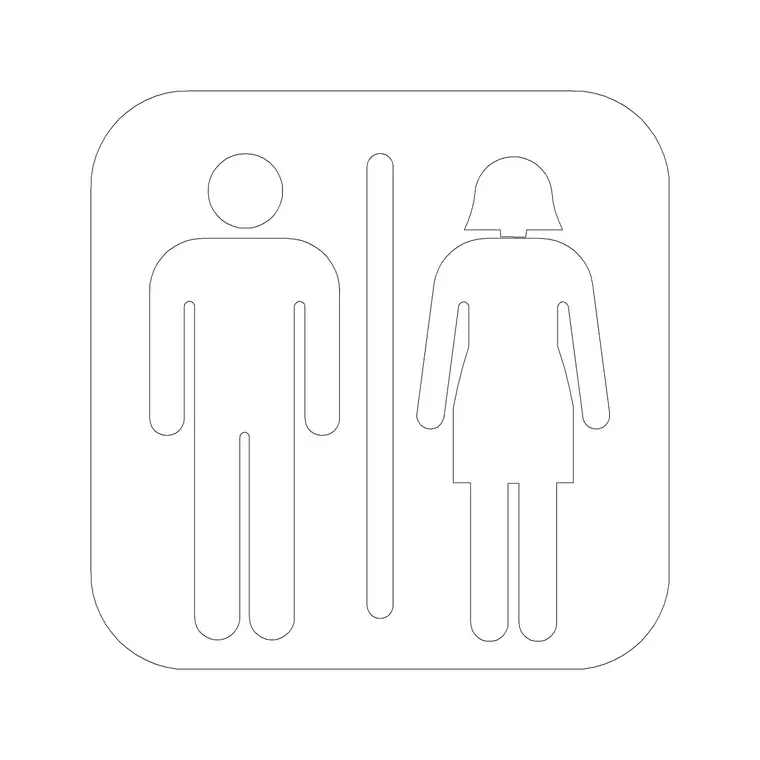
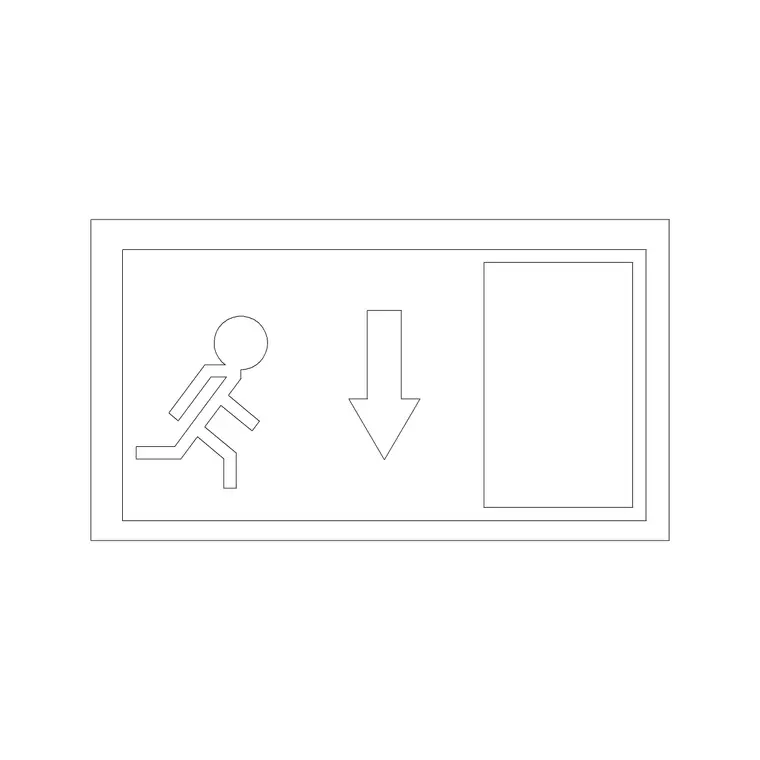
Each download is a small DWG with the symbol drawn as clean 2D linework — compact, self-contained graphics meant to be dropped onto a plan, a key, or a signage schedule. A directional arrow, a facility marker, a wayfinding glyph: each is a single tidy block rather than a sprawl of loose lines, so it inserts as one object you can place, count and edit cleanly.
The files open in any modern CAD program thanks to a widely compatible AutoCAD format, and DXF is offered where available. Symbols are deliberately simple inside — no 3D, no clutter — which keeps your drawing light even when you scatter dozens of them across a large floor plate. Because they are blocks rather than pasted geometry, you can update the definition once and have every instance follow, which is invaluable when a symbol style changes mid-project.
Placing signage symbols at the right size
Symbols are annotation, and the key difference from furniture or equipment is that they need to read at the plotted scale, not at real-world size. Insert one with INSERT, place it where the sign or the wayfinding marker belongs, and judge it against the printed sheet — a symbol that looks fine in model space can plot far too small or too large. If it does, scale the block so it reads clearly at your drawing scale rather than leaving it at 1.
For drawings issued at several scales, AutoCAD's annotative scaling lets a symbol hold a consistent printed size across viewports — worth setting up if you reuse the symbols heavily. As with any block, an absurd insert size usually points to a units mismatch first; sort INSUNITS or scale by 0.001 or 1000 before fine-tuning the annotation size. Place it, check the print, adjust, and move on.
Build a signage standard you reuse
The real payoff comes from treating the symbols as a standard rather than one-off downloads. Assemble the markers you use — arrows, facility symbols, the toilet, first-aid, fire and exit signs — into a single legend block or a small palette, and reuse that set across every project. A consistent signage standard means a directional arrow looks identical on every plan and in every schedule, which is what makes a wayfinding package read as professional.
Keep each symbol drawn at a known annotation size so they all sit together at a consistent scale, and store the legend in your drawing template so a new project starts with the signage kit already loaded. Over time this turns scattered symbol downloads into a maintained office standard: vetted once, reused everywhere, and easy to update centrally if your signage convention ever changes.
Using symbols on plans and schedules
Signage symbols do two jobs. On a plan they mark where each sign is located and what type it is, building up the wayfinding picture across the floor. On a signage schedule or a drawing key they define the legend, so anyone reading the set knows what each symbol means. Keeping the same block in both places means the plan and the legend always agree — a single source of truth for each symbol.
Because they are reusable blocks, you can build a small signage key once and reuse it across every drawing in the set, and across future projects. That consistency is what makes a signage package read as professional rather than ad hoc. Place the symbols thoughtfully, line them up where the real signs will go, and the drawing communicates the wayfinding strategy at a glance.
Keep symbols on an annotation layer
Put signage and wayfinding symbols on a dedicated annotation or signage layer, separate from the building geometry, so you can freeze or isolate them to produce a clean signage plan, or grey them back when the layer is not the focus. The symbols inherit the layer you insert them onto, so set your signage layer current before placing and they fall into line automatically.
Once you have assembled the symbols you use most, save them to a tool palette so dropping a signage marker is a single click anywhere in any drawing. Combine that with annotative scaling and a tidy signage layer and you can annotate a whole building's wayfinding quickly and consistently from this free Building Symbols category, then restyle or isolate the layer whenever the signage package needs it.
Questions
Frequently asked
Where can I download free building signage symbol blocks?+
From the Building Symbols category on CADBlockDWG, which gathers directional arrows, facility markers and signage glyphs. Search the symbol you need and download the DWG free with no signup.
What size should a signage symbol be in my drawing?+
Size it to read clearly at the plotted scale, not at real-world size, since symbols are annotation. AutoCAD's annotative scaling can hold a consistent printed size across multiple viewport scales.
Can I reuse the same symbol on the plan and the legend?+
Yes, and you should. Using the same block on the plan and the signage schedule keeps them in agreement, and editing the block definition updates every instance at once.
Free downloads from this article


Free CAD block library
Download the blocks from this article — free, no signup