How-to guide · how to insert a staircase block in autocad
How to insert a staircase block in AutoCAD
By Saumyajit Maity · Published 7 Aug 2023 · Updated 10 Mar 2026
A staircase block is the one element where the plan symbol carries real geometry you have to respect: the number of treads, the going of each step, the direction of travel and the line where the section cuts through. Drop a stair in without checking those against the floor-to-floor height and you can end up with a flight that doesn't reach the next level or risers that breach the building code. This guide covers inserting a staircase block so it fits the stairwell, climbs the right height and reads correctly with its up arrow and break line.
We'll work mainly with a straight or quarter-turn flight in plan because that's the everyday case, then note what changes for spiral and circular stairs. The guiding idea throughout is that a stair block isn't decoration — it has to add up dimensionally, so the placement is as much a calculation check as a drawing task.
Work out the rise before you insert
A stair has to climb the exact floor-to-floor height, so start there. Divide the floor-to-floor height by a comfortable riser — commonly 150 to 190 mm for domestic stairs, with around 175 mm a typical target — to get the number of risers, then round to a whole number and recompute the actual riser. A standard domestic flight often lands at 13 to 16 risers. The going (tread depth) usually runs 220 to 300 mm.
Knowing the riser count tells you how many treads the plan block should show and how long the flight runs. Pick a staircase block with roughly the right tread count so you're not stretching it heavily on insertion.
Insert the stair into the stairwell
Confirm UNITS reads Millimeters, run INSERT, and browse to the staircase DWG. Stair blocks are usually drawn with the base point at the bottom of the first riser or a corner of the flight, which lets you anchor the start of the climb to a known point in the stairwell.
Snap that base point to the start of your stairwell and rotate so the flight runs the intended way. Check the stair fits the wellopening: the flight width (commonly 800 to 1000 mm for domestic, wider for public stairs) and the total run length must sit inside the walls you've drawn. If the block overruns the well, the well — or the stair design — needs adjusting; don't just squash the block, because that falsifies the going.
Add the up arrow and direction of travel
Every stair on plan needs a direction indication: a line running up the centre of the flight with an arrowhead and the word UP (or DN on the floor above), starting from the lower level. This is a hard convention — a stair without an up arrow is ambiguous, and on a multi-storey plan it's how a reader knows whether they're looking at the flight going up or the one coming down to that floor.
Many staircase blocks include the arrow; if yours doesn't, draw a polyline up the flight centreline, add an arrow at the top, and label it. Place it on the same stairs layer so it stays with the flight.
Draw the section break line
On a single-floor plan you don't show the whole flight — you show the part below the cut plane and break the drawing where the stair rises through it, typically around 1200 mm up. The convention is a diagonal break line (often two parallel zig-zag lines) across the flight: treads below the line are drawn solid, and the flight continuing up is either omitted or shown faint.
If the block is a full flight, add the break line yourself: draw the diagonal cut across the treads at the cut-plane position and TRIM or hide the upper treads. This is what makes a stair read as a stair on a floor plan rather than a confusing ladder of parallel lines climbing off the page.
Spiral and circular stairs
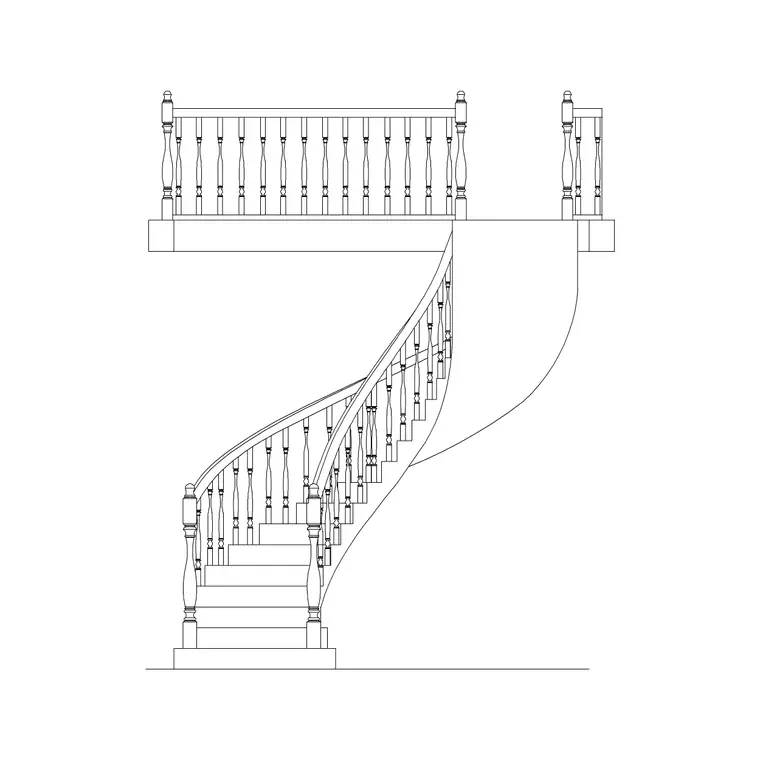
Circular and spiral stairs follow the same logic but the geometry is radial. The plan block shows wedge-shaped treads radiating from a centre column or an inner curve, and the going is measured along the walking line (commonly about two-thirds out from the centre), not at the narrow inner edge. Check that walking-line going still meets a sensible step depth, because spiral treads pinch dangerously narrow near the middle.
Insert a circular stair block by snapping its centre point to the centre of your stairwell, then rotate so the entry tread faces the right way. Add the up arrow curving along the walking line and the break line as usual. Spiral stairs save floor area but are tighter to climb, so the block placement should make the diameter and the going at the walking line clearly checkable.
Pitfalls when inserting stairs
The cardinal sin is stretching a stair block to fit the well without re-checking the riser and going — that quietly produces non-compliant steps. If the block doesn't fit, fix the design or pick a block with the right tread count; never distort your way to a fit. A second mistake is omitting the up arrow or the section break, which leaves the stair ambiguous and unreadable.
Watch the headroom too: even though it's a section concern, a stair under a landing or sloping ceiling needs roughly 2000 mm of clear headroom over the flight, so the plan placement has to leave room for that in section. Finally, keep the stair on its own layer — mixed in with the walls, it can't be isolated, and a stair is exactly the element you often want to show or hide between drawing types.
Free download
Browse the full library — DWG & DXF, no signup.
Questions
Frequently asked
How do I fit a stair block to the floor height?+
Divide the floor-to-floor height by a comfortable riser (around 150 to 190 mm) to get the riser count, round to a whole number, and recompute the actual riser. Pick a stair block with that tread count so it climbs the exact height without distorting the going.
Why does my stair need an up arrow?+
It's a drawing convention that removes ambiguity. A line up the flight centreline with an arrowhead and the word UP (or DN on the floor above) tells the reader which way the flight climbs. On multi-storey plans it distinguishes the upward flight from the one descending to that floor.
What is the diagonal line across a stair on plan?+
That's the section break line, showing where the cut plane (around 1200 mm up) slices through the flight. Treads below the line are drawn solid; the flight continuing upward is broken off or shown faint. It's what makes a stair read correctly on a single-floor plan.
How is the going measured on a spiral stair?+
Along the walking line, usually about two-thirds of the way out from the centre — not at the narrow inner edge. Spiral treads pinch tight near the middle, so check the going at the walking line meets a safe step depth before committing to the block size.
Related downloads
Blocks for this guide
Popular blocks to download
Related categories
Related guides
Block landing
Free Spiral Staircase CAD Blocks — DWG Download
Download free spiral staircase CAD blocks in DWG and DXF — plan and elevation, drawn to real tread radii for AutoCAD. No signup, free for commercial use.
Block landing
Free Circular Staircase CAD Blocks — DWG Download
Download free circular staircase CAD blocks in DWG and DXF — curved stairs in plan and elevation, drawn to scale for AutoCAD. No signup, commercial-use OK.
Block landing
Free Metal Staircase CAD Blocks — DWG Download
Download free metal staircase CAD blocks in DWG and DXF — steel stairs in plan and elevation with stringers and balustrade. No signup, commercial OK.