Where to find free shrub & bush DWG files (and how to use them)
Free shrub and bush CAD blocks in DWG for planting plans — where they live on CADBlockDWG, plan vs elevation, and how to mass-plant them in AutoCAD.
Saumyajit MaityUpdated 28 June 20264 min read

What shrubs and bushes do on a planting plan
Shrubs and bushes fill the layer of a landscape between trees and groundcover. They define beds, screen low views, soften the base of buildings and give a planting plan its mid-height structure. On a site plan they read as soft, irregular clumps — quite different from the clean circle of a tree canopy — and a bed of shrubs drawn well makes the difference between a plan that looks designed and one that looks like trees floating on empty ground.
They also do practical work. Shrub massing shows where a bed screens a service yard, marks the edge of a path, or holds a slope. Because shrubs are usually planted in groups rather than as single specimens, the block you want is often a clump or a textured outline you can repeat and overlap to fill a bed, rather than a single tidy plant.
Finding shrub and bush DWGs on the site
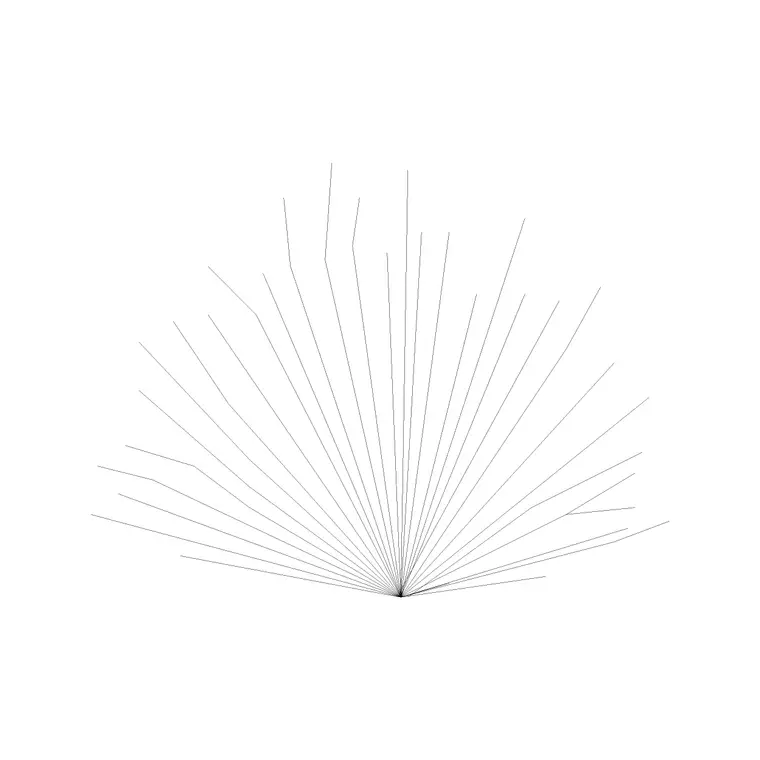
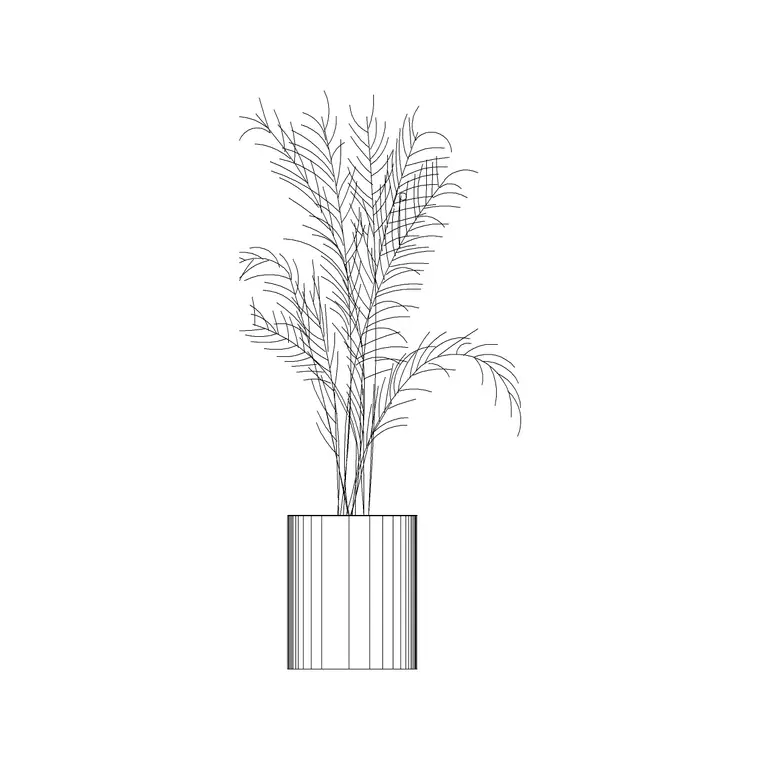
The shrub and bush blocks live in the Trees & Plants category. Search for 'shrub', 'shrubs', 'bush' or 'bushes' and you will surface the dedicated blocks — clump-style shrub outlines in plan, individual bush symbols, and a flowering shrub in elevation. Each block has a preview on its product page so you can see the texture and density before downloading.
They are free DWGs with no signup and no attribution required, free for commercial use, so a bed of shrubs you build for a client landscape package carries no licensing concern. Because the blocks are real vector geometry, you can recolour them to read green on a planting sheet, adjust their line weight, or explode and edit the outline to fit an awkward bed shape once they are in your drawing. CADBlockDWG carries several shrub and bush variants so you can mix a few rather than repeat one.
Plan versus elevation for shrubs
Most shrub and bush blocks you use are plan view — the top-down clump — because shrubs are massed on site plans and planting layouts seen from above. A plan shrub is a soft, blobby outline with internal texture, designed to be repeated and overlapped to fill a bed.
Elevation shrubs exist too — a flowering shrub seen in side profile, for example — and you use those on street elevations and sections to show the low planting in front of a building at eye level. As with trees, match the view to the drawing: plan shrubs on plans, elevation shrubs on elevations. Check the view label on the product page so you grab the right one. When a scheme needs both a planting plan and a matching elevation, download both so the same beds read consistently across the sheets.
Mass-planting shrubs in AutoCAD
Shrubs are rarely placed one at a time. To fill a bed, insert a shrub clump with INSERT, then COPY or ARRAY it across the bed, overlapping the clumps slightly and rotating or mirroring instances so the massing looks continuous and natural rather than tiled. Vary the size of the clumps within the bed so the edge reads as planting, not as a row of identical stamps.
For a quick, clean read on a busy plan you can also outline the bed with a polyline and fill it with a hatch pattern to represent shrub massing, then scatter a few individual shrub blocks on top for texture. Either way, keep everything on a dedicated shrubs (or planting) layer so you can dim or recolour the massing independently. If a block imports at the wrong size, it is a units mismatch — set INSUNITS consistently or apply a SCALE factor of 0.001 or 1000 to correct it.
When you use a path array to follow a curved bed edge, set the array to align its items to the path so the clumps turn with the curve rather than all pointing the same way — that small setting is the difference between a bed that hugs its edge and one that looks pasted on. And if you build a particularly good shrub bed, consider saving the whole arrangement as its own block so you can reuse it on the next project, turning a few minutes of careful massing into a reusable asset.
Layer, vary and keep beds reading naturally
Put shrubs and bushes on their own layer — or split planting into trees, shrubs and groundcover layers — so each can be frozen, dimmed or recoloured for different sheets. Blocks built on layer 0 inherit whichever layer you insert them onto, giving you that control for free.
The enemy of a believable shrub bed is regularity. A bed filled with one identical clump on a perfect grid looks like a pattern swatch, not planting. Mix two or three shrub blocks, overlap them, vary their sizes, and rotate or mirror freely — nothing in a real bed is repeated exactly. A flowering shrub or two among plainer ones adds further interest. With the right view, natural massing, disciplined layering and a little variation, your shrub and bush planting will read as a designed landscape rather than a tiled fill, which is exactly the impression a planting plan should leave.
Questions
Frequently asked
Where can I download free shrub and bush CAD blocks?+
In the Trees & Plants category on CADBlockDWG. Search 'shrub' or 'bush' to find plan clumps, individual bush symbols and a flowering shrub in elevation — all free DWGs with no signup.
Are shrub blocks plan or elevation view?+
Most are plan view — top-down clumps you repeat and overlap to fill a bed. Elevation shrubs (like a flowering shrub in side profile) are used on street elevations and sections.
How do I fill a shrub bed in AutoCAD?+
Insert a shrub clump, then COPY or ARRAY it across the bed, overlapping and rotating instances so the massing looks natural. Or hatch the bed outline and scatter a few shrub blocks on top for texture.
Free downloads from this article

Free CAD block library
Download the blocks from this article — free, no signup