Where to find free pine tree DWG files (and how to use them)
Free pine and conifer CAD blocks in DWG, in both plan and elevation views — where they live on CADBlockDWG and how to place them cleanly in AutoCAD.
Saumyajit MaityUpdated 28 May 20264 min read
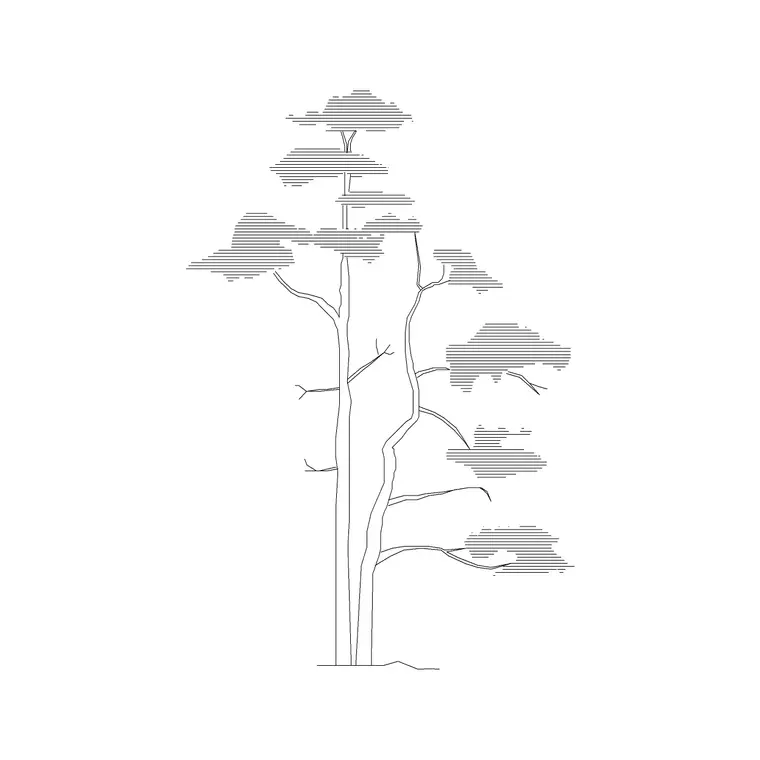
Why pine and conifer blocks are worth keeping handy
Pines and other conifers turn up constantly in landscape and site work — as screening along a boundary, as a vertical accent in a planting scheme, or as the characteristic tree on hillside, alpine and cold-climate sites. Their shape is distinctive: a tall, narrow, often conical silhouette in elevation, and a tighter, denser canopy in plan than a spreading deciduous tree. That recognisable form is exactly why having a ready-made pine block saves you redrawing those fiddly needle-like edges by hand.
Keeping a couple of pine blocks in both views means you can populate a street elevation with believable conifers and then show the same trees correctly from above on the site plan, without the two drawings contradicting each other. It is a small family of blocks that earns its place in any landscape architect's or drafter's kit.
Where the pine blocks are on CADBlockDWG
All the pine and conifer blocks sit inside the Trees & Plants category. The quickest way to reach them is to type 'pine' into the search box, which surfaces the dedicated pine plan and pine elevation blocks directly rather than making you scroll past hundreds of other species.
You will find separate plan and elevation versions — look at the view label and the preview image on each product page so you grab the right one. Pine Plan blocks give you the top-down conifer canopy for site plans; Pine Elevation blocks give you the side silhouette for street views and sections. Each downloads as a DWG, free, with no login and no attribution required, so they drop straight into commercial work.
Because they are real downloadable DWGs rather than images, you can open, measure, recolour and edit them exactly like any other block in your library.
Choosing the right view for your drawing
The single most common mistake with tree blocks is using the wrong view, and pines make it especially obvious because their plan and elevation forms look so different. On a site plan, masterplan or landscape layout — anything seen from above — use the Pine Plan block. On a street elevation, a section, or any face-on drawing where you are showing height, use the Pine Elevation block.
Mixing them reads as wrong to anyone trained: a tall conical elevation pine lying flat on a plan, or a plan canopy floating upright in an elevation, immediately signals that the drawing was assembled without care. Since CADBlockDWG labels each block's view, you can simply confirm 'plan' or 'elevation' before placing and avoid the trap entirely. When a drawing needs both — say a site plan plus a matching street elevation — download both pine versions so the same trees stay consistent across sheets.
Inserting and scaling a pine block
Save the DWG, switch to your drawing, and run INSERT. Browse to the file, keep scale at 1 and rotation at 0 to begin, and place the block with object snaps so it anchors on a real point. For an elevation pine, snap the base of the trunk to the ground line so the tree sits on the pavement rather than hovering above or sinking below it. For a plan pine, snap the centre to the planting position.
Conifers are often tall and slim, so pay attention to height in elevation: a mature pine can easily reach fifteen to twenty-five metres, far taller than a typical broadleaf street tree, and a believable drawing reflects that. If the block imports at an odd size it is a units issue — set INSUNITS consistently so AutoCAD auto-scales, or apply a SCALE factor (0.001 for millimetres into a metre drawing, 1000 the reverse). Measure a known dimension and divide to find the exact factor if the source units are unclear.
It is also worth a quick hygiene check on any downloaded block before you rely on it. After inserting, run AUDIT and PURGE to strip any orphaned data and confirm the file is clean, and glance at what layer the geometry landed on. A well-made pine block is built on layer 0 so it inherits your planting layer, but a two-minute check the first time you use a new block saves you chasing stray linework or odd linetypes across the drawing later. If your software struggles to open the DWG, grab the DXF instead where one is offered — it is the more universal exchange format and opens almost anywhere.
Make a row of pines look natural
Pines are often planted in rows for screening or shelter belts, and a row is exactly where the copy-paste grid looks most artificial. Avoid stamping one identical block at perfectly equal spacing. Instead, use two slightly different pine blocks if you have them, vary the heights within a believable range, and rotate or mirror individual instances so no two are quite the same. A shelter belt in nature is never uniform, and a small amount of irregularity reads as real.
Keep all the pines on a dedicated planting layer so you can dim or recolour them independently of the rest of the drawing, and let layer-0 geometry inherit that layer automatically. With the right view chosen, the heights honest, and a little variation across the row, your conifers will read as a genuine stand of trees rather than a wallpaper pattern — which is the whole point of putting them on the drawing.
Questions
Frequently asked
Are the pine tree DWG files really free?+
Yes. Every pine and conifer block in the Trees & Plants category on CADBlockDWG downloads free as a DWG, with no signup and no attribution required, and is free for commercial use.
Do you have pine trees in both plan and elevation?+
Yes — there are separate Pine Plan blocks (the top-down canopy for site plans) and Pine Elevation blocks (the side silhouette for street views and sections). Each is labelled by view.
How tall should a pine tree be in an elevation drawing?+
Mature pines commonly reach 15–25m, taller and narrower than most broadleaf street trees. Scale the elevation block to a realistic height so the drawing reads honestly.
Free downloads from this article
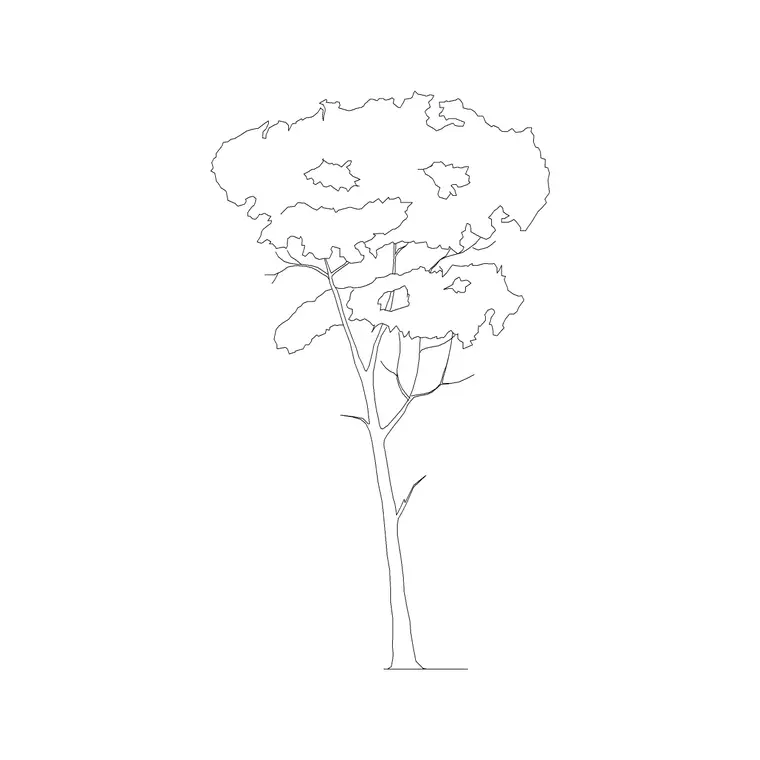

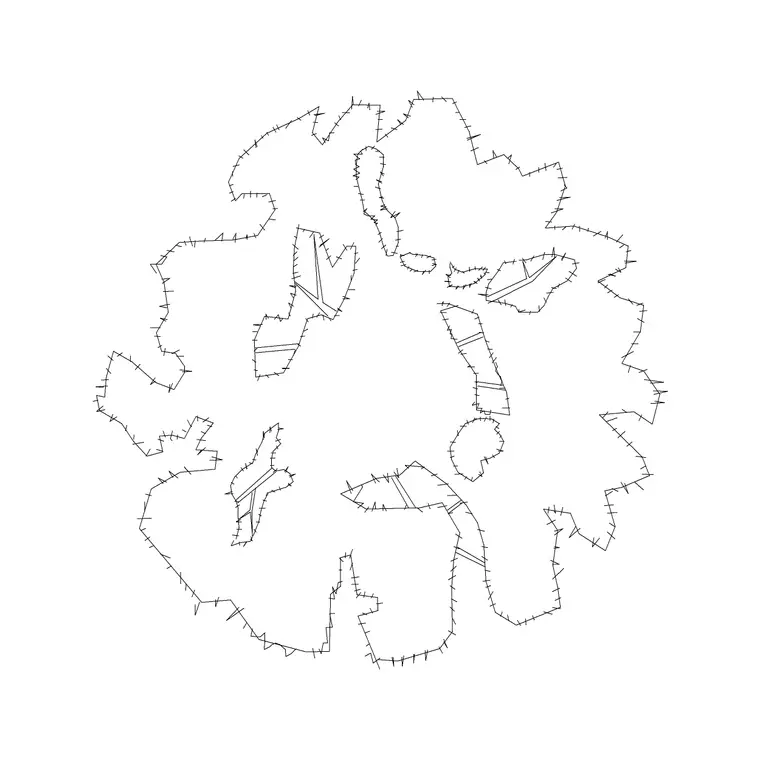
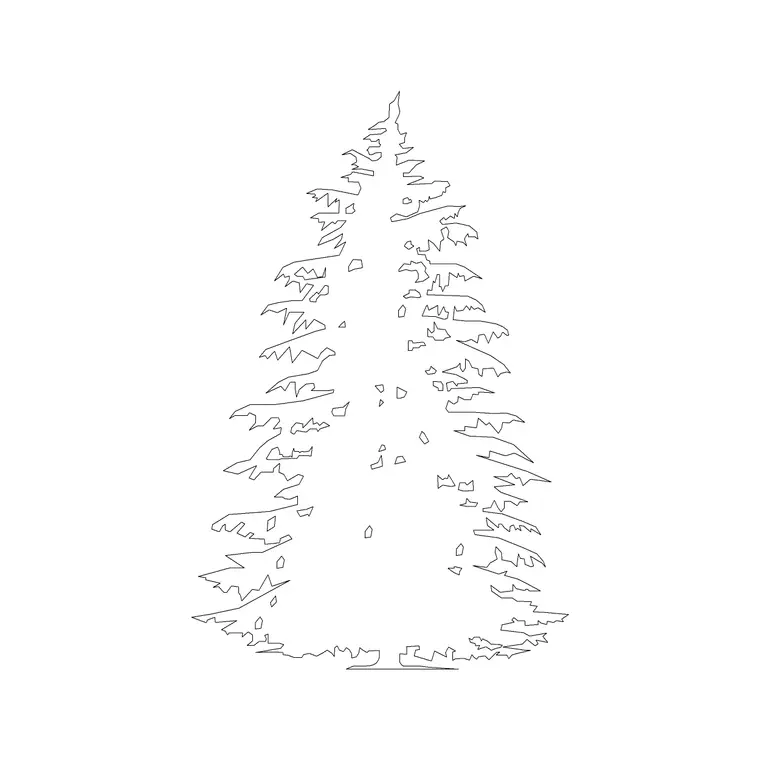
Free CAD block library
Download the blocks from this article — free, no signup


