Where to find free landscape tree plan DWG files
Free landscape tree blocks in plan view (DWG) for site plans and masterplans — where they live on CADBlockDWG and how to build a believable canopy mix.
Sumana KumarUpdated 18 March 20264 min read

Why landscape plans live or die on the tree layer
On a landscape masterplan or a site plan, the trees are often the first thing a client's eye lands on. A considered canopy layer — varied in size, honestly scaled and naturally arranged — tells the reader this is a designed environment. A poor one — identical circles stamped on a grid — undermines the credibility of the whole drawing, however good the layout beneath it. The plan-view tree layer is doing a lot of the persuasive work on a landscape sheet.
It is also doing technical work. The canopies show how much of the site is shaded, where screening falls, how planting frames views and routes, and whether trees crowd or respect buildings, roads and underground services. Getting the plan tree layer right is therefore both a presentation and a coordination task, and it starts with having good top-down tree blocks to hand.
Finding landscape tree plan DWGs on the site
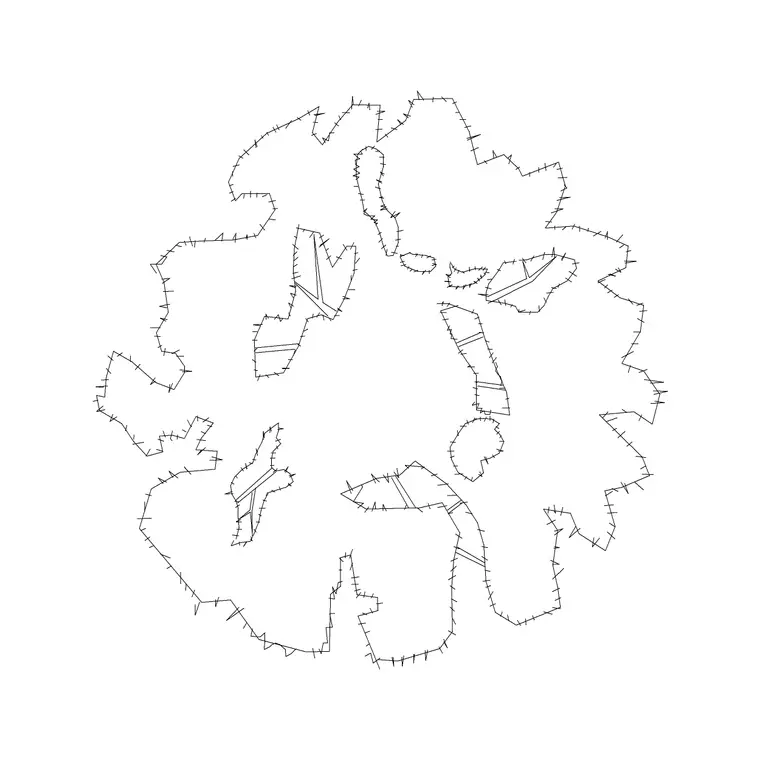
The plan-view tree blocks live in the Trees & Plants category. Use the search box or the view filter and look for the plan or top-view symbols — the circular canopies seen from above — rather than the elevation silhouettes. Each block has a product page with a preview so you can judge the canopy style before downloading: a clean circle for a diagrammatic plan, a more textured or hand-drawn outline for a finished presentation.
They are free DWGs with no signup and no attribution required, free for commercial use, so they go straight into masterplans and site plans for clients. Because the blocks are genuine vector geometry, you can recolour the canopies to read green, adjust line weights for a hierarchy of tree sizes, or edit an outline to fit a constrained planting position once it is in your drawing. CADBlockDWG carries several plan tree variants, including conifer canopies, so you can build a mix rather than repeat one.
Building a believable canopy mix
A real landscape has trees of different species and ages, so its canopy layer is varied. Pull two or three different plan-tree blocks and assign them roughly by role: larger canopies for feature and shade trees, medium for street and avenue trees, smaller for ornamental and courtyard trees. Drawing them at their true mature — or design-year — spread is essential: a small ornamental might span three to four metres, a medium street tree six to eight, and a large shade tree ten to fifteen or more.
That honest sizing is what lets a landscape architect and a client reason truthfully about shade, spacing and overlap. A row of avenue trees crammed at three-metre centres when each spreads eight metres is a drawing that misleads everyone about how the planting will perform. Mixing canopy sizes and drawing each at its real spread turns a flat scatter of circles into a legible planting hierarchy.
Placing plan trees in AutoCAD
Save the DWGs and run INSERT in your site plan. Browse to a block, keep scale at 1 and rotation at 0 to start, and place each tree with an object snap so its centre lands on a real setting-out point — a planting pit, a grid node, a position dimensioned from a kerb. For an avenue or a row, place one tree and ARRAY or COPY it along the path at the correct spacing, then break the perfect regularity by nudging, rotating or swapping a few.
If a block imports at the wrong size it is a units mismatch, not a faulty file: set INSUNITS consistently in both the block and your drawing so AutoCAD auto-scales on insertion, or correct it with SCALE (0.001 for millimetres into a metre drawing, 1000 the reverse). To calibrate an unknown block, measure its canopy with DIST and divide the spread you want by the spread you measured to get the exact factor.
For an avenue along a curved road, a path array set to align items to the path keeps the trees following the curve at an even spacing, which is far quicker and tidier than copying each one by hand. And before you commit a new downloaded block into a masterplan you will issue to a client, run a quick AUDIT and PURGE after inserting it so any orphaned data or stray layers the block carried do not travel into your drawing. These small habits keep a large planting layer fast to open and clean to plot.
Layer, vary, and pair with elevations
Keep all the plan trees on a dedicated planting layer — or split into tree, shrub and groundcover layers — so the canopy can be frozen, dimmed or recoloured independently of the architecture and engineering, and so you can produce a clean planting-only sheet when the landscape package needs one. Layer-0 geometry inherits whichever layer you insert it onto, giving that control for free.
Avoid the copy-paste grid above all. Rotate and mirror individual canopies, vary sizes within each species' range, and overlap a few where groves are intended, so the planting reads as natural. Finally, remember that the masterplan usually has matching elevations and sections; download the elevation versions of the same trees so the side views agree with the plan. With an honest, varied, well-layered canopy layer, your landscape plans will read as professional and genuinely useful to everyone who builds from them.
Questions
Frequently asked
Where can I download free landscape tree blocks in plan view?+
In the Trees & Plants category on CADBlockDWG. Filter or search for the plan / top-view canopy symbols, check the preview on the product page, and download the DWG free with no signup.
How do I make a masterplan's trees look natural?+
Mix two or three plan-tree blocks, draw each at its real mature spread, rotate and mirror individual canopies, and vary sizes. Avoid stamping one identical circle on a regular grid.
What canopy spread should I use for different trees?+
Roughly 3–4m for small ornamentals, 6–8m for medium street trees, and 10–15m+ for large shade trees. Drawing each at its true spread lets the plan show shade and spacing honestly.
Free downloads from this article


Free CAD block library
Download the blocks from this article — free, no signup

