Where to find free indoor plant DWG files (and how to use them)
Free indoor plant CAD blocks in DWG — potted plants, planters and greenery — where they live on CADBlockDWG and how to place them in AutoCAD.
Saumyajit MaityUpdated 15 May 20264 min read
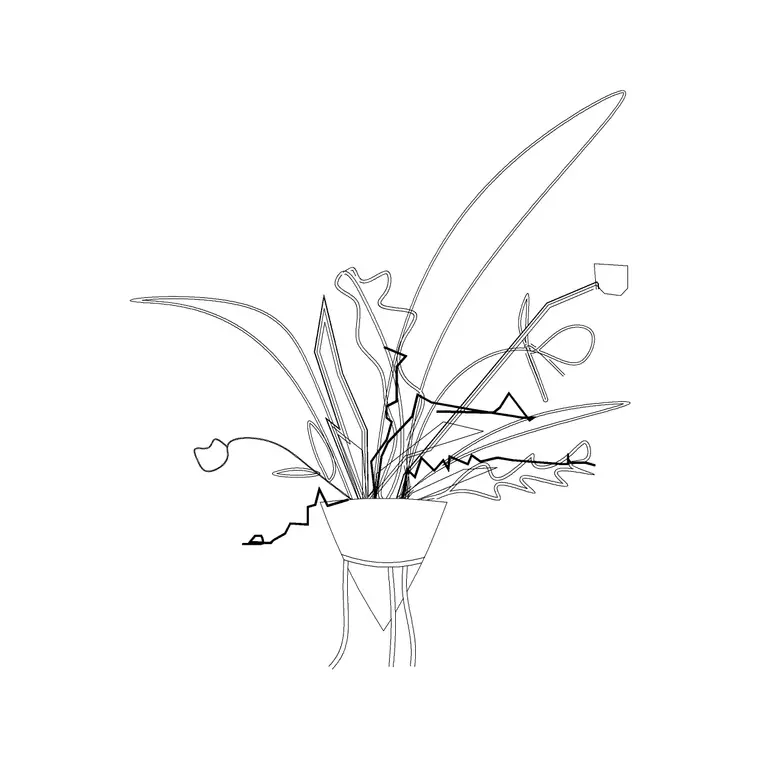
Why indoor plant blocks matter in interior drawings
Greenery is what makes an interior drawing feel lived-in. A reception, a café, an office breakout or a residential living room reads as warm and human the moment you add a few plants; without them the same space looks clinical. Interior designers use plant blocks to soften corners, screen sightlines, mark thresholds and add a vertical element that furniture alone cannot provide. On a presentation elevation a tall indoor plant beside a sofa does an enormous amount of communicative work for a single insertion.
Indoor plants also help with scale and realism in a way clients respond to. A planter of the right height next to a counter, a floor plant filling a double-height corner, a row of desk plants along a workstation bench — these small touches signal that the space has been designed for people, not just dimensioned. Keeping a handful of indoor plant blocks on hand means you can add that life in seconds.
Where to find indoor plant DWGs on the site
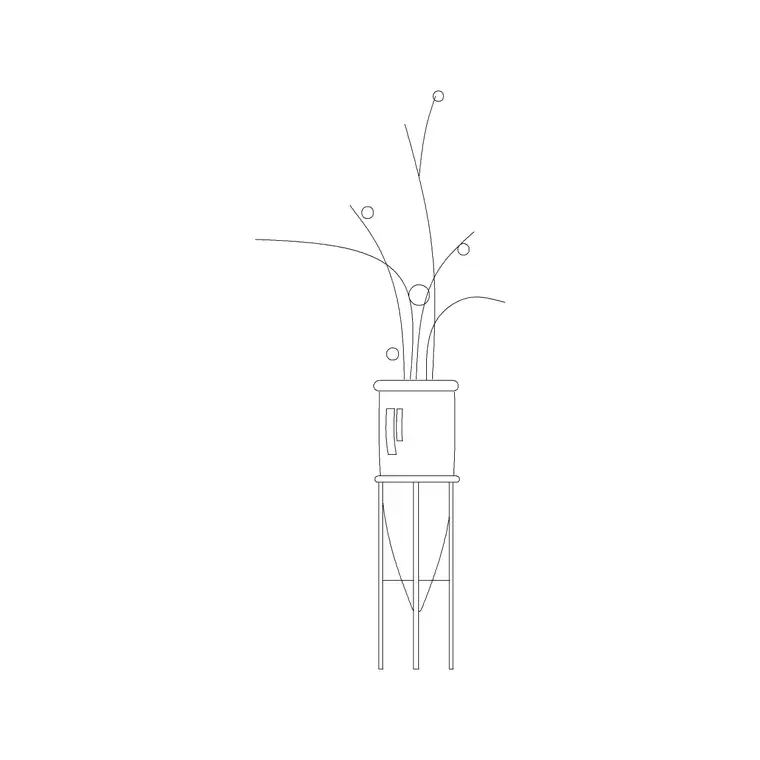
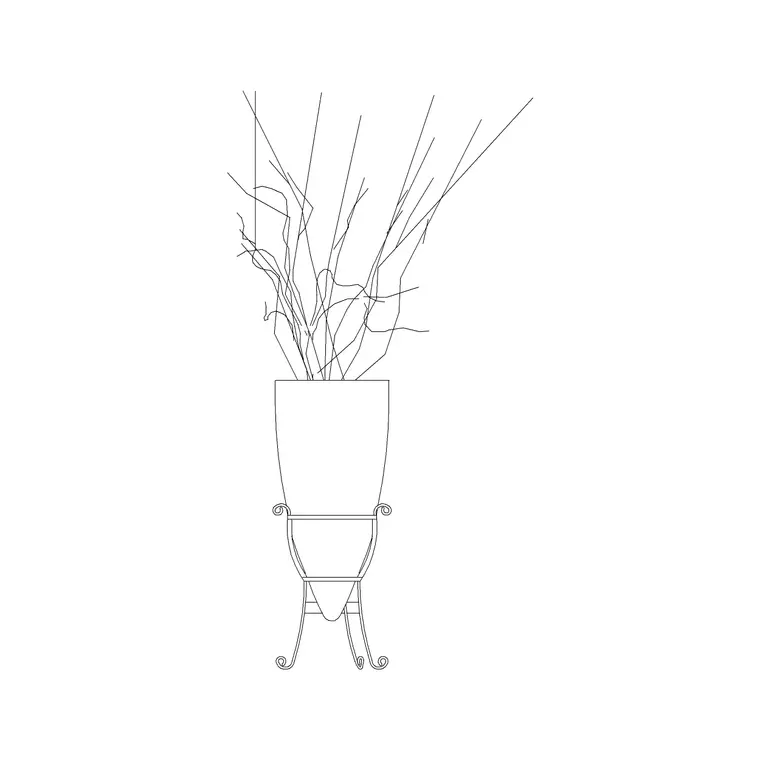
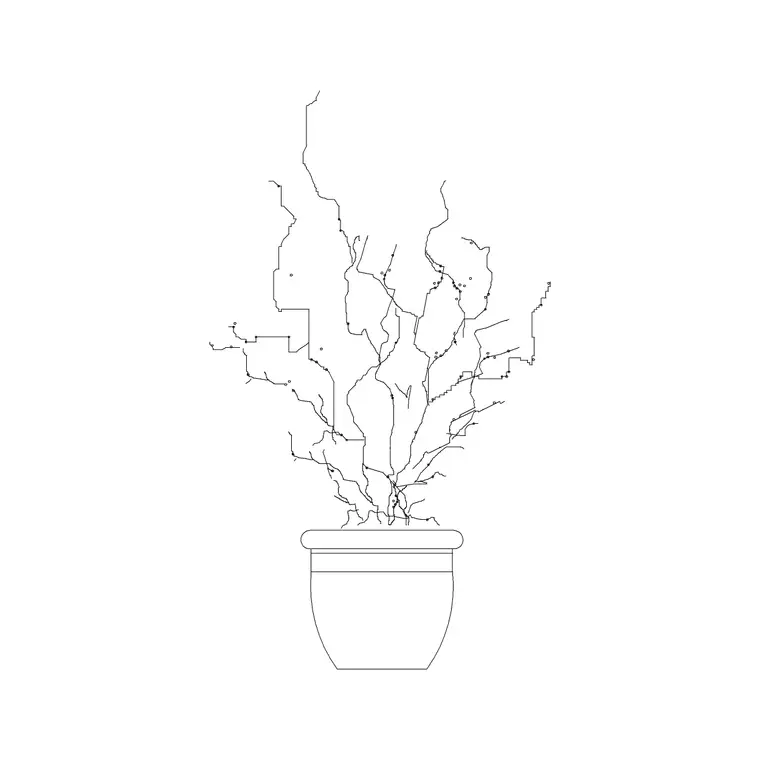
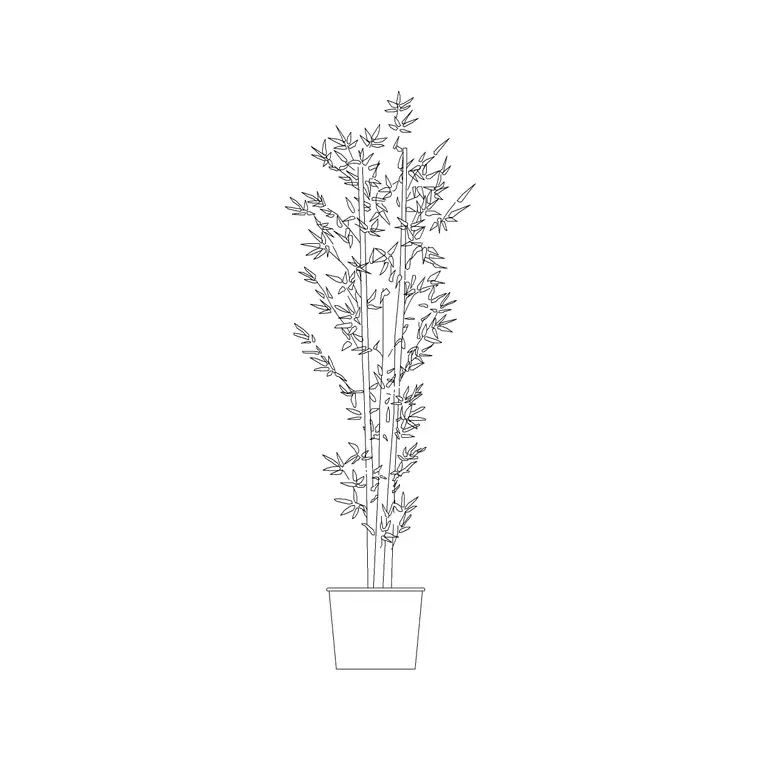
The indoor plant and potted-plant blocks live in the Trees & Plants category alongside the outdoor vegetation. Search for terms like 'indoor', 'potted' or 'planter' to surface them quickly. You will find floor-standing plants in decorative pots, plants on slim metal (MS) legs, tulip and flowering plants, low planters and a range of medium potted plants — most drawn as elevation blocks, which is the view you use most for interior presentation drawings.
Each block has a product page with a preview so you can see the exact pot-and-foliage combination before downloading. They are free DWGs with no signup and no attribution, free for commercial use, so they go straight into client work. Because the planters and the foliage are separate geometry within most blocks, you can recolour the pot to match a scheme or adjust the plant's line weight once it is in your drawing.
Plan versus elevation for interior plants
Interior plant blocks are most often supplied and used in elevation — the side view — because interior elevations of a wall, a reception desk or a lounge are where designers place plants to show the room at eye level. An elevation plant sits on the floor line beside the furniture and reads at human height.
For a furniture layout plan you sometimes also want a small top-down plant symbol to mark where a floor planter sits, so it does not get forgotten when the joinery and circulation are set out. If you are working on both an interior elevation and a reflected plan, place the elevation plant on the elevation and a simple plan marker on the layout so the two drawings agree. As always, check the view label on the product page so you grab the version the drawing needs rather than guessing.
Inserting an indoor plant in AutoCAD
Save the DWG and run INSERT in your interior drawing. Browse to the file, keep scale at 1 and rotation at 0 to start, and place the block with an object snap so the base of the pot sits exactly on the floor line in an elevation, or on the correct spot in a plan. A floor plant whose pot hovers above the floor or sinks into it is an immediate giveaway, just as with outdoor elevation trees.
Mind the height. A floor-standing indoor plant is commonly between one and two metres tall including the pot, a tabletop plant much shorter. If the block comes in at an implausible size it is a units mismatch — set INSUNITS consistently so AutoCAD auto-scales, or apply a SCALE factor of 0.001 or 1000 as needed. Measure the pot or overall height of a known plant and divide to find the exact factor when the source units are unclear.
Layer them and vary the styling
Put indoor plants on a planting or furniture-fixtures layer so you can dim or recolour them independently when you need a clean architectural drawing without the greenery. Blocks built on layer 0 inherit whichever layer you insert them onto, so a plant dropped on your planting layer takes its colour and line weight automatically.
Vary the planters so a space does not look like a showroom with one pot repeated. CADBlockDWG offers several distinct indoor plant blocks — large floor plants, plants on straight and curved metal legs, tulip plants, low planters — so you can mix pot shapes and plant heights across a room. A reception with three different planters reads as curated; the same reception with one identical planter copied three times reads as filler.
A practical tip for busy interior elevations: where a plant overlaps furniture or joinery behind it, use the DRAWORDER command to bring the plant to the front so it sits convincingly in the room rather than being hidden by the cabinet behind it. And if your software ever balks at the DWG, download the DXF where one is available — it is the more universal exchange format and opens in almost any vector-aware program. A little variety, the right view, the right draw order, and an honest height are all it takes to make interior greenery genuinely lift the drawing.
Questions
Frequently asked
Where can I download free indoor plant CAD blocks?+
In the Trees & Plants category on CADBlockDWG. Search 'indoor', 'potted' or 'planter' to find floor plants, planters and potted greenery — all free DWGs with no signup, free for commercial use.
Are indoor plant blocks drawn in plan or elevation?+
Most are elevation (side-view) blocks, since interior elevations are where designers place plants at eye level. For layout plans, add a simple top-down marker so floor planters aren't forgotten.
How tall is a typical indoor floor plant block?+
A floor-standing indoor plant including its pot is commonly between 1m and 2m tall; tabletop plants are much shorter. Scale the block to a realistic height against the furniture beside it.
Free downloads from this article
Free CAD block library
Download the blocks from this article — free, no signup


