Where to find free hospital bed DWG files (and how to use them)
Free hospital bed DWG blocks for ward plans — where to download them, what the top-view footprints include, and how to space beds for access and equipment.
Sumana KumarUpdated 27 April 20264 min read
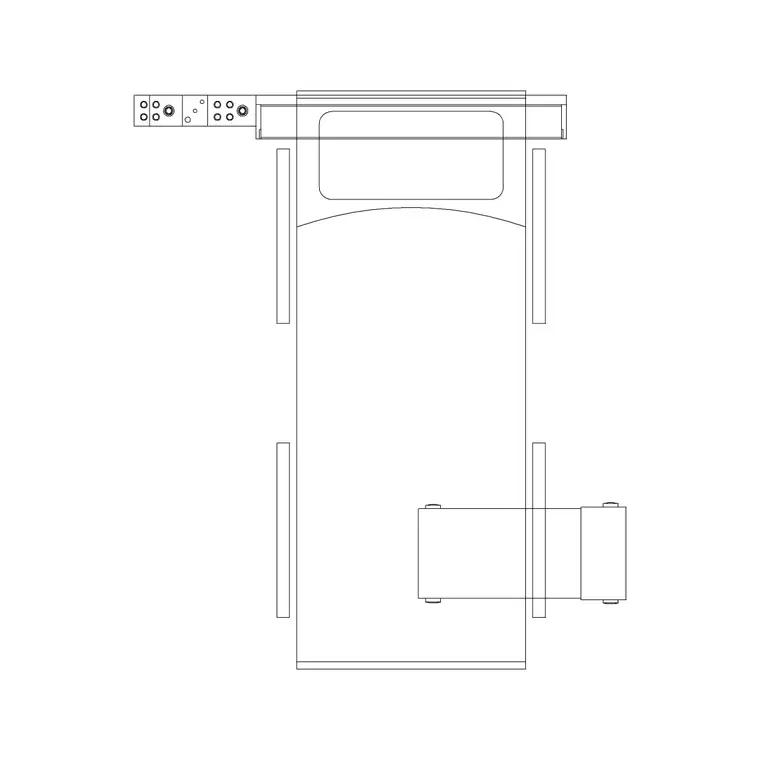
Finding hospital bed blocks
Hospital beds live in the Medical category on CADBlockDWG. Search 'bed' and you will find beds drawn with a bed-head unit and beds shown with associated equipment, both as top-view plan footprints — exactly what a ward or patient-room layout needs. As everywhere on the site, the download is instant and free: no account, no email wall, no waiting. Open the block and click download.
These are generic patient beds rather than a named manufacturer's model, which suits healthcare planning where you are setting out bed positions, access routes and bedhead services rather than specifying a particular product. If a specific bed is later confirmed, you can substitute the supplier's CAD file then. For ward layouts, clearance studies and room planning, the generic top-view blocks are precisely the right level of detail.
What the top-view blocks show
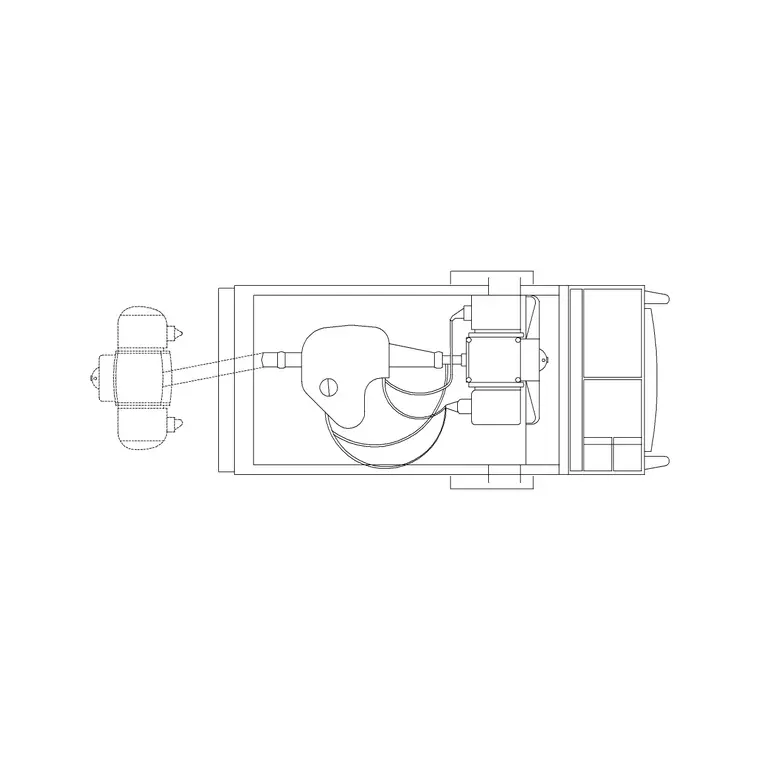
Each download is a small DWG with the bed drawn as clean 2D linework in plan. The 'bed with bed-head unit' block includes the headboard and the bedhead trunking or services panel — the strip at the head of the bed where medical gas and power outlets sit — so you can position the bed against the bedhead wall correctly. The 'bed with machine' variant adds an item of equipment alongside, useful for showing a monitor or pump trolley taking up floor space next to the bed.
The files save to a broadly compatible AutoCAD format that opens in any modern CAD program, with DXF offered where available. There is no 3D inside and no clutter, so the blocks insert cleanly and a full ward of them stays light. Drawn to a realistic patient-bed footprint, they let you judge bedside access honestly.
Inserting a bed and aligning the bedhead
Run INSERT in your room plan, browse to the downloaded bed DWG, and place it with object snaps so the head of the bed sits against the bedhead wall. Keep scale at 1 and rotation at 0, then rotate as needed so the headboard faces the services panel — getting the bedhead orientation right is the whole point of using the bed-head-unit block rather than a plain rectangle.
If the bed comes in the wrong size, fix it the usual way: match INSUNITS in both files, or scale by 0.001 or 1000 after inserting. Place one bed against the wall, confirm the footprint and bedhead read correctly, then copy it along the ward at the bed-spacing your layout uses so each bay is identical. That mirrors how a real ward is set out, bay by bay.
Think in bed bays, not single beds
A ward is built from repeating bays, and the most efficient way to draw one is to design a single bay completely — bed, bedhead services, the access space around it, a bedside locker and any curtain track — and then repeat the whole bay along the ward. That way every bay carries the same clearances by construction, and you are guaranteeing consistency rather than eyeballing it bed by bed.
Group the bay elements so they copy together cleanly, or build the bay arrangement once and array it down the ward wall at the bay spacing. If a clearance turns out tight, adjust the master bay and re-copy, and the whole ward updates at the right module. This bay-based habit also makes the drawing easy to read: anyone reviewing it can see one bay clearly and know every bay matches, which is exactly the clarity a healthcare layout needs.
Spacing beds for access and equipment
Ward and patient-room layouts are governed by access, and an accurately drawn bed is what lets you test it. As a working habit, allow generous clear space on at least one long side for staff and a wheelchair or trolley to reach the patient, leave room at the foot of the bed for a route past, and keep space at the bedhead for the services and any monitoring equipment. The 'bed with machine' block makes the equipment footprint visible so you do not lose that floor space by accident.
Because the geometry is to scale, you can drop a row of beds into a ward and immediately see whether the bedside access and the foot-of-bed circulation survive, or whether the bays are too tight. That honest read is the reason to furnish the plan — the clearance problems surface as drawing problems now, while they are still easy to resolve.
Keep beds and equipment on medical layers
Put the beds on a dedicated medical-furniture or equipment layer so you can freeze, dim or recolour them independently of the architecture and the services drawings. That lets you produce a clean equipment plan for the healthcare fit-out, or grey the beds back when you are coordinating walls and partitions. The blocks inherit the layer you insert them onto, so set the right layer current before placing.
Once you have the bed blocks you need, save them to a tool palette so setting out a ward becomes a fast, repeatable operation. Combine that with the access clearances above and you can lay out a believable, workable ward or patient room from this free Medical category quickly, then restyle the layer whenever the coordination or presentation drawing calls for it.
Questions
Frequently asked
Where do I find free hospital bed DWG files?+
In the Medical category on CADBlockDWG. Search 'bed' for beds with a bed-head unit and beds shown with equipment, then download the DWG free with no signup.
What view are the hospital bed blocks?+
Top view (plan), which is what a ward or patient-room layout needs. The bed-head-unit block also shows the headboard services strip so you can align it to the bedhead wall.
How much space should I leave around a hospital bed?+
Allow generous clear access on at least one long side for staff and a trolley, a route at the foot of the bed, and room at the bedhead for services and equipment. Scaled blocks let you confirm this on the plan.
Free downloads from this article
Free CAD block library
Download the blocks from this article — free, no signup


