Where to find free flower & planter DWG files for AutoCAD
Free flower and planter CAD blocks in DWG — flowering plants, tulips and decorative planters — where to find them on CADBlockDWG and how to use them in AutoCAD.
Sumana KumarUpdated 22 May 20264 min read

Where flowers and planters add the finishing touch
Flowers and decorative planters are the detailing layer of a drawing — the small, colourful objects that make a space feel cared for. A flowering plant on a reception desk, a tulip planter by an entrance, a row of flower boxes along a balcony rail: each is a tiny insertion that adds warmth, colour and a human touch to an interior elevation or a terrace drawing. They signal hospitality and attention to detail in exactly the places a client looks first.
Planters also bridge interior and exterior work. The same family of decorative pots and flowering plants furnishes a lobby, a café terrace, a shop window or a balcony, so a small set is reusable across many drawings. Because these objects are intricate to draw — petals, foliage, a shaped pot — a ready-made block saves real time over redrawing a flowering plant by hand each time you need one.
Finding flower and planter DWGs on the site
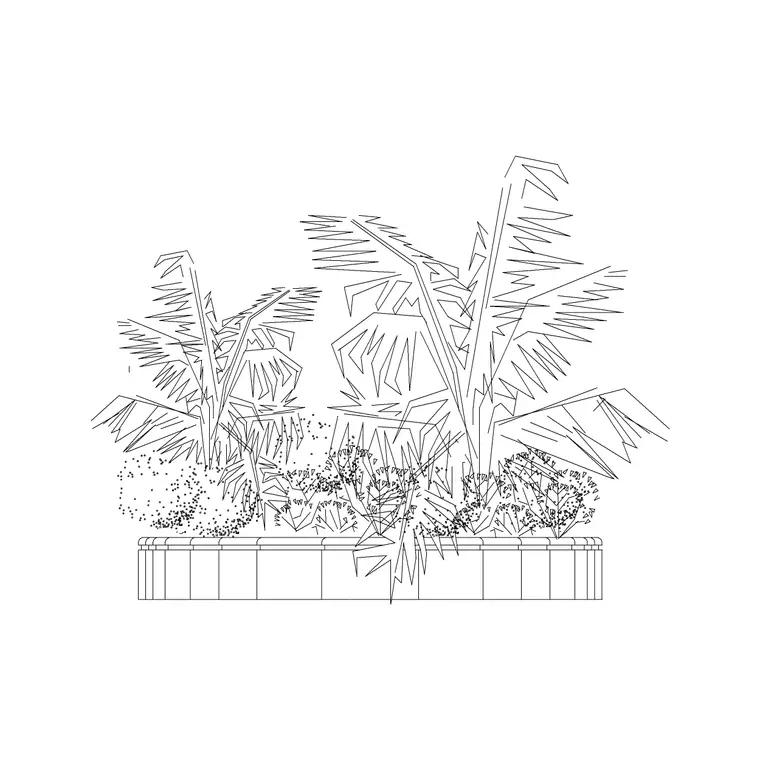
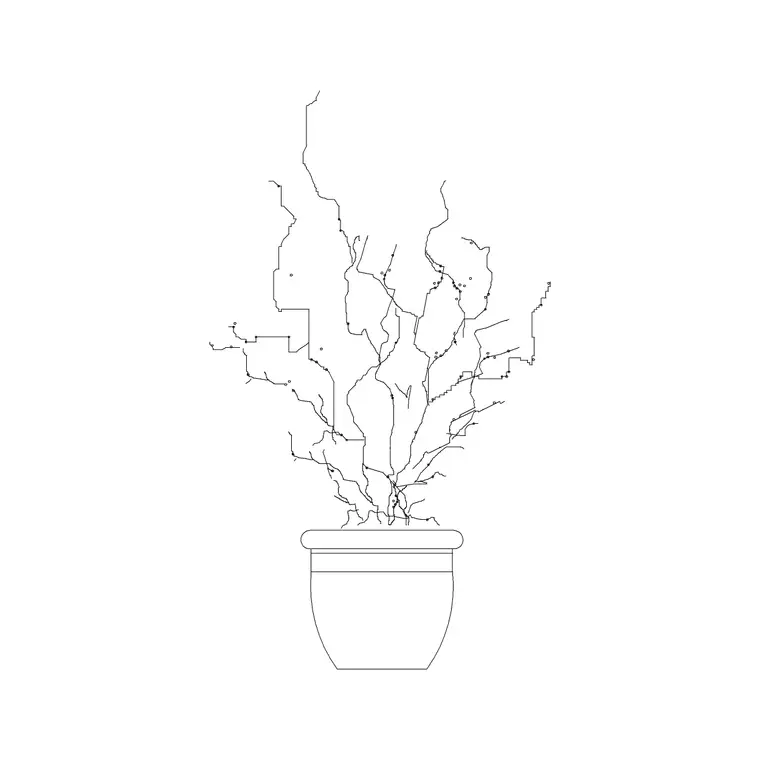
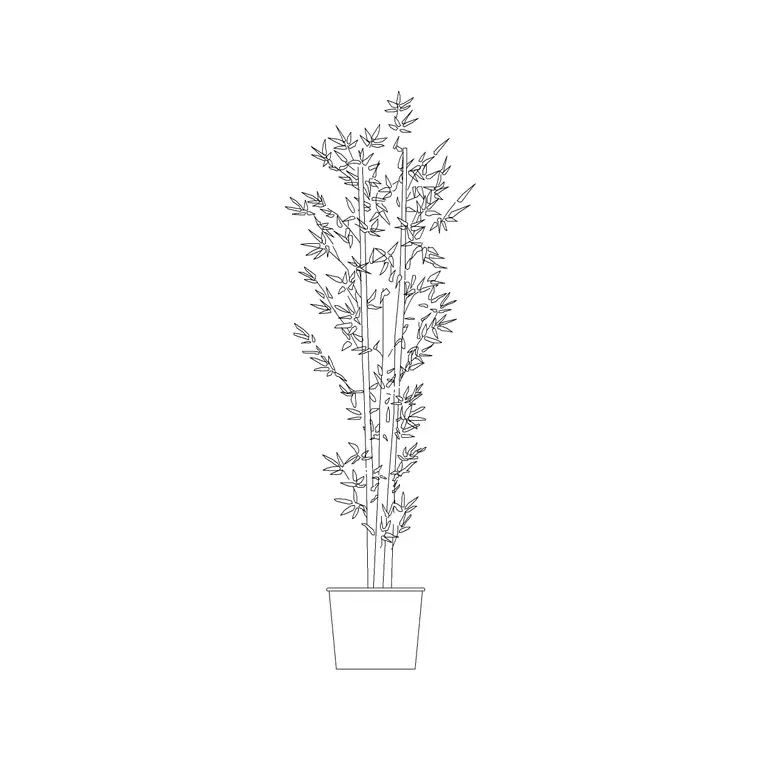
The flower and planter blocks live in the Trees & Plants category. Search for 'flower', 'tulip', 'planter' or 'plant' and you will surface the relevant blocks — flowering and tulip plants, low planters with plants, and decorative potted greenery. Each block has a product page with a preview so you can see the exact flower-and-pot combination before downloading.
They are free DWGs with no signup and no attribution required, free for commercial as well as personal use. Because the geometry is real vector linework, you can recolour the petals or the pot to match a scheme, adjust line weights, or copy and offset a planter to make a row once it is in your drawing. CADBlockDWG carries several distinct flowering-plant and planter blocks, so you can mix a few different designs rather than repeating one across a terrace or a lobby.
Plan versus elevation for flowers and planters
Flowering plants and decorative planters are most often used in elevation — the side view — because that is how they appear on interior elevations, shop fronts and terrace drawings, sitting on the floor, a sill or a surface at eye level where their colour and form read best.
For a planting plan or a furniture layout you may also want a small top-down symbol to mark a flower bed or a floor planter so it is recorded in the layout. If your project includes both an elevation and a plan of the same area, place the elevation planter on the elevation and a simple plan marker where it stands on the layout. Check the view label on the product page so you grab the version the drawing needs. A flower bed in the ground, by contrast, is usually drawn as a hatched or textured area on the plan rather than as individual flower blocks.
Inserting flowers and planters in AutoCAD
Save the DWG and run INSERT in your drawing. Browse to the file, keep scale at 1 and rotation at 0 to begin, and use an object snap so the base of the planter sits exactly on the floor, sill or ground line in an elevation, or on the right point in a plan. A planter floating above a surface is an immediate giveaway.
Mind the scale — flowers and small planters are among the smaller blocks you will place, so check the size carefully. A table-top flowering plant might be only two to four hundred millimetres tall, a floor planter with flowers perhaps a metre. If a block imports at an implausible size it is a units mismatch: set INSUNITS consistently so AutoCAD auto-scales, or apply a SCALE factor of 0.001 or 1000 as needed, calibrating against a known dimension if the source units are unclear.
Layer, repeat and vary
Place flowers and planters on a planting or fixtures layer so you can dim or recolour them independently of the architecture when a clean technical drawing is needed. Layer-0 geometry inherits whichever layer you insert it onto, so a planter dropped on your planting layer takes its properties automatically.
When you need several — a run of flower boxes along a balcony, a few flowering plants through a café — avoid copying one identical block. Mix two or three different flower and planter designs, vary their heights, and rotate or mirror instances so the grouping looks arranged rather than tiled. A terrace lined with one repeated flower box looks like wallpaper; the same terrace with a tulip planter, a flowering pot and a low bowl reads as a designed, welcoming space.
Because flowers carry colour, they are one of the few plant blocks where you may want to override the layer colour deliberately — a flowering plant rendered in a soft red or purple against green foliage reads beautifully on a presentation sheet. You can do this per instance, but for a controllable drawing it is cleaner to put the flowers on their own layer and set that layer's colour, so a single change restyles them all. With the right view, an honest scale, sensible layering and a little variety, flowers and planters are a fast way to give a drawing its finishing polish.
Questions
Frequently asked
Where can I download free flower and planter CAD blocks?+
In the Trees & Plants category on CADBlockDWG. Search 'flower', 'tulip' or 'planter' to find flowering plants and decorative planters — all free DWGs with no signup, free for commercial use.
Are flower and planter blocks plan or elevation view?+
Most are elevation (side-view) blocks for interior elevations, shop fronts and terraces. For layout plans, add a top-down marker for a floor planter, and draw an in-ground flower bed as a hatched area.
How big is a flower or planter block?+
Flowers and small planters are among the smaller blocks — perhaps 200–400mm for a tabletop flowering plant and around 1m for a floor planter with flowers. Check the scale carefully on insertion.
Free downloads from this article
Free CAD block library
Download the blocks from this article — free, no signup


