Where to find free circular stairs DWG files
Where to source free circular and helical staircase DWG files, how the available types differ, and how to set one out around a central column.
Sumana KumarUpdated 14 May 20264 min read

Circular, spiral, helical — what's the difference
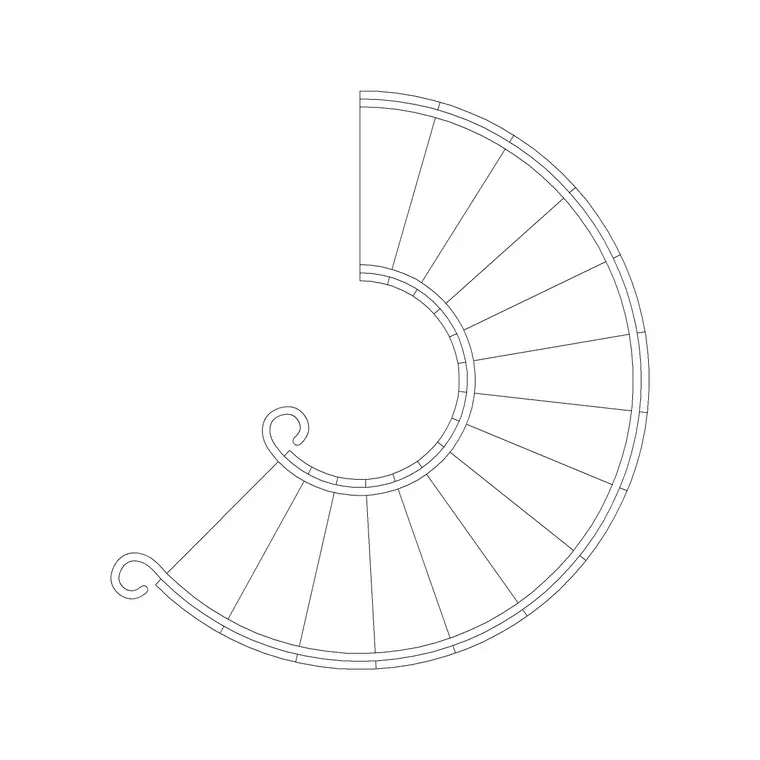
The terms get used loosely, so it helps to be clear. A spiral stair winds tightly around a central column with treads radiating from it. A helical stair sweeps around a curved open well with no central column, like a grand sweeping stair. A 'circular' stair is the umbrella term and, in most CAD libraries, usually means the spiral-around-a-column type because that is by far the most common in real buildings. When you are searching for a block, treating 'circular' and 'spiral' as near-synonyms will get you to the right files.
What matters more than the label is the geometry you need: the outside diameter, the number of treads per turn, and whether you want a plan footprint or an elevation. A good circular stair DWG resolves all of that for you, so the search is really about finding the proportion that fits your well and the view that fits your sheet.
Where they live on the site
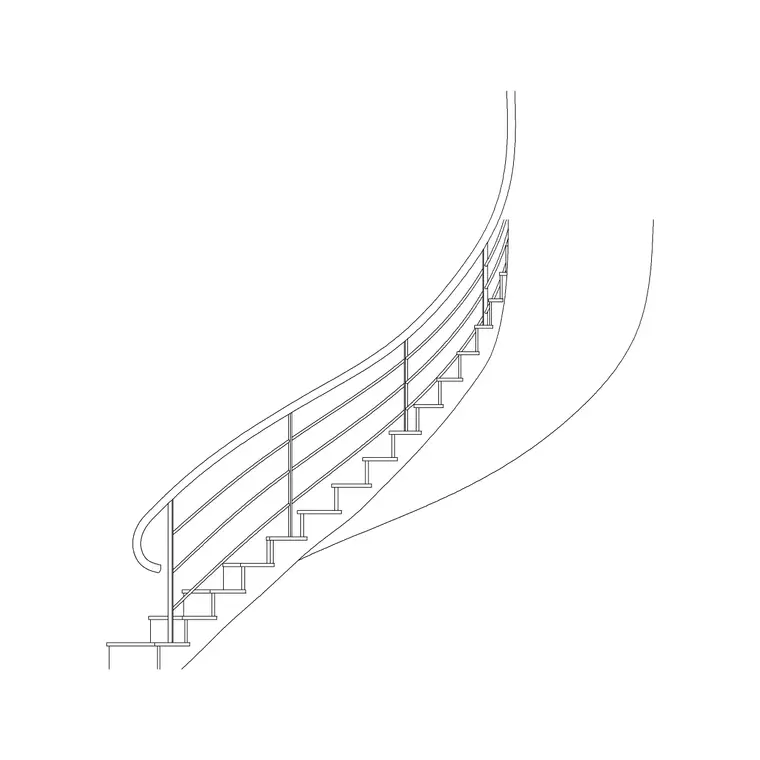
On CADBlockDWG the circular stairs sit in the Stairs category, alongside straight, dog-leg and L-shape stairs. Open that category and look for the circular types — Circular Stairs Type 1, Type 2 and Type 3 — or search 'circular stairs' / 'spiral' to jump straight to them. There are also metal circular staircases (Circular Metal Staircase and Circular Metal Staircase 2) if you specifically want the slender steel look with an open riser.
Every file is a free DWG download with no account, no email, and no ad gauntlet, and the licence permits commercial use. The three numbered types differ mainly in diameter and tread count, so the previews let you pick the one whose proportion suits your space. Because they cost nothing, downloading two and comparing them in your actual well is a reasonable way to decide which sets out best.
How the types differ
Circular Stairs Type 1, 2 and 3 give you a small range of footprints and tread arrangements to choose from. One type may be tighter with more treads per turn, suiting a compact residential well; another may be more generous, giving a comfortable going for a feature stair in a larger volume. The metal versions read differently again: a circular metal staircase shows the thin steel stringer and open treads typical of an external or industrial stair, where the spiral concrete or timber types read as more solid.
The practical way to choose is to know your two constraints — the diameter of the opening you have, and the floor-to-floor height you must climb. The diameter rules out anything that will not fit the well; the height, divided by a comfortable riser, tells you roughly how many treads you need, which steers you toward the type with the right tread count. Pick on those two numbers and the aesthetic choice between solid and metal becomes the easy part.
Setting one out around the column
Insert the chosen DWG with INSERT and snap its base point to the centre of your stair well — the centre of the column is the natural anchor for a spiral. Snapping centre-to-centre keeps the stair concentric with the opening, which is essential because the whole geometry reads outward from that point. Leave scale at 1 to start, then check the diameter with DIST; if it is off, it is units, so set INSUNITS or SCALE by 0.001 / 1000.
Rotate the block so the entry tread aligns with where people step on, and so the up-arrow points sensibly toward the floor above. If you need the opposite handing, mirror the block rather than hunting for a different file — mirroring flips clockwise to anticlockwise in one move. Finally, draw the well-opening edge on the plan and confirm there is clear headroom by checking the height from each tread to the underside of the floor above; spirals are the stair type most likely to fail on headroom, so it is worth the explicit check.
Using it across plan and section
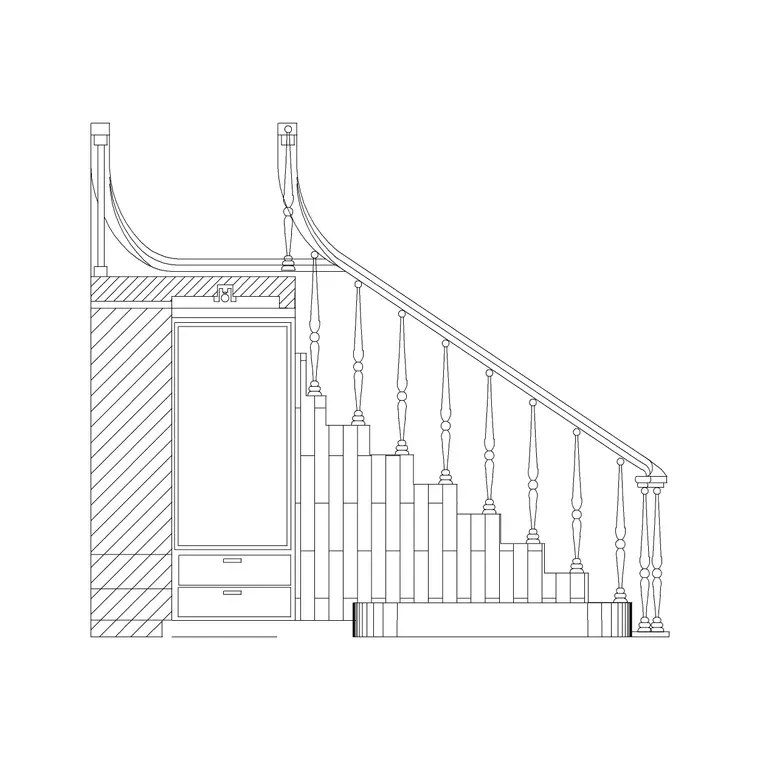
A circular stair usually needs to appear in more than one drawing, and the catalogue's plan and elevation blocks let you keep them consistent. Use the plan block on every floor plan that the stair passes through, remembering that the well opening shows on the floor plan above as a void. Use the elevation or a section cut to show the climb, the central column, the handrail and the headroom — this is the view that proves the stair actually works vertically.
Keep all the stair geometry on a dedicated layer so you can manage it from the Layer Manager, and run AUDIT and PURGE after importing any block to strip stray data. If you are detailing the stair for construction, the downloaded block is your accurate base — set out from it, then add your tread numbers, balustrade, and dimensions on top. Sourced and placed this way, a free circular stair DWG carries you from a quick concept footprint all the way to a coordinated set of plan and section drawings.
Questions
Frequently asked
Where can I find free circular stairs DWG files?+
In the Stairs category on CADBlockDWG — Circular Stairs Type 1, 2 and 3 plus metal circular staircases, all free DWG downloads with no signup.
What is the difference between spiral and helical stairs?+
A spiral stair winds around a central column; a helical stair sweeps around an open curved well with no column. 'Circular' is the umbrella term and usually means the spiral type.
How do I place a circular stair around its column?+
Snap the block's base point to the centre of the well so it sits concentric, confirm the diameter with DIST, then rotate the entry tread and up-arrow into position.
Free downloads from this article
Free CAD block library
Download the blocks from this article — free, no signup


