How to scale a downloaded window block to opening size
A window block must match the structural opening in the wall. Here is how to scale a free DWG window to the exact opening width in AutoCAD, plan or elevation.
Sumana KumarUpdated 17 June 20264 min read
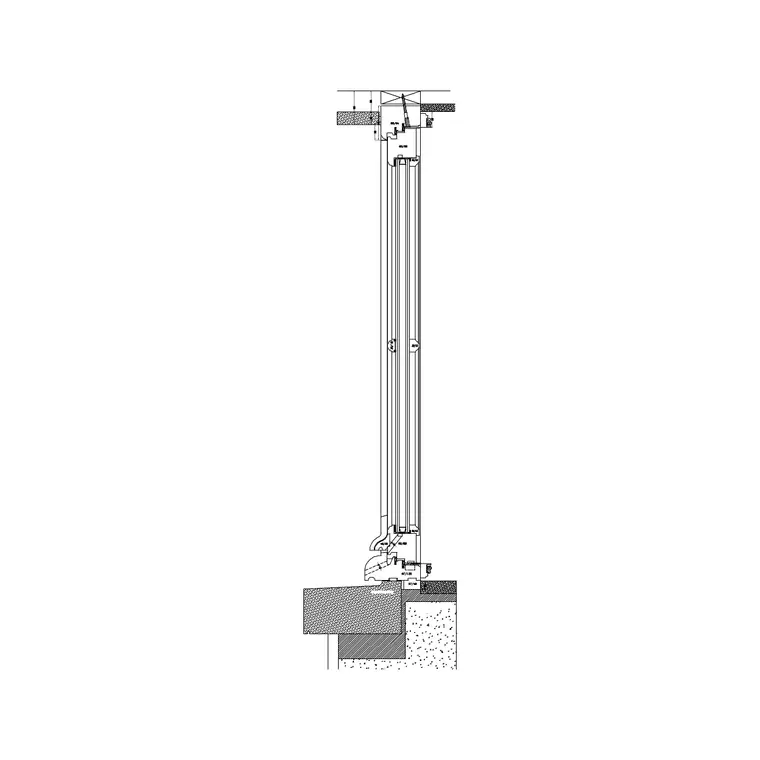
A window is sized by its opening
A window block has to do one thing precisely: fill the structural opening you left in the wall. That opening width is the dimension everything else hangs off — the frame, the glazing line, the sill all follow from it. Common window opening widths run from about 600mm for a small toilet window up to 1800mm or more for a large living-room window, in steps that suit the brick or block coursing. Scale the window to the wrong width and it either overlaps the masonry or leaves a gap, both of which read as an error.
The free Window Plan (1) block in the Windows category is drawn in both plan and elevation, so you can use it on a floor plan and on a façade from the same download. Grab it as DWG — no signup, free for commercial use. Whichever view you use, the width is what you scale to the opening; in elevation you will also care about the height, since a window is one of the few blocks where both dimensions matter depending on which drawing it lands in.
Measure the window against the opening
Insert the window (type I, Enter, browse, place) near the wall opening and measure its width with DIST. Compare that to the opening you drew. If you left a 1200mm opening and the window reports 1200, it already fits — and if it reports 1.2, it is in metres while your drawing is in millimetres, or vice versa. A window reporting 1200 in a metre drawing is 1000x too big, the standard units mismatch that makes it dwarf the building.
Because you are matching the window to a specific opening you have already drawn, you have a perfect reference dimension on hand — the opening itself. That makes the Reference scaling method especially natural here, since the target width is sitting right next to the block. There is no need to look up a nominal size or guess: the wall you drew already tells you the exact number the window must become.
Scale to the exact opening with Reference
To fit the window to, say, a 1200mm opening, select it, type SCALE, pick a base point at one jamb of the opening, type R for Reference, then click across the current width of the window to define it, and finally type 1200. The window — frame, glazing and sill — resizes to exactly fill the opening, anchored at the jamb so it lines up with the masonry.
For units corrections rather than fit, the usual factors apply: 0.001 to bring a millimetre window into a metre drawing, 1000 the other way. But Reference is the everyday tool for windows because you almost always know the exact opening width and want the block to match it precisely, not approximately. Anchoring at a jamb keeps the window registered to the wall as it scales, so the frame stays tight to one side of the opening and grows or shrinks toward the other, exactly as a real window would be set out from a fixed jamb.
Mind plan and elevation separately
Because Window Plan (1) carries both views, be deliberate about which you are placing and scaling. In plan, the window shows as the frame and glazing line bridging the wall opening, and you scale it to the opening width. In elevation, the window shows as the visible frame and glazing pattern on the façade, and here both width and height matter — a window that is the right width but the wrong height looks wrong on the elevation even though it would pass on the plan.
Match the view to the drawing as you would for any block: plan window on the plan, elevation window on the façade. If you scale the elevation window, use Reference on the height as well as the width if the proportions need to change, so the glazing reads correctly on the face of the building. Mixing the views — dropping the plan symbol onto an elevation, or vice versa — is an obvious tell to anyone trained, so confirm the view before you place just as you would for a tree or a figure.
Seat it in the wall and layer it
With the width matched to the opening, snap the window into place with object snaps (F3) so the frame registers exactly to the jambs rather than floating in the gap. A window that sits a few millimetres proud of the opening is a small thing that makes a plan look careless, and accurate snapping avoids it entirely.
Put windows on a 'Windows' or wall layer so they plot at the right weight; the block inherits the host layer when you set it current before inserting. Confirm the opening width against the window on every placement and your elevations and plans will show windows that genuinely fit the structure — which is exactly what a builder needs to set out the openings on site. The same opening-driven discipline applies to doors, so a clean window workflow and a clean door workflow reinforce each other across the whole drawing.
Questions
Frequently asked
How do I scale a window block to fit my opening?+
Use SCALE with the Reference option: pick a jamb as the base point, click across the window's current width, then type the opening width (e.g. 1200). The window resizes to fill the opening exactly.
Why does my window block come in too big?+
Units mismatch — a millimetre window in a metre drawing is 1000x oversized. Set INSUNITS to millimetres so it auto-scales, or scale the placed window by 0.001, then fit it to the opening.
Do I scale a window by width or height?+
In plan, scale to the opening width. In elevation, both width and height matter for the façade to read correctly, so set each with the Reference option if the proportions need to change.
Free downloads from this article


Free CAD block library
Download the blocks from this article — free, no signup

