How to scale a downloaded furniture block correctly in AutoCAD
Furniture blocks must measure true so clearances hold. Here is how to verify and scale a free DWG furniture block against real dimensions in AutoCAD.
Saumyajit MaityUpdated 9 April 20264 min read

Why furniture scale is really about clearances
A furniture block that is the wrong size does not just look off — it lies to you about whether the room works. The whole point of furnishing a plan is to test circulation: can the door swing past the bed, can chairs pull out from the dining table, is there a walking route around the sofa? Every one of those checks depends on the furniture being at true size. So scaling furniture correctly is less about cosmetics and more about keeping the plan honest enough to design from.
Keep a few real-world dimensions in mind as your reference. A three-seater sofa is roughly 2100 x 900mm and a two-seater about 1500 x 900mm; a single bed is 900 x 1900mm, a double 1350 x 1900mm; a four-person dining table around 1200 x 800mm. The free Sofa Set Plan 1 block in the Furniture category is a plan-view sofa group you can drop straight into a living room — download it as DWG, no signup, free for commercial use.
Verify before you trust — the 30-second check
Insert the block (type I, Enter, browse, place) and immediately measure a dimension you know. For the sofa set, run DIST across the length of the main sofa. If a three-seater reports about 2100, it is in millimetres and correct for a millimetre drawing. If it reports 2.1, it is in metres. A value of 2100 in a metre drawing means the sofa is 2.1 kilometres wide — the familiar 1000x units error.
This quick measure-against-a-known-size habit is the single most valuable thing you can do with any downloaded furniture block. It catches both the dramatic units mismatch and the subtler case of a block that was simply drawn at the wrong size by whoever made it. Trust nothing until the tape measure agrees. The same thirty-second check works for any piece — a bed against 1900mm, a wardrobe against a 600mm depth, a dining chair against roughly 450mm — so it becomes a reflex you apply to every block you bring into a plan.
Correct units globally, size individually
There are two different fixes and it helps to keep them separate. If the whole block is off by 1000x, that is a units problem: set INSUNITS to 4 (millimetres) in your template so furniture auto-scales on insertion, or apply a plain SCALE factor of 0.001 (mm into a metre drawing) or 1000 (m into a millimetre drawing). This corrects everything at once and is the right move for the common case.
If instead the units are fine but a particular piece is the wrong size — a sofa that measures 1900 when you want a 2100 model — use SCALE with the Reference option: pick the two ends of the sofa to set the current length, then type 2100. Only that piece changes, and it changes to an exact target rather than an approximate factor. Keeping units and size as separate operations in your head stops the most common confusion, where someone tries to fix a units problem by eyeballing a scale factor and never quite lands on the right number.
Scale the right thing for the right piece
Different furniture is sized by different dimensions, so calibrate against the one that matters. A sofa or bed is sized by length; a dining or conference table by its longer side; a wardrobe by depth (commonly 600mm) as much as width. When you use the Reference method, measure the defining dimension, because that is the one a reviewer will check and the one that drives clearances.
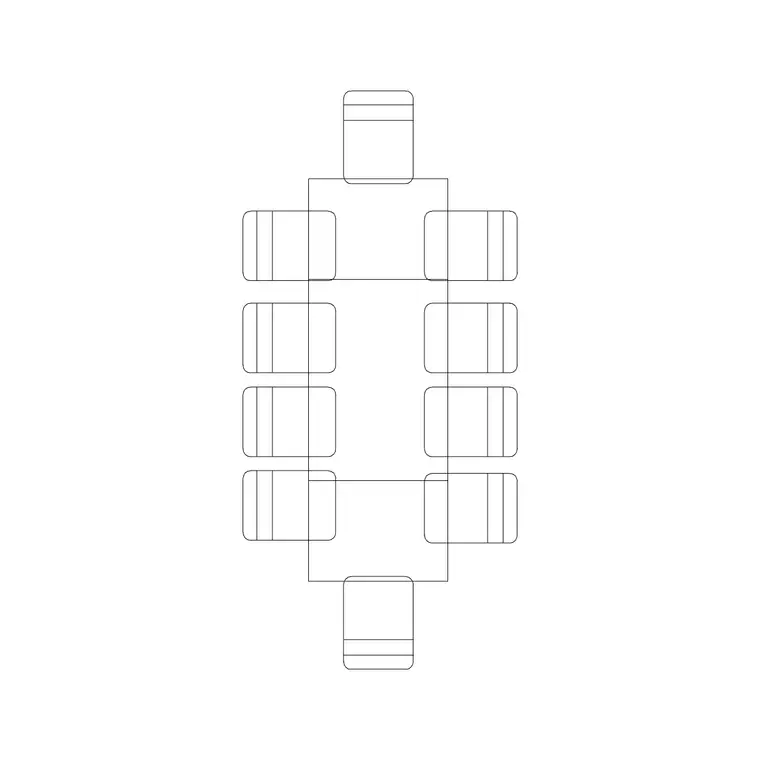
For a larger piece like the free 10P Rec Table, confirm the long edge reads true so the surrounding circulation — ideally 900mm or more for chairs to pull out and people to pass — comes out right. Scaling to the wrong dimension (width when length is what counts) is a quiet way to get a block that looks plausible but fails the clearance you actually cared about. A scale figure placed beside the furniture is a quick visual cross-check: if the person looks too big or too small next to the sofa, one of the two blocks is mis-scaled and worth re-measuring.
Layer it and move on
Put furniture on a dedicated 'Furniture' layer so you can grey it back for a structural sheet or recolour it for a presentation without touching anything else. Because well-built blocks inherit their host layer, setting that layer current before you insert means the sofa adopts the right colour and lineweight automatically — no manual cleanup.
The whole routine takes well under a minute per block: insert, measure a known dimension, correct units or size if needed, layer it, place it. Build that habit and a furnished plan becomes a reliable design tool rather than a pretty but untrustworthy picture — every sofa, bed and table at true size, every clearance real, every layout decision made on honest geometry. Over a whole project that discipline compounds, because a plan you can actually trust is one you can hand to a client or a contractor without quietly worrying that the furniture was never the size it appears to be.
Questions
Frequently asked
How do I check a furniture block is the right scale?+
Insert it and measure a known dimension with DIST — a 3-seater sofa is about 2100mm long, a single bed 900 x 1900mm. If it reads 1000x out, it is a units mismatch; correct INSUNITS or scale by 0.001.
What dimension should I scale a sofa or table to?+
Scale to the defining dimension a reviewer checks: length for a sofa or bed, the longer side for a table. Use SCALE Reference to hit the exact target rather than a rough factor.
Why does my furniture block come in tiny?+
A metre-unit block dropped into a millimetre drawing comes in 1000x too small. Set INSUNITS to millimetres so it auto-scales, or select it and scale by 1000.
Free downloads from this article

Free CAD block library
Download the blocks from this article — free, no signup

