How to scale a downloaded car block correctly in AutoCAD
A downloaded car block that lands too big or invisible is almost always a units issue. Here is how to scale a free DWG car to its real length in AutoCAD.
Saumyajit MaityUpdated 17 February 20265 min read
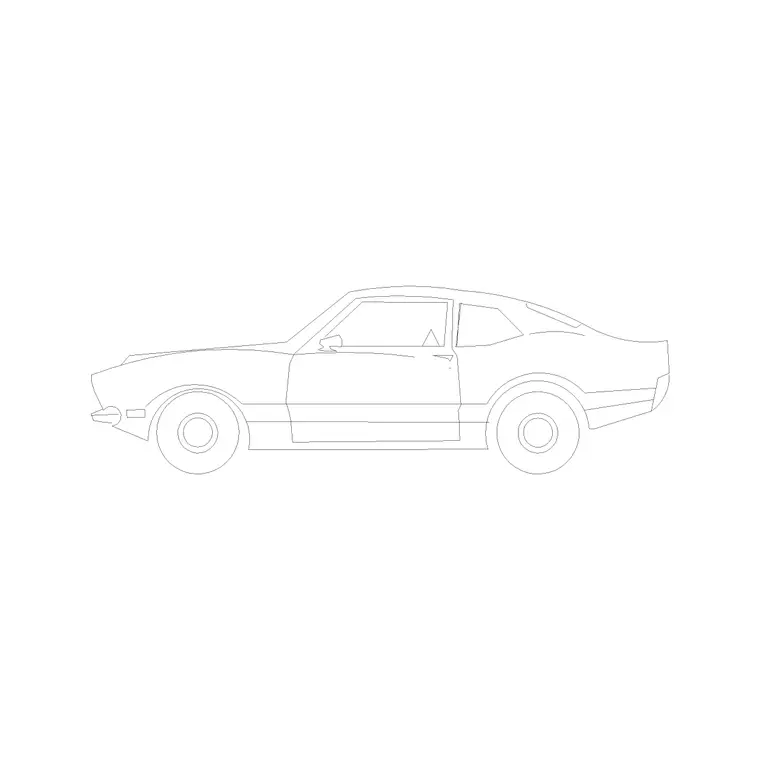
Know the real length before you scale
Before you touch the SCALE command, fix the target in your head: what should this car actually measure once it is placed? A typical hatchback or saloon is around 4.2 to 4.8 metres long and about 1.8 metres wide; a compact city car sits closer to 3.6 metres, an SUV or pickup nearer 5 metres. Those are the numbers you will calibrate against, and they are the reason a car block is one of the easier blocks to sanity-check — almost everyone has an intuitive feel for whether a car is roughly the size of a parking bay.
The free 2 Door Car block in the Vehicles category is drawn in elevation (the side-on profile, not the top-down plan view), so the dimension that matters most is the overall length nose to tail. Download it as DWG — no signup, free for commercial use — and note where it saved, usually your Downloads folder. Most vehicle blocks here are authored at real-world size in millimetres, so in a millimetre drawing they should drop in correct with no scaling at all. The trouble starts when your drawing is in metres, or when a block of unknown origin has been saved without unit information.
Insert first, then measure what you got
Open your working drawing, type I and press Enter to launch the INSERT command, browse to the downloaded car DWG, and place it on screen. Resist the urge to scale blindly. Instead, run DIST (or drop a quick aligned dimension) from the front bumper to the rear bumper and read the number AutoCAD reports.
That single measurement tells you everything. If the car reports about 4500, the block is in millimetres and it is correct for a millimetre drawing — you are done. If it reports about 4.5, the block is in metres. If it reports 4500 but your drawing is in metres, the car is now 4.5 kilometres long, which is why a Zoom Extents suddenly shows a tiny dot in the corner of a vast empty space. Reading the actual length removes all the guesswork that makes scaling feel mysterious, and it takes only a few seconds. Make this measure-first habit automatic and you will never again chase a phantom 'broken block' that was only ever a units mismatch.
Apply the right scale factor
Once you know the source units and your drawing units, the correction is a single SCALE command. Select the car, type SCALE, click a base point (the insertion point or the centre of the car both work fine), and type the factor:
- Millimetre block into a metre drawing: 0.001 - Metre block into a millimetre drawing: 1000 - Millimetre block into an inch (imperial) drawing: 0.03937 - Inch block into a millimetre drawing: 25.4
The far cleaner alternative is to never need a factor at all. Set INSUNITS to 4 (millimetres) in your template and leave it set; well-authored blocks then auto-scale to match on insertion, and the millimetre car simply lands at 4.5 units in a metre drawing without any manual maths. Reach for the manual factor only when a legacy block reports its units as 'unitless' and refuses to auto-scale. If you find yourself scaling vehicle blocks by 1000 on every project, that is the clearest possible sign that your template's INSUNITS is not set and is worth fixing once and for all.
Scale by reference when you do not know the units
Sometimes you genuinely cannot tell what the block was drawn in, or you just want it to match a parking bay you have already drawn. SCALE has a Reference option that sidesteps all the arithmetic. Select the car, type SCALE, pick a base point at the front bumper, then type R for Reference. Click the front bumper again and then the rear bumper to define the current length, and finally type the real length you want — say 4500 in a millimetre drawing. AutoCAD computes the exact factor and resizes the car to match.
This is the most foolproof method for vehicle blocks because you are calibrating against a dimension you can see, not a unit label that might be missing or wrong. It is also how you fit a car neatly into a specific bay: reference the bay length and the car scales to sit inside it. The same approach works for a delivery van or a bus if you keep a couple of those blocks around — measure the real length you need and let Reference do the conversion, regardless of what units the source file was built in.
Place it so the drawing reads honestly
A correctly scaled car earns its place by showing real scale and clearance. In a site plan or a streetscape elevation, a car at true length instantly communicates whether a driveway is long enough, whether a turning circle works, and how a façade reads against something everyone recognises. Drop it on a dedicated 'Vehicles' or 'Entourage' layer so you can dim or freeze it independently of the architecture, and because the block is built to inherit its host layer, it will take on that layer's colour and lineweight automatically when you set that layer current before inserting.
If you need the car at an angle — reversing into a bay, parked on a slope — place it first, confirm the length is right, then rotate. Judging the angle is far easier once the car is correctly sized and sitting in context. A scale figure standing beside the car reinforces the sense of size still further, which is why entourage and vehicles so often appear together on the same sheet. Keep a couple of vehicle blocks correctly scaled in your library and you will reach for them on almost every residential and commercial site drawing.
Questions
Frequently asked
How long should a car block be in AutoCAD?+
A typical car is about 4.2–4.8m long and 1.8m wide. In a millimetre drawing that reads as roughly 4500 x 1800; in a metre drawing as 4.5 x 1.8. Measure the block and compare.
Why is my downloaded car block huge or invisible?+
It is a units mismatch. A millimetre car dropped into a metre drawing comes in 1000x too big, so Zoom Extents shows a tiny dot. Scale by 0.001, or set INSUNITS to millimetres so it auto-scales.
How do I fit a car block into a specific parking bay?+
Use SCALE with the Reference option. Pick the front and rear bumpers to set the current length, then type the bay length you want and AutoCAD computes the exact factor.
Free downloads from this article


Free CAD block library
Download the blocks from this article — free, no signup


