How to insert a downloaded window block in AutoCAD
Drop a free window DWG into a wall opening — aligning it to the wall thickness, choosing plan vs elevation, and trimming the wall so the window reads cleanly.
Saumyajit MaityUpdated 6 April 20264 min read
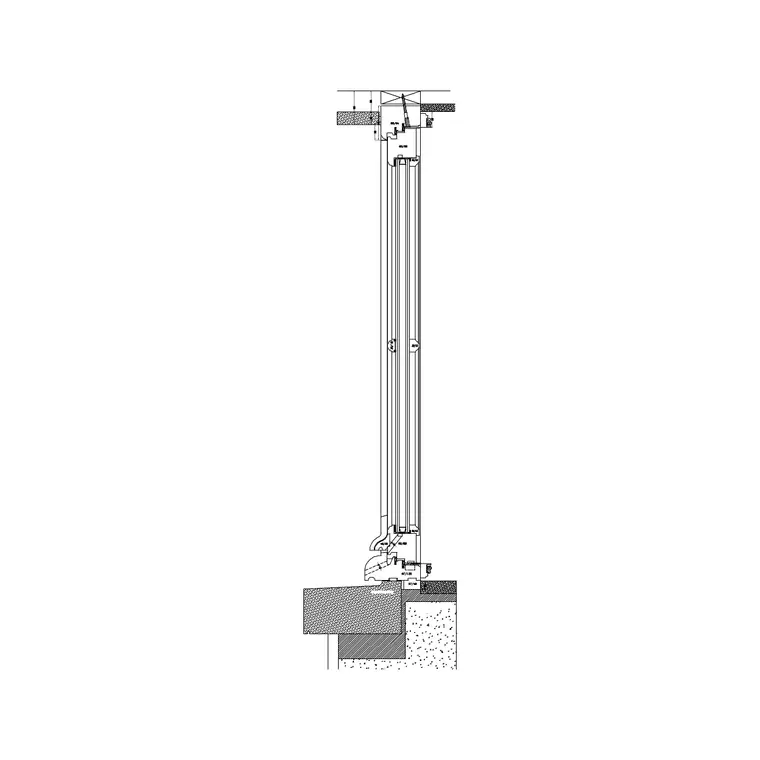
Plan window or elevation window?
Windows are one of the few block families where you genuinely need to pick a view before downloading. A plan window — the top-down view — shows the window as parallel lines crossing the wall thickness, representing the glass and frame within the opening; it is what you place in a floor plan. An elevation window shows the face-on view: the frame, the glazing bars, the opening lights, used on facade elevations.
The Windows category labels each block's view, and several windows here include both. For a floor plan, grab the plan version; for a street or interior elevation, grab the elevation version. Download the DWG you need — free, no signup, commercial-cleared — and note that mixing them up (a face-on window laid flat in a plan) is the classic giveaway of a rushed drawing, so confirm the view matches the sheet you are working on.
Insert a plan window into the wall
Open your floor plan, type I, press Enter, Browse to the window DWG and select it. A plan window block is drawn to sit inside the wall, so its width should match your opening and its depth should match your wall thickness. Turn on snaps with F3 and place the window so it spans the opening, aligned with the two wall faces.
Leave scale at 1 if the window width matches your opening. Click to set it in place. As with doors, you will usually want to TRIM the wall lines back where the window sits, so the opening reads as a real gap with the window in it rather than a symbol drawn over an unbroken wall. The result should show the glazing lines bridging the opening flush with the inner and outer wall faces.
Align it to your wall thickness
Walls vary — 100mm internal partitions, 230mm masonry, deeper cavity walls — so a window's depth needs to suit the wall it sits in. If the downloaded plan window does not span your wall thickness exactly, set a non-uniform scale on insertion: leave the X (width) scale at 1 and adjust the Y (depth) scale to stretch the frame across your wall, or use STRETCH afterwards to pull the frame lines out to both wall faces.
The goal is for the window frame to read flush with both faces of the wall, with the glass line centred in between. Use object snaps to lock the frame edges to the wall faces. A window that floats inside a thick wall, or pokes out past a thin one, looks wrong and confuses anyone reading the section later, so it is worth the extra few seconds to make it sit correctly in the opening.
Sizing an elevation window
If you are working on an elevation, the window block carries height as well as width, so both dimensions matter. Insert it as before, then check the sill height — the bottom of the window above floor level. Move the whole block vertically so the sill sits at your intended height (commonly around 900mm for a habitable room, lower for full-height glazing).
To resize an elevation window to a different opening, use a non-uniform scale: X for width, Y for height, set independently so you can make a tall narrow window or a wide low one from the same block. Repeating windows along a facade is where blocks shine — place one correctly, then ARRAY or COPY it at your structural spacing and the whole elevation populates in seconds, all identical and all correctly sized.
Layer it and tidy up
Keep windows on a glazing or windows layer so you can control them independently — freeze them for a structural-only plan, or recolour the glazing for a presentation. Blocks built on layer 0 inherit the current layer, so set your windows layer current before inserting and the block takes it on automatically.
Finally, do a quick pass for the common slips: the window spans the full opening with no gaps at the jambs, the frame sits flush with the wall faces in plan, the view (plan vs elevation) matches the drawing, and repeated windows line up on a consistent module. Clean openings and consistent glazing are what make a plan or elevation read as resolved rather than sketchy.
Coordinate the window between plan and elevation
A window appears on more than one drawing — the plan, the elevation, and often a section — and those views have to agree, or the drawing set contradicts itself. The plan fixes the window's horizontal position and width along the wall; the elevation fixes its height and sill level. When you place the plan window, note its centreline position so you can put the elevation window at exactly the same point on the facade, and vice versa.
A common slip is a window that is 1200mm wide in plan but drawn 1500mm wide in elevation, which sends a contractor a mixed message about what to build. Keeping both as instances of a coordinated block family — and changing them together — prevents that drift. If you tag your windows with a type reference (W1, W2, and so on) and keep a small window schedule, every appearance of W1 can be checked against one set of dimensions, so the plan, elevation and section all describe the same window. That consistency is the mark of a drawing set someone can build from without coming back with questions.
Questions
Frequently asked
Should I use a plan or elevation window block?+
Use a plan window (parallel lines crossing the wall) in floor plans, and an elevation window (face-on frame and glazing) on facade or interior elevations. The Windows category labels each block's view so you can match it to the sheet.
How do I make a downloaded window fit my wall thickness?+
Set a non-uniform scale on insertion — keep the width (X) at 1 and adjust the depth (Y) to span your wall — or use STRETCH afterwards to pull the frame lines flush to both wall faces.
How do I add a row of identical windows to an elevation?+
Place one window correctly, then use ARRAY or COPY at your structural spacing. Because it is a block, every copy stays identical and updates together if you redefine the block.
Free downloads from this article


Free CAD block library
Download the blocks from this article — free, no signup

