How to insert a downloaded car block in AutoCAD
Insert a free car DWG into a site plan or elevation — choosing plan vs elevation, fitting it into a parking bay, and getting the scale right against a 4.5m car.
Saumyajit MaityUpdated 21 June 20264 min read
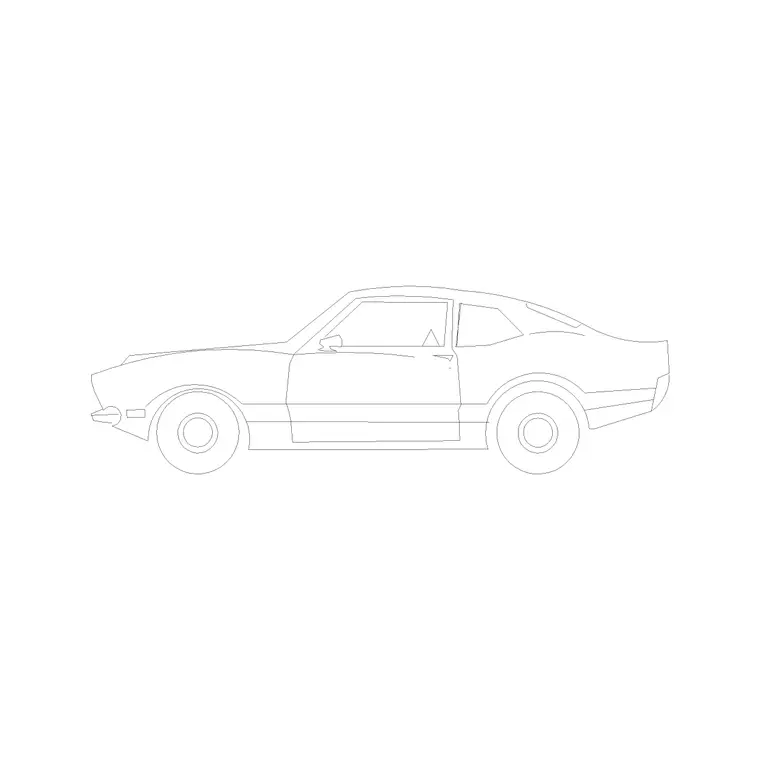
Plan car or elevation car?
Cars, like trees, come in two views and you need the right one. A plan car is the top-down outline — roof, bonnet and boot seen from above — used on site plans, car parks and access drawings to check bays and turning. An elevation car is the side profile — wheels, windows, body line — used on street elevations and renders to give scale and life to a facade.
The Vehicles category labels each block's view, and you will find both. For a parking layout or a swept-path check, download a plan car; for a streetscape elevation, download a side-on car. It is free, no signup, commercial-cleared. Picking the correct view matters because an elevation car dropped flat into a site plan, or a plan car standing in an elevation, immediately looks wrong to anyone reading the drawing.
Insert and fit it into a bay
Open your drawing, type I, Enter, Browse to the car DWG and select it. For a parking layout, turn on snaps (F3) and place the car centred in a bay — snap to the bay's centreline or corners so the vehicle sits squarely within the markings. Leave scale at 1; a typical car block is drawn around 4.5m long and 1.8m wide, which is the real size you want.
Click to place. A standard parking bay is commonly about 2.4 to 2.5m wide and 4.8 to 5m long, so the car should sit inside it with a sensible margin. Placing real cars in your bays is the quickest way to sanity-check a car park: you can see at a glance whether doors could open, whether the aisle width allows reversing, and whether oversized or accessible bays are genuinely bigger than the standard ones.
Rotate and array across the car park
Once one car is placed correctly, fill the car park efficiently. Use ROTATE to orient the car to the bay angle — bays are often at 90, 60 or 45 degrees — then ARRAY or COPY the car along the row at the bay-width spacing so every space gets a vehicle. Because it is a block, all the cars stay identical and you can swap them all by redefining the block.
For realism on a presentation drawing, vary it: use two or three different car blocks and rotate or mirror some so the car park does not look like a grid of clones. Leave some bays empty, as a real car park would have. This small amount of variation reads as a believable scene rather than a stamped pattern, while still letting you demonstrate that the layout works at full capacity.
Get the scale right
If the car inserts enormous or invisible, it is the familiar units mismatch — a millimetre block in a metre drawing or the reverse. Set INSUNITS consistently in both files so AutoCAD auto-scales, or insert and run SCALE with 0.001 or 1000. To verify, draw a DIST along the length of the car: a normal vehicle is about 4.5m, a larger SUV or estate nearer 4.8 to 5m. If your block measures close to that, the scale is right.
Getting the scale honest matters more for vehicles than for many blocks, because a car park stands or falls on whether real cars actually fit. An under-scaled car will make a tight layout look fine when it would fail on site, so always calibrate the car against the 4.5m benchmark before trusting the bays around it.
Use elevation cars for scale and life
On a street elevation or a render-style drawing, an elevation car does a different job: it gives human scale and signals that the drawing shows a real, inhabited place. Insert the side-on car, set its baseline on the ground line, and check the height reads right — a car is roughly 1.5m tall, so against a person at 1.7 to 1.8m the proportions should look natural.
Place one or two cars along the street, vary the models, and the elevation instantly feels alive rather than abstract. Keep vehicles on their own layer — a vehicles or entourage layer — so you can turn them off for a technical elevation and on for a presentation one. As with all blocks here, building on layer 0 means the car inherits whichever layer you make current before inserting.
Use cars to test access and turning
Beyond filling bays and adding scale, a correctly-sized car block is a tool for checking that vehicles can actually move through a layout. Place a car at the entrance of a driveway or a car park aisle and you can see immediately whether the approach is wide enough, whether a car can swing into a bay without clipping the one beside it, and whether the aisle gives room to reverse out. For tighter situations, copy the car along the path it would take and rotate it at each step to trace a rough swept path.
This matters most at pinch points — a narrow gate, a ramp, a service yard where a larger vehicle might need to turn. Dropping in a real 4.5m car (or a longer van or truck block where relevant) and walking it through the move reveals problems that an empty plan hides completely. Even a quick manual check like this catches the obvious failures early, so the layout you hand over is one where the vehicles you have drawn can genuinely get where they need to go.
Questions
Frequently asked
How long should a car block be?+
About 4.5m for a standard car, nearer 4.8 to 5m for a larger SUV or estate, and roughly 1.8m wide. Draw a DIST along the length to confirm; if it is wildly off, set INSUNITS or scale by 0.001 / 1000.
Should I use a plan or elevation car block?+
Use a plan (top-down) car for parking layouts and site plans, and an elevation (side profile) car for street elevations and renders. The Vehicles category labels each block's view.
How do I fill a car park with vehicles quickly?+
Place one car centred in a bay, rotate it to the bay angle, then ARRAY or COPY it along the row at the bay-width spacing. Vary the models and leave some bays empty for a realistic presentation.
Free downloads from this article


Free CAD block library
Download the blocks from this article — free, no signup


