How to fix wrong layers and colors in a downloaded block
Downloaded block came in with odd layers and hard-coded colours? Here's how to remap its layers, reset everything to ByLayer, and match your standard.
Sumana KumarUpdated 26 January 20264 min read
What 'wrong layers and colours' actually means
A downloaded block frequently arrives carrying the layer scheme and colours of whoever drew it. You insert a clean-looking door and suddenly your Layer Manager has three new layers named in another language, a couple of hard-coded yellow lines that ignore every layer change you make, and a linetype you never loaded. The block looks fine on screen but it does not obey your standard, and on a busy drawing that is how a tidy file slowly turns muddy.
There are two distinct problems to separate. The first is extra layers the block introduced — clutter you want to consolidate or remove. The second is explicit colours, linetypes or lineweights hard-coded onto the geometry, which override layers entirely and cannot be controlled centrally. Fixing a downloaded block means dealing with both: remapping or removing the stray layers, and resetting properties to ByLayer so the host layer takes over. Do both and the block becomes a quiet, controllable part of your drawing.
See exactly what the block brought in
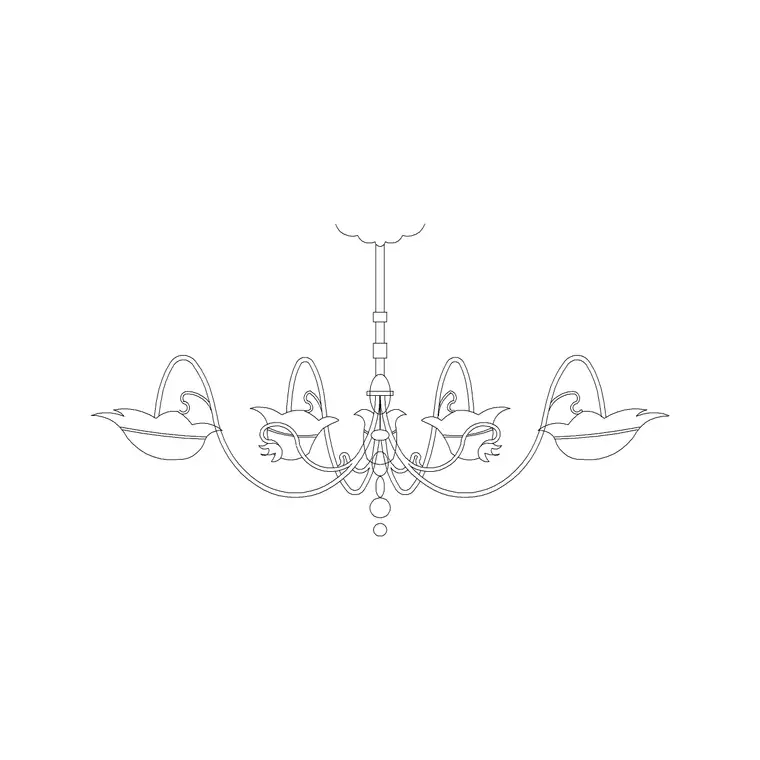
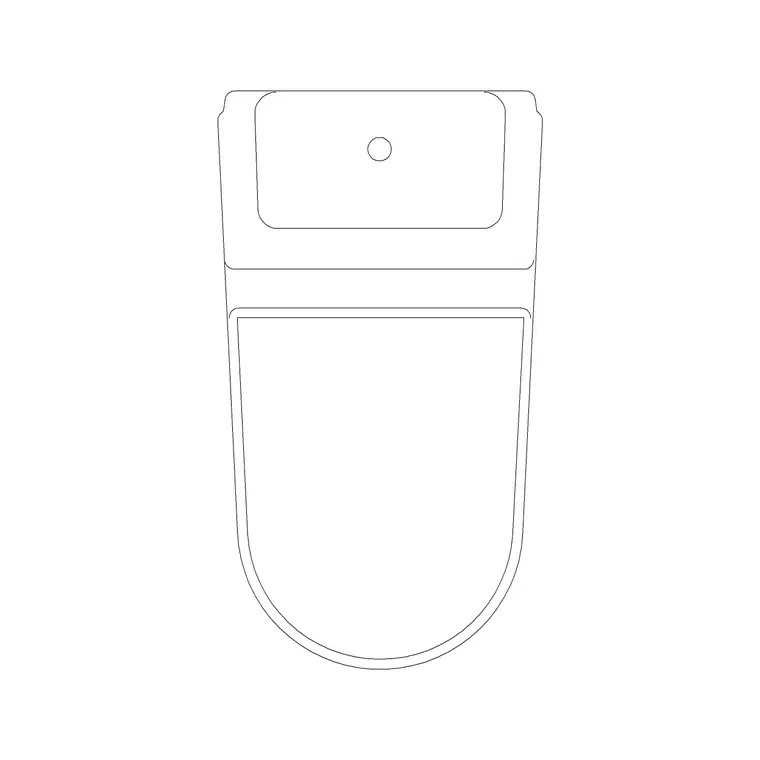
Download and insert the block — a chandelier from the Lighting category, or a toilet/commode block — then investigate before you change anything. Open the Layer Manager (LAYER or LA) and note any layers you did not create; they almost certainly came from the block. Select the block and open Properties (Ctrl+1): if Color, Linetype or Lineweight show a specific value rather than ByLayer, the appearance is being forced and will not respond to layer changes.
For a closer look, double-click into the Block Editor and select the geometry piece by piece, watching the layer and colour fields. This tells you whether the problem is the layers, the explicit properties, or both. Diagnosing first means you apply the right fix rather than guessing — and it shows you whether the author built the block well (layer 0, ByLayer) or left a mess for you to normalise.
A fast diagnostic trick: select the block, then in the Layer Manager turn the suspect layers off or freeze them one at a time. Whatever vanishes from the block tells you which geometry lives on which layer, without opening the editor at all. If toggling a layer changes nothing visible but a couple of lines still ignore every layer you touch, those lines are the hard-coded ones — they have an explicit colour set directly on the object. Knowing in advance which problem you are dealing with — stray layers, forced properties, or both — lets you go straight to the matching fix below instead of trying everything.
Reset everything to ByLayer
The most important fix is getting properties back to ByLayer so layers regain control. Open the block in the Block Editor, select all the geometry, and in Properties set Color, Linetype and Lineweight to ByLayer. The hard-coded yellow lines that ignored you will now defer to their layer like everything else.
There is a faster bulk tool for stubborn cases: SETBYLAYER. Run it, select the block (or all your geometry), and it forces Color, Linetype, Lineweight and more back to ByLayer in one sweep, with options to include blocks and to change ByBlock objects too. SETBYLAYER is purpose-built for exactly this 'someone hard-coded properties and I want them to behave' situation, and it handles a whole selection at once rather than object by object.
Remap or remove the stray layers
Now deal with the extra layers. If the block's geometry should live on your standard layer — say all of it belongs on your Furniture or Electrical layer — the cleanest approach is usually to move the geometry to layer 0 inside the block (so it inherits the insertion layer) and then simply insert the block onto your chosen layer. That sidesteps the stray layers entirely.
If you would rather consolidate, the LAYMRG command (Layer Merge) lets you merge one layer into another: everything on the unwanted layer moves to a target layer and the empty layer is deleted. Use it to fold the block's foreign layers into your standard ones. After merging or moving, the foreign layers become unused — run PURGE to delete them and tidy your Layer Manager back to just the layers you actually use.
Save the corrected block and prevent a repeat
Once the geometry is on layer 0 with ByLayer properties and the stray layers are gone, close and save the Block Editor to redefine the block — every instance updates at once. Then save the cleaned DWG into your library so the corrected version is the one you reuse. You fix each block once; after that it matches your standard on every insertion.
To stop the problem recurring across your library, make this part of your download routine alongside AUDIT and PURGE: insert, check layers and colours, run SETBYLAYER, merge or purge foreign layers, redefine. A block that has been through that routine drops into any drawing and immediately obeys your Layer Manager — you can freeze it, dim it, recolour it or change its lineweight from one place, exactly as a well-built block should. The few minutes per block buy you drawings you can restyle in seconds instead of fighting object by object.
Questions
Frequently asked
How do I force a block's geometry back to ByLayer?+
Run SETBYLAYER, select the block, and confirm — it resets Color, Linetype and Lineweight to ByLayer in one sweep, with options to include blocks. Or open the Block Editor, select all geometry, and set those properties to ByLayer manually.
How do I get rid of extra layers a downloaded block added?+
Use LAYMRG (Layer Merge) to fold the unwanted layers into your standard ones, or move the block's geometry to layer 0 so it inherits your insertion layer. Then run PURGE to delete the now-unused foreign layers.
Why do some lines in a block ignore my layer colour?+
They have an explicit colour hard-coded onto the geometry, which overrides the layer. Reset them to ByLayer with SETBYLAYER or in the Block Editor, and they will follow their layer's colour like everything else.
Free downloads from this article

Free CAD block library
Download the blocks from this article — free, no signup

