How to download free dental chair CAD blocks for AutoCAD
Free dental chair DWG blocks for clinic plans — how to download them, what the top-view footprint includes, and how to lay out an operatory with clearances.
Saumyajit MaityUpdated 20 March 20264 min read
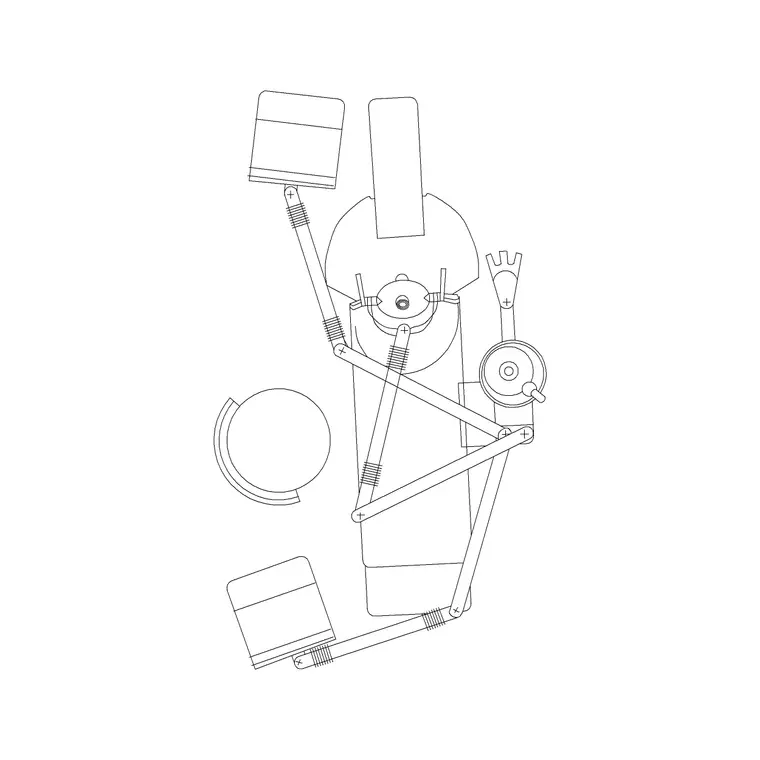
Where the dental chair lives
The dental chair block sits in the Medical category on CADBlockDWG, alongside other clinic and treatment-room equipment. Search 'dental' and it comes straight up; you can also browse the Medical category and pick it from the thumbnails. The download is free and immediate — no signup, no email gate, no countdown timer. Open the page and click download to get the DWG.
It is a generic dental chair rather than a specific manufacturer's unit, which is what most clinic layouts need. You are setting out the operatory — chair position, delivery unit, cabinetry and the dentist's and assistant's working zones — rather than specifying a particular brand of chair. If a specific unit is later confirmed, the supplier's own CAD download can replace it. For planning a surgery or a multi-chair clinic, the generic block is exactly the right level of detail.
What the dental chair block contains
The download is a compact DWG with the chair drawn as clean 2D linework in top view — the plan footprint of the patient chair, typically with the headrest, backrest and the delivery or instrument arm indicated. That top-down outline is what a clinic layout needs, because the operatory is planned in plan and the footprint determines where the cabinetry and circulation can go.
The file opens in any modern CAD tool thanks to a widely compatible AutoCAD format, and DXF is offered where available. There is no 3D mesh and nothing extraneous inside, so it inserts cleanly and keeps the drawing light even across a clinic of several operatories. Drawn to a realistic chair footprint, it lets you judge the working space around the chair honestly rather than by eye.
Inserting the chair into an operatory plan
Run INSERT in your clinic plan, browse to the downloaded dental chair DWG, and place it with object snaps so it sits in a logical position relative to the cabinetry and the window. Keep scale at 1 and rotation at 0 to begin, then rotate to set the chair's orientation — the direction the patient reclines determines where the dentist and assistant stand, so this is worth getting right early.
If the chair comes in at the wrong size, it is a units mismatch: match INSUNITS in both files, or scale by 0.001 or 1000 after inserting. Place the chair, confirm the footprint reads correctly against the room, and then build the surrounding delivery unit, cabinetry and sink positions around it. In a multi-chair clinic, copy the operatory arrangement rather than rebuilding each one, so every surgery is consistent.
Design one operatory, repeat it
A multi-surgery clinic is most efficiently drawn by perfecting a single operatory and repeating it. Place the chair, add the delivery unit, the cabinetry run, the sink and the working zones around it, confirm the whole arrangement is comfortable, then group it and copy or mirror it into the adjacent rooms. Mirroring is especially useful for back-to-back surgeries that share a services wall, since the plumbing and the cabinetry can be handed neatly.
Working this way means every operatory inherits the same vetted clearances and the same equipment positions, so the clinic reads as a coordinated set rather than a collection of one-off rooms. It also makes revisions painless: refine the master operatory — move a cabinet, widen the approach — and re-place it, and the change propagates to every surgery at once. The same grouped arrangement then doubles as a clear basis for the services and equipment schedules.
Clearances around the chair
A dental operatory is all about the working envelope around the chair, and an accurately scaled block is what lets you check it. As a working habit, leave clear space on both sides of the chair for the dentist and the assistant to work and move, room behind the headrest for the operator to sit and reach, and a clear approach for the patient to get into and out of the chair. The delivery unit and any mobile cabinet take up floor space too, so account for them around the footprint.
Because the geometry is to scale, you can place the chair and immediately read whether the operator zones and the patient approach survive, or whether the room is too tight for comfortable work. That honest read is the reason to draw the chair to its real footprint — the cramped operatory shows up as a drawing problem now, while it is still easy to widen the room or move the cabinetry.
Layer it for clean clinic drawings
Put the dental chair and other treatment equipment on a dedicated medical-equipment layer so you can freeze, dim or recolour them independently of the architecture and the services. That lets you produce a clean equipment plan for the clinic fit-out, or grey the equipment back when coordinating partitions and plumbing. The block inherits the layer you insert it onto, so set the right layer current before you place it.
Once the chair block is in your library, save it to a tool palette so building each operatory becomes a quick, repeatable step. Combine that with the clearance habits above and you can lay out a credible, workable dental clinic from this free Medical category in short order, then restyle the equipment layer whenever a coordination or presentation drawing needs it.
Questions
Frequently asked
Where can I download a free dental chair CAD block?+
In the Medical category on CADBlockDWG. Search 'dental', open the block, and download the DWG free with no signup or attribution required.
What view is the dental chair block drawn in?+
Top view (plan) — the chair footprint with headrest, backrest and delivery arm indicated — which is what a clinic operatory layout needs.
How much clearance does a dental chair need?+
Leave working space on both sides for the dentist and assistant, room behind the headrest for the operator, and a clear patient approach. A scaled block lets you confirm these zones on the plan.
Free downloads from this article
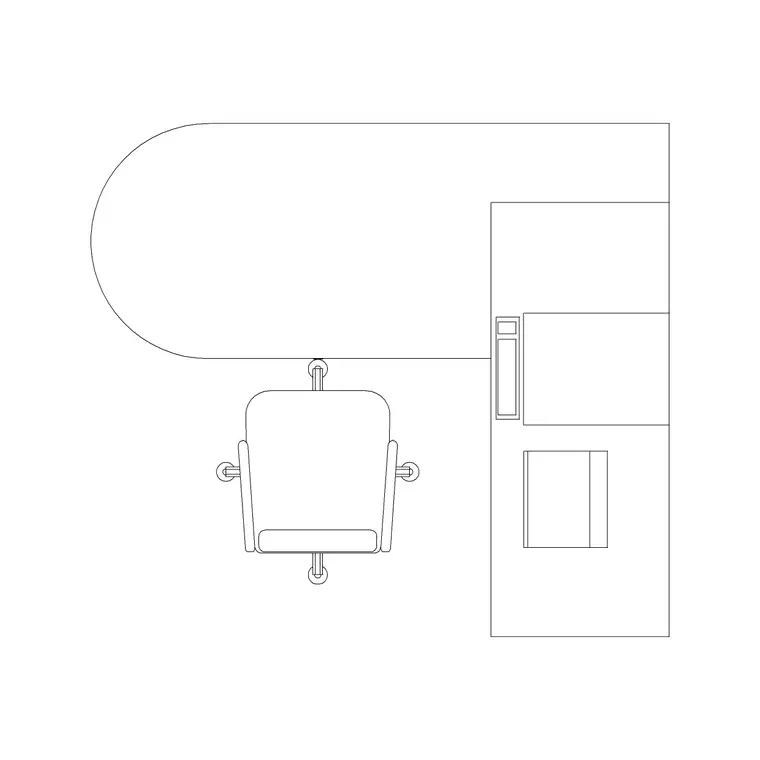
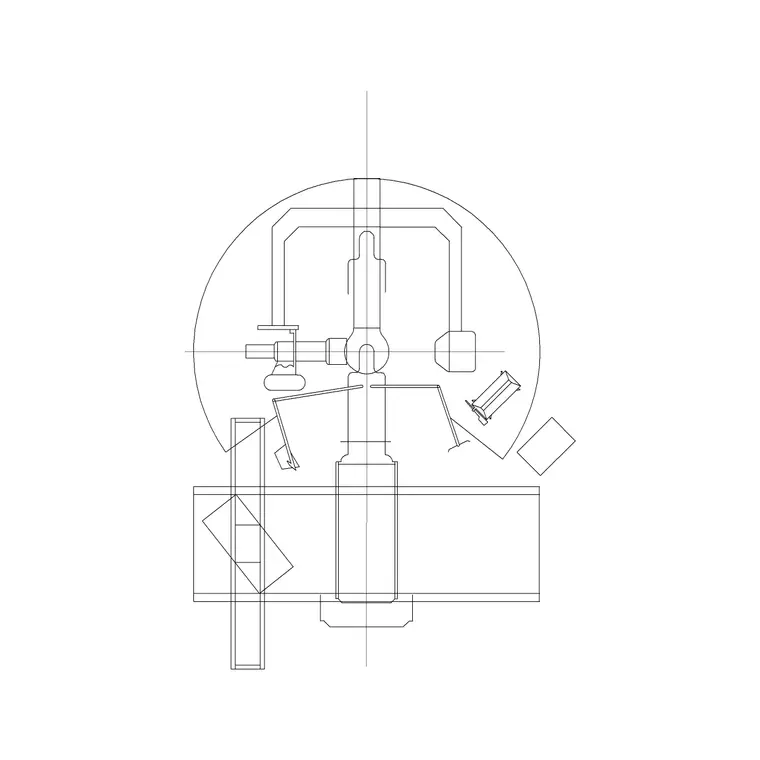
Free CAD block library
Download the blocks from this article — free, no signup


