How to build your own CAD block library from downloaded files
Turn a folder of downloaded DWGs into a fast, searchable block library. Folder structure, naming, a vetting gate, and tool palettes for one-click blocks.
Sumana KumarUpdated 11 May 20264 min read

A pile of downloads is not a library
Most people accumulate CAD blocks the same way: download one when a drawing needs it, drop it in the Downloads folder, and move on. Within months you have hundreds of DWGs with names like 'block (3)' scattered across folders, and finding the right one takes longer than redrawing it. That is a collection, not a library — and the difference is entirely about structure.
A real library is a curated, organised, vetted set of blocks where the next one you need is always a click or two away. Building one from your downloads is not hard; it just requires four disciplines applied consistently: a folder structure that mirrors how you think, a naming convention you never break, a vetting gate so only clean blocks get in, and tool palettes that turn the whole thing into one-click placement. Do those four things and a few minutes of downloading becomes a speed multiplier that pays back on every drawing for years.
A folder structure that mirrors your drawings
Start with a single top-level library folder somewhere stable — not your Downloads folder, which is chaos by design. Inside it, organise by discipline or category the way you actually categorise objects: Furniture, Doors, Windows, Kitchen, Lighting, Sanitary, Trees & Plants, People, Symbols. Within each, group by type and, where it helps, by view: Furniture, then Seating, then Sofas, with plan and elevation versions clearly separated.
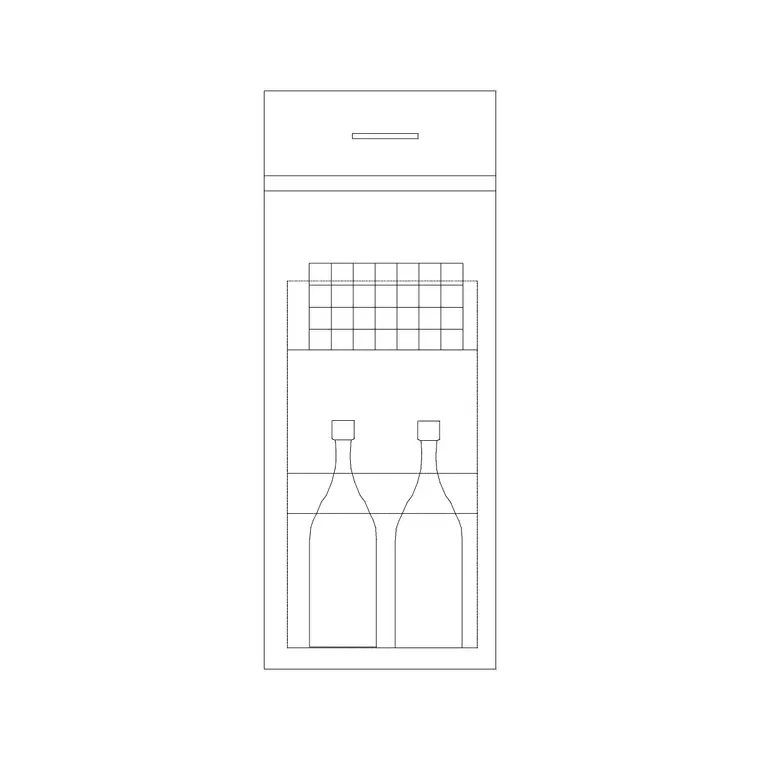
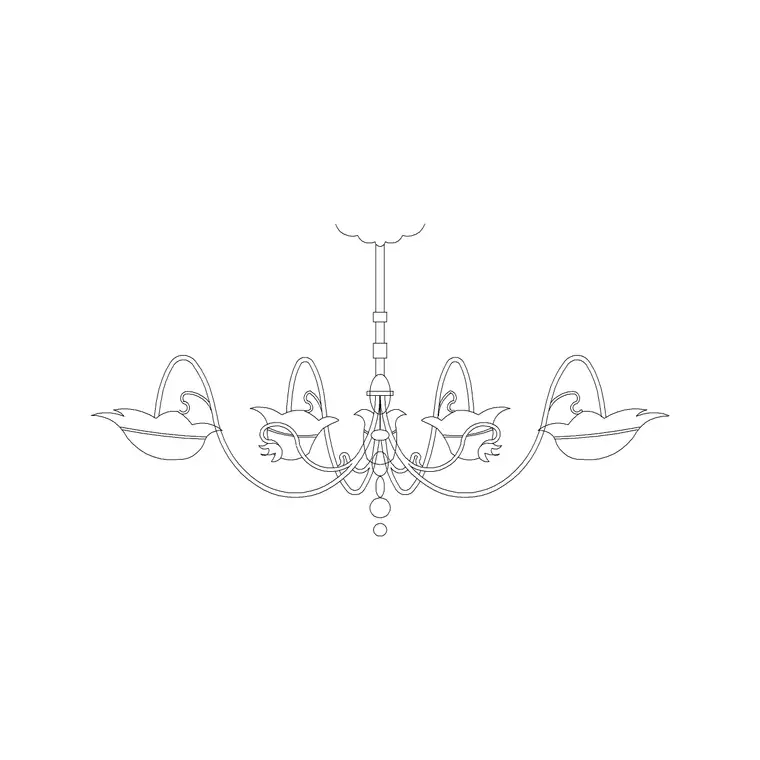
The categories on a good block site are a ready-made template for this — if you download a Sofa Set Plan, a Cabinet, a chandelier and a door, they map straight onto Furniture, Kitchen, Lighting and Doors folders. Keep the tree shallow enough to navigate without getting lost, but deep enough that any single folder holds a scannable number of files rather than hundreds. If you are scrolling a long way to find a block, split that folder; if you click through five near-empty levels, you have over-nested.
Name files so you can actually find them
Adopt a naming convention and never break it, because inconsistency is what makes a library unsearchable. A reliable pattern is category-object-view-size: sofa-3seat-plan, door-single-1000-plan, chandelier-metal-elev. Lead with the word you would search for, use lowercase with hyphens rather than spaces, and bake the key attributes — size and view especially — into the name so a plain file list is self-describing.
When you download a block, rename it as you file it. The downloaded name might be cryptic or generic; your library name should tell you and anyone else exactly what the block is at a glance. This discipline matters most precisely when you are busy and tempted to dump a file as-is — that is the moment that quietly degrades the whole system. A minute spent naming a block properly saves many minutes hunting for it later, and keeps the library legible for a whole team if you share it.
Vet every block before it enters the library
The single thing that separates a trustworthy library from a risky one is a vetting gate: nothing gets filed until it has passed a quick check. Open each downloaded block and do four things. Run AUDIT with the fix option and PURGE All to strip errors and unused baggage. Confirm the geometry sits on layer 0 with ByLayer properties, or normalise it so it does. Measure a known feature to verify real-world scale — a door leaf around 900mm, a single bed about 1900mm long. Check there is no stray geometry, no proxy objects, no wipe-outs.
A block that passes that gate is production-ready forever; you never have to re-vet it. A block that fails is a liability you have caught before it could pollute a drawing. This is the discipline that lets you trust your own library completely, because you personally vetted everything in it — rather than assuming a download was clean and discovering otherwise mid-project. The blocks here ship clean and free for commercial use, which makes the gate fast, but the habit protects you no matter where a block originates.
Wire it to tool palettes and maintain it
Folders are storage; tool palettes are how you place blocks fast. Once your library is organised and vetted, build palettes grouped by category (Ctrl+3 to open Tool Palettes) and drag your most-used blocks onto them, setting each tool's layer so it lands correctly. Now your library is not just findable but one click away from any drawing. AutoCAD's DesignCenter complements this by letting you drag blocks out of any library DWG without opening it.
Then maintain it like the asset it is. Add new downloads into the right folder the moment you vet them, rather than dumping them to 'file later' — later rarely comes. Periodically purge duplicates and fix any blocks that have drifted off standard. Back the whole library up, and if you work in a team keep one canonical shared copy so everyone draws from the same vetted set. Treated this way, your library quietly gets faster, cleaner and more valuable over time — the opposite of the slow slide into chaos an unmanaged download folder always suffers.
Questions
Frequently asked
How should I structure a CAD block library folder?+
One stable top-level library folder, then subfolders by category (Furniture, Doors, Kitchen, Lighting, etc.), then by type and view inside. Keep it shallow enough to navigate but structured so each folder holds a scannable number of files.
Should I check downloaded blocks before adding them to my library?+
Yes — make it a gate. Run AUDIT and PURGE, confirm the block sits on layer 0 with ByLayer properties, measure a known feature to verify scale, and check for proxies or stray geometry. Only file blocks that pass, so you can trust the whole library.
How do I make my library blocks fast to place?+
Build tool palettes (Ctrl+3) grouped by category and drag your most-used blocks onto them, setting each tool's layer. Placement becomes a single click. DesignCenter (Ctrl+2) also lets you drag blocks out of any library file without opening it.
Free downloads from this article


Free CAD block library
Download the blocks from this article — free, no signup
