How to batch-insert multiple downloaded blocks fast in AutoCAD
Inserting downloaded blocks one at a time is slow. Here's how to place many fast — tool palettes, DesignCenter, MINSERT for arrays, and COPY for repeats.
Sumana KumarUpdated 9 March 20264 min read

Why one-at-a-time INSERT is the slow way
The default way to place a downloaded block — type INSERT, browse to the file, set options, click — is fine for a single block but painful when you need many. Furnishing an office floor with thirty identical desks, dropping a tree at twenty points on a site plan, or scattering a dozen different fixtures through a plan: do any of those with thirty separate INSERT-and-browse cycles and you waste real time on dialog-clicking instead of drawing.
AutoCAD has several faster paths depending on the situation: tool palettes and DesignCenter for placing many different blocks quickly, MINSERT and arrays for placing one block in a regular pattern, and plain COPY for repeating a block you have already placed. Knowing which to reach for turns batch placement from a chore into a few clicks. This guide walks through each so you can match the method to the task.
Tool palettes — many different blocks, one click each
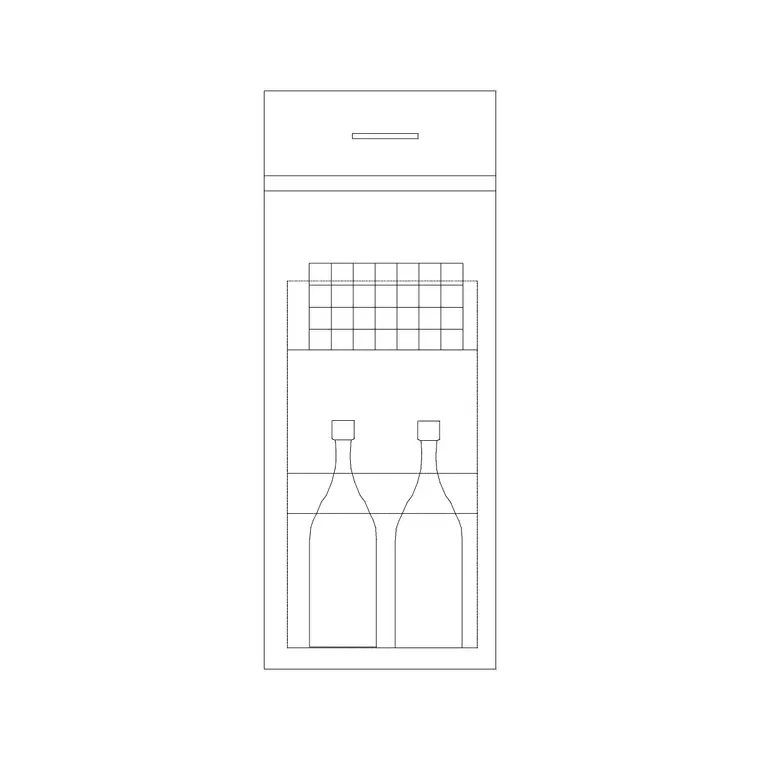
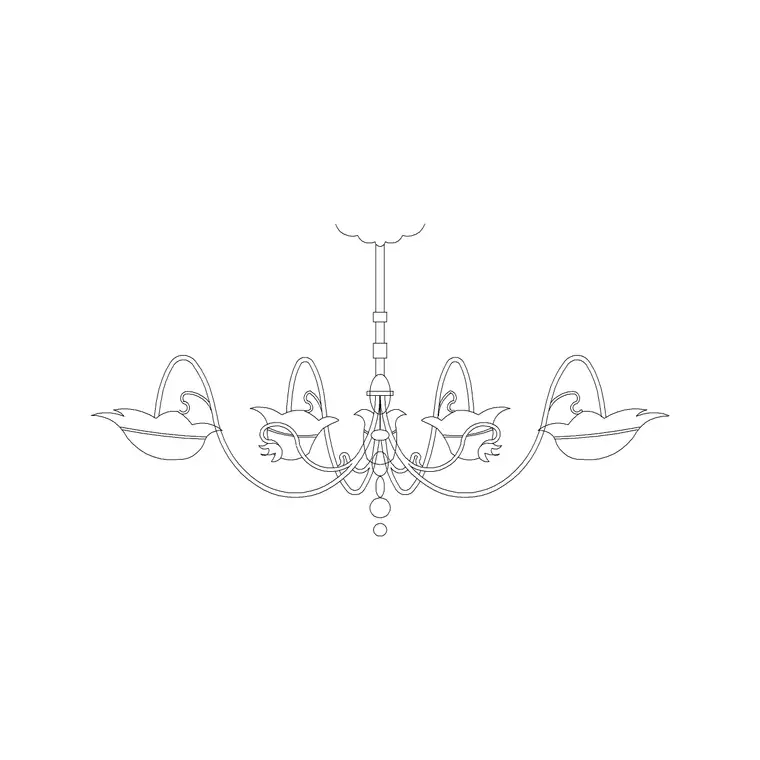
If you are placing a variety of blocks — a sofa here, a table there, a chandelier above — the fastest approach is to have them all on a tool palette. Set up a palette once (Ctrl+3, then drag your downloaded blocks onto it), give each tool a layer override in its properties, and from then on placing any of them is a single click-and-drag with no dialog and no browsing. For a furnishing task that mixes a Sofa Set Plan, a Cabinet, a 2-seater table and a chandelier, a palette is dramatically faster than re-inserting each from its file.
The layer override is what makes this truly fast: each block lands on the correct layer automatically, so you are not tidying afterwards. Build the palette once for the blocks you use repeatedly and every future drawing benefits. This is the single biggest speed-up for placing many different downloaded blocks, and it compounds across every project.
DesignCenter — drag straight from files
When the blocks you want live across several downloaded DWGs and are not yet on a palette, DesignCenter (Ctrl+2) lets you place them without opening each file or running INSERT. Browse to a folder, click a DWG, and its Blocks node lists every block inside; drag any of them straight into your drawing. You can open several files' block lists and pull from each in turn, which is ideal for assembling a drawing from a folder of downloads.
DesignCenter is the bridge between a folder of files and your drawing. It is especially handy for one-off blocks you do not want to set up a permanent palette tool for — pull them in directly as needed. You can also drag blocks from DesignCenter onto a tool palette to build the palette up quickly, so the two tools reinforce each other: DesignCenter to browse and grab, palettes to keep the ones you reuse.
MINSERT and arrays — one block in a regular pattern
When you need the same block repeated in a regular grid — desks in rows, columns on a structural grid, lights on a reflected ceiling plan — MINSERT places a rectangular array of a block in one command. Type MINSERT, pick the block, set the insertion point, then specify the number of rows and columns and the spacing between them. AutoCAD drops the whole grid at once. Note that a MINSERT array is a single special object you cannot explode normally, so use it where the regular pattern is genuinely what you want.
For more control, place the block once as a normal insertion and then use the ARRAY command (rectangular or polar) to replicate it. A polar array is perfect for things arranged in a circle — chairs around a round table, bollards around a roundabout. Modern associative arrays even let you edit the count and spacing after the fact. Between MINSERT for a quick grid and ARRAY for flexible patterns, any regular repetition of a downloaded block is a single operation rather than dozens of manual placements.
COPY, and a note on getting them all on the right layer
The humblest batch method is often the right one: place a downloaded block once, then COPY it to every other spot. Run COPY, select the placed block, pick a base point, and click each destination — COPY stays active for multiple copies, so you can rattle through ten placements without restarting the command. Object snaps make this precise: snap each copy to a grid intersection or a wall endpoint. For irregularly positioned repeats, where MINSERT's grid does not fit, COPY is faster and simpler.
Whatever method you use, get the layer right once and the rest follow. If your block is built on layer 0, set your target layer current before you start placing and every insertion, MINSERT cell, array item or copy inherits it automatically. That way a batch of thirty blocks all land on the correct layer in one go, rather than needing a tedious select-all-and-change afterwards. Combine the right placement method with a layer-0 block and a current target layer, and batch insertion becomes both fast and clean.
Questions
Frequently asked
How do I insert the same block in a grid quickly?+
Use MINSERT: type MINSERT, pick the block and insertion point, then set rows, columns and spacing — AutoCAD places the whole array at once. For editable patterns, place the block once and use the ARRAY command (rectangular or polar) instead.
What's the fastest way to place many different downloaded blocks?+
Put them on a tool palette (Ctrl+3) with layer overrides, so each is a single click-and-drag onto the correct layer. For blocks still in files, DesignCenter (Ctrl+2) lets you drag them straight out of any DWG without opening it.
How do I make a batch of blocks land on the right layer?+
If the blocks are built on layer 0, set your target layer current before placing. Every insertion, array item, MINSERT cell or copy then inherits that layer automatically, so the whole batch lands correctly with no cleanup afterwards.
Free downloads from this article


Free CAD block library
Download the blocks from this article — free, no signup
