Where to find free toilet / WC commode DWG files
Free toilet, WC and commode DWG blocks for AutoCAD — where they sit, what each block contains, and how to place a commode with the right clearances.
Saumyajit MaityUpdated 1 February 20264 min read
Toilet, WC, commode — same fixture, different words
Whether your office calls it a toilet, a WC, a water closet, a commode or a pan, you are after the same fixture, and on this site they all live in the Bathroom category. The library labels them as toilet commodes, numbered through a generous set of variants, so you can pick the bowl shape and cistern arrangement that suits your drawing. Searching 'toilet' or 'commode' filters the category straight down to them.
Every one is a free DWG with no account required and no attribution attached. That breadth is genuinely useful: a close-coupled pan with a low-level cistern reads differently from a wall-hung unit or a back-to-wall design, and having several to choose from means your plan can match the actual specification rather than forcing one generic symbol everywhere. For a typical residential bathroom you will usually reach for a standard close-coupled commode; for a commercial WC run you might want the cleaner wall-hung look repeated down a row of cubicles.
What each commode block contains
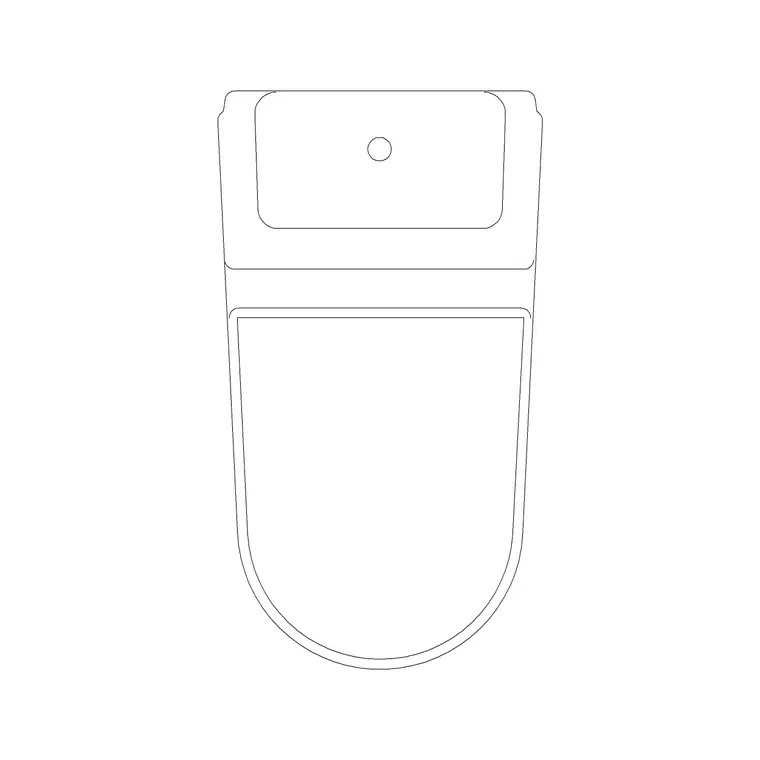
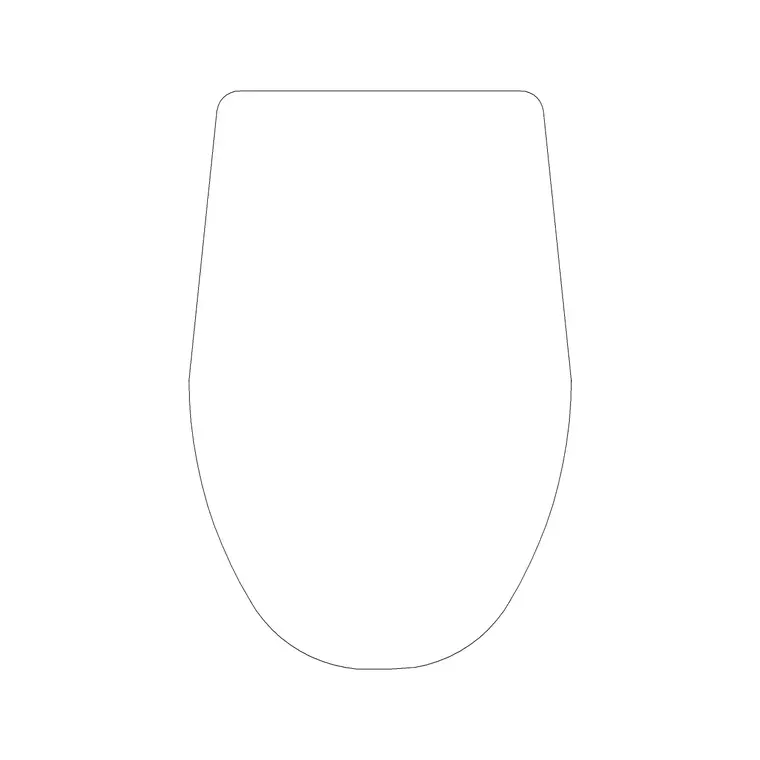
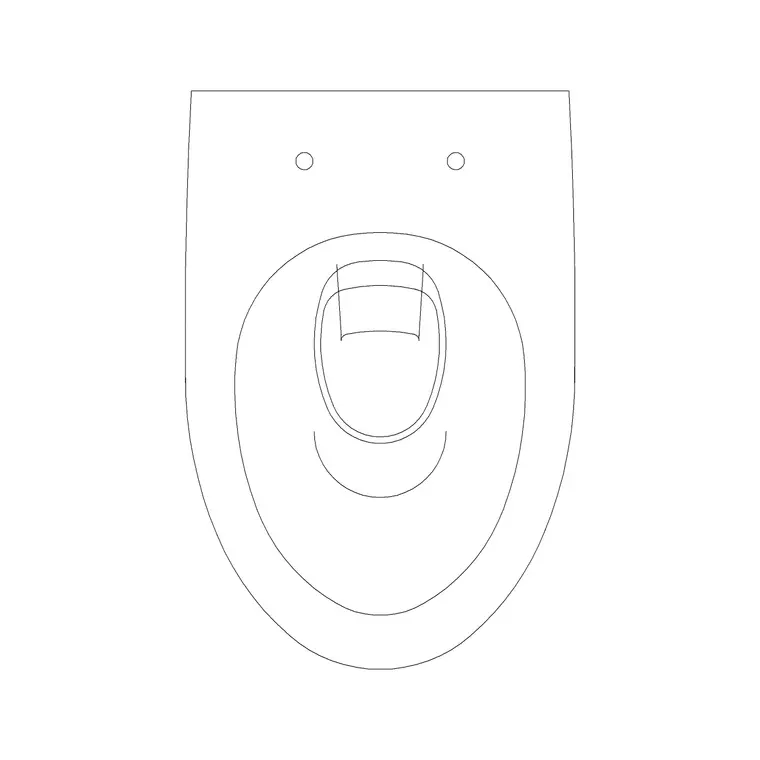
A toilet commode block here is a clean 2D drawing of the pan and cistern — the bowl outline, the seat, and the tank behind it — ready to drop onto a bathroom plan. The geometry is drawn to the real footprint of a standard WC, which is roughly 700mm deep from the wall to the front of the pan and around 360 to 400mm wide. The cistern adds depth at the back, sitting against the wall.
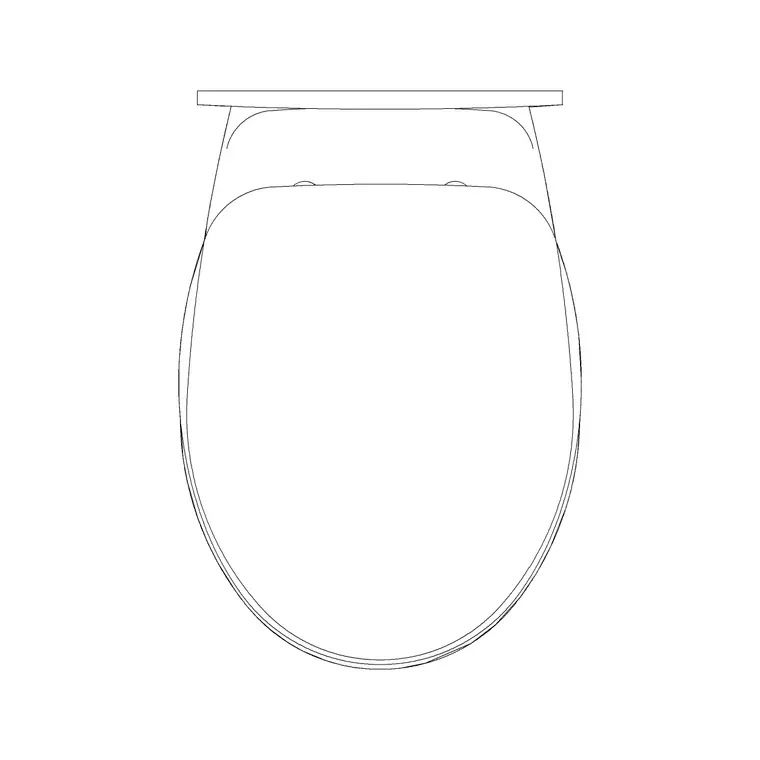
The files are DWG, saved to a broadly compatible AutoCAD version, so they open in AutoCAD, LT, and the free alternatives without complaint. Because the blocks are numbered rather than tied to a brand, you are choosing on shape and arrangement, not on a manufacturer's catalogue. If your drawing needs the toilet shown from the side to communicate the pan height and cistern profile — for a bathroom elevation or a setting-out drawing — check whether a side-elevation commode variant suits, as elevation views answer the vertical questions a plan cannot.
Placing a WC with correct clearances
A toilet is one of the few fixtures where clearance is a code-level concern, not just good manners, so place it deliberately. Insert the block with INSERT, snap the back of the cistern to the wall using object snaps (F3), and then check the space in front and to the sides. A WC needs roughly 200 to 300mm of clear space either side of the pan centreline so the user is not wedged against a wall or a basin, and around 600mm of clear projection in front for legroom and approach.
Those numbers tighten considerably for an accessible WC, which needs a much larger clear transfer zone beside the pan — if you are drawing an accessible bathroom, design to the relevant standard rather than the domestic minimum. Placing the commode block first and then drawing the basin and any bath around it, rather than the reverse, tends to produce a more usable layout, because the toilet is the fixture with the least flexibility in where it can go relative to its drainage.
Getting it into your drawing cleanly
Download the commode DWG, then in your working drawing run INSERT, browse to the file, and place it with scale 1 and rotation 0. If the pan needs to face a different way, set the rotation during insertion or select it afterwards and use ROTATE — toilets commonly need rotating 90 or 180 degrees to face into the room correctly. Snap the rotation to orthogonal angles so the fixture sits square to the wall.
If the block lands at the wrong size, it is units: set INSUNITS to match your drawing (4 for mm, 6 for m) before inserting so it auto-scales, or correct it afterwards with SCALE — 0.001 for millimetres into a metre drawing, 1000 the other way. Check the pan depth measures around 700mm once placed; if it reads 0.7, your drawing is in metres and the block came in correctly. Keeping the commode on your sanitary or fixtures layer (it will inherit that layer if it was built on layer 0) keeps the plan tidy and easy to plot.
Opening the DWG in other CAD software
Not everyone drawing a bathroom is on full AutoCAD, and the good news is these commode files do not require it. The blocks are saved as DWG to a broadly compatible AutoCAD version, which opens cleanly in AutoCAD LT and in the free alternatives — LibreCAD, DraftSight, BricsCAD, NanoCAD, ZWCAD and similar all read DWG. The INSERT workflow is essentially identical across them: open or browse to the file, place it, set scale and rotation.
If you are on a tool that struggles with DWG, or feeding the geometry into something unusual like a laser cutter or a GIS package, convert the file to DXF first — the open exchange format almost everything understands. The free ODA File Converter or LibreCAD will round-trip a simple 2D commode block to DXF without losing anything, since the geometry is plain lines and arcs. Either way, the toilet block is not locked to one program: download the DWG, and use it in whatever CAD tool your office runs, free or paid.
Questions
Frequently asked
Is a WC block the same as a toilet or commode block?+
Yes — toilet, WC, water closet and commode all describe the same fixture. On CADBlockDWG they are filed as toilet commodes in the Bathroom category, free to download as DWG with no signup.
How much clearance should I leave around a toilet?+
For a domestic WC, aim for roughly 200–300mm clear either side of the pan centreline and around 600mm of clear space in front. Accessible toilets need a far larger transfer zone — design to the relevant standard.
What footprint are the toilet commode blocks drawn to?+
Around 700mm deep from the wall and roughly 360–400mm wide, matching a standard close-coupled WC. Measure with DIST after inserting to confirm the scale in your drawing.
Free downloads from this article
Free CAD block library
Download the blocks from this article — free, no signup


