Free juicer & small-appliance DWG files (how to use)
Find free juicer, mixer and small-appliance DWG blocks, what to draw on a worktop, and how countertop appliances make a kitchen plan read as lived-in.
Sumana KumarUpdated 23 June 20264 min read
Where to find the small-appliance blocks
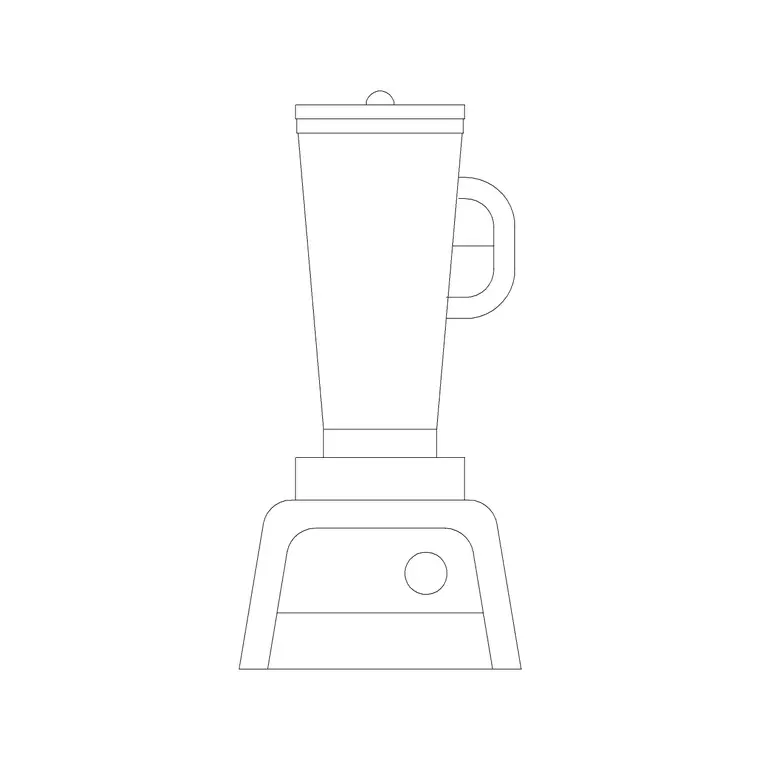
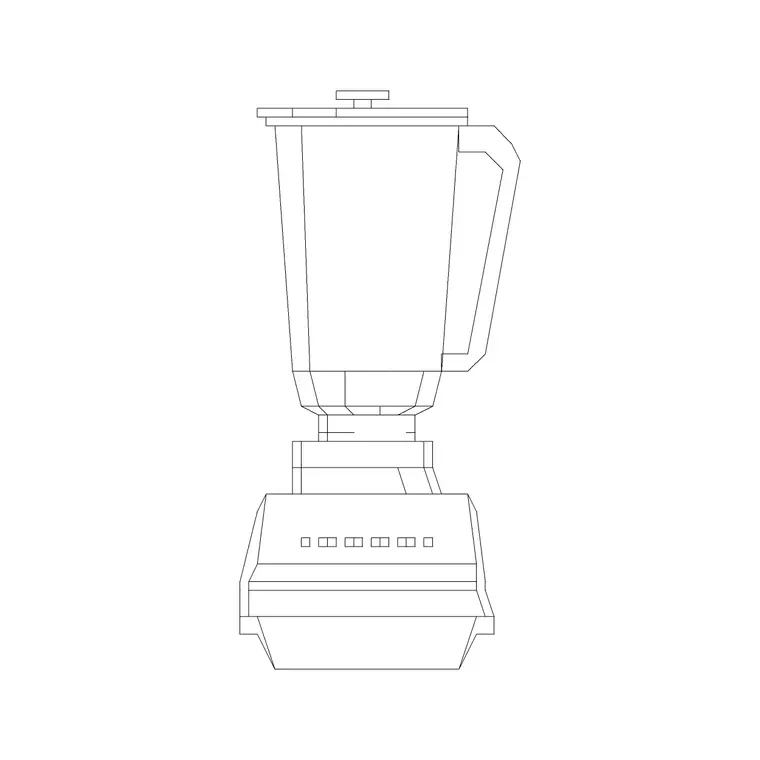
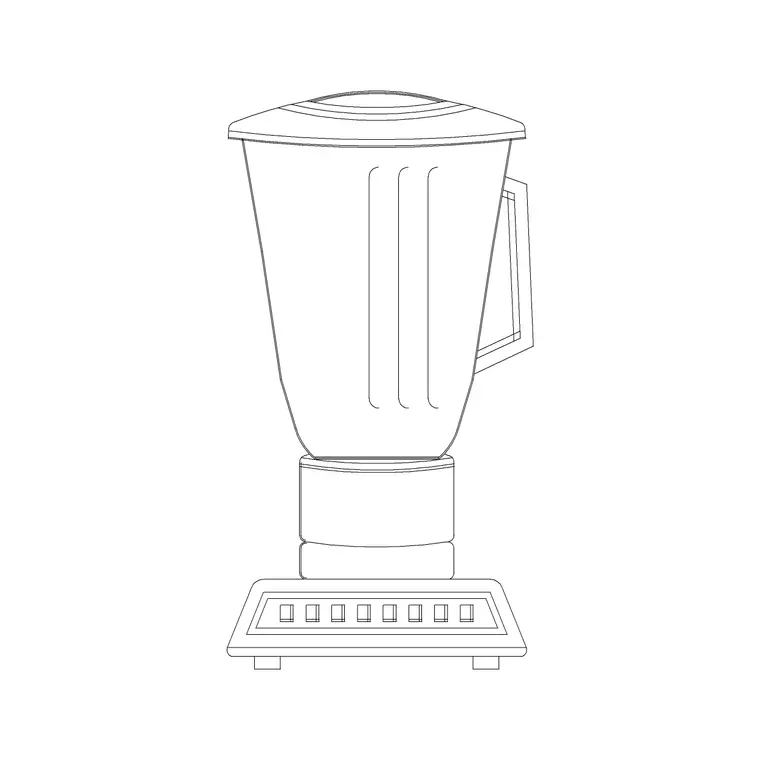
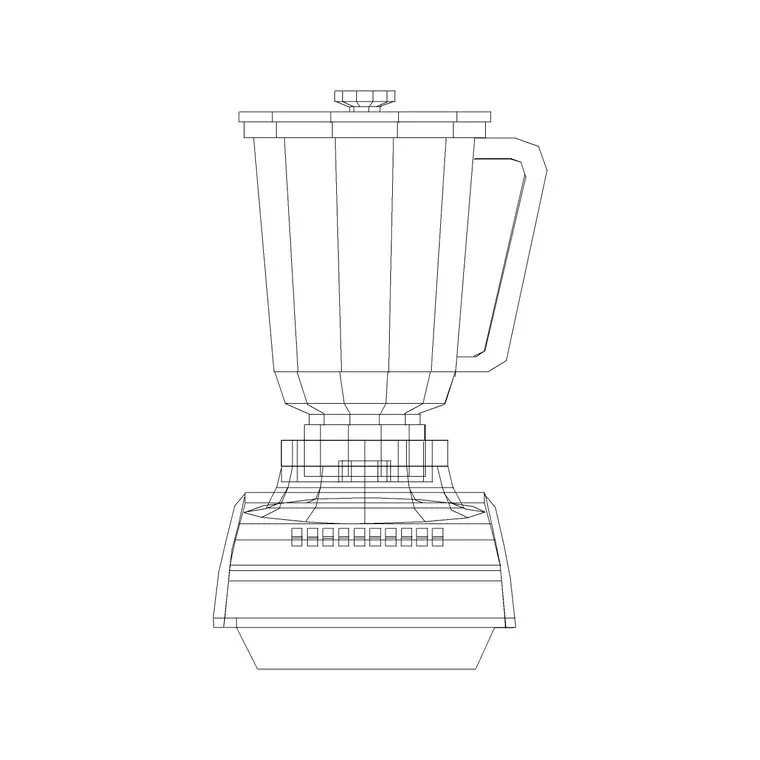
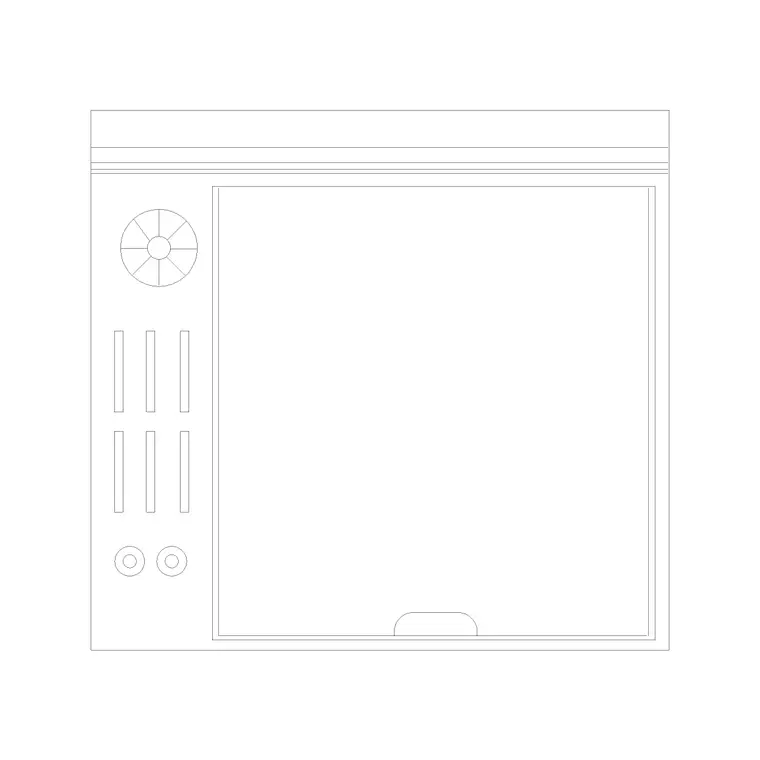
Juicer and small-appliance blocks sit in the Kitchen category. Search 'juicer' and you will find several variants (Juicer 1 through Juicer 4) ready to download as DWG, no account required and free for commercial use. There are a few because juicers and mixers come in different shapes — an upright citrus press, a tall blender jug, a stand mixer profile — and having options means the worktop reads as real rather than repetitive. Download two or three of them so you can vary the worktop instead of stamping the same outline.
These are the props of a kitchen drawing. Cabinets, the sink and the hob are the architecture; the juicer, kettle, toaster and mixer are what make a plan or a presentation drawing feel inhabited. You will not usually dimension them, but placed with a little thought they communicate how the kitchen is actually used and where the worktop activity zones sit. The same idea extends to other countertop appliances — a coffee machine, a microwave, a bread bin — so treat this block family as a kit for dressing the counters.
What countertop appliances should measure
Small appliances are small, and that is the point — they are accents, not modules. A juicer or citrus press has a footprint of roughly 200 by 200mm; a stand mixer sits around 250 by 350mm; a blender base is about 200mm across with a taller jug above. In plan you are mostly drawing a compact rounded or rectangular outline that signals 'appliance on the counter here'.
Because they are so small relative to the kitchen, scale errors are easy to miss — a juicer that came in at metre scale will be a faint dot, not an obvious problem. So when you download one of the juicer blocks, open it and confirm the footprint reads a couple of hundred millimetres before you scatter copies across a worktop. Getting the scale right keeps the appliance reading as a juicer rather than a postage stamp or, the other way, a wheelie bin.
Placing appliances to suggest a working kitchen
The skill with small appliances is restraint and logic. Place them where someone would actually use them: a kettle and toaster near a socket and out of the main prep path, a stand mixer in a baking corner near the oven, a juicer by the fridge where the fruit lives. A few well-placed pieces read as a real kitchen; a worktop carpeted in appliances reads as clutter and undermines the drawing.
Insert each with I and Browse, snap it to the worktop edge or set it back slightly from the front lip so it sits believably on the counter, and rotate it so the working face points the way a user would stand. Vary which of the four juicer blocks you use, and mirror the odd one, so two appliances near each other are not identical copies — the same anti-clip-art discipline you would use with planting blocks. Leave a clear stretch of worktop beside the hob and the sink for actual food preparation; appliances are best clustered at the ends of a run or in a dedicated breakfast zone rather than spread along the main prep counter.
Layering so the props can be switched off
Put all the small appliances on their own layer — something like 'kitchen-accessories' or 'props'. The reason is practical: a construction or setting-out drawing of the kitchen does not want a juicer cluttering it, but a presentation plan or a render-reference drawing does. Keeping them on a dedicated layer lets you freeze the whole lot for the technical sheet and thaw them for the client-facing one, from a single toggle.
The blocks here are built on layer 0, so they inherit whichever layer is current when you insert them — make your props layer current first and they all land in the right place automatically. That one habit means you never have to hunt down and hide a dozen scattered appliances by hand when you need a clean technical drawing.
Pairing appliances with worktop and sockets
Small appliances are a useful prompt for coordinating the electrical layout. Every juicer, kettle and mixer you place implies a socket, so as you scatter them, it is worth dropping socket symbols on the worktop nearby on your electrical layer — the appliances make the socket demand visible and stop you under-providing power along the run. A common standard is a double socket every 600–800mm of worktop, and seeing the appliances laid out is the easiest way to judge whether that is enough.
Finally, keep the appliances proportionate to the worktop they sit on. Snap them just inside the worktop polyline you drew along the cabinet run so none of them float off the counter or overhang into space, and rotate each so its working face points the way a user would stand. Combine sensible placement, a few varied blocks, a dedicated layer and a glance at the sockets, and a handful of tiny DWG files turn a bare cabinet plan into a kitchen that reads as genuinely lived-in — the same low-effort, high-impact move that scale figures bring to an architectural elevation.
Questions
Frequently asked
How big is a juicer block in a kitchen plan?+
A juicer or citrus press is roughly 200 by 200mm in plan; a stand mixer about 250 by 350mm; a blender base around 200mm. They are small accents, so check the scale after downloading.
Should I dimension countertop appliances?+
Usually not. Juicers, kettles and mixers are props that show how the kitchen is used. Place them logically and keep them on a dedicated layer you can switch off for technical sheets.
How do I stop appliances looking repetitive?+
Use the different juicer variants, rotate and mirror instances, and place each where it would really be used so no two adjacent appliances are identical copies.
Free downloads from this article
Free CAD block library
Download the blocks from this article — free, no signup


