DWG vs DXF for laser cutting: which format to download
For a laser cutter or CNC router, DXF is almost always the format to download. Here is why fabrication prefers DXF, and how to prep a block so it cuts cleanly.
Sumana KumarUpdated 12 June 20264 min read

For laser cutting, download the DXF
This is the one case where the usual advice flips. When a block is headed for a laser cutter, CNC router, plasma table or waterjet, download the DXF rather than the DWG. Fabrication software and machine controllers were built around DXF as the lingua franca for 2D cut paths — it is open, text-based and understood by virtually every CAM and machine package. A DXF drops into the cutter's software with the least friction.
DWG can sometimes be imported by fabrication tools too, but support is patchier and version-dependent, so you are trusting a reverse-engineered DWG reader rather than the open standard the machine expects. If a block on this site offers DXF, that is the version to grab for cutting; if it only offers DWG, convert it to DXF first, which takes seconds in a free tool.
Why DXF suits the machine
A laser or router does not care about layers for presentation or dynamic-block cleverness — it cares about clean, closed vector paths it can follow. DXF expresses exactly that, in a format whose specification is public and stable, so the machine's software interprets the geometry predictably. Because DXF is text-based it is also easy to inspect and, if needed, hand-edit, which fabricators occasionally do.
The trade-offs that count against DXF elsewhere — larger file size, occasional loss of advanced AutoCAD-only features — simply do not matter for cutting. A cut file is usually just outlines, and outlines are precisely what DXF carries best. So the format weakness becomes irrelevant and its universality becomes the whole point. That is why fabrication shops will almost always ask you for a DXF rather than a DWG.
Prepping a block so it actually cuts
Choosing DXF is only half the job; the geometry has to be cut-ready. Make sure outlines are closed — a laser path needs continuous loops, so join open lines into polylines and close any gaps. Remove anything the machine should not cut: dimension text, hatches, title-block lines, and duplicate overlapping segments that would make the laser trace the same edge twice. Many cutters treat colour or layer as the signal for cut versus engrave versus score, so put cut lines and engrave lines on clearly separate layers before exporting.
Check the scale deliberately, because a fabrication mistake is expensive in material. Confirm the units the cutter expects — usually millimetres — and that one drawing unit equals one millimetre in the DXF. Measure a known feature to verify. A block drawn in metres exported to a millimetre-expecting machine will come out 1000 times too small, and you will only find out after wasting a sheet.
Converting a DWG block to DXF for cutting
If the block you want is only available as DWG, converting is quick. In AutoCAD, use SAVEAS and pick a DXF type — an older generation like AutoCAD 2004/2007 DXF maximises compatibility with machine software. Free tools do the same job: the ODA File Converter batch-converts DWG to DXF in either direction, and LibreCAD or QCAD can open a DWG and export DXF.
After converting, open the DXF and sanity-check it before sending it to the shop: outlines closed, junk removed, cut and engrave layers separated, scale correct in millimetres. A two-minute review here prevents the most common fabrication failures — open paths the laser skips, stray geometry it cuts by accident, or a part that comes out the wrong size. Treat the DXF as a deliverable, not a throwaway, and the cut will match your intent.
Which blocks actually suit cutting
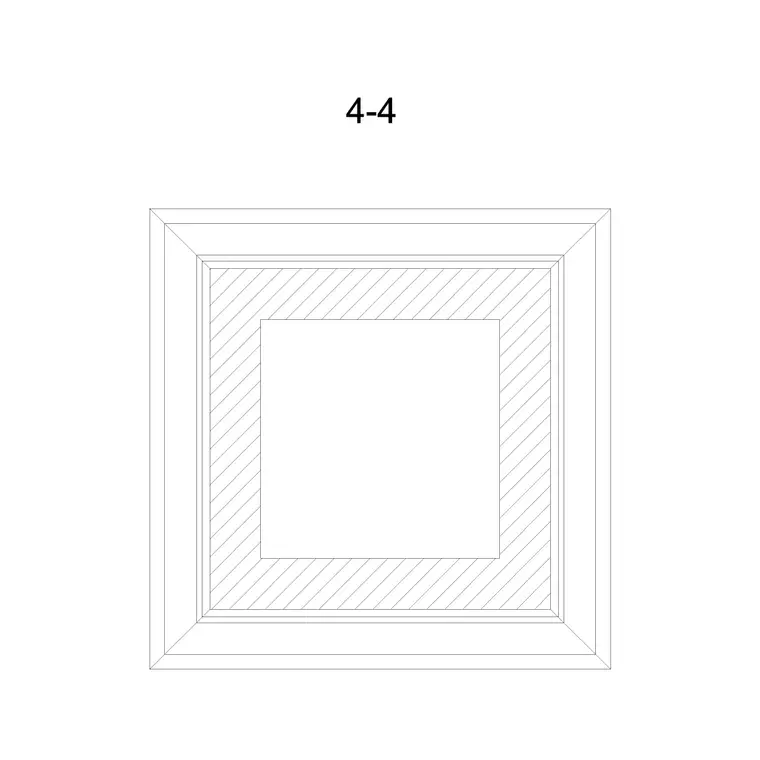
Not every block is a cut candidate, and knowing which are saves wasted effort. The blocks that translate well to a laser or router are the ones that reduce to clean closed outlines: a paving unit you want to cut as a physical sample or template, a door or window frame profile turned into a cutting template, a flat-pack furniture or joinery panel, a stencil or a signage shape. These start as simple 2D geometry, so the path from drawing to cut file is short.
Blocks that are really diagrammatic symbols — a lighting symbol, a scale figure, a planting canopy meant to read on a plan — are not cut candidates in any literal sense; they exist to communicate on a drawing, not to become parts. So before prepping anything for fabrication, ask whether the block represents a real physical thing with an outline you would genuinely cut. If it does, take the DXF and prep it; if it does not, it belongs on the screen, where the DWG is the right download.
Rule of thumb for fabrication downloads
When the destination is a screen, download DWG; when the destination is a cutting machine, download DXF. Laser cutters, CNC routers, plasma and waterjet tables all speak DXF most fluently, so it is the format that survives the journey from drawing to physical part with the fewest surprises. If only a DWG exists, convert it — the geometry is identical and the conversion is trivial.
The real work in laser-ready files is not the format choice but the prep: closed outlines, clean geometry, separated cut and engrave layers, and verified millimetre scale. Get the DXF and get those four things right, and a downloaded block goes from screen to cut part without a wasted sheet of material.
Questions
Frequently asked
Should I download DWG or DXF for laser cutting?+
DXF. Laser cutters, CNC routers and similar machines were built around DXF as the standard 2D exchange format. If only DWG is offered, convert it to DXF before sending it to the machine.
Why do fabrication shops prefer DXF over DWG?+
DXF is an open, stable, text-based standard that CAM and machine software interpret predictably. DWG support in fabrication tools is patchier and version-dependent because it relies on reverse-engineered readers.
How do I make a CAD block cut-ready?+
Close all outlines into continuous loops, remove dimensions/hatches/duplicates, put cut and engrave lines on separate layers, and verify the scale is correct in millimetres before exporting the DXF.
Free downloads from this article

Free CAD block library
Download the blocks from this article — free, no signup