How to download free tropical plant CAD blocks for AutoCAD
Free tropical plant CAD blocks in DWG — palms, large-leafed indoor plants and lush greenery — where to find them on CADBlockDWG and how to layer them.
Sumana KumarUpdated 8 April 20264 min read
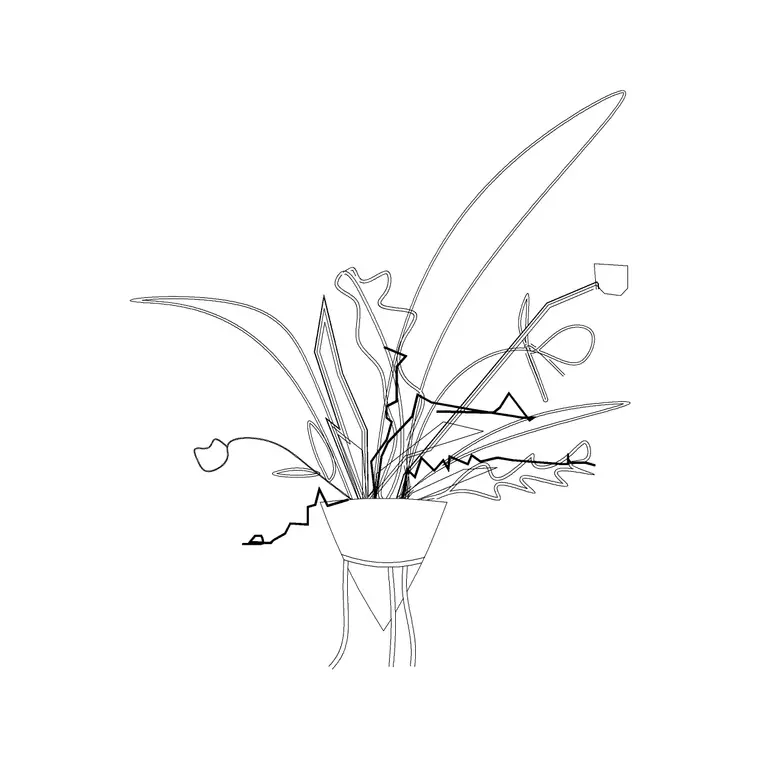
What counts as a tropical plant block
Tropical planting is a look as much as a plant list: lush, large-leafed, layered greenery that reads as warm, humid and abundant. In CAD terms that translates to a handful of block families used together — palms for height and silhouette, large-leafed floor plants for indoor jungles and biophilic interiors, and dense potted greenery to fill the lower layers. A resort lobby, a spa, a hotel atrium or a biophilic office all lean on this combination to feel immersive rather than sparse.
There is no single 'tropical plant' product; the effect comes from choosing and combining the right blocks. A tall palm against a glazed wall, a cluster of broad-leafed floor plants in a corner, and low planters of dense foliage between them build the layered, lush character that defines tropical and biophilic design. Knowing which blocks to pull is most of the job.
Finding tropical and lush plant DWGs
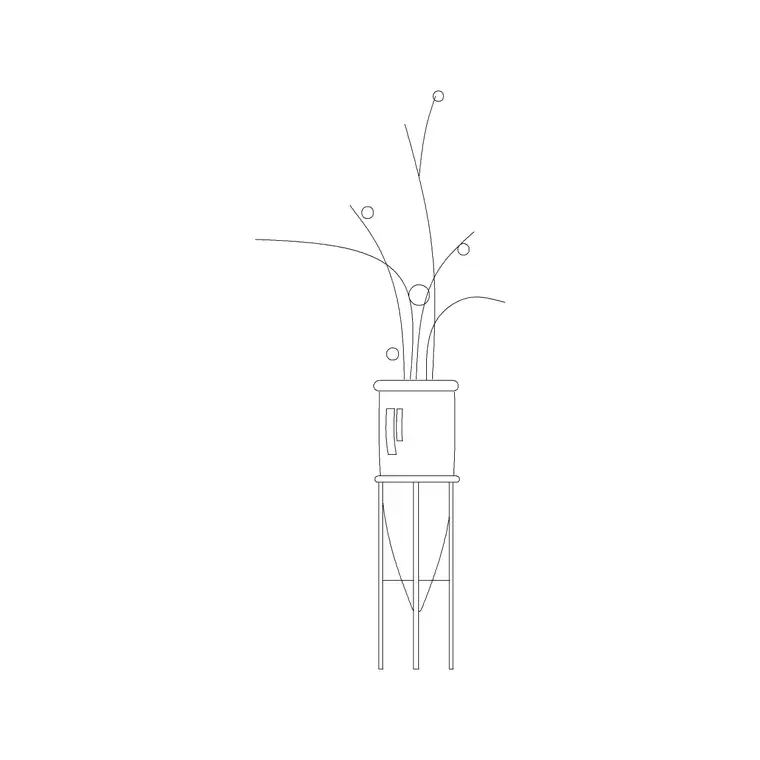
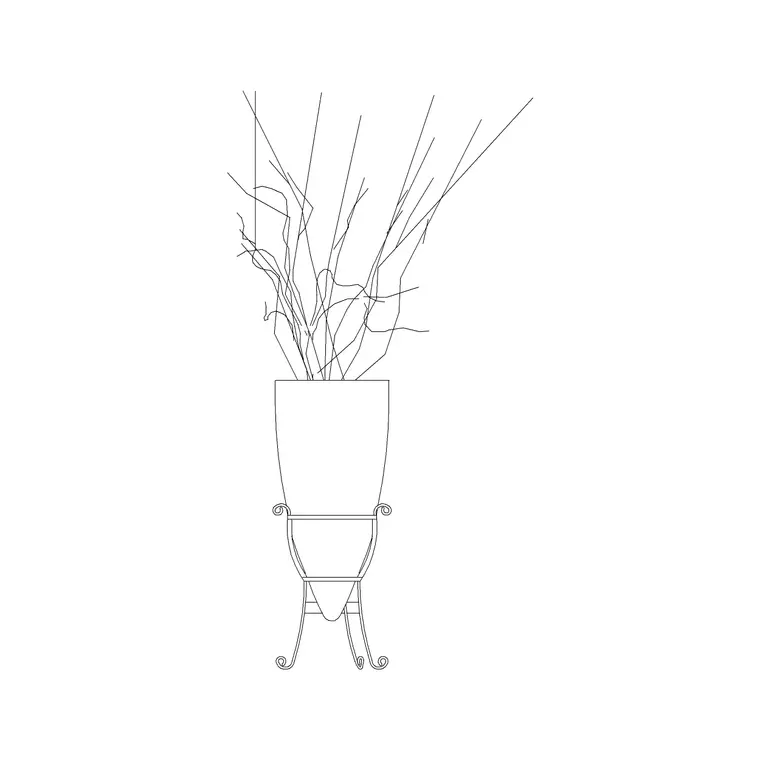
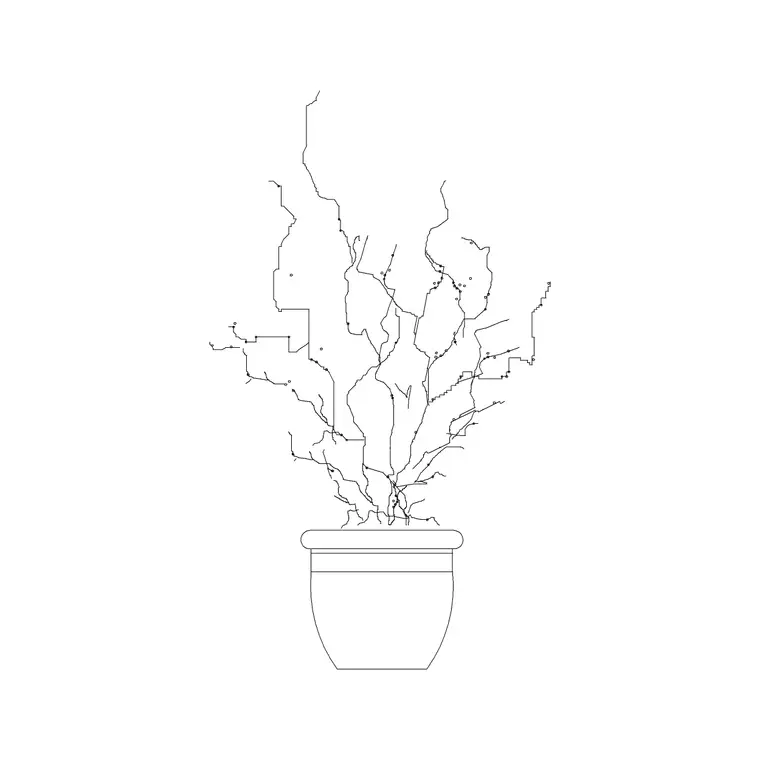
All the blocks you need sit in the Trees & Plants category. For height and silhouette, search 'palm'. For indoor jungle and biophilic interiors, search 'indoor' and 'plant' to find large floor plants — including plants on slim metal legs that suit a contemporary tropical-modern look — and 'potted' for the dense foliage that fills the lower layers. Read the view label and preview on each product page so you grab the version the drawing needs.
Everything downloads as a DWG with no signup and no attribution required, free for commercial use, so resort, hospitality and biophilic projects can use them freely. Because the blocks are real vector geometry, you can recolour the foliage to a richer green, adjust line weights, or duplicate and layer plants to build depth once they are in your drawing — which is exactly how you create a lush, layered look rather than a few isolated pots.
Layering plants for a lush look
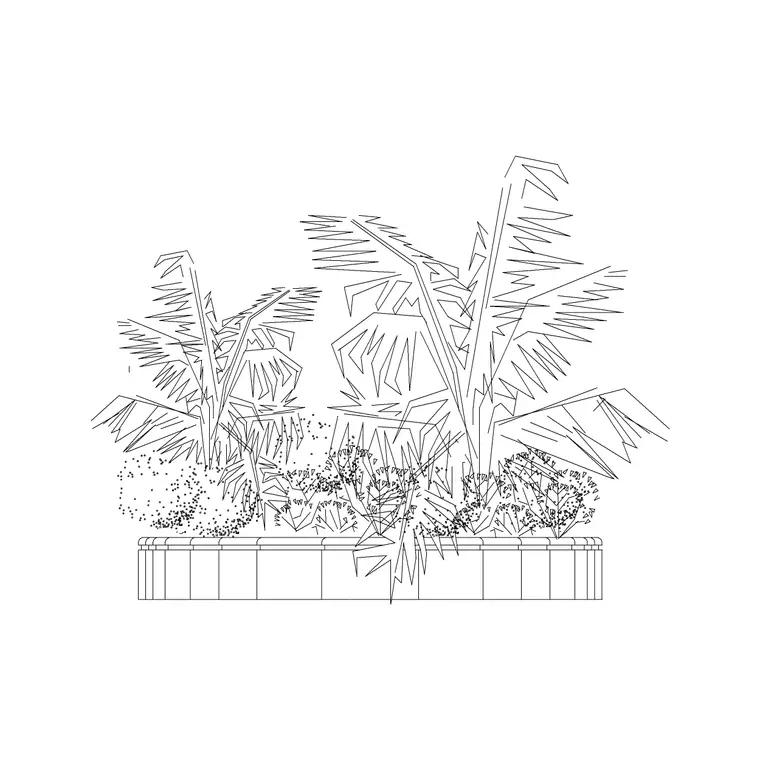
The secret to convincing tropical planting is layering — building the greenery up in tiers rather than placing single plants in isolation. In an interior elevation, set a tall palm or large floor plant at the back against the wall, place medium potted plants in front of it, and tuck low planters of dense foliage at the base. The overlapping silhouettes read as an immersive mass of greenery, which is the whole point of a biophilic or resort interior.
Use draw order (the DRAWORDER command) so the front plants sit convincingly over the ones behind, and vary the plant types and heights so the grouping looks abundant rather than repeated. The same logic applies on a terrace or atrium plan seen from above: cluster the canopies and planters so they read as a planted zone, not a scatter of dots. Layering, overlapping and variety are what turn a few blocks into a lush tropical scene.
Inserting and scaling tropical plants
Save the DWGs and run INSERT in your drawing. Browse to a block, keep scale at 1 and rotation at 0 to start, and place it with an object snap so the base of the trunk or pot sits exactly on the floor or ground line in an elevation, or on the right point in a plan. A floating palm or hovering planter breaks the illusion immediately.
Mind the range of heights: a large indoor floor plant might be one and a half to two metres, a feature palm five to fifteen metres or more in a double-height atrium, and a low foliage planter under half a metre. If a block imports at an implausible size it is a units mismatch — set INSUNITS consistently so AutoCAD auto-scales, or apply a SCALE factor of 0.001 or 1000 as needed, calibrating against a known dimension when the source units are unclear.
Getting the relative heights right is what makes the layered grouping read as real — a tall palm should clearly tower over the medium plants in front of it, which should in turn sit above the low foliage at the base. It helps to place the tallest element first and scale the rest against it by eye, rather than scaling each in isolation. If your software has any trouble opening a DWG, the DXF version (offered on most blocks) is the more universal exchange format and will open in almost any vector-aware program.
Layer it all and keep it varied
Put the tropical planting on a planting or fixtures layer — or split into tall planting and low planting layers — so you can dim or recolour the greenery independently of the architecture when a clean technical drawing is needed. Layer-0 geometry inherits whichever layer you insert it onto, so each plant takes the layer's properties automatically.
Variety is essential for a lush look. Mix palms, large floor plants, potted greenery and low planters; vary heights and pot styles; rotate and mirror instances so no two plants are identical. A resort lobby built from one repeated plant looks like a showroom; the same lobby with a layered, varied mix of tropical greenery reads as an immersive, designed environment. With the right blocks, deliberate layering, honest heights and plenty of variation, tropical and biophilic interiors are some of the most rewarding drawings to bring to life with free CAD plant blocks.
Questions
Frequently asked
Where do I download free tropical plant CAD blocks?+
In the Trees & Plants category on CADBlockDWG. Combine palms, large indoor floor plants and dense potted greenery — search 'palm', 'indoor' and 'potted' — all free DWGs, no signup, commercial-use friendly.
How do I make tropical planting look lush in CAD?+
Layer it in tiers: a tall palm or floor plant at the back, medium potted plants in front, low foliage planters at the base, overlapping with draw order. Mix types and vary heights so it reads as abundant.
Is there a single tropical plant block?+
No — the tropical look comes from combining block families: palms for height, large-leafed floor plants for the jungle effect, and dense potted greenery for the lower layers, all from the Trees & Plants category.
Free downloads from this article
Free CAD block library
Download the blocks from this article — free, no signup


