How to download free tree elevation CAD blocks for AutoCAD
Free side-view tree CAD blocks for street elevations and sections — where to find them on CADBlockDWG and how to set them on the ground line in AutoCAD.
Sumana KumarUpdated 21 June 20264 min read
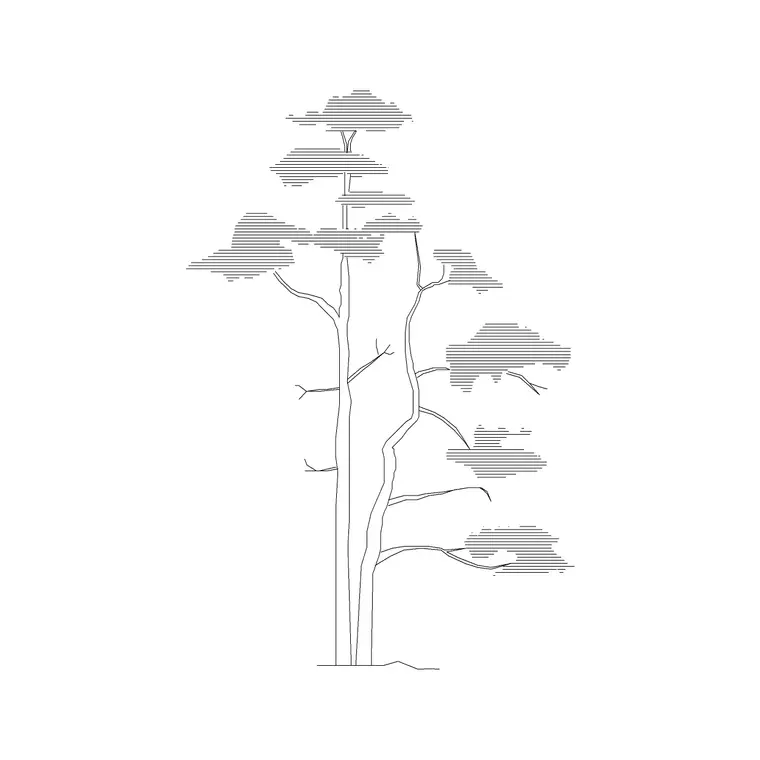
What an elevation tree adds to a drawing
An elevation tree is the tree drawn in side profile — trunk, branching and canopy seen face-on, with no perspective. It is what you use to populate a street elevation, a building elevation or a section, where the whole point is to show height, form and how the planting relates to the building behind it. A façade drawn with a couple of well-placed elevation trees and a scale figure instantly reads as a real place at human scale; the same façade bare reads as an abstract diagram.
Elevation trees also do quiet technical work. They show how tall planting will be relative to windows and eaves, whether a tree will screen or overshadow a façade, and how the streetscape will feel once the planting matures. That makes them more than decoration — they are part of how an elevation communicates the real experience of a place.
Finding side-view tree blocks on the site
Head to the Trees & Plants category and look for blocks labelled 'elevation' — these are the side-profile silhouettes. You can search for a species (try 'pine' for a conifer silhouette) or browse the category and read the view label and preview image on each product page. The preview shows you the exact silhouette before you download, so you can match the tree's character to the drawing's level of finish: a loose hand-drawn outline for a presentation elevation, a cleaner simple form for a technical one.
Every elevation tree downloads as a DWG with no account and no attribution required, free for personal and commercial use. Because these are genuine vector blocks, you can recolour the canopy, adjust the line weight, or trim branches to fit around a balcony or a sign once the block is in your drawing — none of which is possible with a flat image.
Setting an elevation tree on the ground line
The defining rule for elevation trees is that they must stand on the ground. Run INSERT, browse to the downloaded DWG, and as you place the block use an object snap to lock the base of the trunk onto your pavement or ground line. A tree floating a little above the ground, or with its roots buried below it, is one of the most common and most visible errors in a street elevation.
Keep rotation at 0 unless the ground slopes — on a sloping street you may rotate slightly so each tree still reads as vertical against gravity rather than tilting with the road. Place the nearest trees on a layer in front of the building line and, where a tree overlaps a façade, use a wipeout or draw-order control (the DRAWORDER command) so the canopy sits convincingly in front of or behind the building as the scene requires.
Getting the height right
In elevation, height is everything — it is the dimension the viewer reads first. A small ornamental tree might stand three to five metres tall, a typical broadleaf street tree eight to twelve metres, and a mature forest or specimen tree fifteen metres or more. Scale the block so its height is honest relative to the building beside it: if your two-storey façade is about six metres to the eaves, a twelve-metre tree should clearly overtop it.
If the block imports too large or too small, it is a units mismatch rather than a faulty file. Set INSUNITS consistently in the block and your drawing so AutoCAD auto-scales on insertion, or correct it manually with SCALE — 0.001 to bring millimetres into a metre drawing, 1000 the other way. To calibrate an unknown block, measure its height with DIST and divide the height you want by the height you measured to get the exact scale factor, then apply it from the base of the trunk.
Vary, layer, and combine with plan trees
A street elevation lined with one identical tree at equal spacing looks as artificial as a plan does. Use two or three different elevation silhouettes, mirror some so the branching is not repeated, and vary the heights within a believable range for the species. Front-row trees can be drawn slightly larger and darker, background trees lighter, to suggest depth.
Put all the elevation trees on a dedicated planting layer so you can dim or recolour them as a set; layer-0 geometry inherits that layer automatically. And remember that an elevation rarely travels alone — the same trees usually need to appear on the matching site plan from above. Download the plan-view versions of the same species so the two drawings agree with each other.
If you find yourself placing the same elevation trees on many sheets, drag your favourites onto a Tool Palette once so each one is a single click from then on, rather than reopening the INSERT dialog every time. And before you trust an unfamiliar downloaded block in a deliverable, run a quick AUDIT and PURGE after inserting it to clear any orphaned data and catch stray geometry. Get the ground line, the heights and the variation right, layer the trees cleanly, and your elevations will read as a genuine streetscape rather than a row of stamped symbols.
Questions
Frequently asked
What is a tree elevation block used for?+
For drawing trees in side profile on street elevations, building elevations and sections, where you need to show tree height, form and how planting relates to the building behind it.
How do I stop an elevation tree from floating above the ground?+
Use an object snap when you insert it to lock the base of the trunk onto your ground or pavement line. A tree hovering above or sunk below the ground is the most common elevation error.
How tall should an elevation tree be?+
Roughly 3–5m for a small ornamental, 8–12m for a typical street tree, and 15m+ for a mature specimen. Scale it honestly against the building beside it so heights read correctly.
Free downloads from this article
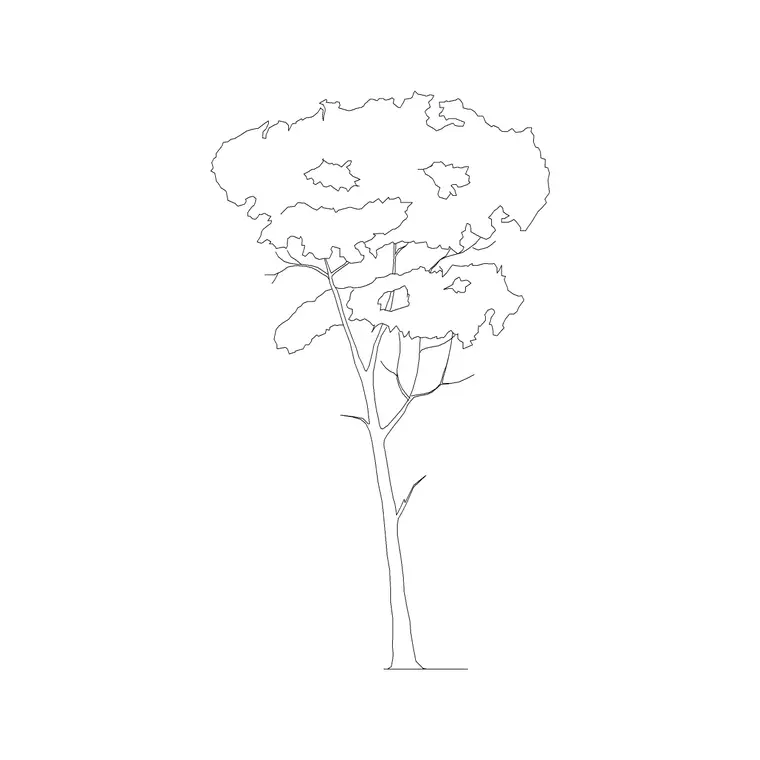
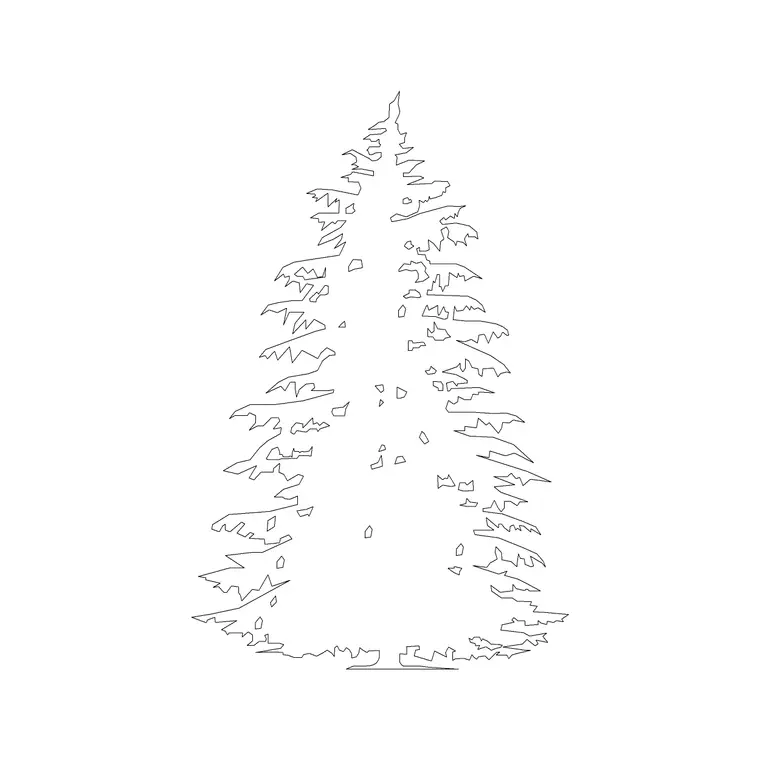
Free CAD block library
Download the blocks from this article — free, no signup


