How to download free tree CAD blocks (plan view) for AutoCAD
Free top-down tree CAD blocks on CADBlockDWG: what the plan-view symbols look like, and how to insert and scale them correctly on a site plan in AutoCAD.
Sumana KumarUpdated 15 June 20264 min read

What a plan-view tree block is — and isn't
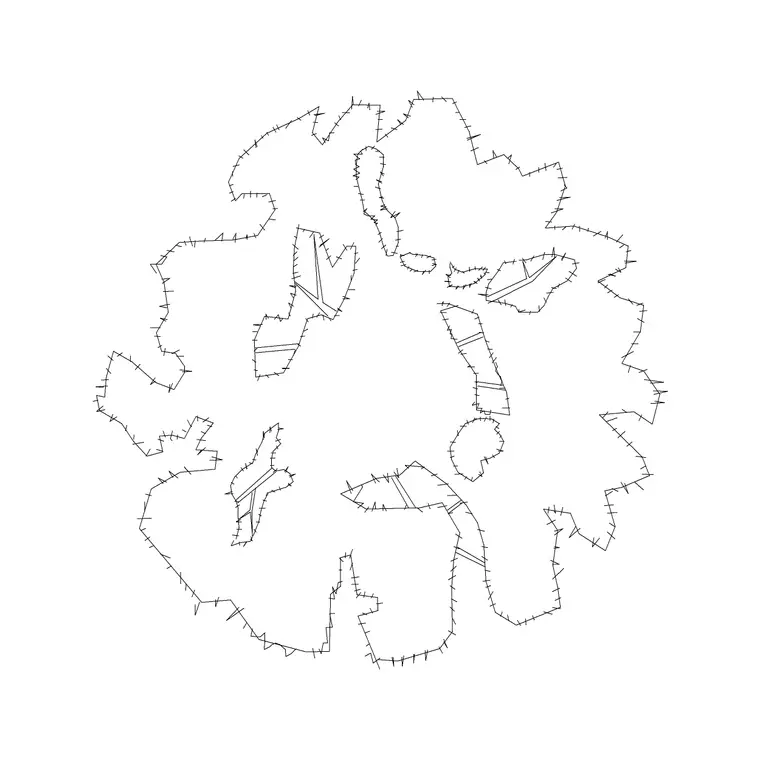
A plan-view tree block is the tree seen from directly above: the canopy drawn as a circle or rough polygon, usually with some radial texture, branching lines or a stippled fill to suggest foliage. It is the symbol you scatter across a site plan, masterplan or landscape layout to show where trees sit and how much ground each one shades. It is not the same drawing as an elevation tree, which shows the trunk and canopy in side profile for street views and sections.
Getting this distinction right is the first thing that separates a plan that reads correctly from one that an experienced reviewer will flag immediately. If you drop a side-on elevation tree flat onto a plan, it looks like a mistake because it is one. So before you download anything, be clear that for a top-down drawing you want the plan symbol — the circle-from-above — and nothing else.
On CADBlockDWG the plan trees live in the Trees & Plants category and most are tagged by view, so a block labelled 'plan' is the top-down version you are after.
Finding free top-down tree blocks on the site
Open the Trees & Plants category from the main navigation. It holds hundreds of free vegetation blocks — trees, palms, shrubs, potted plants and groundcover — so the fastest route is to use the search box or the view filter and look for the plan or top-view symbols rather than scrolling the whole library.
Every block has its own product page with a preview image, so you can see the symbol before you commit. Confirm it is the overhead canopy you want, check it carries the DWG format badge, and download. There is no account, no email wall and no ad maze between you and the file — you click download and the DWG lands in your Downloads folder. Every block here is free for both personal and commercial work, so a tree you pull for a client masterplan carries no licensing worry.
If you want a particular character of tree — a denser canopy, a looser hand-drawn outline, a simple clean circle for a diagrammatic plan — browse a few product pages and pick the style that suits the drawing's level of finish.
Inserting the plan tree in AutoCAD
With the DWG saved, switch to your site plan and type INSERT (or the shortcut I) to open the Blocks palette. Click the Browse button, point it at the downloaded file, and you will see the tree ghost under your crosshairs. Leave scale at 1 and rotation at 0 to start, tick 'Specify On-screen' for the insertion point, and click where the tree's centre should sit.
Use object snaps so the tree lands on a real point — the centre of a planting pit, a setting-out node, a grid intersection — rather than floating roughly near it. For a single feature tree that is enough. For a row or an avenue, place one, then use ARRAY or COPY to repeat it at the correct spacing along a path or boundary.
If you will use the same tree many times, drag it onto a Tool Palette once and every future placement becomes a single click, which is far quicker than reopening the INSERT dialog for each one.
Scaling the canopy to a real spread
Scale matters more for trees than almost any other block, because the size of the circle is telling everyone how much ground that tree shades. A small ornamental tree might spread three to four metres, a medium street tree six to eight metres, and a large mature tree ten to fifteen metres or more across the canopy. Draw the symbol at the real mature — or design-year — spread so the plan honestly shows shade, spacing and overlap.
If a downloaded block comes in at the wrong size, the cause is almost always a units mismatch: a block drawn in millimetres dropped into a metre drawing lands a thousand times too big. Set INSUNITS consistently in both files so AutoCAD auto-scales on insertion, or fall back to the SCALE command with a factor of 0.001 (millimetres into a metre drawing) or 1000 the other way. A quick way to calibrate an unknown block is to measure its canopy with DIST, then scale by the ratio of the spread you want to the spread you measured.
Keep trees on their own layer and vary them
Put every tree on a dedicated planting layer — or a small set such as trees, shrubs and groundcover — so you can freeze, dim or recolour the planting independently of the architecture and engineering. Blocks built on layer 0 will inherit whichever planting layer you insert them onto, giving you that central control for free, which is exactly why well-made library blocks are drawn that way.
Finally, resist the temptation to stamp one identical tree in a perfect grid. Real planting is irregular, and trained eyes read regularity as fake. Pull two or three different plan-tree blocks, rotate and mirror individual instances so no two are identical, and vary sizes within a sensible range for the species. Even small amounts of variation make a planting plan read as designed rather than copy-pasted, and it costs only a few extra seconds per drawing.
Questions
Frequently asked
Where do I download free plan-view tree CAD blocks?+
In the Trees & Plants category on CADBlockDWG. Filter or search for the plan / top-view symbols, open the product page to check the preview, and download the DWG free with no signup.
How big should a tree canopy be on a plan?+
At the tree's real mature or design-year spread — roughly 3–4m for small ornamentals, 6–8m for medium street trees, and 10–15m+ for large trees — so the plan honestly shows shade and spacing.
Why did my tree block come in the wrong size?+
Almost always a units mismatch. Set INSUNITS consistently in both files so it auto-scales, or run SCALE by 0.001 (mm into a metre drawing) or 1000 the other way to correct it.
Free downloads from this article


Free CAD block library
Download the blocks from this article — free, no signup

