How to download free spiral staircase CAD blocks for AutoCAD
Find and download free spiral and circular staircase DWG blocks, then insert them right: plan vs elevation, the centre column and tread setting-out.
Saumyajit MaityUpdated 26 June 20264 min read

Why a spiral stair block saves real time
A spiral (helical) staircase is one of the fiddliest things to draw from scratch. The treads radiate from a central column at a constant angle, the going narrows toward the centre, and getting the geometry to close cleanly around a full or part turn takes patience. A ready-made block hands you that geometry already resolved, so you drop it in, scale it to your well, and move on.
On CADBlockDWG the spiral and circular stairs live in the Stairs category, free to download in DWG with no signup and no licensing strings for commercial work. The catalogue carries several circular types — Circular Stairs Type 1, Type 2 and Type 3 — so you can pick the tread count and proportion that suits your space rather than forcing one option. These are clean 2D blocks built for plans and elevations, which is exactly what a spiral stair detail needs.
Plan or elevation — pick the right view
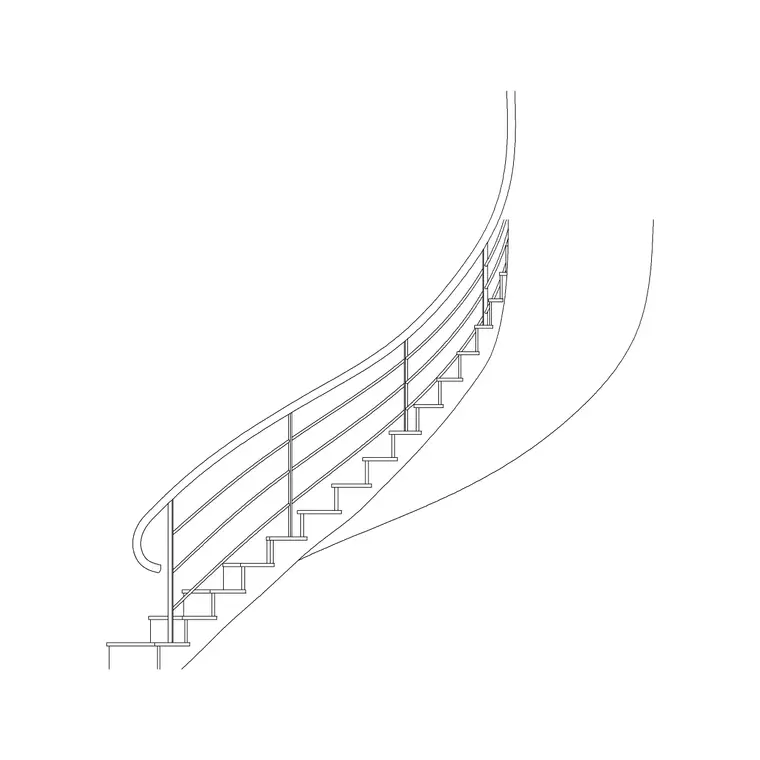
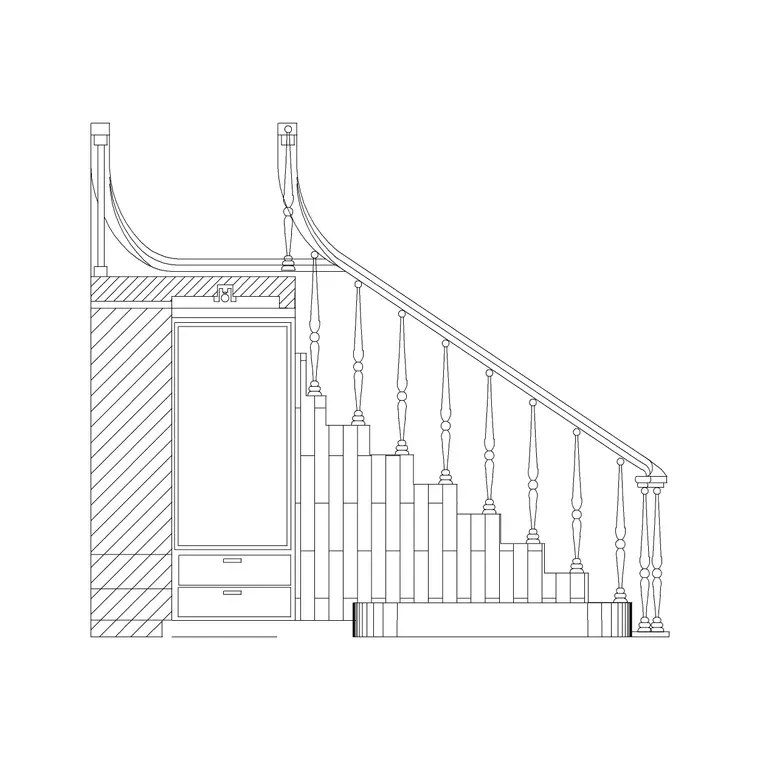
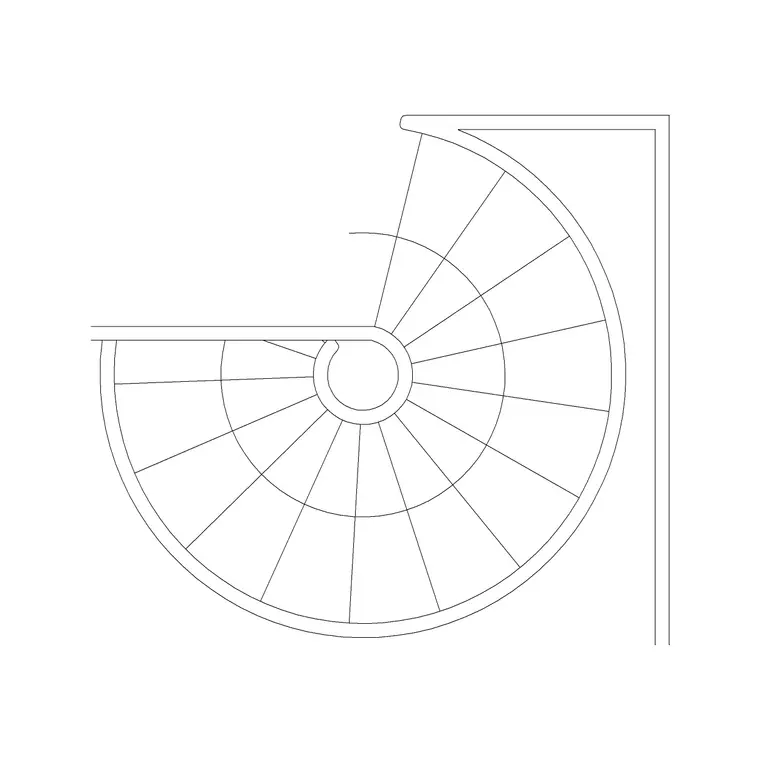
A spiral stair looks completely different depending on the view, and choosing correctly is the first thing to get right. In plan (the top-down view) the stair reads as a circle with treads radiating like spokes from the central column, plus the up-arrow showing the direction of travel. In elevation (face-on) it reads as the helix climbing — the stringer curving up and the treads stacked at their risers.
The Stairs category labels blocks by view where it applies, so check before you place. Use the plan block on a floor plan to show the footprint, the well opening and the circulation around it; use the elevation block on a section or a face-on drawing to show the rise and headroom. Dropping an elevation spiral flat onto a plan, or a plan circle into an elevation, is a classic beginner tell that reads as wrong immediately — so confirm the view matches the sheet you are working in.
Downloading and checking the block
Open the Stairs category or search 'spiral' / 'circular stairs', click the type you want, and download. The DWG saves to your Downloads folder instantly and opens in AutoCAD, LT, or any DWG-capable reader.
Before you trust it, open the file on its own and measure the overall diameter and the central column with DIST. Spiral stairs are sized by their outside diameter and by the going of each tread, so confirm the block lands in a sensible real range for your well — residential spirals are often somewhere around 1400 to 2000mm in diameter, but always verify against the actual block rather than assuming. Knowing the true diameter tells you whether the block fits your opening as-is or needs scaling, and whether the tread count gives a comfortable rise for the floor-to-floor height you are working to.
Inserting and fitting it to your well
Run INSERT, browse to the downloaded DWG, and snap the block's base point — ideally the centre of the column — to the centre of your stair well using object snaps. That makes the stair sit concentric with the opening rather than slightly off, which matters because a spiral stair is read from its centre outward. Leave scale at 1 and rotation at 0 first, then rotate so the first tread or the up-arrow points the way you want people to arrive and leave.
If the stair comes in the wrong size, it is units: set INSUNITS to match, or SCALE by 0.001 / 1000 as appropriate. If the well is a slightly different diameter than the block, you can scale uniformly to fit, but check afterwards that the going has not become uncomfortably tight at the centre — scaling a spiral changes the tread depth too. Keep the stair on a dedicated stairs layer, and if the block was built on layer 0 it will inherit that layer's colour and lineweight automatically.
Finishing the detail
Once placed, a few touches make the spiral read as a proper construction element rather than a dropped-in symbol. On the plan, confirm the up-arrow and the floor-level break line are present, and add the well-opening edge on the floor above if your drawing shows it. Number the treads if your office standard requires it. On the elevation or section, check the headroom: a spiral needs clear height above each tread, and the easiest way to verify it is to draw a quick clearance line up from a tread to the underside of the floor or landing above.
Because the block is a single named object, you can mirror it to flip the handing (clockwise versus anticlockwise descent) in one move rather than redrawing — handy when the same stair appears in two units of opposite layout. Run AUDIT and PURGE after importing to keep the drawing clean. With the right view chosen, the centre snapped to the well, and the headroom checked, a downloaded spiral stair gives you a credible, buildable detail in a fraction of the time it would take to draw the helix by hand.
Questions
Frequently asked
Where can I download free spiral staircase CAD blocks?+
From the Stairs category on CADBlockDWG. Circular Stairs Type 1, 2 and 3 are free DWG downloads with no signup, free for commercial use.
Should I use a plan or elevation spiral stair block?+
Use the plan block (radiating treads, up-arrow) on floor plans and the elevation block (the climbing helix) on sections and face-on drawings. Match the view to the sheet.
What diameter is a typical spiral staircase block?+
Residential spirals are often around 1400–2000mm in diameter, but measure the downloaded block with DIST to confirm before fitting it to your well.
Free downloads from this article
Free CAD block library
Download the blocks from this article — free, no signup


