How to download free shower CAD blocks for AutoCAD
Free shower DWG blocks for AutoCAD — trays, enclosures and the bath-shower combo — plus how to set the door swing and pick the right view.
Sumana KumarUpdated 3 February 20264 min read
What counts as a shower block
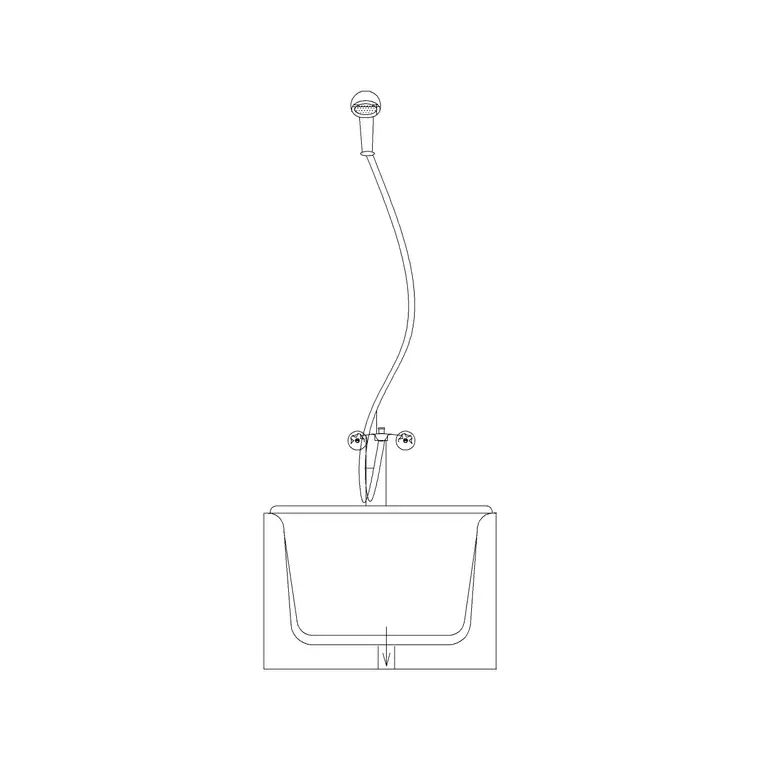
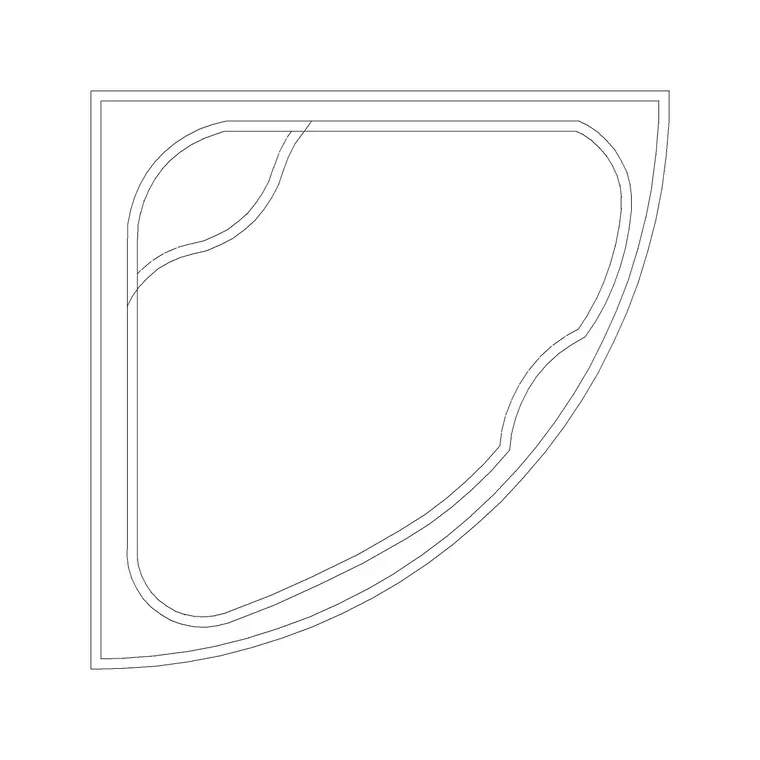
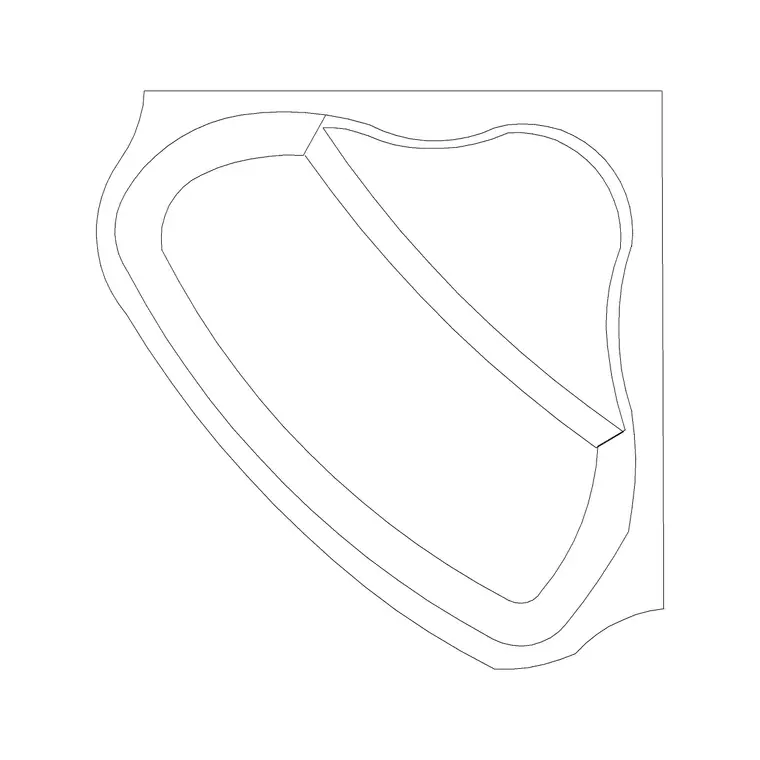
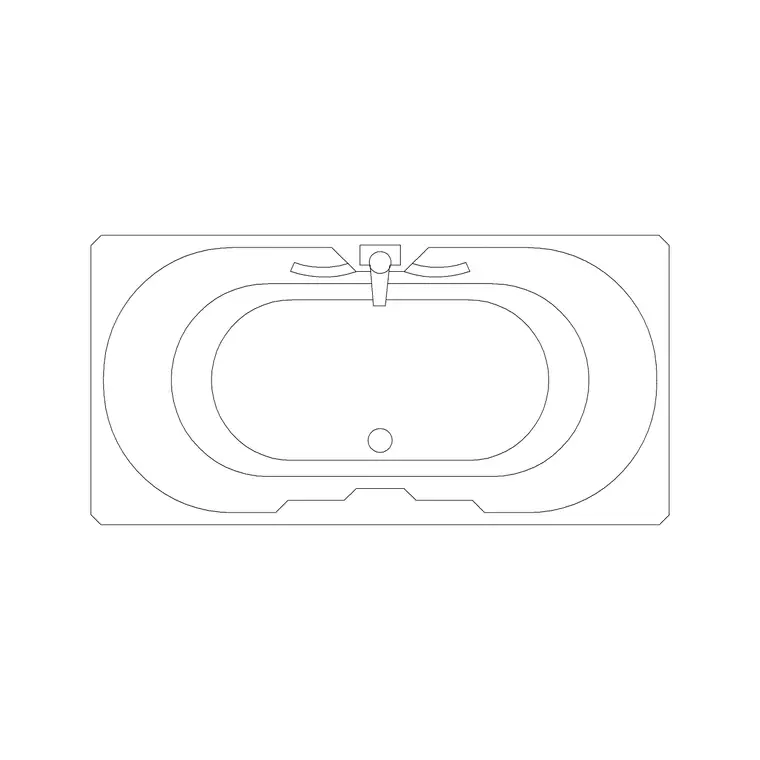
When people search for a shower CAD block they usually mean one of three things, and all of them live in the Bathroom category here. First, a shower tray or enclosure in plan — the square, rectangular or quadrant footprint you draw on a bathroom layout. Second, a corner arrangement where the tray tucks into a wall return. Third, a bath that doubles as a shower, which is where the bath-with-shower front section block comes in for showing the unit in elevation.
All of them are free DWG downloads, no login, no attribution. Knowing which of the three you actually need saves time: a floor plan wants the plan-view tray outline, while a bathroom elevation or a setting-out drawing wants the front section that shows the screen height and the wall behind. Picking the right view first is half of placing any sanitary block well, and it is the single most common thing beginners get wrong with showers.
Shower sizes and falls to draw to
Shower trays come in a familiar set of sizes, and drawing to them keeps your plan buildable. Square trays are commonly 760x760, 800x800 or 900x900mm; rectangular trays run 1200x800 or 1400x900mm; quadrant (curved-front corner) trays are typically 900x900 or 1000x1000mm on their straight sides. An enclosure needs a little clearance around the tray for the frame, so allow for that when you butt it to the walls.
The detail people forget is the door swing. A hinged shower door needs clear space to open into the room — show it on the plan so you do not later discover it fouls the basin or the towel rail. Sliding and bi-fold doors solve that in tight bathrooms and are worth drawing where space is genuinely short. If you are detailing rather than just laying out, remember a real tray falls to a central or linear drain; the block gives you the footprint, and your section or specification carries the fall.
Downloading and placing it
Download the shower DWG you need, then in AutoCAD run INSERT, browse to the file, and place it with scale 1 and rotation 0. Use object snaps (F3) to lock the tray hard into the corner or against the wall — showers almost always sit in a corner or a recess, so snapping two edges to two walls is the natural move. Rotate with the insertion dialog or the ROTATE command if the opening needs to face a different way.
For the bath-shower combo, treat it as you would a bath: snap the long edge to the wall and the head end to the end wall. If you have inserted the front section version, it belongs in an elevation, not a plan — drop it onto your bathroom elevation aligned to the floor and wall lines. A quick measure with DIST after placing confirms the tray reads at, say, 900mm and not 0.9 of a metre by accident, which tells you whether the units came through correctly.
Layers, units and a clean result
As with every block, units are the thing most likely to trip you up. Set INSUNITS in your drawing to match the block (4 for millimetres, 6 for metres) before inserting and AutoCAD auto-scales the tray to the right size. If it still comes in wrong, run SCALE with 0.001 or 1000 to convert, using a known dimension — the tray width — to back-calculate the exact factor if needed.
Put the shower on your sanitary or fixtures layer; if the block was built on layer 0 it will inherit that layer automatically and plot with the right colour and lineweight. A tidy bathroom plan keeps trays, the WC, basins and the bath all on a sensible sanitary layer so you can dim or isolate them for coordination. Done this way, your shower drops in at the right size, on the right layer, with the door swing shown — which is exactly the level of care that separates a plan you can build from one that merely looks finished.
Common shower mistakes to avoid
A few errors crop up again and again on shower drawings, and knowing them lets you sidestep all of them. The first is the door swing fouling another fixture — a hinged screen that opens straight into the basin or the towel rail. Always draw the swing arc and check it clears everything; switch to a sliding or bi-fold screen when it does not. The second is forgetting the enclosure frame: the tray block gives you the tray footprint, but the glass and frame add a little width, so butt the tray to the walls allowing for that rather than assuming the glass sits exactly on the tray edge.
The third is treating the showering space as if it were the whole bathroom's only clear floor — a person needs room to step out of the shower onto dry floor, so leave a landing zone in front of the opening. And the fourth, on detailed drawings, is ignoring the drainage: a real tray falls to a central or linear waste, and while the plan block does not show the fall, your section or specification must. Catch these four on the drawing and the shower will work as well built as it does on paper.
Questions
Frequently asked
Where do I download free shower CAD blocks?+
In the Bathroom category on CADBlockDWG. Trays, enclosures, corner showers and the bath-shower combo are all free DWG downloads with no account required.
What size should I draw a shower tray?+
Common sizes are 760, 800 and 900mm squares, 1200x800 or 1400x900mm rectangles, and 900–1000mm quadrants. Allow a little extra around the tray for the enclosure frame.
Do I need to show the shower door swing?+
Yes — a hinged door needs clear space to open into the room, so draw the swing to check it does not foul the basin or towel rail. Use sliding or bi-fold doors in tight bathrooms.
Free downloads from this article
Free CAD block library
Download the blocks from this article — free, no signup


