How to download free shower-and-bath combo CAD blocks
Free shower-over-bath combo DWG blocks for AutoCAD — the bath-with-shower front section, why the combo saves space, and how to show it in plan and elevation.
Saumyajit MaityUpdated 22 February 20265 min read
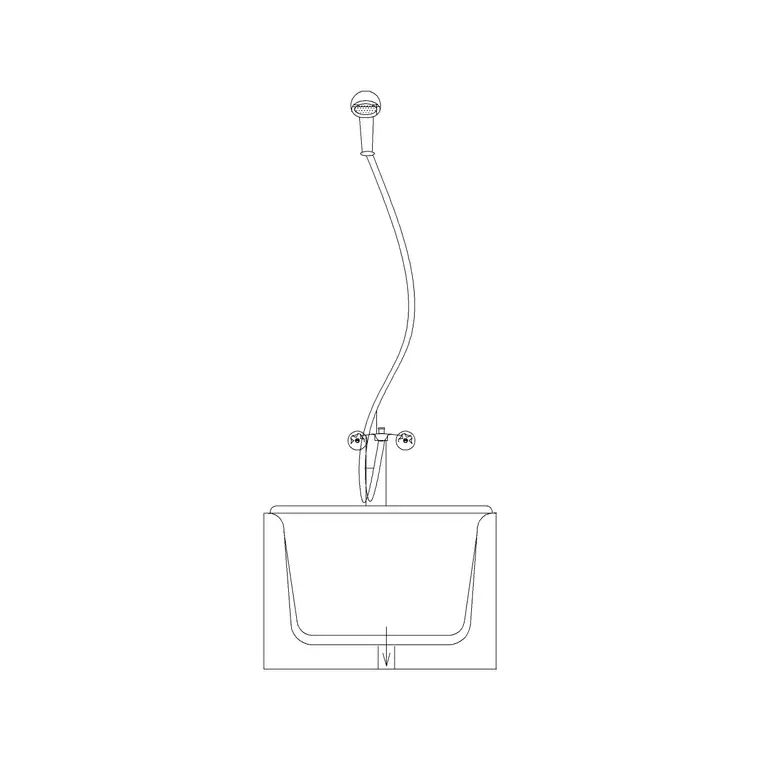
The shower-over-bath combo
A shower-and-bath combo is a single tub that doubles as a shower — a bath with a showerhead and screen at one end, the most common arrangement in compact and family bathrooms because it puts two functions in one footprint. On this site the bath-with-shower front section block captures exactly this: a bath drawn with the shower, shown as a front section/elevation so you can see the tub profile, the screen and the wall behind. Search 'bath' and look for the shower section, or browse the Bathroom category.
It is a free DWG, no signup, free for commercial use. What makes this block different from the plan baths is the view: it is an elevation/section rather than a top-down plan, which means it belongs on a bathroom elevation or a setting-out drawing where height matters — the screen height, the tap position, the tub depth — not on the floor plan. For the plan, you would use a standard plan bath in the same position. Knowing which view you need is the first decision, and the combo is fundamentally an elevation piece.
Why the combo saves space
The whole appeal of a shower-over-bath is efficiency. A separate bath and a separate shower enclosure need two footprints and two drainage points; the combo needs one. In a bathroom where a 1700mm bath already runs along a wall, adding a screen and a showerhead at the tap end turns that same tub into a shower with no extra floor area at all. That is why the combo is the default in family bathrooms, ensuites and any room where space is genuinely tight.
The planning detail to get right is the screen and the splash zone. A bath screen — fixed or folding — sits at the showering end to keep water in, and it needs to be shown so the design is buildable. On the elevation, the front section block shows the screen height relative to the tub and the wall; on the plan, you note where the screen sits along the bath. The combo trades the spaciousness of a separate shower for the floor area it saves, and the drawing has to communicate both the tub and the showering function clearly.
Showing the combo in plan and elevation
Because the combo spans two views, you typically draw it twice. On the floor plan, place a standard plan bath in position and snap it to the wall as usual, noting the showering end and the screen line — the plan shows the footprint and where you stand to shower. On the elevation, insert the bath-with-shower front section block: run INSERT, browse to the DWG, place with scale 1, and align the tub base to your floor line and the back to your wall line on the elevation.
The front section is where the combo really communicates — it shows the tub depth, the screen rising at the shower end, and the position of the showerhead and mixer on the wall. Add the wall tiling behind and the elevation reads as a complete, buildable shower-bath. Keep the plan and elevation consistent: the screen on the elevation should match the screen line you noted on the plan, so the two drawings tell the same story rather than contradicting each other.
Insert, scale and layer
Download the bath-with-shower front section DWG, then in AutoCAD run INSERT, browse to the file, and place with scale 1 and rotation 0, aligning it to your elevation's floor and wall reference lines. Units are the usual snag: set INSUNITS to match your drawing (4 for mm, 6 for m) before inserting so it auto-scales, or correct it afterwards with SCALE — 0.001 for millimetres into a metre drawing, 1000 the other way. Verify with DIST that the tub length reads around 1700mm.
Keep the block on your sanitary or fixtures layer, which it inherits automatically if drawn on layer 0, so it plots with the rest of the bathroom elevation at the right colour and weight. With the combo shown in plan as a bath footprint and in elevation as the front section — screen, tub and tiling aligned and consistent — your drawing communicates a space-saving shower-over-bath that a fitter can actually build, rather than a bath and a shower that look like they need a room twice the size.
Getting the bath screen right
The screen is what makes a bath double as a shower, so it deserves attention on the drawing. The most common choice is a fixed glass panel at the tap end, typically rising around 1400mm or so above the bath rim — tall enough to contain the spray, short enough to leave the bath feeling open. A folding or hinged bath screen suits where the bath is also used for bathing children and you want clear access, while a full-height screen turns the end of the bath into a more enclosed shower for a stronger seal against splashing.
On the elevation, show the screen at its real height relative to the tub and wall so the proportion reads correctly; on the plan, draw the screen line along the bath at the shower end so its position is unambiguous. The two views must agree — the screen on the elevation sits where the screen line says it does on the plan. A bath-shower combo with the screen properly drawn looks resolved and builds correctly; one where the screen is vague or missing leaves the fitter guessing at the single detail that makes the whole arrangement work.
Questions
Frequently asked
What is a shower-and-bath combo block?+
A single tub that doubles as a shower — a bath with a screen and showerhead at one end. The bath-with-shower front section block shows it in elevation/section, with the tub, screen and wall behind.
Is the shower-bath combo block a plan or an elevation?+
It is a front section/elevation, so it belongs on a bathroom elevation where height matters. For the floor plan, place a standard plan bath in the same position and note the screen line.
Why choose a shower over a bath?+
It saves space — one tub does the job of a separate bath and shower in a single footprint with one drainage point, which is why it is the default in compact family bathrooms and ensuites.
Free downloads from this article
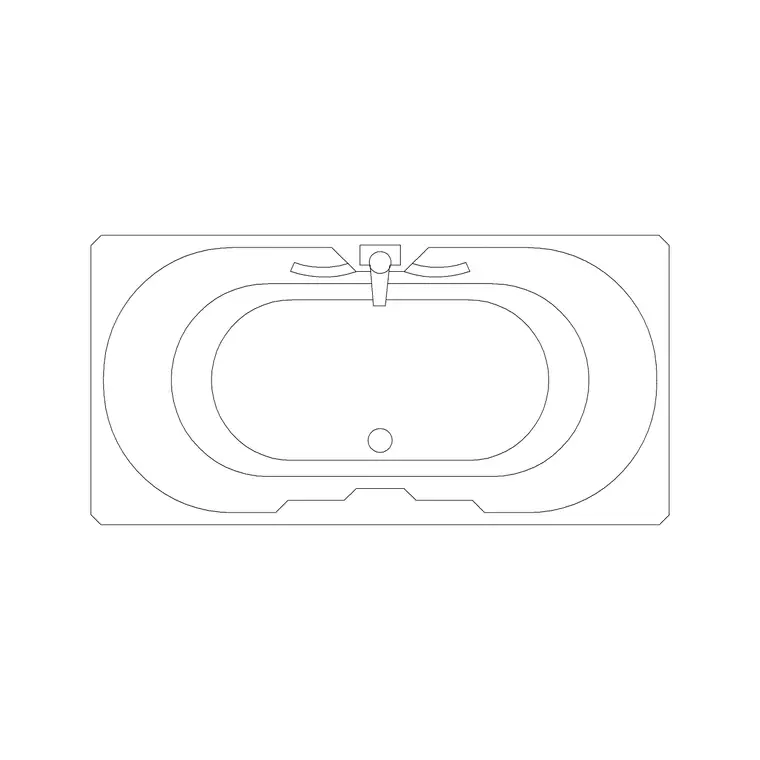
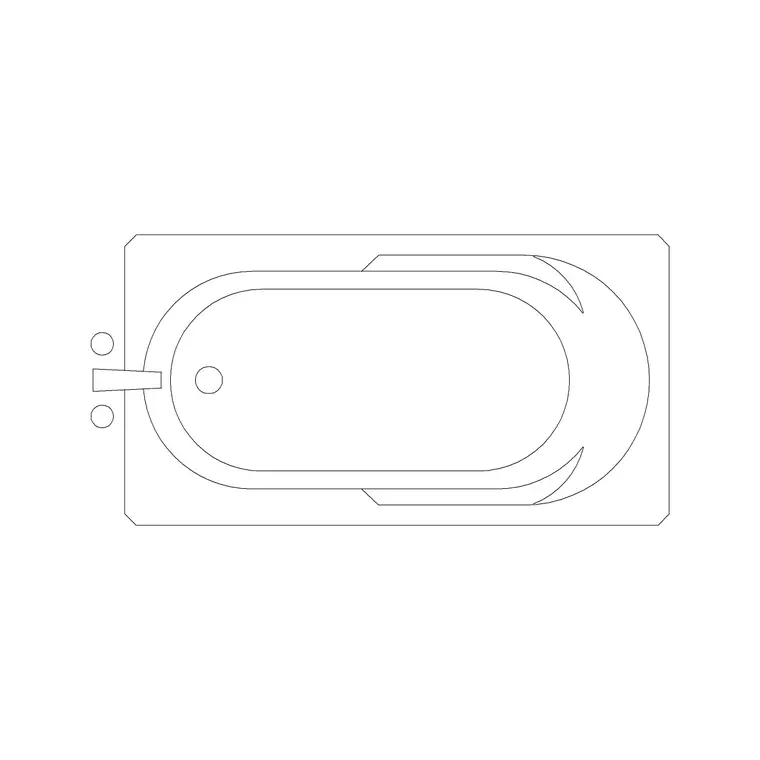
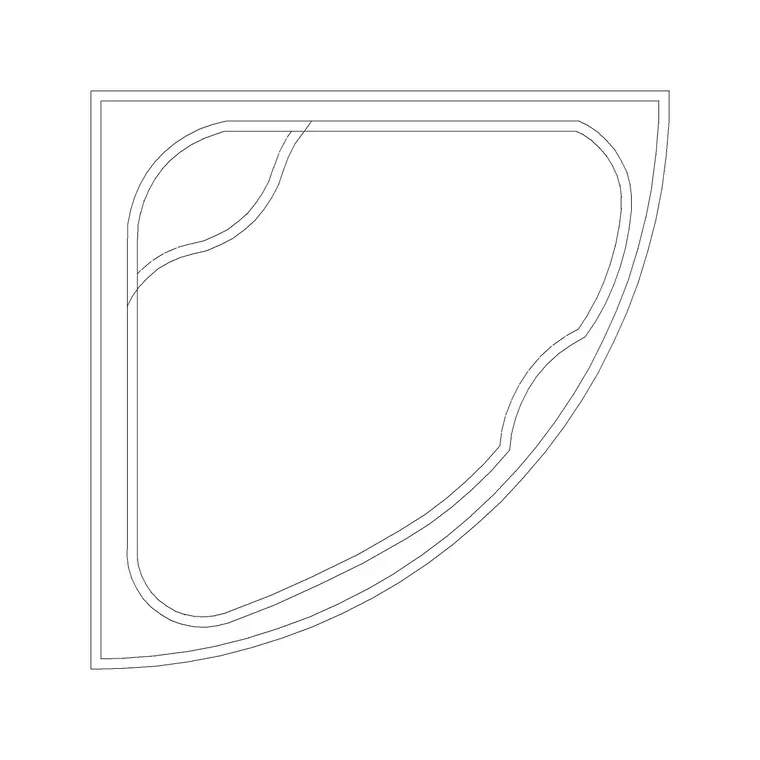
Free CAD block library
Download the blocks from this article — free, no signup


