How to download free potted plant CAD blocks for AutoCAD
Free potted plant CAD blocks in DWG — pots, planters and greenery for interiors and balconies — where to find them on CADBlockDWG and how to use them.
Sumana KumarUpdated 17 May 20264 min read
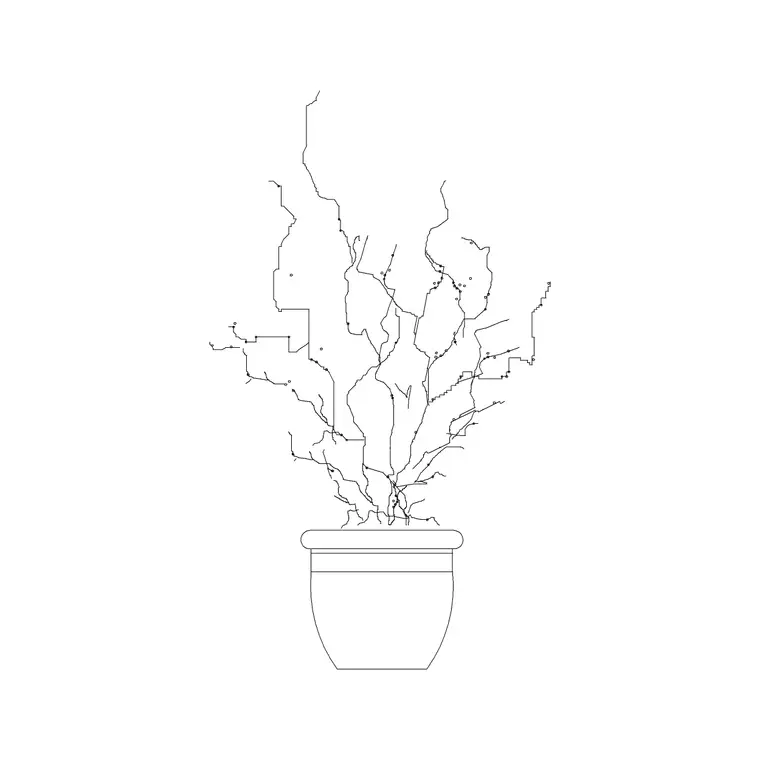
Where potted plant blocks earn their place
A potted plant is one of the most versatile blocks in an interior or exterior kit. The same family of pots-with-greenery furnishes a reception desk, a balcony, a café terrace, a shop window or a residential corner, and each one adds a touch of life and a believable human-scale object to the drawing. Because pots come in so many heights and shapes — low bowls, medium urns, tall floor planters — a small set covers a wide range of situations.
Potted plants are also a quick way to resolve awkward dead space. A blank corner of a plan or a flat stretch of elevation comes alive with a planter, and unlike built-in joinery a pot can sit anywhere without coordination. That flexibility is why having a handful of potted-plant DWGs ready saves you redrawing the same pot-and-foliage outline again and again.
Finding free potted plant DWGs
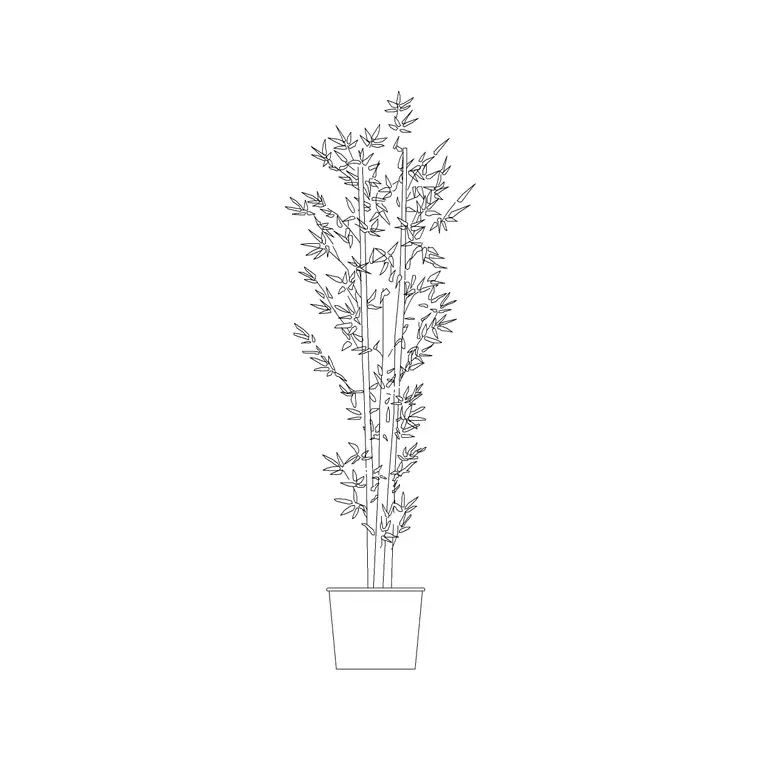
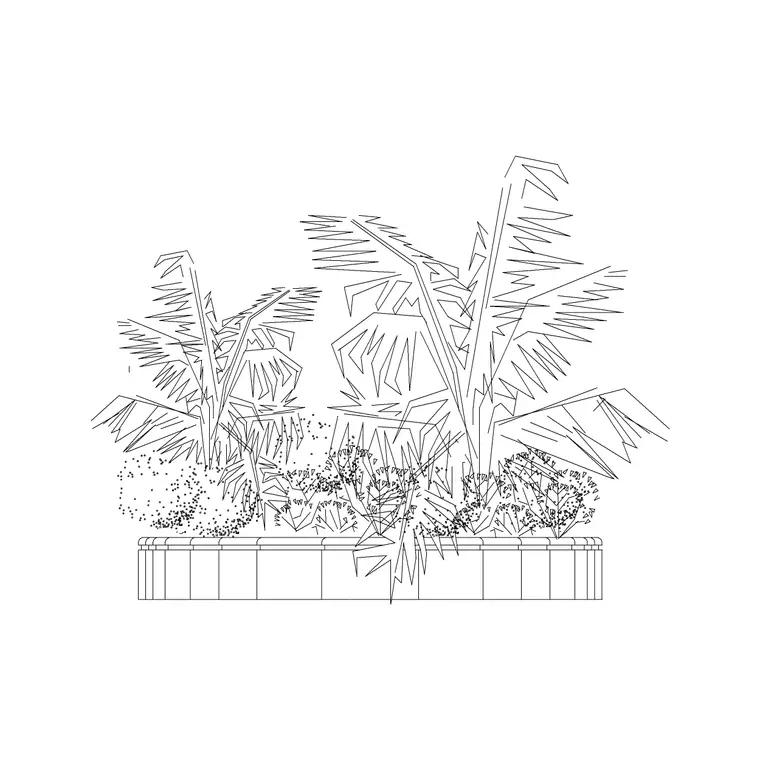
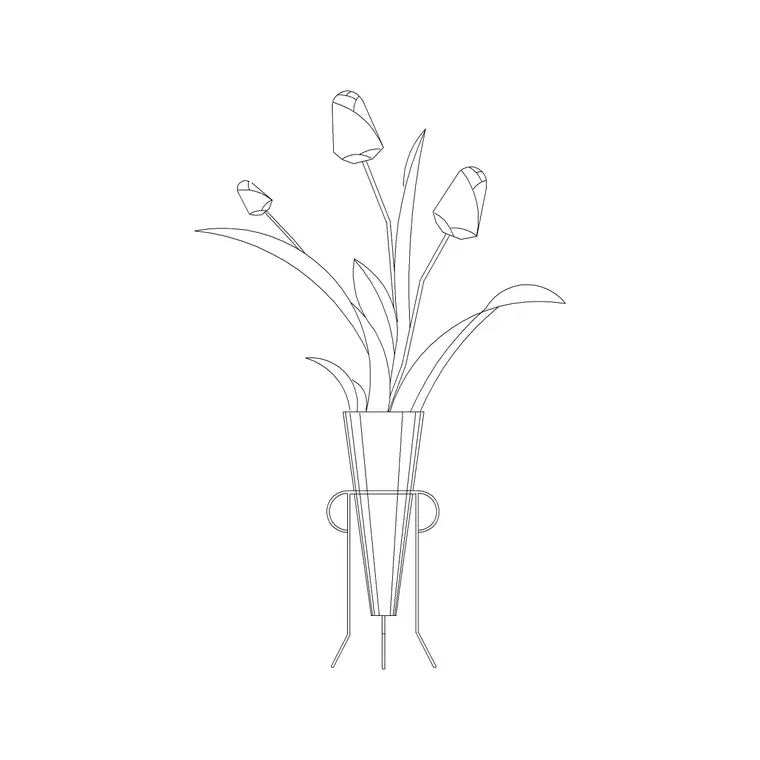
The potted plant blocks sit in the Trees & Plants category. Search for 'potted', 'pot' or 'planter' and you will surface the dedicated potted-plant blocks directly — medium potted plants in several styles, low planters, and decorative pots with foliage. Each has a product page with a preview image so you can confirm the pot shape and plant before downloading.
They download as DWG files with no account, no email wall and no attribution required, and they are free for commercial as well as personal use. Because the geometry is real vector linework rather than an image, you can recolour the pot to suit a material palette, swap its line weight, or trim the foliage once it is placed in your drawing. CADBlockDWG offers numbered medium potted plant blocks (for example several distinct designs) so you can pick a few different pots rather than repeating one.
Choosing the right view
Most potted plant blocks are drawn in elevation — the side view — because that is how pots are shown on interior elevations, shop fronts and terrace drawings, sitting on the floor or a surface at eye level. For a floor plan you usually want a small top-down marker so a floor pot is recorded in the layout and does not clash with circulation or joinery.
If your project includes both an elevation and a plan of the same space, place the elevation pot on the elevation and a simple plan symbol where the pot stands on the layout, so the drawings stay consistent. Check the view label on each product page before downloading — grabbing an elevation pot when you needed a plan marker, or vice versa, is a small mistake that is easy to avoid once you are in the habit of reading the label.
Inserting and scaling a potted plant
Save the DWG and run INSERT in your drawing. Browse to the file, keep scale at 1 and rotation at 0 to begin, and use an object snap so the base of the pot sits exactly on the floor line in an elevation, or on the right point in a plan. A pot floating above a surface or sunk into it reads as a mistake immediately.
Watch the height. A low planter might be only three to four hundred millimetres tall, a medium potted plant perhaps a metre, and a tall floor planter a metre and a half or more including foliage. If a block imports at an implausible size it is a units mismatch — set INSUNITS consistently so AutoCAD auto-scales on insertion, or correct it with SCALE (0.001 for millimetres into a metre drawing, 1000 the reverse). Measure a known dimension such as the pot height and divide by what you want to find the exact factor when the source units are unclear.
Layer, repeat and vary
Place potted plants on a planting or fixtures layer so you can dim or recolour them independently of the architecture when you need a clean technical drawing. Layer-0 geometry inherits whichever layer you insert it onto, so a pot dropped on your planting layer takes its properties automatically.
When you need several pots — a row along a terrace, a cluster in a lobby — avoid copying one identical block. Pull two or three different potted-plant designs, vary their heights, and rotate or mirror instances so the grouping looks arranged rather than stamped. A terrace lined with one repeated pot looks like wallpaper; the same terrace with a low bowl, a medium urn and a tall planter reads as a designed space.
If you reach for potted plants often, build a small tool palette of your favourites so each is a one-click placement, and consider keeping a couple of pots whose proportions you trust as go-to defaults. As with any downloaded content, a quick AUDIT and PURGE after inserting an unfamiliar block keeps stray layers and orphaned data out of your drawing. With the right view, an honest height, sensible layering and a little variety, potted plants are among the fastest ways to make a drawing feel finished.
Questions
Frequently asked
Where do I download free potted plant CAD blocks?+
In the Trees & Plants category on CADBlockDWG. Search 'potted', 'pot' or 'planter', check the preview on the product page, and download the DWG free with no signup — free for commercial use.
Are potted plant blocks plan or elevation view?+
Most are elevation (side-view) blocks for interior elevations, shop fronts and terraces. For floor plans, add a simple top-down marker so floor pots are recorded in the layout.
How tall is a potted plant block?+
It varies by pot: roughly 300–400mm for a low planter, about 1m for a medium potted plant, and 1.5m or more for a tall floor planter including foliage. Scale to a realistic height for the setting.
Free downloads from this article
Free CAD block library
Download the blocks from this article — free, no signup


