Download free paving pattern tile CAD blocks for AutoCAD
Download free paving-pattern tile DWG blocks and tile them across a surface — covering how a repeating tile works, the array setup, and choosing block vs hatch.
Saumyajit MaityUpdated 30 May 20264 min read
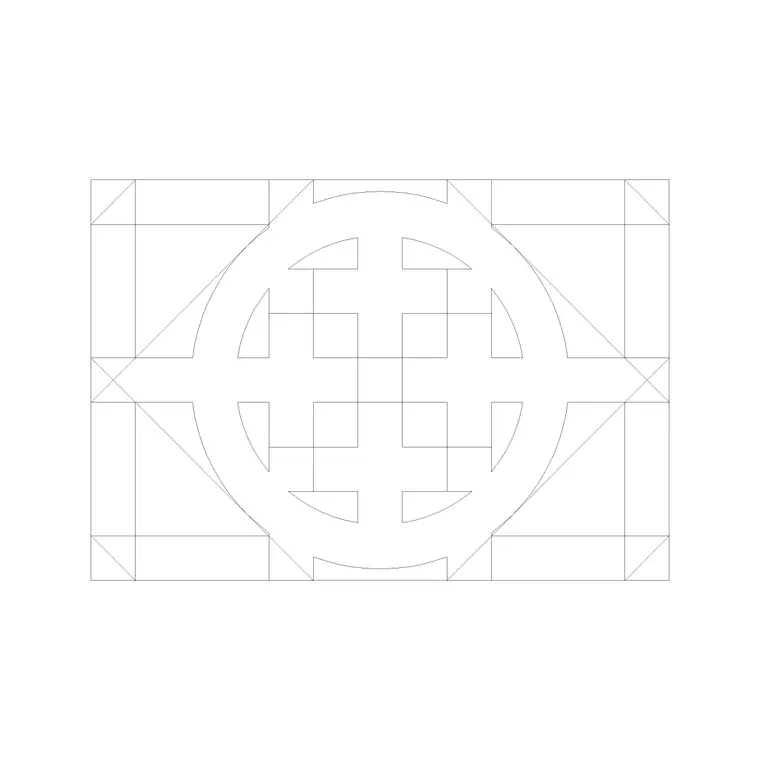
What a paving pattern tile is
A paving pattern tile is a small block that contains one repeat of a paving arrangement — the smallest unit that, when tiled edge to edge, reproduces the full pattern across a surface. For a running-bond pattern that might be a couple of offset pavers; for herringbone it is the interlocking pair; for basketweave it is the woven group. The point of a tile is that you place it once and repeat it, and the joints line up automatically because the tile is designed to butt cleanly against copies of itself.
On CADBlockDWG these live in the Paving category. The numbered paving blocks — Paving Block 1, 10, 11, 12 and more — are exactly these repeating units, and searching pattern names like 'herringbone' or 'basketweave' surfaces the specific arrangements. Every file is a free DWG download with no account, free for commercial use. Because a tile is vector geometry, it scales cleanly and plots crisply at any sheet size, unlike a raster fill.
Choosing a tile that repeats well
Not every paving image makes a good repeating tile, so the blocks in the Paving category are built to repeat — the geometry is set out so a rectangular array reproduces the pattern without gaps or overlaps at the tile boundaries. When you open a candidate, look at its edges: a well-made tile is designed so the pavers continue logically across the seam to the next copy, which is what makes herringbone and basketweave read as continuous rather than showing a visible grid of tile joints.
Pick the pattern that suits the surface, as the arrangement carries both look and behaviour: herringbone for driveways and vehicle areas because it interlocks, running bond for simple paths, basketweave or circular fans for decorative courtyards and feature areas. The orientation of the tile matters too — herringbone laid at 45 degrees to the direction of travel performs and reads differently from the 90-degree version, so rotate the tile to suit before you commit. The previews let you compare before downloading, and since the files are free, trying two or three in the actual drawing is the honest way to see which reads best at your sheet scale.
Downloading and measuring the tile
Open the Paving category or search the pattern you want, click the block, and download — the DWG lands in your Downloads folder instantly and opens in AutoCAD, LT or any DWG reader.
Before tiling, open the file and measure the tile's repeat dimensions with DIST — the width and length of one full repeat. These two numbers are what you will set as the array spacing, so the copies butt edge to edge and the joints align. A single block paver is commonly around 200 by 100mm, and the repeat tile is some multiple of that depending on the pattern. Confirm the numbers are sensible and correct any units mismatch before you array — a mis-scaled tile arrayed across a whole courtyard is a mistake you want to catch on the first placement, not the hundredth.
Tiling it across the surface
Insert one tile with INSERT, snap it to a clean origin — the corner of the paved area, a setting-out grid, the edge of a slab — and confirm the size with DIST. Fix units with INSUNITS or a SCALE of 0.001 / 1000 if needed. With one tile placed correctly, use a rectangular ARRAY to repeat it across the area: set the column spacing to the tile's repeat width and the row spacing to its repeat length, and set enough rows and columns to cover the surface.
Because the spacing equals the tile's own repeat, the pattern continues seamlessly and the joints line up across the whole field. Trim the overhang against the boundary so the paving stops cleanly at kerbs, planting beds and steps. For a curved or irregular area, a path array follows a polyline edge. Keep the paving on a dedicated hardscape layer so you can control its lineweight and colour independently of the rest of the drawing.
Block or hatch — and keeping it light
There are two honest ways to show paving, and the right choice depends on scale. At a detail or layout scale where the individual pavers matter, the arrayed tile block is ideal — it shows the real pattern, real joints and real units, and it stays light because every copy points back to one definition. At a small location-plan scale where you only need the impression of paving, a scaled hatch pattern is lighter still and perfectly acceptable.
Whichever you use, array the block rather than exploding it into thousands of loose lines, because exploded paving balloons the file while an arrayed block stays compact. After importing any tile, run AUDIT and PURGE to strip orphaned data and confirm nothing odd came along. Treat the downloaded tile as untrusted until you have measured it and checked its layers. Downloaded from the Paving category, measured for its true repeat, and arrayed at that spacing, a free paving-pattern tile gives you an accurate, editable, lightweight paving surface that holds up from a feature detail to a full hardscape sheet.
Questions
Frequently asked
Where do I download free paving pattern tile CAD blocks?+
From the Paving category on CADBlockDWG. The numbered paving blocks are free repeating-tile DWG downloads with no signup, free for commercial use.
How do I tile a paving pattern across a surface?+
Insert one tile, measure its repeat with DIST, then use a rectangular ARRAY with the column and row spacing set to the tile's repeat dimensions so the joints align.
Should I use a paving block or a hatch?+
Use the arrayed tile block at detail and layout scale where the pavers matter; use a scaled hatch at small location-plan scale where you only need the impression of paving.
Free downloads from this article

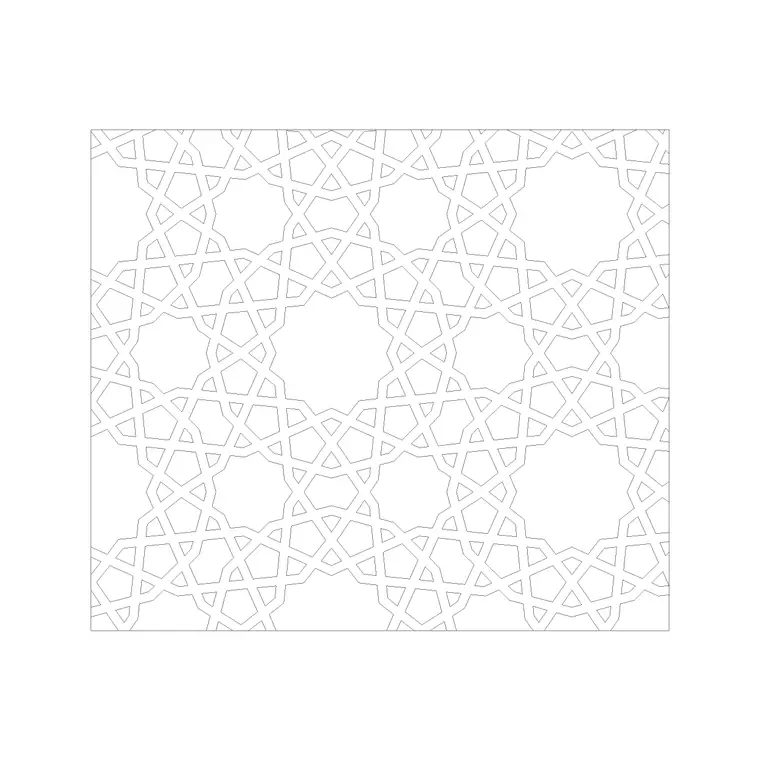
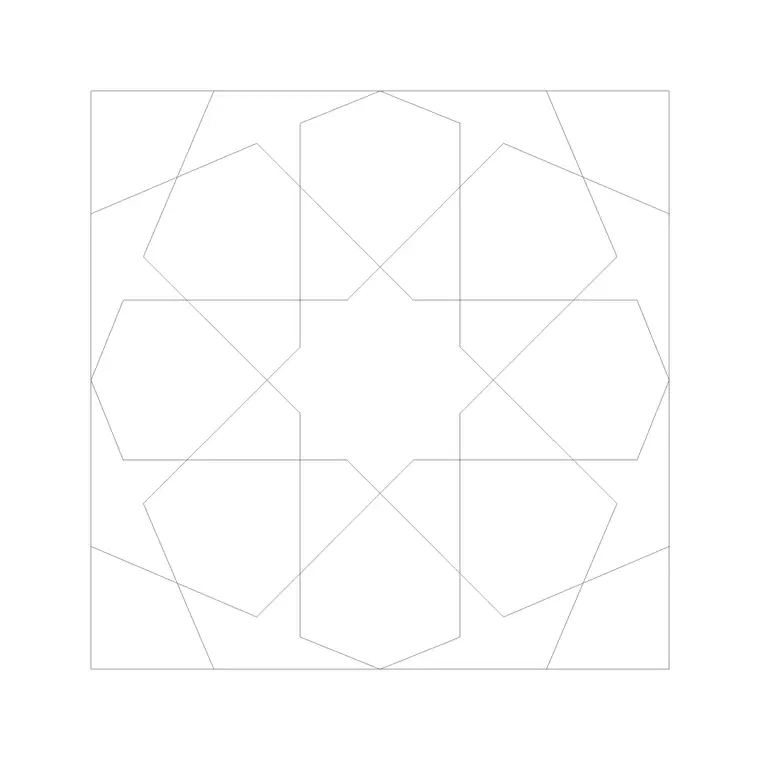
Free CAD block library
Download the blocks from this article — free, no signup


