How to download free paving block CAD blocks for AutoCAD
How to find, download and insert free paving block DWG files in AutoCAD, including tiling a single paver across a whole driveway or courtyard.
Saumyajit MaityUpdated 19 January 20264 min read
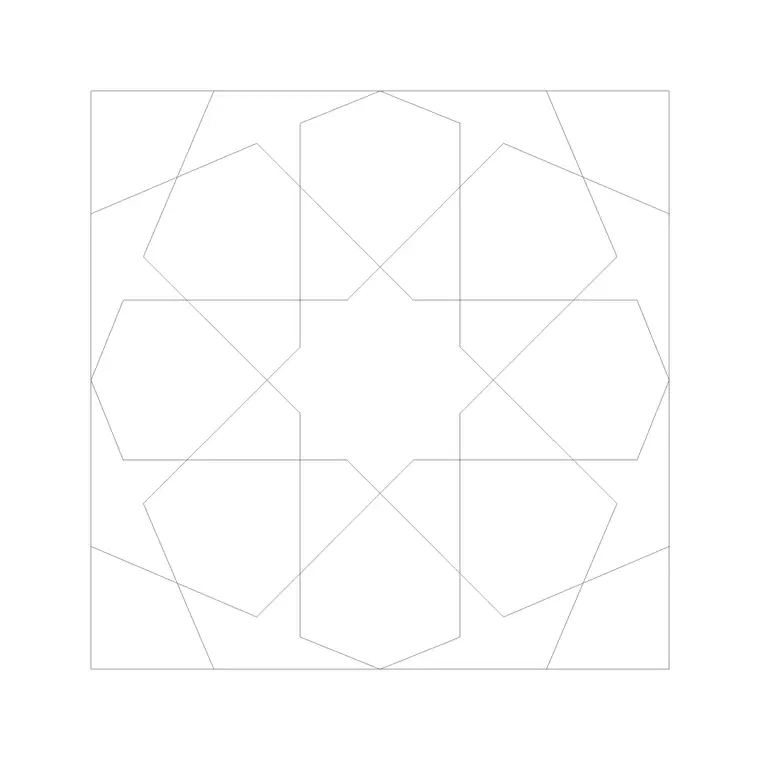
What a paving block CAD file gives you
A paving block CAD file is a small DWG that contains the outline of a single paver — or a small repeating tile of pavers — drawn at real-world size so you can lay it across a path, driveway or courtyard. Rather than drawing every brick by hand, you insert one block and then repeat it, which is how hardscape gets drawn quickly and consistently in practice.
On CADBlockDWG the paving blocks live in the Paving category, and every file is free to download in DWG with no account and no email wall. They are free for personal and commercial work, so a paver you grab for a client driveway carries no licensing strings. Most of these blocks are 2D plan geometry — clean closed outlines you can hatch, array and trim — which is exactly what you want for a paving layout. Because they are flat plan blocks rather than rendered 3D, they stay light and plot crisply at any sheet scale.
Finding the right paver on the site
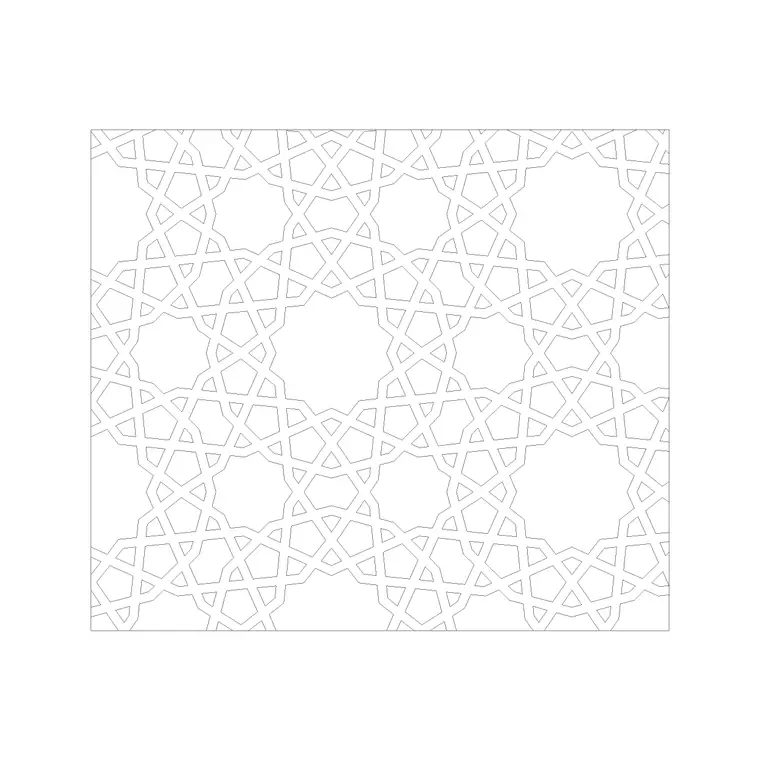
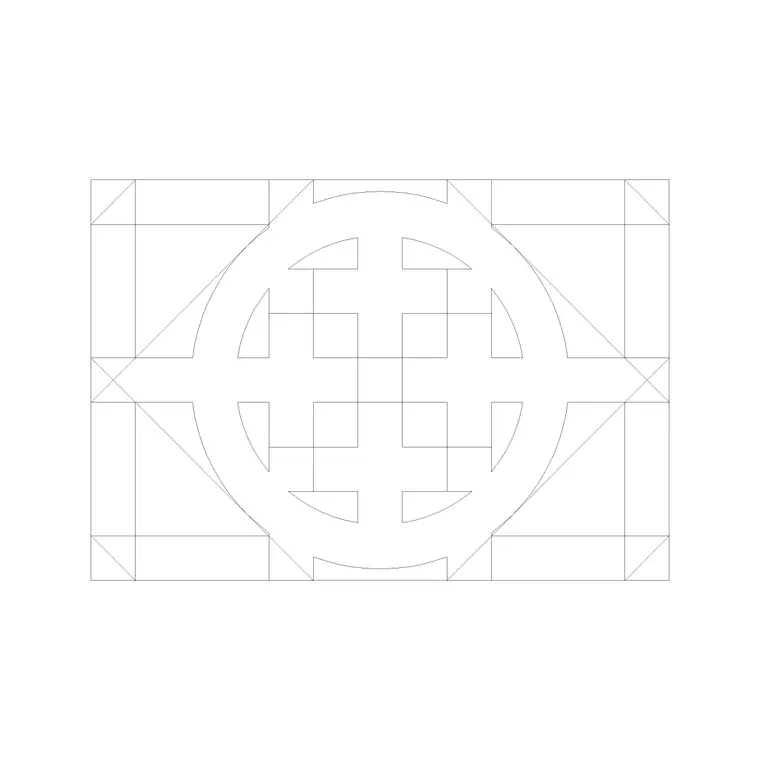
Open the Paving category from the main navigation, or type 'paving' into the search box. You will see a grid of individual paver blocks — Paving Block 1, Paving Block 10, Paving Block 11, Paving Block 12 and many more — each with a preview thumbnail so you can judge the shape and joint pattern before you download. Click any one to open its product page.
Numbered blocks like these are simply different paver shapes and module sizes: some are rectangular running-bond units, some interlocking shapes, some decorative motifs. Scan the thumbnails and pick the joint pattern that matches your scheme. If you are after a specific look — herringbone, basketweave, cobblestone — search those terms directly, because the catalogue tags patterns by name as well as by number. There is no harm in downloading two or three candidates and trying each in the drawing; they cost nothing and you can purge the ones you do not use.
Downloading the DWG
On the product page, click the download button and the DWG saves straight to your Downloads folder — no signup, no redirect maze. The file is a standard AutoCAD drawing saved to a widely compatible version, so it opens in AutoCAD, AutoCAD LT, and free readers like LibreCAD or any tool that reads the ODA toolkit.
Before you build a whole patio on it, open the downloaded file on its own first and measure one paver with the DIST command. Confirm it reads a sensible real size — a standard block paver is commonly around 200 by 100mm, give or take, depending on the pattern. Knowing the true unit size up front tells you whether you need to correct units when you bring it into your project, and it saves you from arraying a mis-scaled paver hundreds of times before noticing.
Inserting it into your drawing
In your working drawing, run INSERT (shortcut I) to open the Blocks palette, browse to the downloaded paving DWG, and place it with the insertion point on screen. Leave scale at 1 and rotation at 0 to start. Snap the first paver to a clean reference — a path edge, a grid line, the corner of a slab — using object snaps (F3) so the whole field lines up from a known origin rather than floating slightly off.
If the paver comes in far too large or too small, that is a units mismatch, not a broken file: a millimetre block dropped into a metre drawing lands 1000 times too big. The fix is to set INSUNITS consistently in both files, or to SCALE the block by 0.001 (mm into a metre drawing) or 1000 the other way. Get one paver sitting correctly at the right size before you repeat it — every copy inherits whatever you set here.
Filling an area with the paver
Once a single paver is placed correctly, you rarely copy it by hand. Use the ARRAY command to tile it across the area: a rectangular array repeats the block in rows and columns at the spacing you set, which for paving is simply the paver's own width and length so the joints line up edge to edge. Set the row and column counts (or distances) to cover the path, then trim the overhang at the edges.
For curved or irregular areas, a path array follows a polyline, and for organic layouts a hatch pattern can stand in for the paving where individual units are not required. Keep all the paving on its own layer — something like 'Hardscape-Paving' — so you can recolour or dim it independently of the planting and architecture. If you want the joints to read clearly on the sheet, add a thin hatch or keep the block's own joint lines on a ByLayer setting so the host layer controls the lineweight. With one downloaded block and an array, a full driveway or courtyard is drawn in a couple of minutes rather than an afternoon.
Questions
Frequently asked
Where do I download free paving block CAD blocks?+
From the Paving category on CADBlockDWG. Each paver is a free DWG download with no signup, free for personal and commercial use.
How do I fill a driveway with one paving block?+
Insert a single paver, then use the ARRAY command (rectangular or path) to repeat it across the area at the paver's own width and length, and trim the edges.
What size is a standard paving block in CAD?+
Block pavers are commonly around 200x100mm, but always measure the downloaded file with DIST to confirm before arraying it.
Free downloads from this article

Free CAD block library
Download the blocks from this article — free, no signup


