How to download free metal staircase CAD blocks for AutoCAD
Download free metal and steel staircase DWG blocks and use them well: the circular metal stair, plan and elevation views, and how steel stairs differ.
Saumyajit MaityUpdated 17 April 20264 min read
Where metal staircase blocks fit
Metal staircases — steel spirals, industrial straight flights, external escape stairs and mezzanine access — read differently from solid concrete or timber stairs. They are lighter, often have open risers, slim stringers and a balustrade of posts and rails rather than a solid wall. A block built for a metal stair captures that slenderness, which is why you reach for one specifically rather than reusing a heavy concrete-stair symbol.
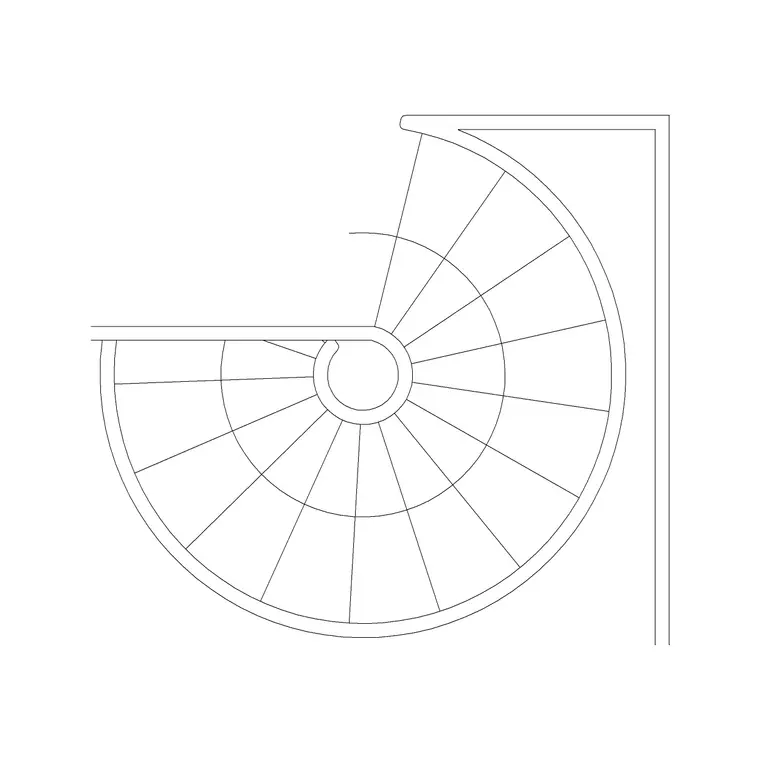
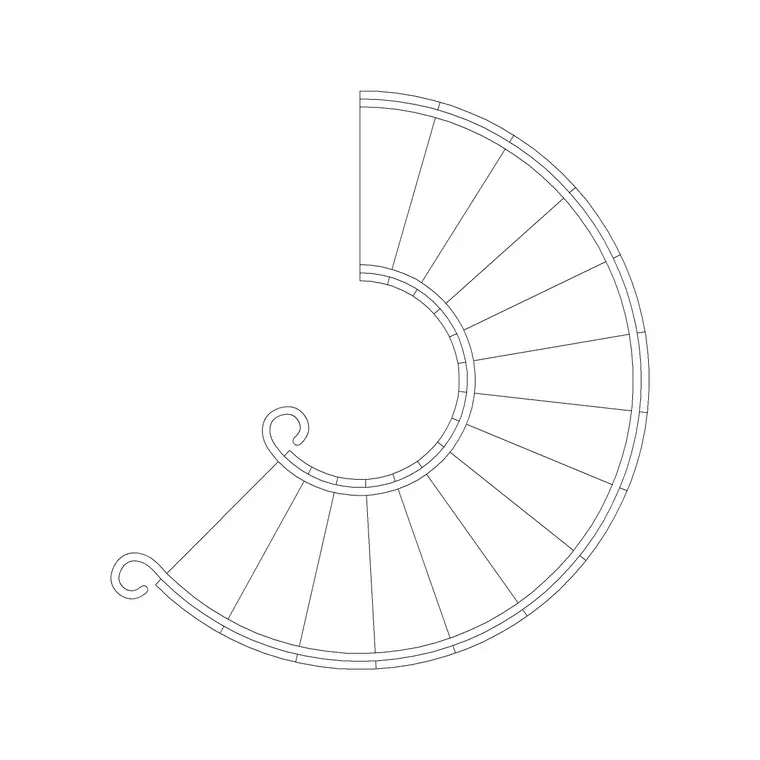
On CADBlockDWG the metal stairs sit in the Stairs category. The Circular Metal Staircase and Circular Metal Staircase 2 blocks give you the classic spiral-steel look, and the category also holds straight metal flights when you search for them. Every file is a free DWG download with no account and no licensing strings for commercial use. Usefully, the circular metal blocks are supplied with both plan and elevation views, so you can show the same stair on a floor plan and on a section without sourcing two separate files.
Plan and elevation in one block family
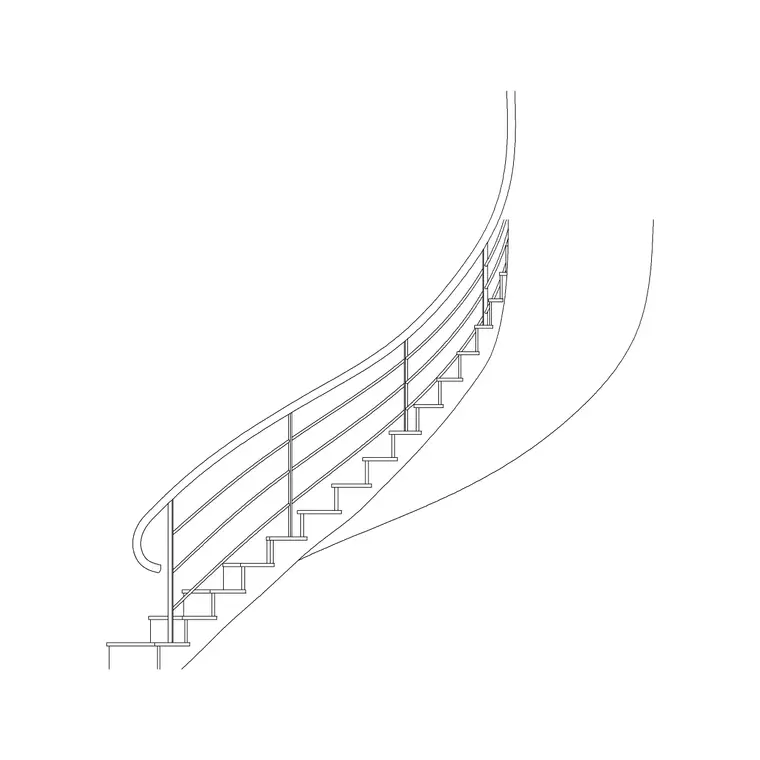
Because the Circular Metal Staircase blocks carry both plan and elevation geometry, you can keep a stair consistent across your drawing set from a single download. The plan view shows the circular footprint, the radiating open treads and the up-arrow; the elevation shows the steel stringer climbing, the slim balusters and the handrail line. Place whichever the current sheet needs, and they describe the same stair.
Check the view label before you place, and never mix them — an elevation steel stair lying flat on a plan immediately looks wrong. On the plan, the open-riser nature of a metal stair means you often see the tread nosings as separate lines with gaps between, which is correct and should not be 'tidied' into a solid run. On the elevation, the see-through quality of the balustrade is part of what signals 'metal stair', so keep those posts and rails rather than simplifying them to a solid panel.
Downloading and verifying
Open the Stairs category or search 'metal staircase' / 'circular metal', pick the block, and download — the DWG lands in your Downloads folder instantly and opens in AutoCAD, LT or any DWG reader.
Open the file on its own first and measure it. For a circular metal stair, check the overall diameter and the central column; for a straight metal flight, check the going (tread depth), the rise, and the overall run. Confirm the numbers sit in a sensible real range before you build on the block — and remember that metal stairs, especially external and industrial ones, are governed by going and headroom just like any other stair. Measuring up front tells you whether the block fits your opening as-is or needs scaling, and it catches a units mismatch before it propagates through your detail.
Inserting it cleanly
Run INSERT and bring the block in. For a circular metal stair, snap the base point to the centre of the well so it sits concentric; for a straight flight, snap the bottom of the lower stringer to the floor level at the foot of the stair. Leave scale at 1, confirm the size with DIST, and correct units with INSUNITS or a SCALE of 0.001 / 1000 if it comes in wrong.
Rotate so the direction of travel is correct, and mirror the block if you need the opposite hand. Put the stair on a dedicated layer; if it was built on layer 0 it will adopt that layer's colour and lineweight, which lets you control the whole stair from the Layer Manager. Metal-stair blocks often have fine detail — treads, balusters, fixings — so after inserting, run PURGE to drop any unused definitions the file brought along, keeping the drawing light.
Detailing a metal stair drawing
A metal stair drawing carries information a concrete stair does not, and the downloaded block is your accurate starting point for it. On the elevation, the balustrade height, the handrail, and the connection of the stringer to the floor and landing are all things you may need to dimension or note — the block gives you the geometry, you add the call-outs. On the plan, mark the up direction, the well opening on the floor above, and any landing.
Because metal stairs are frequently external (fire escapes, terrace access) or industrial (mezzanine, plant access), pay attention to headroom and to the clearance at the head and foot where people transition on and off. Draw a quick clearance line to verify headroom under any landing or floor above. It also pays to confirm the landing size at the top and bottom, since a metal stair that lands tight against a wall or a door swing is a coordination problem that is far cheaper to catch on the drawing than on site. Run AUDIT and PURGE after importing as a matter of habit. With the right view placed, the size verified, and the headroom checked, a free metal staircase block gives you a credible steel-stair detail — solid enough for a coordination drawing and a clean base to develop toward fabrication.
Questions
Frequently asked
Where can I download free metal staircase CAD blocks?+
From the Stairs category on CADBlockDWG. The Circular Metal Staircase blocks are free DWG downloads with both plan and elevation views, no signup, free for commercial use.
Do the metal staircase blocks include plan and elevation?+
Yes — the Circular Metal Staircase and Circular Metal Staircase 2 blocks are supplied with both plan and elevation geometry, so one download covers both views.
How are metal stairs drawn differently from concrete stairs?+
Metal stairs show slim stringers, open risers and a see-through balustrade of posts and rails, rather than solid runs and walls. Keep that detail rather than simplifying it.
Free downloads from this article

Free CAD block library
Download the blocks from this article — free, no signup


