Download free kitchen sink unit CAD blocks for AutoCAD
Find free kitchen sink unit DWG blocks — bowl, drainer and counter in plan, elevation and section — and how to place the sink with its plumbing.
Saumyajit MaityUpdated 22 April 20264 min read
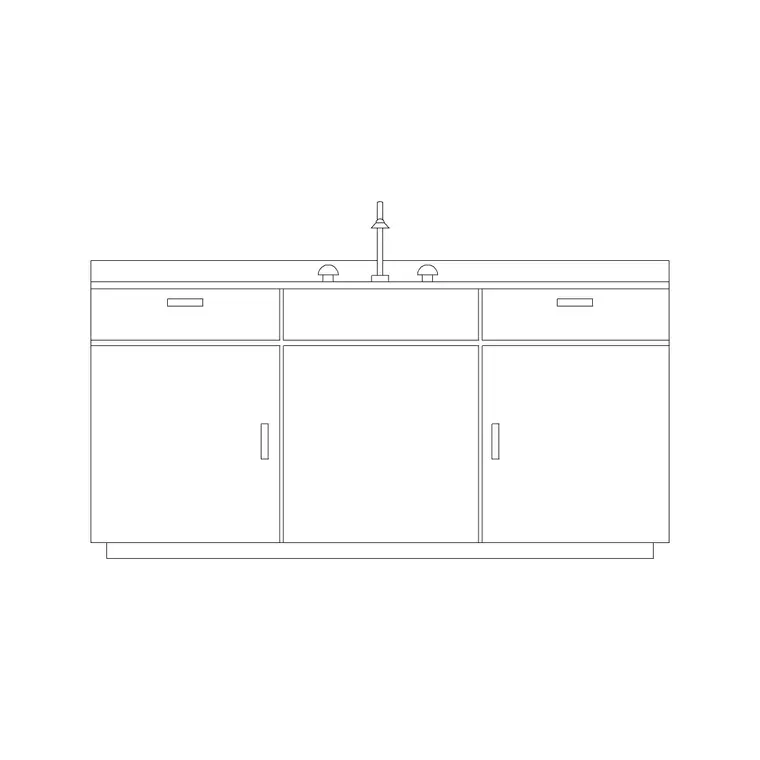
Finding the sink unit blocks
Kitchen sink blocks live in two related places. The sink-with-counter blocks — Sink Counter, Sink 2 Counter and a Sink Counter Section — are the units you want for a kitchen run, since they show the bowl set into a stretch of worktop the way it is really installed. They sit in the Sinks & Faucets category, and you can reach them by searching 'sink counter' or browsing that category or the Kitchen hub. All free to download as DWG, no account and free for commercial use.
The value of a sink-and-counter block over a bare bowl is that it comes pre-set in the worktop, so you drop a complete, realistic unit into the cabinet run rather than drawing the cut-out yourself. There is a single-bowl version and a wider two-bowl-and-drainer version, plus a section drawing for when you need to show the bowl depth and the cabinet below in a construction detail. Download all three so you have the plan unit, the wider option and the section to hand, and you can switch between a presentation plan and a construction detail without hunting for another file.
What the sink unit shows in each view
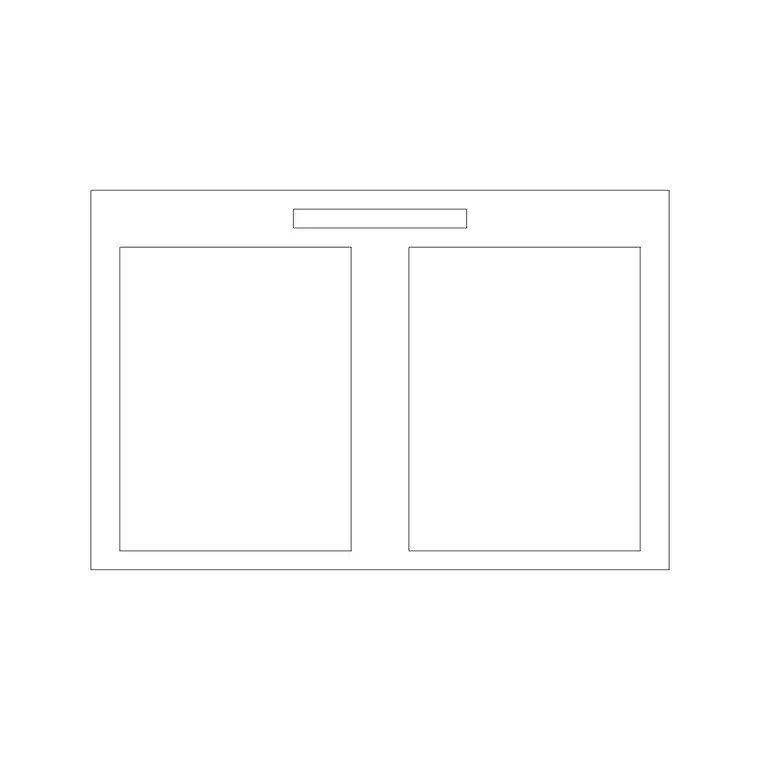
In plan, the sink-counter block reads as a length of worktop with the bowl (or bowls) as a rounded rectangle cut into it, the tap shown behind, and often a drainer area indicated with grooved lines to one side. A single bowl is roughly 400–500mm wide; a one-and-a-half or double bowl with drainer spreads across 1000mm or more — and that whole assembly sits on a 600mm-deep run like the rest of the worktop.
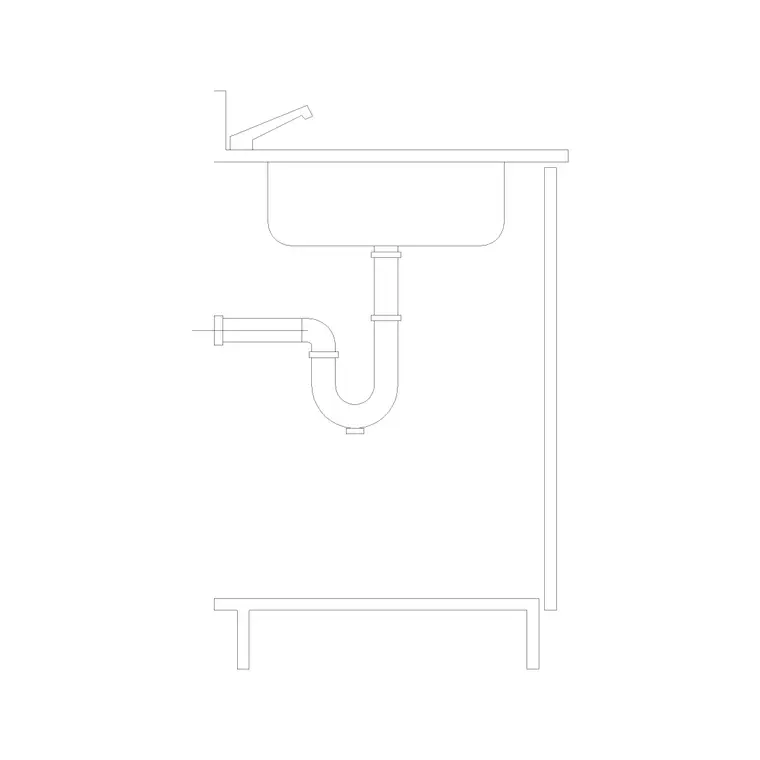
The elevation view shows the unit straight on: the worktop line, the tap and spout rising above it, and the base cabinet front below with its door or false drawer. The Sink Counter Section block is the detailed one — it cuts through the bowl to show its depth, the worktop thickness, and the void in the base cabinet where the plumbing and trap live. That section is exactly what a construction-level kitchen detail needs.
Placing the sink in the cabinet run
Insert the sink-counter block with I and Browse, scale 1, rotation 0, and snap its back edge to the wall line and its worktop into the run so it aligns with the adjacent cabinets. The sink always sits on a base cabinet — a 'sink unit' — so make sure a 600mm (or wider) base cabinet sits directly beneath it in your plan, with no drawers in the way of the bowl and trap.
Convention is to place the sink under or near a window where possible, and beside the dishwasher so they share plumbing and the drainage run stays short. Keep it separated from the hob by a stretch of worktop — wet beside hot is poor practice. Leave clear worktop on both sides of the sink as well, ideally 400mm or more, as landing space for washing-up and draining. Set your worktop/joinery or sanitaryware layer current before inserting so the block, built on layer 0, adopts it.
Coordinating the plumbing
A sink is a plumbing fixture, so the drawing should not stop at the bowl. Show the hot and cold supplies and the waste/drainage on your services layer, running from the sink position down into the base unit and to the soil stack or waste run. The Sink Counter Section block helps here because it reveals the void in the cabinet where the trap and pipes sit, so you can confirm there is room and that a drawer or shelf is not clashing with the waste.
If the sink is going into an island rather than against a wall, the plumbing has to travel to the middle of the room — draw that run explicitly, because an island sink is the classic case where the bowl is placed without anyone checking the drainage can actually get there under the floor. Coordinating the services on the plan is what turns a placed sink block into a sink that can really be installed.
Scale checks and choosing the view
Open the sink-counter DWG on its own and confirm the worktop reads 600mm deep and the bowl a sensible 400–500mm. If it imports at metre scale, set INSUNITS to millimetres in both files or SCALE by 1000, and run AUDIT and PURGE to keep it clean before it joins the kitchen drawing.
Then choose the view to match the sheet: the plan sink-counter block for the layout, the same unit's front for an elevation, and the Sink Counter Section block for your construction details where the bowl depth, worktop and cabinet void must be shown. Drop the single-bowl version into a compact kitchen and the wider two-bowl-and-drainer unit where there is room and the client wants the extra capacity. Add a tap or mixer block behind the bowl on the elevation if the downloaded unit does not already include one, so the fixture is fully specified. With the right view and coordinated plumbing, the sink unit block anchors the wet zone of the kitchen properly.
Questions
Frequently asked
What does a kitchen sink unit block include?+
The sink-with-counter blocks show the bowl (or bowls) cut into a length of 600mm-deep worktop, with the tap behind and often a drainer area — a complete unit, not just a bare bowl.
Is there a section view of the sink?+
Yes. The Sink Counter Section block cuts through the bowl to show its depth, the worktop thickness and the base-cabinet void where the trap and plumbing sit — ideal for construction details.
Where should the sink go in a kitchen plan?+
On a base cabinet, ideally under a window and beside the dishwasher to share plumbing, and separated from the hob by a stretch of worktop. Show the supplies and waste on the services layer.
Free downloads from this article
Free CAD block library
Download the blocks from this article — free, no signup


