How to download free flower bed CAD blocks for AutoCAD
Download free flower bed and planter DWG blocks and use them well: the bed outline, filling it with planting, and keeping beds on a landscape layer.
Saumyajit MaityUpdated 13 March 20264 min read
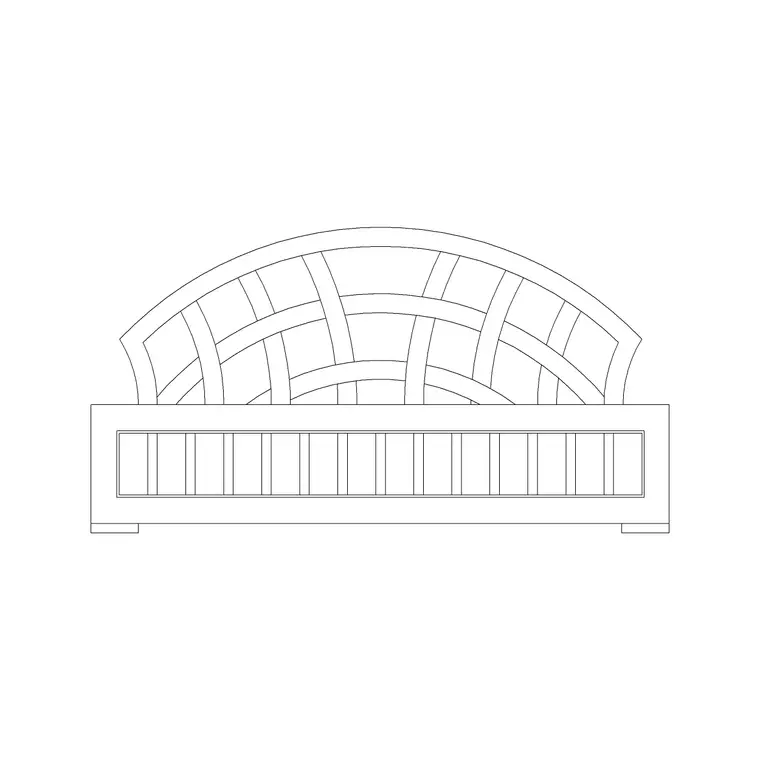
What a flower bed block is for
A flower bed block is the outline and edging of a planting bed — the shape that separates planted ground from paving or lawn — sometimes supplied empty so you can fill it with your own planting, and sometimes pre-filled with plant symbols. Both have their uses. An empty bed outline gives you a clean shape to drop trees, shrubs and groundcover into; a pre-filled bed reads instantly as planting on a quick concept plan.
On CADBlockDWG flower beds and planters live in the Outdoor category, alongside fences, swings and other garden elements. The Flower Bed Without Flower block is exactly the empty-bed case — the bed outline and edge without the planting — which is ideal when you want to set out the bed shape and then choose your own plants. Every file is a free DWG download with no account, and the licence covers commercial use, so beds you draw for a paid landscape job carry no strings.
Empty bed or pre-planted
Choosing between an empty and a planted bed depends on the stage of the drawing. Early on, when you are setting out the garden's geometry — the curves of the beds, the lawn shapes, the paths between them — an empty bed outline like Flower Bed Without Flower is what you want, because it lets you resolve the layout cleanly before committing to specific planting. The bed reads as a bed from its edge and hatch alone.
Later, when you develop the planting design, you fill the bed with plant and shrub blocks chosen for the scheme, or with a hatch that signals planting on a small-scale plan. Keeping the bed outline as a separate block from the planting inside it is good practice: you can adjust the bed shape without disturbing the plants, and swap the planting without redrawing the bed. The empty-bed block supports exactly that separation.
Downloading and placing the bed
Open the Outdoor category or search 'flower bed' / 'planter', click the block, and download. The DWG saves to your Downloads folder instantly and opens in AutoCAD, LT or any DWG reader.
Insert it with INSERT, snap the bed to its position against a path edge, a lawn line or a building face, and leave scale at 1 until you have measured it with DIST. Fix any units mismatch with INSUNITS or a SCALE of 0.001 / 1000. A bed outline is forgiving on exact size because you will usually adjust its shape to the space — but it still needs to come in at the right units so its proportions and any edging detail read correctly. If you need a different bed shape than the block provides, the outline is editable: stretch it, reshape the polyline, or trim it to the paving. One practical tip is to keep the bed edge as a closed polyline rather than separate line segments, because a closed boundary is what lets you hatch the bed and later clip planting neatly to its edge in a single operation.
Filling the bed with planting
With the bed outline placed, fill it the way a planting plan should read. For a developed landscape sheet, drop in tree, shrub and groundcover blocks from the planting families, varying species and size and rotating instances so the bed looks naturally planted rather than stamped. For a concept or location plan, a planting hatch inside the bed outline communicates the intent more economically and keeps the file light.
Clip or trim the planting to the bed edge so nothing spills onto the adjacent paving or lawn — the bed outline is your boundary. Because the bed and its planting are separate, you can dim the planting back for a hardscape sheet and bring it forward for the planting package, simply by managing layers. This is where keeping the empty-bed block separate from the plants pays off: the two are independently controllable, which is exactly what a clean landscape drawing needs.
Layering and a tidy result
Put the bed outlines on a dedicated planting or landscape layer, and the planting inside them on their own layer or small set of layers — beds, shrubs, trees, groundcover. That lets you produce a clean planting-only drawing, or a hardscape-only drawing with the planting dimmed, just by toggling layers. If the bed block was built on layer 0 it will inherit whichever layer you insert it onto, giving you that control for free.
After importing, run AUDIT and PURGE to strip any orphaned data, and treat the downloaded block as untrusted until you have measured it and checked its layers — the same hygiene you apply to any imported content. Because the bed is a block, you can copy a successful bed-and-planting arrangement to repeat it elsewhere in the garden in one move, or mirror it to suit a symmetrical layout. Downloaded from the Outdoor category, placed at the right units, and filled with your own planting, a free flower bed block gives you a clean, editable, honestly-planted bed that carries a landscape drawing from concept through to a construction-ready sheet.
Questions
Frequently asked
Where do I download free flower bed CAD blocks?+
From the Outdoor category on CADBlockDWG. The Flower Bed Without Flower block is a free DWG download with no signup, free for personal and commercial use.
Should I use an empty or pre-planted flower bed block?+
Use an empty bed outline (like Flower Bed Without Flower) to set out the bed shape early, then fill it with your own plant blocks or a planting hatch as the design develops.
How do I keep planting inside the bed outline?+
Trim or clip the plant blocks and hatch to the bed edge, and keep the bed outline and planting on separate layers so each can be controlled independently.
Free downloads from this article
Free CAD block library
Download the blocks from this article — free, no signup


